Physical Address
304 North Cardinal St.
Dorchester Center, MA 02124
Physical Address
304 North Cardinal St.
Dorchester Center, MA 02124

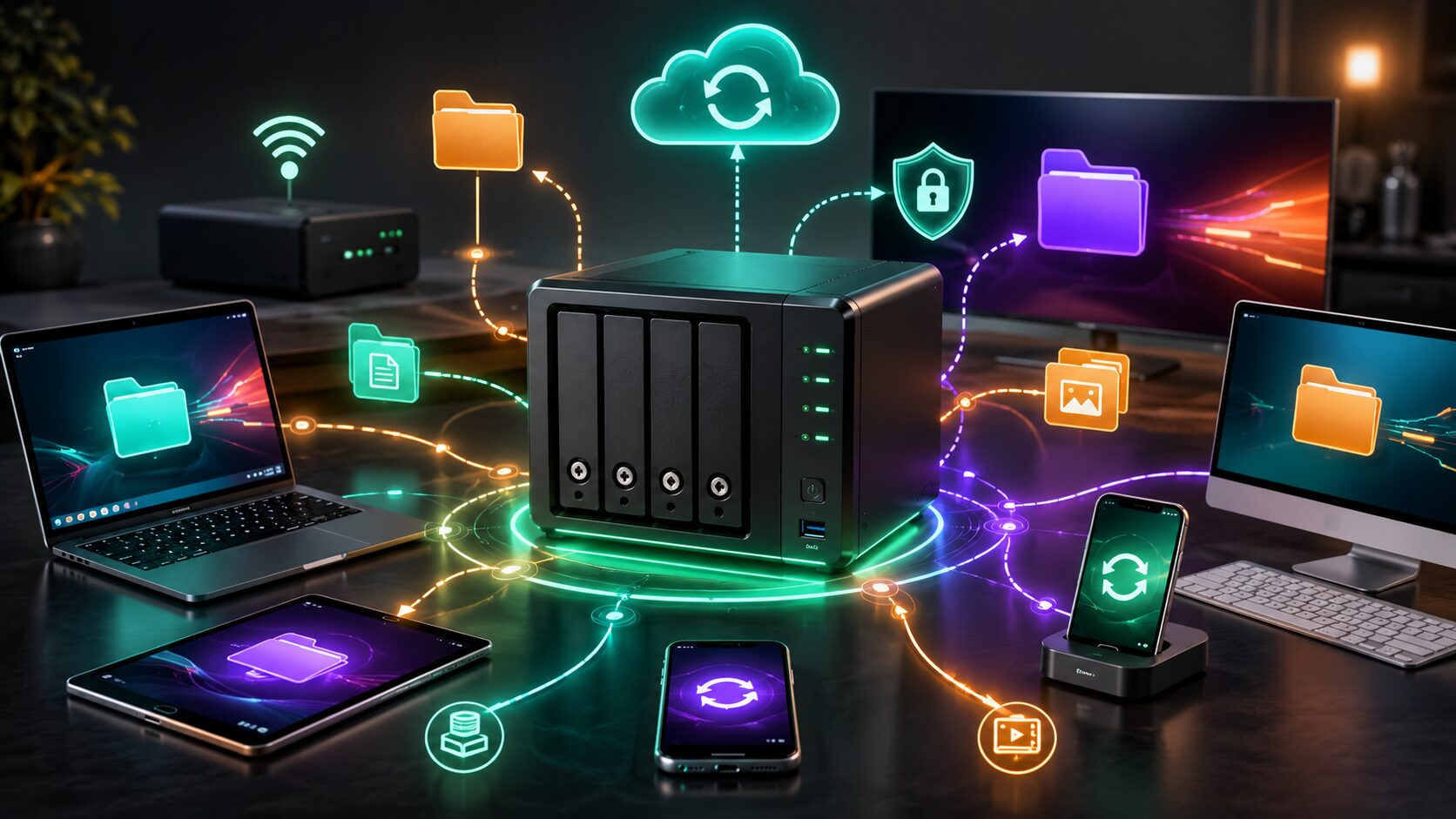
If you’ve ever run out of storage space on your laptop, struggled to share files between devices, or worried about losing important photos and documents, you’ve probably looked for a better storage solution. While external hard drives and cloud storage are popular choices, there’s another option that’s becoming increasingly common in homes and small businesses: Network Attached Storage (NAS).
A NAS device acts like your own private file server. It connects to your home or office network, allowing multiple devices to access, store, and back up files from one central location. Whether you’re saving family photos, streaming movies, sharing business documents, or creating automatic backups, a NAS can simplify file management.
In this guide, you’ll learn What Is a NAS, how it works, its key features, how it compares with other storage options, and whether it’s the right choice for your needs.
A Network Attached Storage (NAS) device is a dedicated storage system connected to your local network. Unlike an external hard drive that plugs into one computer, a NAS is available to multiple devices at the same time.
You can access files from:
Many NAS devices also allow secure remote access, making your files available even when you’re away from home.
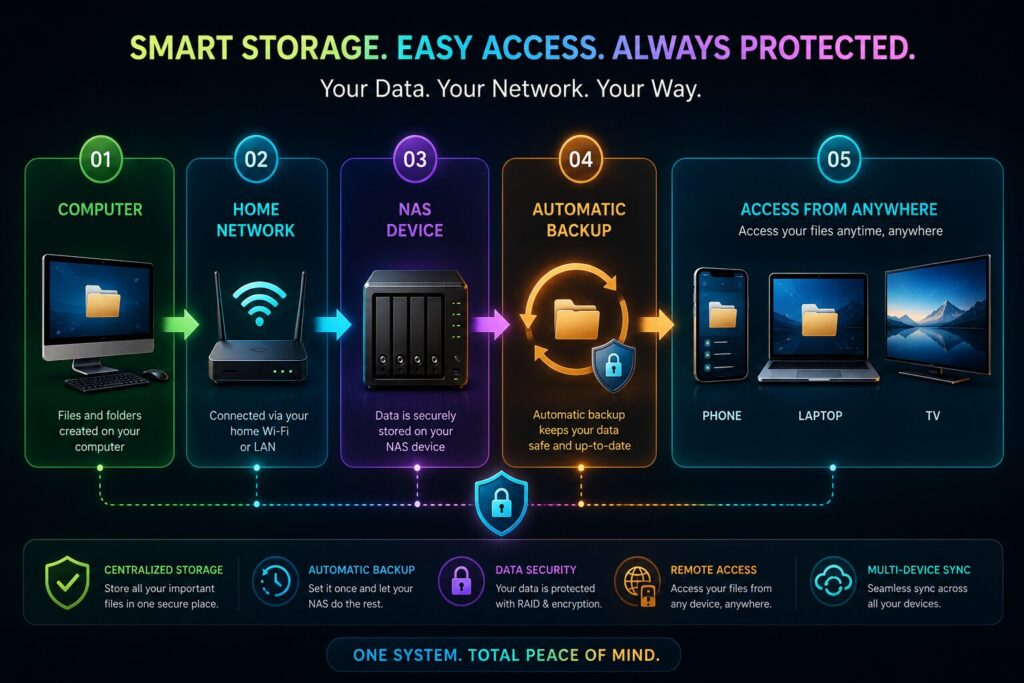
A NAS connects directly to your router or network switch.
The basic process is simple:
Instead of storing copies of the same files on multiple devices, everyone can work from a single, centralized storage location.
Most modern NAS systems offer much more than basic file storage.
Common features include:
These features make a NAS useful for both personal and professional use.
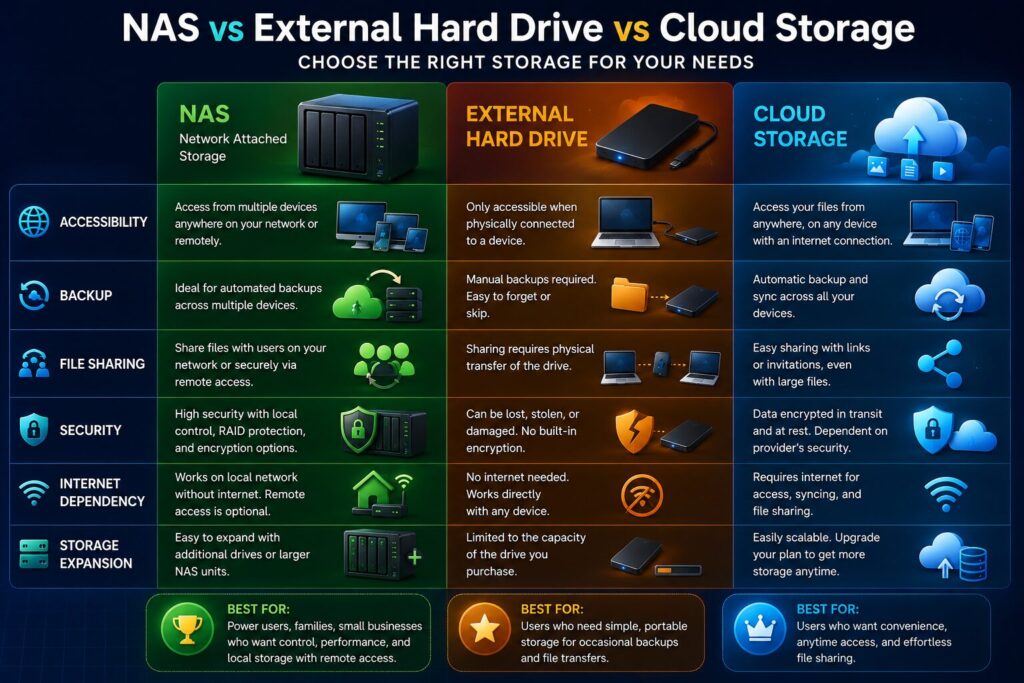
| Feature | NAS | External Hard Drive | Cloud Storage |
|---|---|---|---|
| Multiple Device Access | ✅ | ❌ | ✅ |
| Automatic Backup | ✅ | Limited | ✅ |
| Internet Required | Only for Remote Access | ❌ | ✅ |
| Expandable Storage | ✅ | Limited | Depends on Plan |
| Monthly Subscription | ❌ | ❌ | Usually Yes |
| Media Streaming | ✅ | ❌ | Limited |
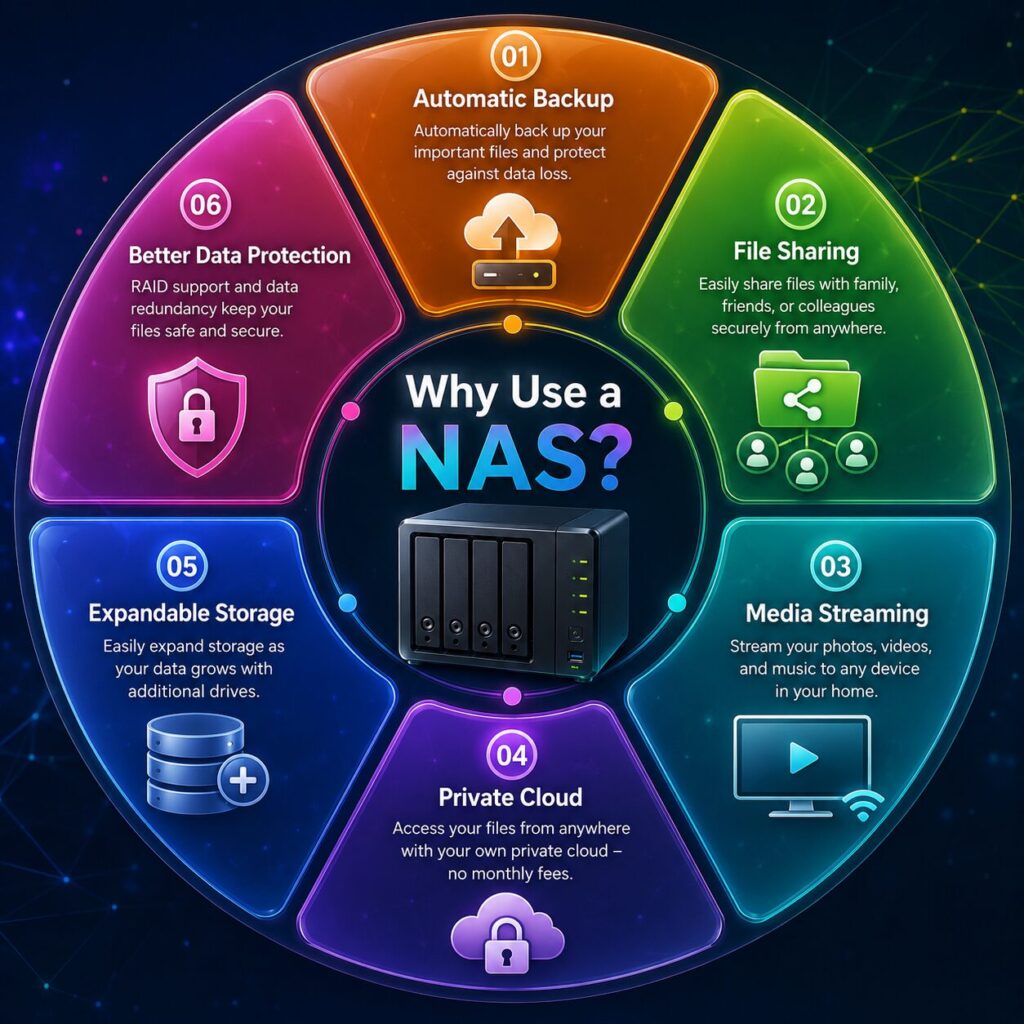
A NAS offers much more than additional storage space. It acts as a central hub for your files and can simplify the way you store, share, and protect your data.
Instead of saving files across multiple computers, phones, and external drives, you can keep everything in one organized location.
This makes it much easier to find documents, photos, videos, and project files.
Many NAS devices can automatically back up:
Automatic backups reduce the risk of losing important data because of accidental deletion or hardware failure.
A NAS can work like your own personal cloud service.
Instead of uploading files to a third-party provider, you can securely access your documents through your own internet connection.
This gives you greater control over your data and eliminates monthly storage fees for many users.
Many NAS devices can stream movies, music, and photos directly to:
This makes a NAS a popular choice for home entertainment systems.
Families and small businesses can create separate user accounts with different permissions.
For example:
Network Attached Storage is used in many different environments.
Families often use a NAS to:
Businesses use NAS systems for:
Creative professionals work with very large files.
A NAS provides:
Students can keep assignments, research papers, presentations, and lecture recordings organized in one secure location.
Not every NAS is designed for the same type of user.
Before buying one, consider the following factors.
Single-bay NAS devices are suitable for basic storage.
Two-bay or four-bay models provide better flexibility and support RAID for improved data protection.
Estimate how much storage you’ll need over the next few years instead of buying only for your current needs.
More powerful NAS devices handle:
more efficiently.
Look for automatic backup support for your computers and mobile devices.
Good mobile applications make it easier to upload photos, stream media, and access documents while traveling.
Since a NAS stores valuable information, protecting it is essential.
Follow these best practices:
These simple steps greatly improve the security of your stored data.
Although a NAS offers many advantages, it’s not the perfect solution for everyone.
A NAS device usually costs more upfront than a basic external hard drive.
You’ll also need to purchase storage drives separately for many models.
Initial configuration takes longer than simply plugging in a USB drive.
Fortunately, modern NAS software has become much easier for beginners.
As with any storage device, hard drives may eventually fail.
Using RAID and regular backups helps reduce this risk.
When accessing files away from home, your upload speed can affect performance.
Many first-time NAS users make avoidable mistakes.
Don’t:
A properly configured NAS is much safer and more reliable.
A NAS (Network Attached Storage) is a dedicated storage device connected to your network that allows multiple devices to store and access files from one central location.
A NAS offers file sharing, automatic backups, remote access, and multiple-user support, making it more versatile than a standard external hard drive.
Yes. A NAS works perfectly on your local home or office network without an internet connection. Internet access is only needed for remote access and some online features.
Modern NAS devices include setup wizards and mobile apps that make installation much easier than in the past.
Yes. Many NAS systems support media streaming to smart TVs, smartphones, tablets, and media players.
Absolutely. Many small businesses use NAS devices for shared storage, backups, collaboration, and surveillance recording.
No. RAID improves availability if a drive fails, but it does not protect against accidental deletion, malware, or disasters. Regular backups are still essential.
A NAS is an excellent choice for families, photographers, videographers, freelancers, and businesses that need centralized storage, reliable backups, and easy file sharing.
Understanding What Is a NAS can help you decide whether it’s the right storage solution for your home or business. Unlike a simple external hard drive, a NAS provides centralized storage, automatic backups, secure file sharing, media streaming, and remote access—all from a single device connected to your network.
While the initial investment may be higher, the long-term benefits often outweigh the cost, especially for users with multiple devices or large collections of photos, videos, and documents. With proper setup, regular software updates, and a solid backup strategy, a NAS can become one of the most valuable pieces of technology in your digital workspace.
Whether you’re protecting family memories, managing creative projects, or running a small business, a NAS offers a flexible and reliable way to keep your files safe and always within reach.
This article is published by Tivorenza.com to help readers understand technology in a simple and practical way. We regularly update our technology guides to ensure they remain accurate, beginner-friendly, and practical for students, professionals, freelancers, and everyday internet users.

