Physical Address
304 North Cardinal St.
Dorchester Center, MA 02124
Physical Address
304 North Cardinal St.
Dorchester Center, MA 02124

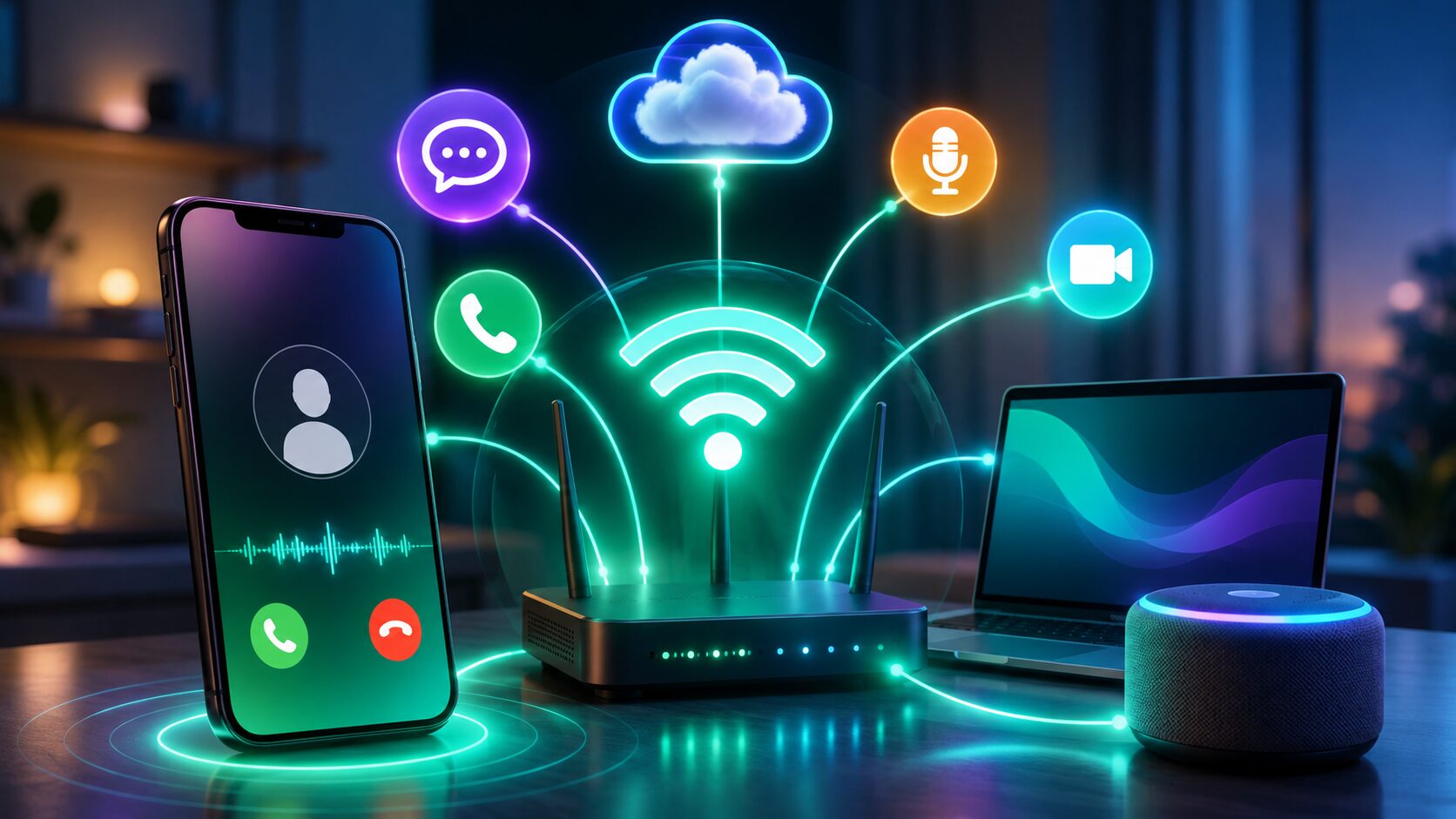
Have you ever been in your home, office, or basement where your mobile signal suddenly drops to one or two bars? Poor cellular coverage can lead to missed calls, broken conversations, and frustrating call quality. Fortunately, many modern smartphones include a feature that solves this problem without requiring a separate app or new phone number.
That’s where Wi-Fi Calling comes in.
Instead of routing your voice call through a nearby cellular tower, Wi-Fi Calling uses your Wi-Fi internet connection to place and receive calls. If your internet connection is stable, you can often enjoy clearer calls in places where mobile coverage is weak.
In this guide, you’ll learn What Is Wi-Fi Calling, how it works, its biggest benefits, how it compares with traditional cellular calling, and when you should enable it on your smartphone.
Wi-Fi Calling is a feature built into many Android phones and iPhones that allows voice calls and text messages to be transmitted over a Wi-Fi network instead of relying only on a cellular network.
Unlike internet calling apps, Wi-Fi Calling usually works directly from your phone’s built-in dialer. You continue using your existing mobile number, contacts, and calling interface.
This means you don’t need to install another communication app just to make better-quality calls in areas with poor signal.
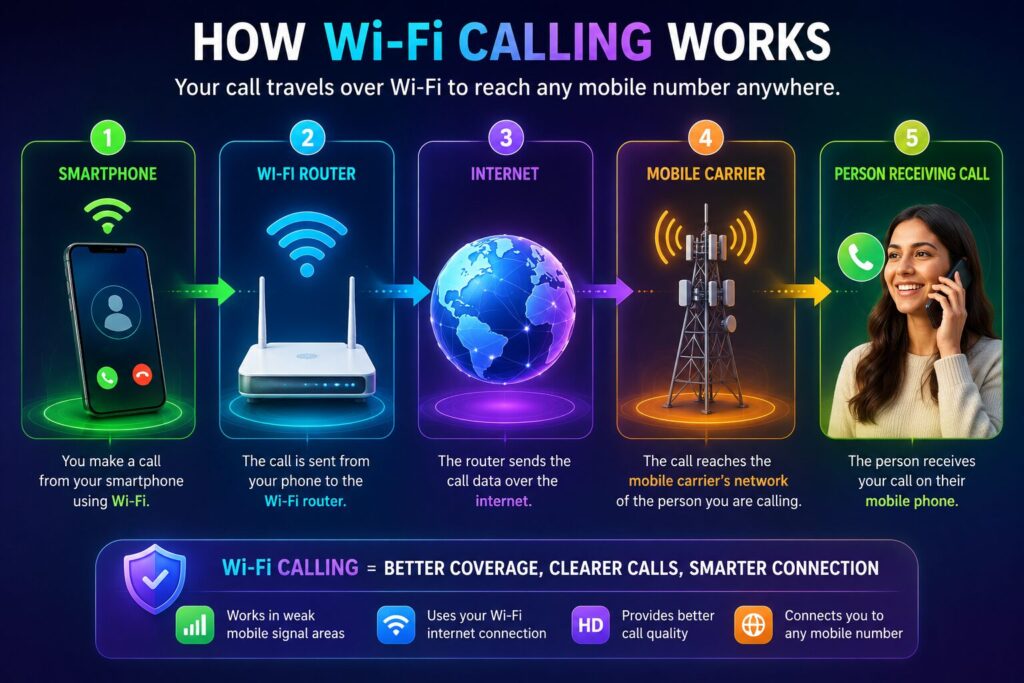
The technology behind Wi-Fi Calling is surprisingly simple.
Your phone connects to a trusted Wi-Fi network at home, work, or another location.
Once the feature is enabled in your phone’s settings and supported by your mobile carrier, the device can automatically switch to Wi-Fi for calls whenever cellular coverage is weak.
Your voice is securely transmitted through your internet connection to your mobile carrier’s network, which then connects the call to the recipient.
Many smartphones can switch seamlessly between Wi-Fi Calling and the cellular network as signal conditions change, helping maintain call continuity.
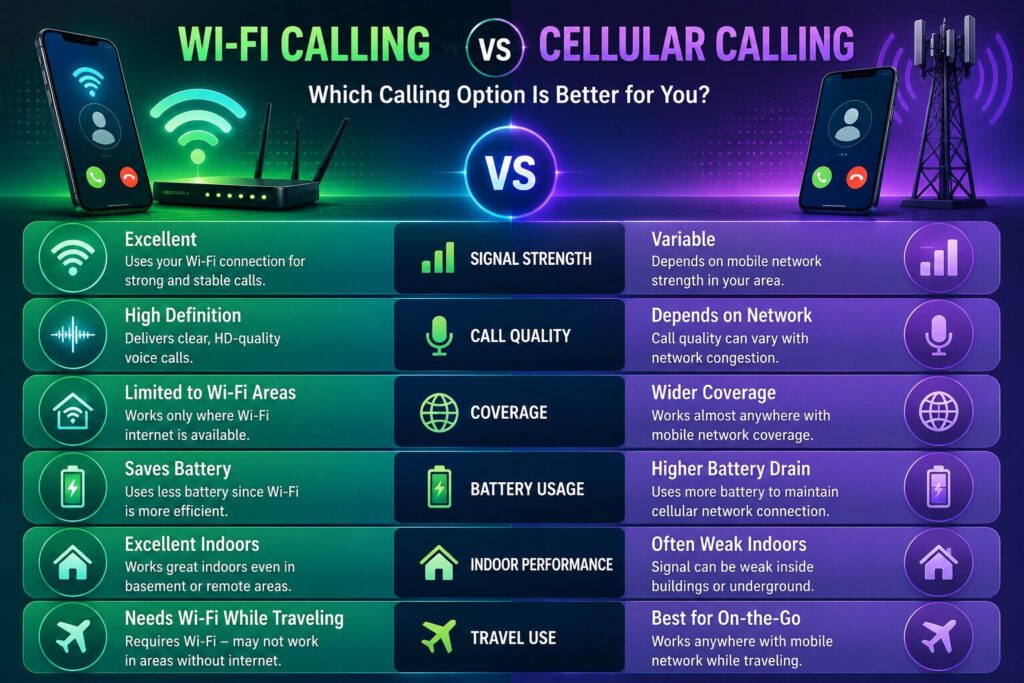
| Feature | Wi-Fi Calling | Cellular Calling |
|---|---|---|
| Uses Wi-Fi Network | ✅ | ❌ |
| Uses Mobile Towers | Only When Needed | ✅ |
| Indoor Call Quality | Excellent | Depends on Signal |
| Requires Internet | Yes | No |
| Existing Phone Number | ✅ | ✅ |
| Extra Calling App | ❌ | ❌ |
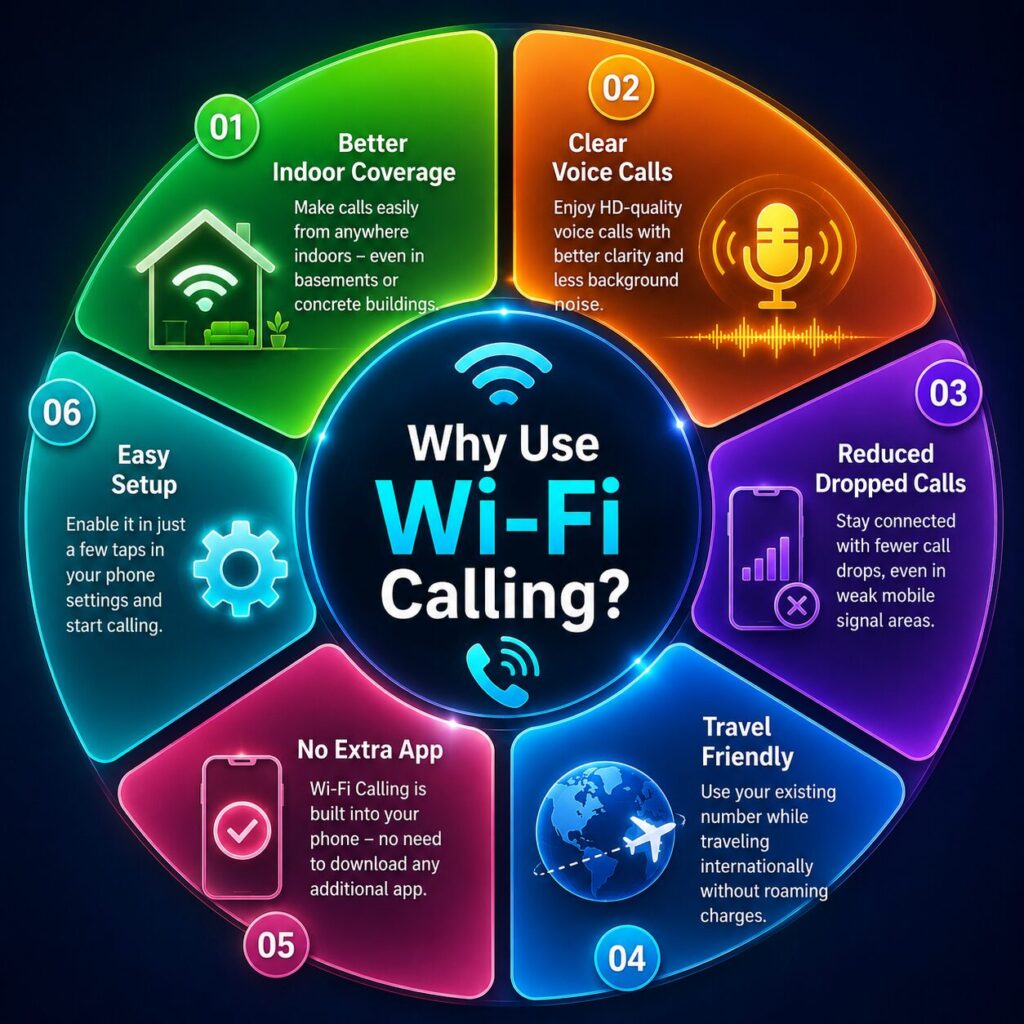
Most smartphones that support Wi-Fi Calling offer several useful features:
Buildings with thick walls often block mobile signals. Wi-Fi Calling helps maintain clear conversations where cellular reception is poor.
A reliable Wi-Fi connection can reduce interruptions caused by weak network coverage.
Many users experience clearer conversations because voice data travels through a stable broadband connection.
When supported by your carrier, Wi-Fi Calling can help you stay connected in places where cellular coverage is limited.
Wi-Fi Calling is useful in many everyday situations.
Many homes have areas where mobile signals are weak, especially in basements or rooms with thick concrete walls.
If your home Wi-Fi connection is stable, enabling Wi-Fi Calling can noticeably improve call quality.
Large office buildings often interfere with cellular signals.
Using Wi-Fi Calling allows employees to stay connected without depending entirely on nearby mobile towers.
Hotels, airports, and public buildings often provide reliable Wi-Fi.
In places where mobile reception is poor, Wi-Fi Calling can help you continue making and receiving calls using your existing phone number.
Some rural locations have limited cellular coverage but offer broadband internet.
In these situations, Wi-Fi Calling can provide more consistent communication.
The exact steps vary slightly depending on your smartphone and mobile carrier, but the general process is straightforward.
Once activated, your phone will automatically use Wi-Fi Calling whenever appropriate.
Not every device supports this feature.
Support depends on three factors:
Most modern Android phones and iPhones include Wi-Fi Calling, but older devices may not.
Before enabling it, check your carrier’s compatibility list or your phone’s settings.
Although Wi-Fi Calling is extremely useful, there are a few limitations to understand.
Poor Wi-Fi quality can result in lower call quality or dropped calls.
Even if your smartphone supports Wi-Fi Calling, your mobile network provider must also offer the service.
Calls made over crowded public Wi-Fi may not always provide the best experience due to network congestion.
Emergency calling behavior may differ depending on your location and carrier. It’s important to review your carrier’s guidance regarding emergency services when using Wi-Fi Calling.
Many users experience problems because of simple setup mistakes.
Avoid these common issues:
Keeping both your phone software and carrier settings updated can help ensure the best experience.
Wi-Fi Calling is a feature that allows compatible smartphones to make and receive calls over a Wi-Fi network instead of relying only on a cellular network.
No. Wi-Fi Calling usually works through your phone’s built-in calling application.
In many cases, Wi-Fi Calling is included with your mobile plan, but charges and availability depend on your carrier. Check your provider’s terms for details.
Yes. If your Wi-Fi connection is stable, calls can sound clearer than those made over a weak cellular signal.
Yes. You can usually make and receive calls and, on supported networks, send and receive text messages using the same phone number.
No. It uses your Wi-Fi internet connection rather than your mobile data connection for supported calls.
Many carriers support Wi-Fi Calling during travel, but policies vary. Check with your carrier before relying on it abroad.
If your carrier and device support it, leaving Wi-Fi Calling enabled is generally a good idea because your phone can automatically use it when it offers a better connection.
Understanding What Is Wi-Fi Calling can help you improve call quality without changing your phone number or installing additional apps. By using a reliable Wi-Fi connection, this feature allows you to make and receive calls in places where cellular coverage is weak, such as homes, offices, hotels, and other indoor environments.
For many users, Wi-Fi Calling provides clearer voice quality, fewer dropped calls, and a more dependable communication experience. As long as your smartphone and mobile carrier support the feature, it’s worth enabling and testing on your preferred Wi-Fi network.
Whether you’re working from home, traveling, or simply dealing with poor indoor reception, Wi-Fi Calling is a simple feature that can make everyday communication much more reliable.
This article is published by Tivorenza.com to help readers understand technology in a simple and practical way. We regularly update our internet guides to ensure they remain accurate, beginner-friendly, and useful for students, professionals, and everyday internet users.

