Physical Address
304 North Cardinal St.
Dorchester Center, MA 02124
Physical Address
304 North Cardinal St.
Dorchester Center, MA 02124

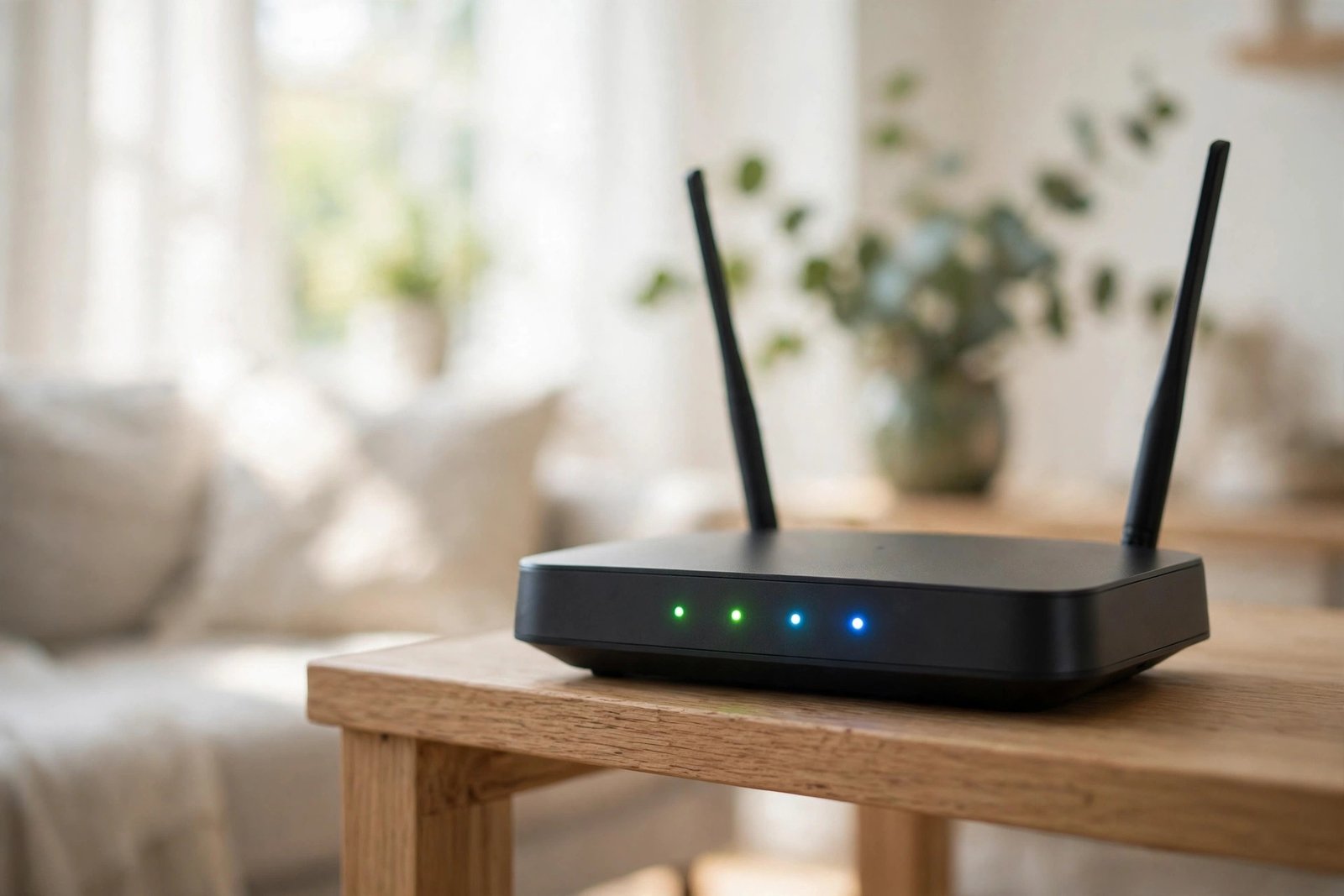
Wi-Fi too slow at home? Learn how to fix slow Wi-Fi with simple beginner steps — router restarts, better placement, and easy tweaks. No tech skills needed.
Your video keeps buffering. The spinning circle appears right at the exciting part. Video calls freeze, and your face gets stuck in a funny expression. Meanwhile, someone else in the house says their internet is “fine.” Sound familiar? The good news: you can fix slow Wi-Fi yourself with a few simple steps.
Slow Wi-Fi is one of the most common tech frustrations, and the good news is that most causes are simple. You do not need to be technical, and you usually do not need to buy anything. This guide will help you fix slow Wi-Fi at home with easy steps anyone can follow.
Before fixing anything, let us figure out where the slowness lives. There are two separate things: your internet connection (what comes into your house from your provider) and your Wi-Fi (the wireless signal your router spreads around your home).
Do a quick test. Stand right next to your router with your phone and open a speed test website like fast.com or speedtest.net. Note the speed. Then walk to the room where the Wi-Fi feels slow and test again. If the speed is good near the router but bad far away, your Wi-Fi signal is the problem, and this guide will help. If the speed is bad even next to the router, the issue may be with your internet provider, and you should call them.
Also try one device at a time. If only one phone is slow but everything else is fine, the problem is probably that device, not your Wi-Fi.
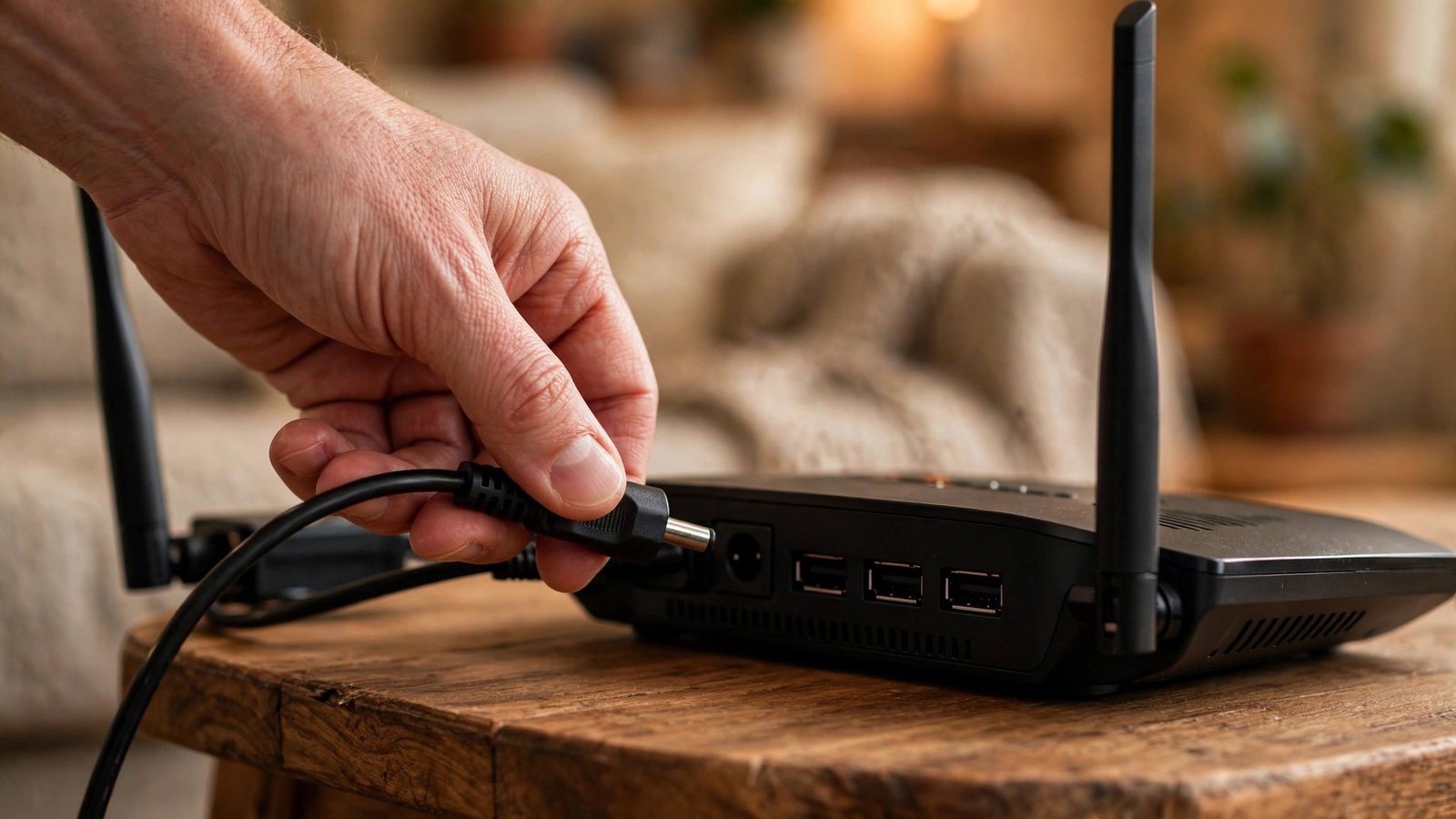
Just like computers, routers get tired. They run for months without a break, and small glitches build up. A restart clears them out and often fixes slowness instantly.
Here is the right way to do it:
Do not just press the power button quickly on and off. A proper unplug-and-wait restart works much better. Try to do this once a month. Many mysterious Wi-Fi problems disappear with this one step.
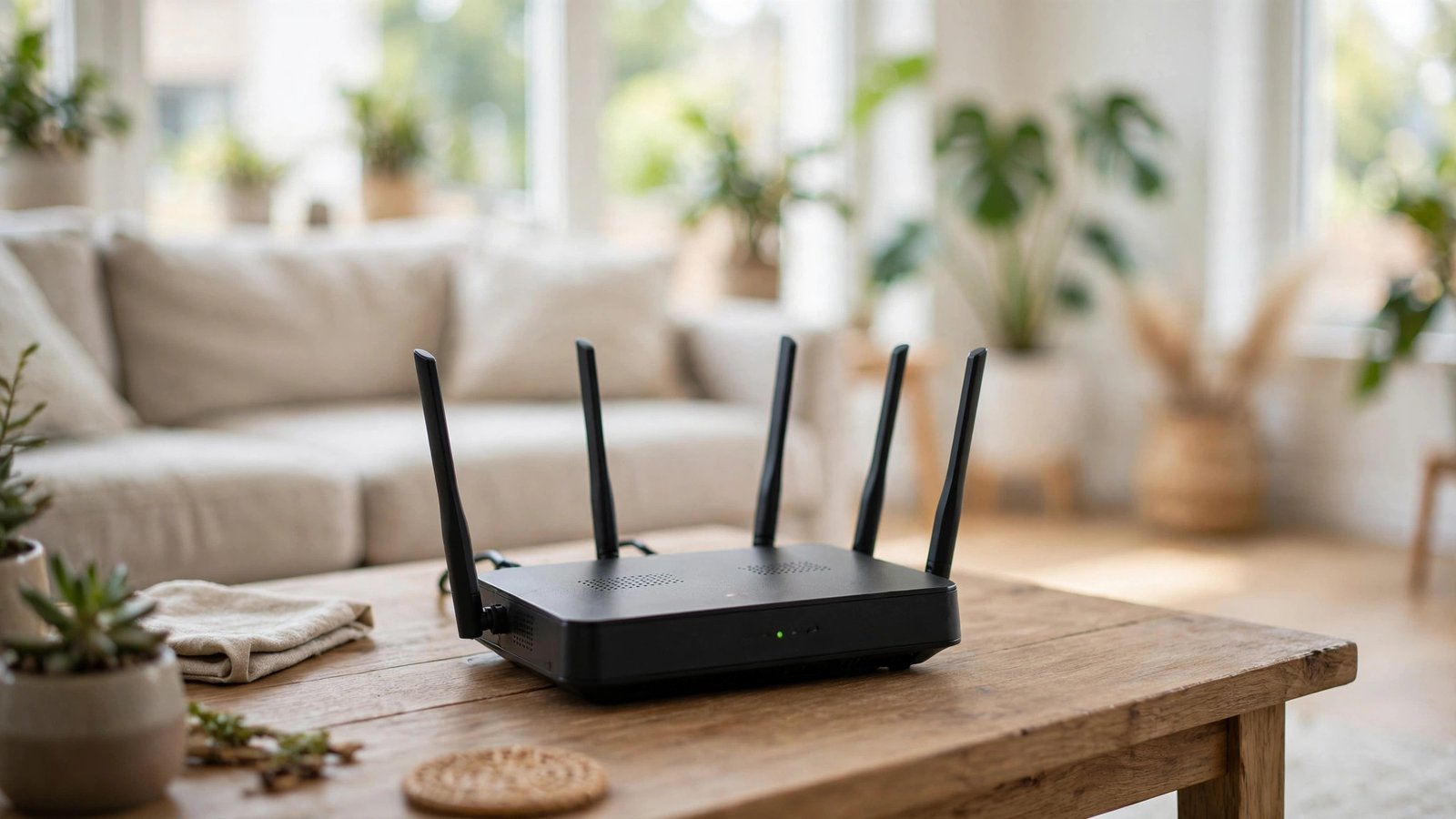
Where your router sits matters more than most people think. Wi-Fi signals spread out in all directions, and walls, metal, and water weaken them.
Follow these simple placement rules:
Moving a router just a few feet, from inside a cabinet to the top of a shelf, can make a surprising difference.
Every device connected to your Wi-Fi takes a small share of the speed. Phones, laptops, TVs, smart speakers: they add up. You do not need to disconnect everything, but a quick tidy-up helps.
Turn off Wi-Fi on devices nobody is using right now, like an old tablet or a second phone. Also close apps that stream in the background. And here is a big one: pause any large downloads or cloud backups while you need speed for a video call or movie. A phone quietly uploading hundreds of photos can slow down the whole house.
Sometimes slow Wi-Fi has an unexpected cause: neighbors or strangers using your connection. If you have ever shared your Wi-Fi password with guests or if it is still the default one that came with the router, it is wise to change it.
To change it, you need to open your router’s settings page. This is usually done by typing an address like 192.168.1.1 or 192.168.0.1 into your browser’s address bar. The exact address and the login details are often printed on a sticker on the router itself. Once logged in, look for Wireless Settings or Wi-Fi Settings, and set a new, strong password.
Pick something long that you can remember, and share it only with people you trust. After changing the password, reconnect your own devices with the new one.
Many modern routers broadcast two Wi-Fi networks with similar names, like “MyHome” and “MyHome_5G.” These are two different “bands”: 2.4 GHz and 5 GHz. Think of them as two roads to the same place.
The 2.4 GHz road reaches farther and passes through walls better, but it is slower and more crowded. The 5 GHz road is much faster, but its range is shorter. If you are in the same room as the router or nearby, connect to the 5 GHz network for the best speed. If you are far away or behind thick walls, the 2.4 GHz network may actually work better.
On your phone or laptop, open the Wi-Fi list and look for the version of your network name with 5G in it. Try it and see if things feel snappier.

Routers have their own internal software, called firmware. Makers release updates that fix bugs and improve speed and security. Many people never update it.
Log in to your router’s settings page (the same 192.168.1.1-style address you used earlier). Look for a section called Firmware Update, Administration, or System. If an update is available, install it. Do not unplug the router while it updates. Some newer routers update themselves automatically, in which case you have nothing to do.
If your router is very old, say 7 or 8 years, it may simply be too outdated for today’s speeds. In that case, asking your internet provider for a newer model, or buying a modern one, can be a genuine fix rather than a luxury.
If you have tried everything above and the internet is still slow even right next to the router, the problem is likely with the connection coming into your home. It is time to call your provider.
Before you call, gather three things: your account details, the speed test results from next to the router, and a note of what you already tried. This saves a lot of time, because support will ask. Ask them to check your line for faults and confirm you are getting the speed you pay for. Sometimes the fix is on their end and takes them only a few minutes.
It depends on your plan and how many people use it. For one or two people browsing and watching videos, 25 to 50 Mbps is usually comfortable. For a family with several people streaming and working from home, 100 Mbps or more feels much better. Your provider can tell you what speed your plan includes.
Sometimes, but not always. Extenders can help in large homes with dead spots, but a poorly placed extender can make things worse. Try the free steps in this guide first, especially router placement. Only consider an extender if one specific far room still struggles.
Yes, completely safe. Unplugging the power cable for 30 seconds is the standard way to restart a router. Just avoid unplugging it in the middle of a firmware update.
Evenings are peak hours: everyone in your neighborhood is online at once, streaming and scrolling. Some slowdown at peak times is normal. If it is severe every evening, talk to your provider about it.
It is not necessary. A strong password protects you just fine. Hiding the network name adds hassle for you every time you connect a new device, without adding real security.
Slow Wi-Fi feels like a mystery, but it is usually caused by simple things: a tired router that needs a restart, a bad spot behind the TV, or too many devices sharing the load. Work through the steps in this guide one by one, and there is a very good chance your Wi-Fi will feel brand new.
Start with the restart. It takes one minute, and you might not need any other step at all.

