Physical Address
304 North Cardinal St.
Dorchester Center, MA 02124
Physical Address
304 North Cardinal St.
Dorchester Center, MA 02124

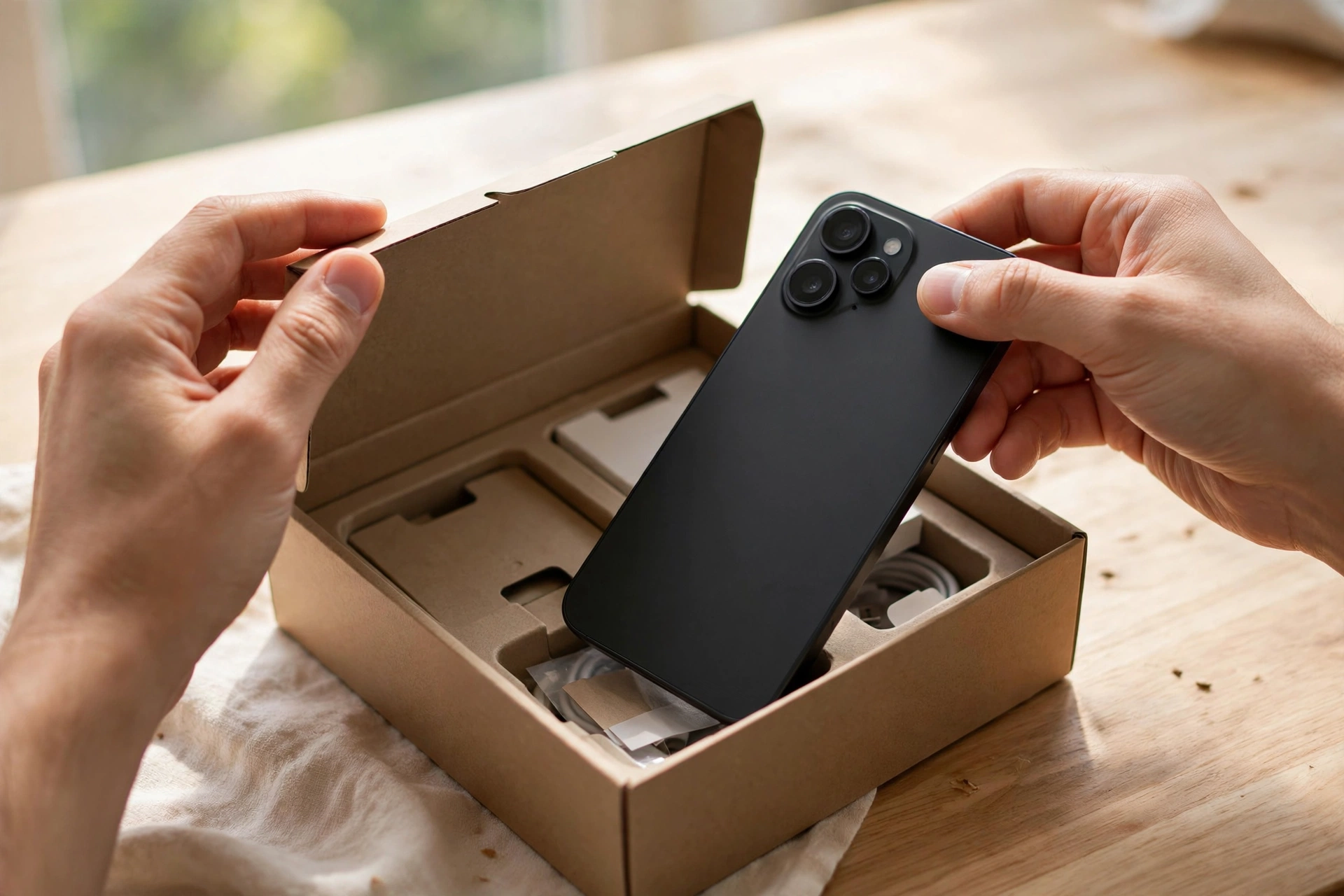
A new phone is exciting — and slightly overwhelming. This 20-minute beginner setup walks you through data transfer, security settings and the apps worth installing first.
There is a special kind of nervous excitement in holding a brand-new phone. The screen is spotless, everything feels fast — and then a small wave of panic sets in: what do I press first, and in what order, so I do not wipe something important?
Setting up a new smartphone is much simpler than it looks. All you need is about twenty minutes, a little patience, and this guide. We will go in the right order: moving your stuff from the old phone, getting connected, protecting the device, and adding only the apps that matter. By the end, your new phone will feel like yours.
Before you tap anything, it helps to see the next twenty minutes: first, gather what you need; then move photos, messages and apps from your old phone; then connect to Wi-Fi and sign in to your account; then make the phone secure; finally, install only the apps you will truly use. That is the whole plan.
Keep your old phone nearby and plugged into its charger, since transferring data drains the battery on both devices. Make sure you know the password for your main account, because you will sign in with it on the new phone. Do the setup near your home Wi-Fi so the transfer and updates do not eat into your mobile data plan.
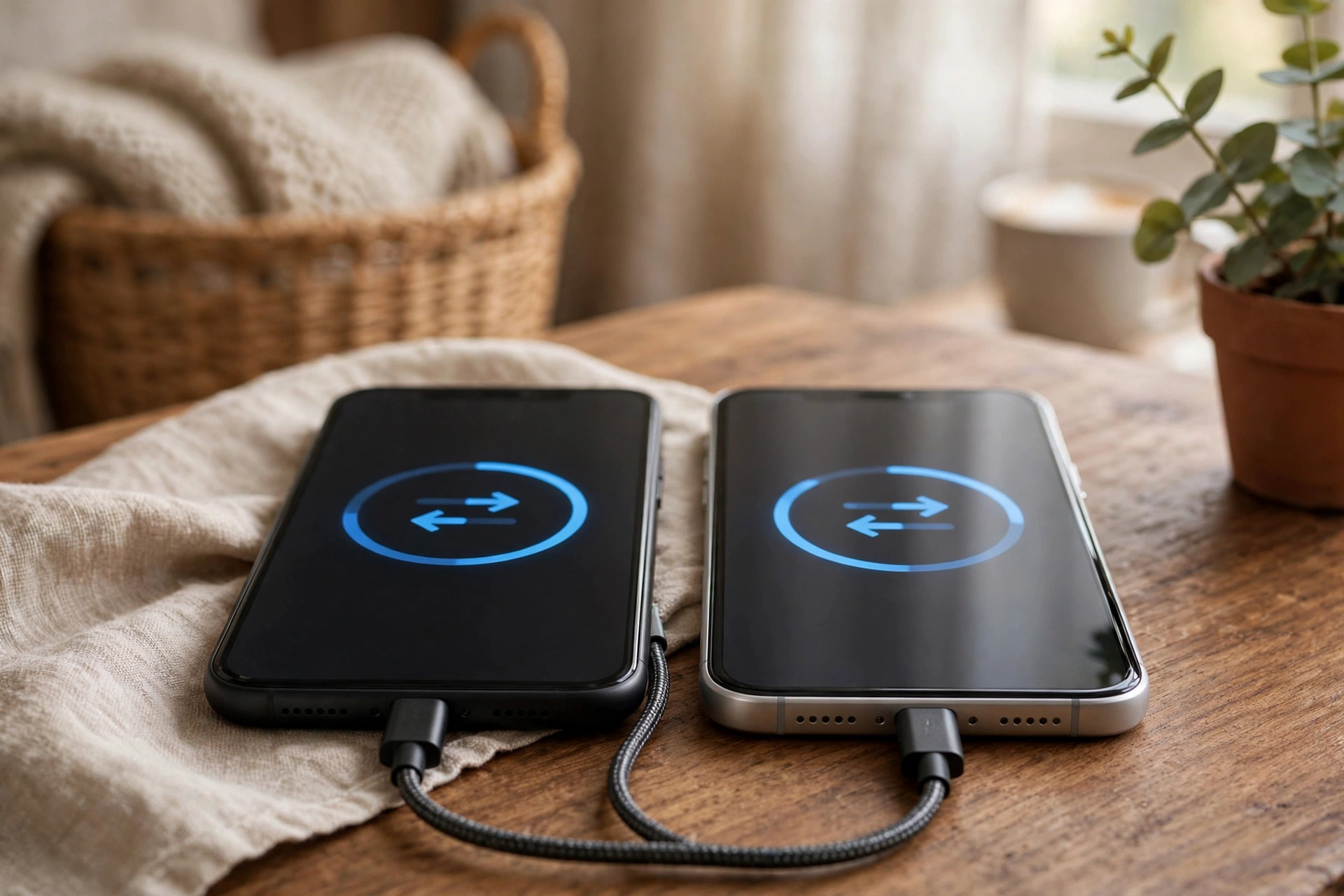
The single most valuable step is moving your existing stuff: photos, contacts, messages and the apps you already own. Both major phone platforms include a built-in transfer tool that runs during first-time setup. When the new phone asks whether to transfer data from an old device, say yes.
The tool may connect the two devices wirelessly or with a cable. Follow the prompts on both phones and keep them close together until it finishes. Your photos, contacts, conversations, saved Wi-Fi networks and most apps will move across. A few app logins may need to be entered again — that is normal.
Run the transfer before downloading apps or rearranging the home screen. People who skip ahead often end up with duplicated contacts and a half-moved photo library. Let the automated tool finish its job first, then make the phone yours.
With your data moved over, join your home Wi-Fi if you have not already, then sign in to your main account when prompted. This account is the key to everything: it backs up your data, lets you reinstall apps you own for free, and is what you will use to find a lost phone.
Next, check for software updates. A brand-new phone may have been sitting in its box for weeks, missing fixes that improve security and smooth out rough edges. Open Settings, find the software update section, and install anything waiting. It sounds boring, but it protects you more than almost anything else on this list.
While you are there, turn on automatic updates and automatic backup to your account. The phone will then handle future fixes by itself, usually overnight, and your photos and settings will be safely stored. If the phone is ever lost or replaced, everything can be restored in minutes.
Set a strong screen lock right away. A six-digit PIN is a solid choice — meaningfully harder to guess than a four-digit one. If the phone offers a fingerprint or face option, turn that on too. It is not just convenient: it means you will actually keep the phone locked instead of leaving it open because typing the PIN felt like a chore.
Then switch on the feature that lets you locate a lost phone remotely, usually tied to your account. If your phone ever slips out of your pocket, you can see where it is on a map from any web browser. It takes seconds to enable and you will be grateful on the one day you need it.
One last small win: check what appears on your lock screen. Many phones can hide the contents of notifications until the phone is unlocked, so nobody standing behind you in a queue can read your messages or login codes.
Here is a mistake nearly everyone makes: installing every app they have ever heard of, just in case. Two weeks later the home screen is a graveyard of icons opened once and never again, each taking up space and occasionally demanding attention. Start small instead.
Begin with what you genuinely need each day: messaging, email, your bank, maps, a music or podcast app, and whatever your work requires. Install them from the official app store — apps from random websites can carry malicious software. If the transfer tool already brought some over, just open each one and sign in.
For everything else, wait until you actually need it. Grabbing an app from the store takes less than a minute when the moment comes. This habit keeps your phone fast, your battery healthier and your home screen calm. You can always add more later — and removing unused apps is free, easy and oddly satisfying.

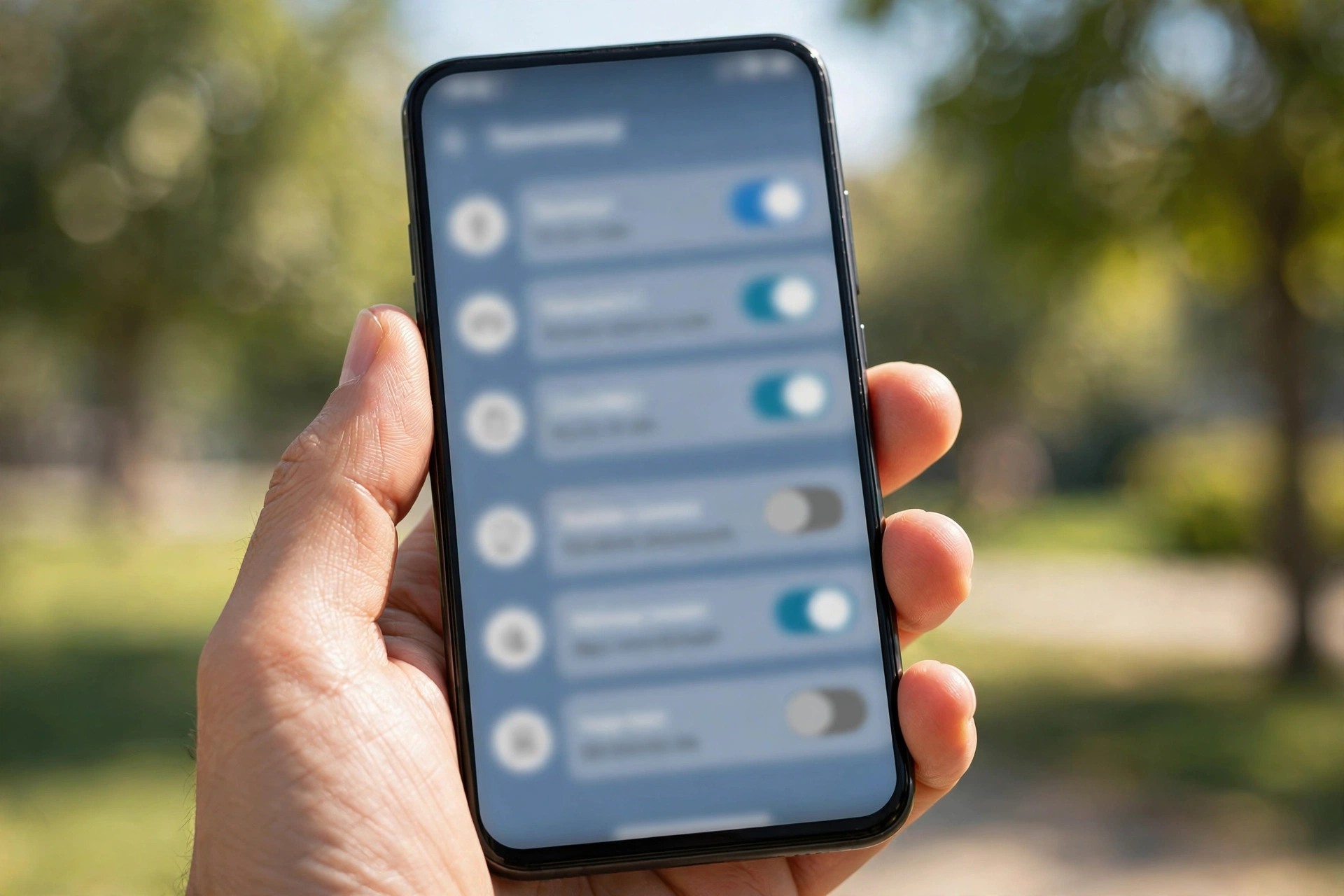
This three-minute step is one of the highest-value things in this guide: reviewing app permissions. Every app asks for access to certain things — location, camera, contacts, microphone. Many requests are legitimate, but some are broader than they need to be, and a quick review puts you back in control.
Open Settings, find the privacy or app permissions section, and scroll through. You will probably spot a weather app tracking your location around the clock, or a game that can browse your photos. For most apps, changing “always allow” to “allow only while using the app” is the right call. Your flashlight does not need your contacts.
Do not stress about getting it perfect. The goal is simple awareness of which apps can see your location or your photos. If an app misbehaves after a change, you can flip the switch back in seconds.
Now the pleasant part: small tweaks that make the phone comfortable from day one. Adjust display brightness and text size until reading feels effortless — nobody needs to squint to prove they can. Switch on the night or evening display mode if offered; it warms screen colors after dark and many people find it easier on the eyes.
Then take a minute with sounds and notifications. Decide which apps may interrupt you and which may not. Social apps love to ping constantly, and a phone that buzzes every few minutes is a phone you will resent. Silence the noisy ones now, before you stop noticing that they are draining your attention.
Finally, organize the home screen lightly. Put your most-used apps on the first screen and group the rest into a folder or two. You will learn what you actually use in the first week — it is easier to organize once than to reorganize three times.
Can I skip the transfer and start fresh? Absolutely — many people enjoy the clean-slate feeling. But still sign in to your old account on the new phone first, so your contacts and apps you own come along. Leave the rest behind.
What if the transfer gets interrupted halfway? It happens, usually because a battery died or the phones got separated. Just start the transfer tool again; it is designed to pick up where it left off. Keep both phones charged and close together on the second attempt.
Should I remove my old phone from my account? Not right away. Keep it signed in for a week or two as a safety net while you confirm everything moved across. Once you are confident, sign out — especially if you plan to sell the old phone or hand it down.
The twenty-minute setup gets your phone working, secure and clean — which is most of the job. The finishing touches are what turn a correctly configured device into a phone that feels like yours. This weekend, do three small things.
First, pick a wallpaper that makes you smile when you unlock the phone. Second, add your emergency contact details to the lock screen or medical ID section, so a good stranger can reach someone who cares about you if you ever need help. Third, take a photo and check that automatic backup captured it — twenty minutes of setup means nothing if the backup is silently switched off.
That is it. Your memories are moved, your accounts are connected, your data is protected, and your home screen is not a mess. Enjoy the new-phone feeling — you earned it the smart way.

