Physical Address
304 North Cardinal St.
Dorchester Center, MA 02124
Physical Address
304 North Cardinal St.
Dorchester Center, MA 02124

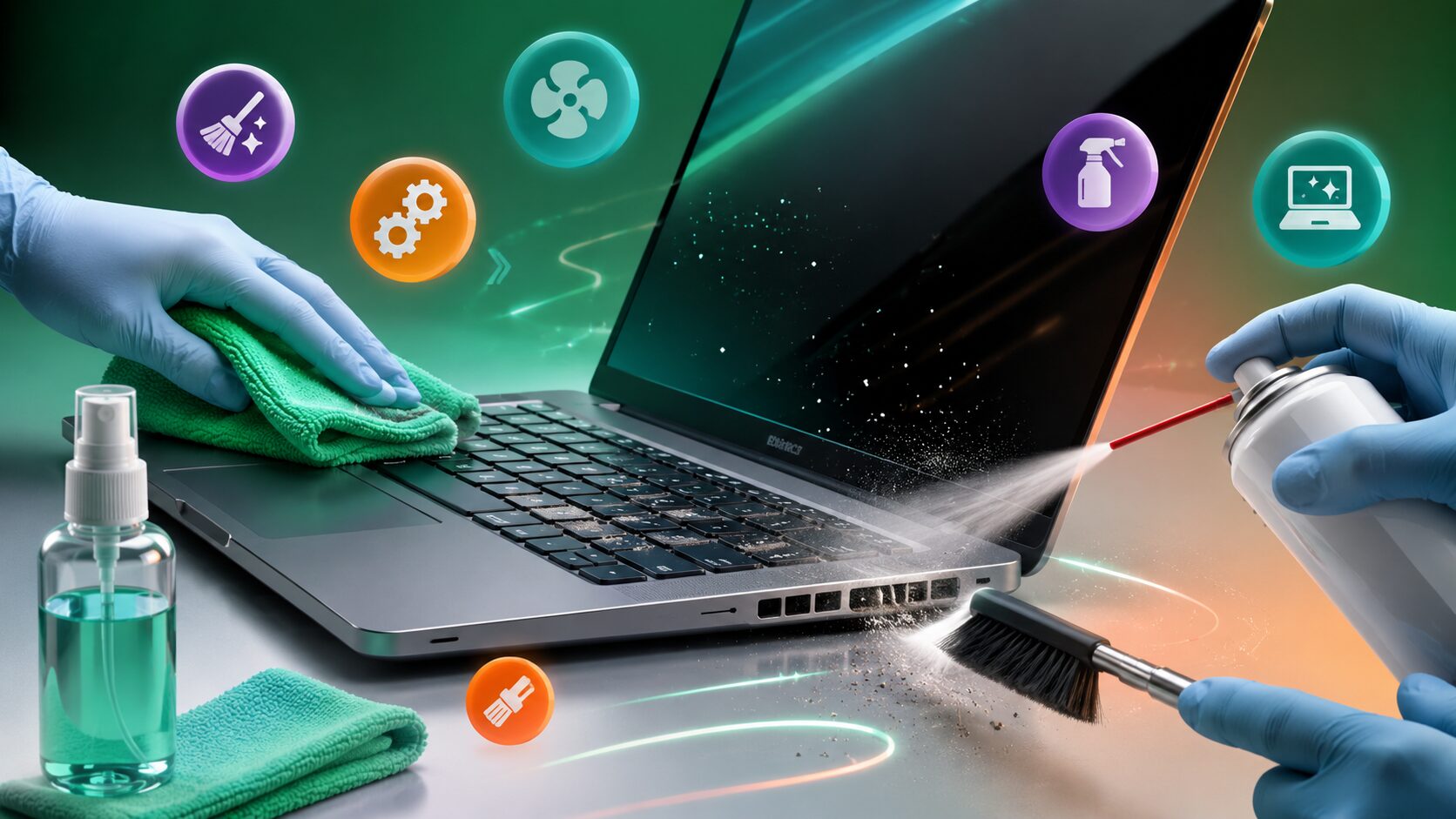
How to Clean Your Laptop Safely is something every laptop owner should learn, whether you use your device for work, study, gaming, or everyday browsing. Dust, fingerprints, food crumbs, and dirt slowly build up on your keyboard, screen, cooling vents, and ports. Over time, this buildup can affect your laptop’s appearance and even reduce its performance.
A dusty cooling system may block airflow, causing your laptop to run hotter than normal. Excessive heat can make the processor slow down, increase fan noise, reduce battery efficiency, and shorten the lifespan of internal components. Dirty keyboards can also become less responsive, while smudged screens make it harder to work comfortably.
The good news is that cleaning a laptop doesn’t require expensive equipment or professional experience. By using the right tools and following safe cleaning techniques, you can keep your laptop looking new and running efficiently.
In this guide, you’ll learn How to Clean Your Laptop Safely, which products to use, what to avoid, and how regular maintenance can improve both performance and longevity.
Many people only think about cleaning their laptop when it starts looking dirty. However, regular maintenance offers several practical benefits beyond appearance.
Dust often collects around cooling vents and fans. As airflow becomes restricted, the internal temperature rises, forcing the cooling fan to work harder.
Keeping the vents clean helps maintain proper airflow and prevents unnecessary overheating.
Excess heat is one of the biggest causes of hardware wear. By reducing dust buildup, you help internal components such as the CPU, GPU, and battery operate within safer temperatures.
Dust and crumbs trapped beneath keys can reduce responsiveness. Regular cleaning keeps the keyboard comfortable and reliable.
Fingerprints, dust, and oily marks reduce screen clarity. A clean display makes reading, editing, and watching videos much more enjoyable.
Laptops are touched throughout the day, making them a common place for germs and bacteria to accumulate. Cleaning your laptop regularly also helps maintain a healthier workspace.
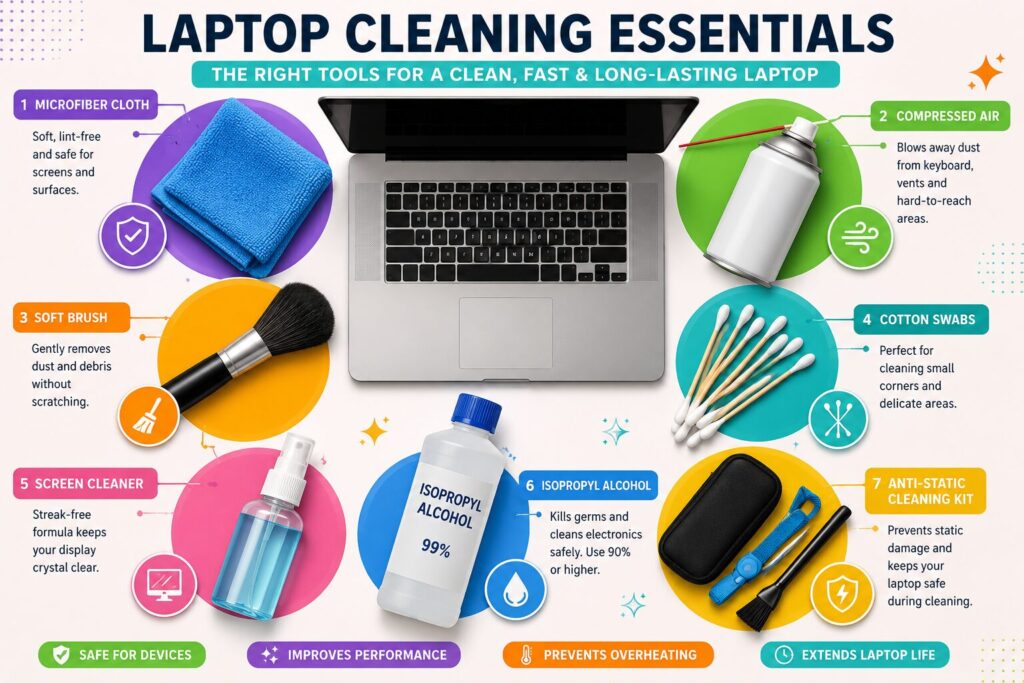
Using the correct cleaning supplies is important. Household cleaning products can damage delicate laptop surfaces.
Recommended tools include:
Do not use:
These materials may scratch the screen, remove protective coatings, or allow moisture to enter the laptop.
Preparation reduces the risk of accidental damage.
Always shut down your laptop completely before cleaning.
Remove:
Some older laptops allow the battery to be removed. If yours does, remove it before beginning.
Choose a flat table with good lighting so you can easily see dust and dirt.
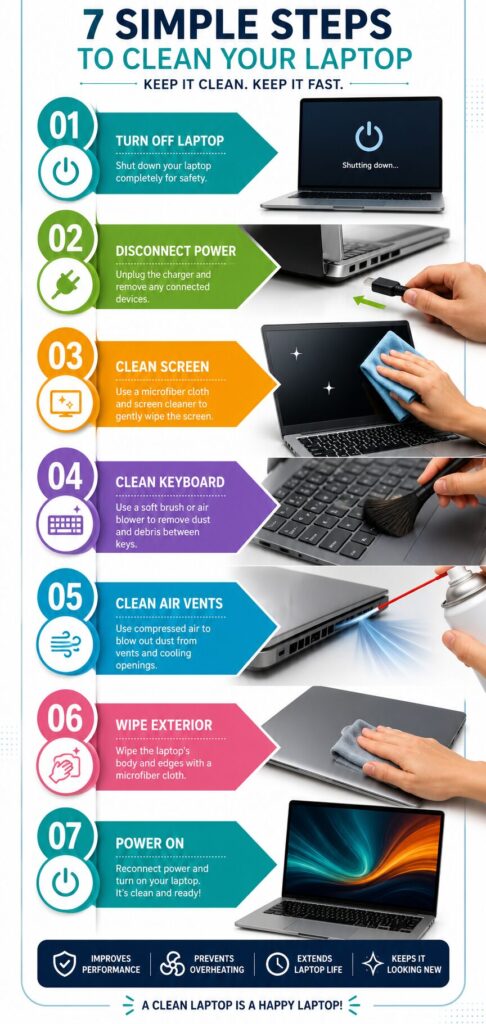
Cleaning a laptop should always be done gently. Rushing the process or using too much force can damage delicate parts.
The display is one of the most sensitive parts of a laptop.
Start with a dry microfiber cloth and wipe the screen using gentle circular motions.
If fingerprints remain, lightly dampen the microfiber cloth with a screen-safe cleaner.
Never spray liquid directly onto the display.
Doing so increases the risk of moisture entering the screen edges.
Turn the laptop slightly upside down to allow loose debris to fall out naturally.
Use compressed air in short bursts between the keys.
Next, wipe the keycaps with a clean microfiber cloth.
For stubborn dirt around the edges, use a cotton swab lightly dampened with isopropyl alcohol.
Avoid pressing hard on the keys while cleaning.
The touchpad collects fingerprints and natural skin oils throughout the day.
Use a microfiber cloth with a small amount of screen-safe cleaner to gently wipe the surface.
Avoid excessive moisture and make sure the touchpad is completely dry before turning the laptop back on.
Air vents are responsible for cooling the internal hardware.
Use compressed air to remove dust from the ventilation openings.
Hold the can upright and use short bursts instead of continuous spraying.
Never insert sharp objects into the vents, as they may damage internal cooling fins.
Finally, wipe the lid, palm rest, sides, and bottom panel using a soft microfiber cloth.
If necessary, use a small amount of isopropyl alcohol on the cloth to remove stubborn marks.
Apply the liquid to the cloth—not directly onto the laptop.
The ideal cleaning schedule depends on how and where you use your laptop.
| Usage | Recommended Cleaning |
|---|---|
| Office use | Every 2–4 weeks |
| Student use | Every 2–3 weeks |
| Gaming laptop | Weekly exterior, vents monthly |
| Dusty environment | Weekly |
| Pet owners | Weekly keyboard and vents |
Regular light cleaning is better than waiting until heavy dust has accumulated.
Laptop ports are often overlooked during cleaning, yet they collect dust that can interfere with charging, data transfer, and audio connections.
Common ports include:
Use compressed air to blow loose dust out of each port.
If you notice stubborn debris, gently remove it with a soft anti-static brush.
Never use:
These objects can damage the internal connectors or even cause a short circuit.
Many users wonder whether they should open the laptop and clean the cooling fan.
The answer depends on your experience.
Cleaning the air vents with compressed air is usually enough for routine maintenance.
If your laptop is several years old and frequently overheats, opening it to clean the fan and heat sink may improve cooling.
However, opening the laptop can void the warranty on some models. If you’re unsure, it’s safer to have the internal cleaning done by an authorized service center.
Sometimes your laptop clearly indicates that it’s time for maintenance.
Watch for these signs:
If the cooling fan runs constantly—even during light tasks—dust buildup may be restricting airflow.
If the keyboard feels unusually hot or the laptop becomes uncomfortable to use, blocked vents may be the cause.
Modern processors reduce their speed when temperatures become too high. This protective feature, called thermal throttling, can make the laptop feel much slower.
Sticky keys, crumbs, or unresponsive buttons often mean it’s time for a thorough keyboard cleaning.
Fingerprints and dust reduce screen clarity and make long work sessions more tiring.
Following a few simple rules can prevent accidental damage.
| Do | Don’t |
|---|---|
| Use a microfiber cloth | Use paper towels |
| Power off the laptop first | Clean while it’s running |
| Use compressed air carefully | Blow with your mouth |
| Apply cleaner to the cloth | Spray liquid directly on the laptop |
| Clean regularly | Wait until heavy dust builds up |
| Store the laptop in a clean place | Block cooling vents |
Cleaning becomes much easier if you prevent dirt from building up in the first place.
Food crumbs often fall between the keyboard keys, making them difficult to remove.
Clean hands leave fewer fingerprints and reduce oil buildup on the keyboard and touchpad.
A protective sleeve helps keep dust away when carrying your laptop in a backpack.
Dust from your desk eventually finds its way into your laptop’s cooling system.
Beds, pillows, and blankets can block cooling vents and attract lint into the fan.
While software updates don’t physically clean your laptop, they often improve performance and system stability as part of good overall maintenance.
Many laptop owners accidentally cause damage while trying to clean their devices.
Avoid these common mistakes:
These mistakes are easy to avoid and can save you from costly repairs.
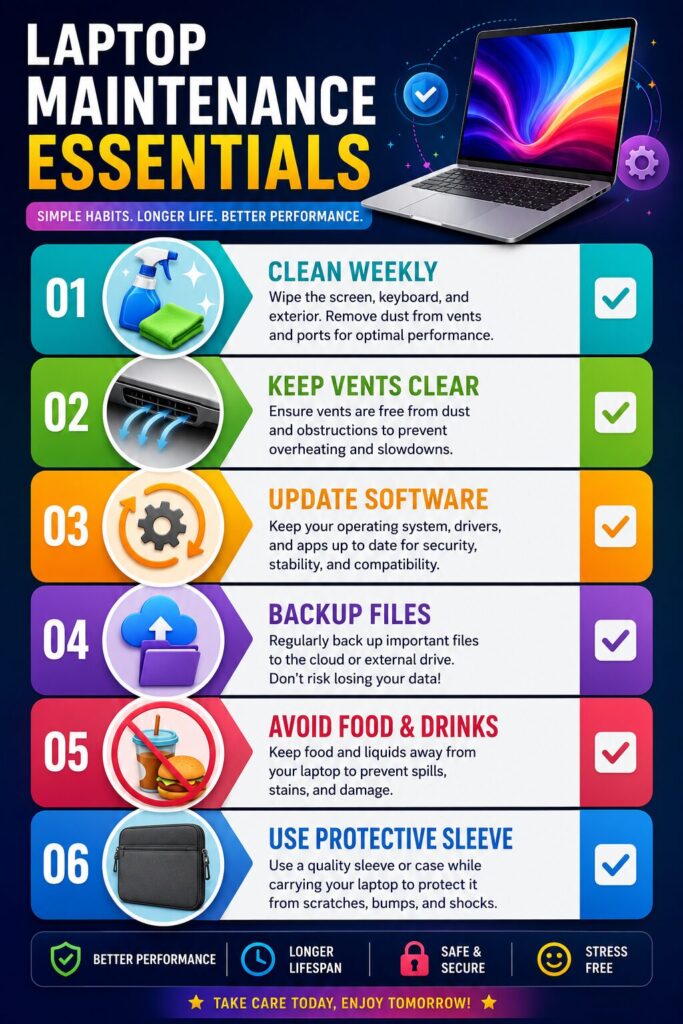
A light exterior cleaning every two to four weeks is ideal for most users. If you use your laptop in a dusty environment or have pets, weekly cleaning is recommended.
Yes. A small amount of 70% or higher isopropyl alcohol can be used on a microfiber cloth for external surfaces. Avoid pouring or spraying it directly onto the laptop.
Yes. When used correctly in short bursts, compressed air is one of the safest ways to remove dust from keyboards and air vents.
Yes. Removing dust from cooling vents helps improve airflow, reduce overheating, and prevent thermal throttling, which can improve overall performance.
Routine users usually don’t need to. Internal cleaning is recommended only if you’re experienced or if the laptop has severe dust buildup and overheating issues.
It’s generally not recommended. Household vacuum cleaners may generate static electricity or apply excessive suction that could damage delicate components.
A clean, soft microfiber cloth is the safest option because it removes dust without scratching the display or exterior surfaces.
Yes. Gently wiping the keyboard and screen with a dry microfiber cloth each day is perfectly safe and helps prevent dirt from accumulating.
Learning How to Clean Your Laptop Safely is one of the easiest ways to protect your investment and keep your computer performing well for years. Dust, fingerprints, and debris may seem harmless, but over time they can affect cooling, reduce keyboard responsiveness, and make your laptop less enjoyable to use.
By following the simple techniques in this guide, using the right cleaning tools, and avoiding common mistakes, you can maintain both the appearance and performance of your device without risking damage. A few minutes of regular maintenance every month can prevent overheating, improve reliability, and even extend the life of your laptop.
Make laptop cleaning part of your routine, just like updating software or backing up important files. Small habits today can save you from expensive repairs tomorrow.
This article is published by Tivorenza.com to help readers understand technology in a simple and practical way. Our goal is to provide accurate, beginner-friendly, and practical guides that help readers use technology with confidence. We regularly review and update our content to keep it relevant, useful, and easy to understand.

