Physical Address
304 North Cardinal St.
Dorchester Center, MA 02124
Physical Address
304 North Cardinal St.
Dorchester Center, MA 02124

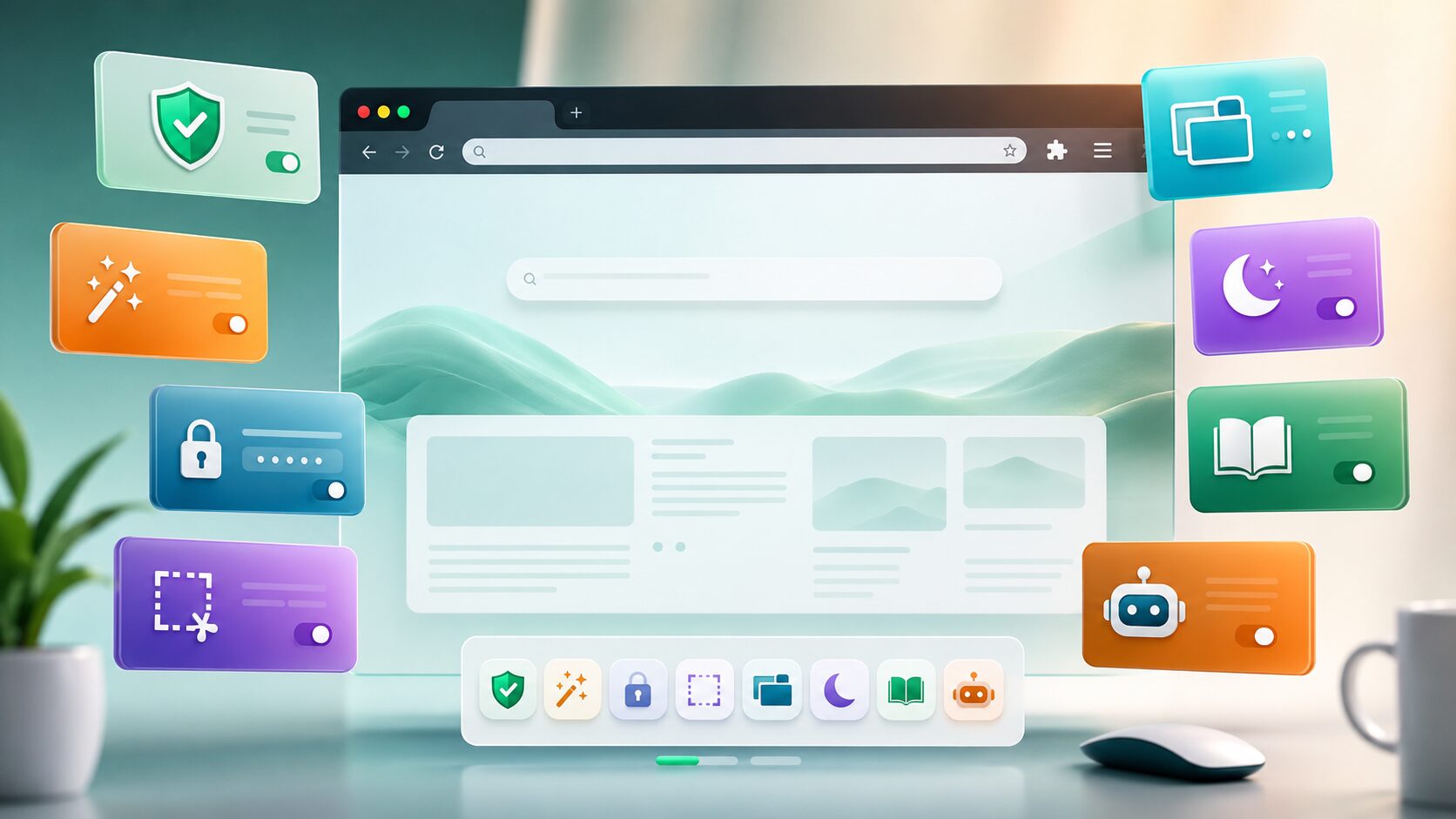
The right browser extensions can completely change the way you use the internet. Instead of switching between multiple applications, extensions bring useful features directly into your web browser. Whether you want to block ads, manage passwords, improve your writing, capture screenshots, or organize dozens of tabs, there’s likely an extension designed to make the task easier.
Today, browser extensions are widely used by students, freelancers, office workers, researchers, developers, and business owners. However, installing too many extensions can also slow your browser or create security risks, so choosing high-quality tools is important.
In this guide, we’ll compare the Best Browser Extensions for productivity in 2026 and explain which ones are worth installing based on your needs.
Browser extensions are small software add-ons that expand the functionality of your web browser.
Once installed, they integrate directly into browsers such as Google Chrome, Microsoft Edge, Mozilla Firefox, or Safari.
Extensions can help you:
Most extensions can be installed in just a few clicks.
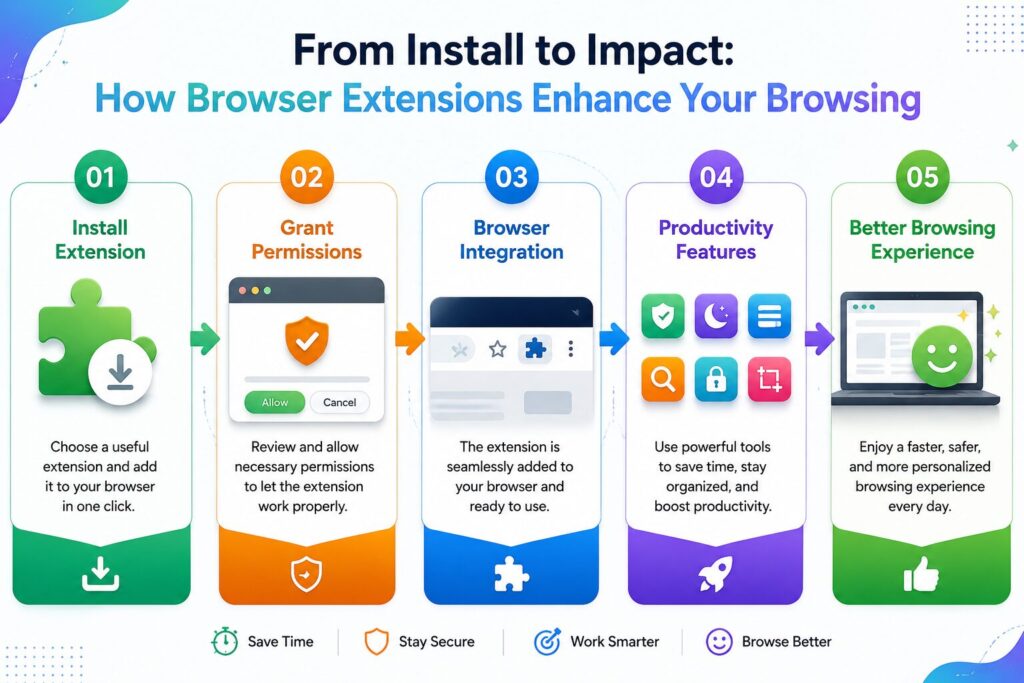
When installed, an extension adds new features to your browser.
A typical workflow looks like this:
Many extensions synchronize your settings across devices if you sign in with the same browser account.
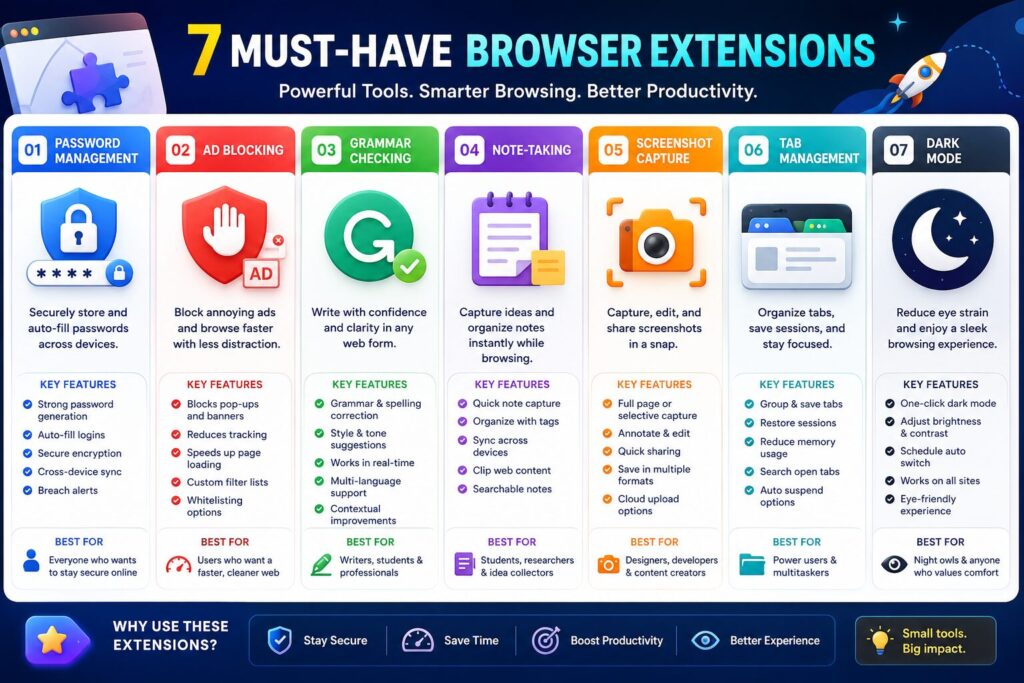
| Extension Type | Best For | Beginner Friendly | Free Version |
|---|---|---|---|
| Password Manager | Secure Logins | ⭐⭐⭐⭐⭐ | ✅ |
| Ad Blocker | Faster Browsing | ⭐⭐⭐⭐⭐ | ✅ |
| Grammar Checker | Writing | ⭐⭐⭐⭐⭐ | ✅ |
| Screenshot Tool | Content Creation | ⭐⭐⭐⭐ | ✅ |
| Tab Manager | Organization | ⭐⭐⭐⭐ | ✅ |
| Reading Mode | Distraction-Free Reading | ⭐⭐⭐⭐⭐ | ✅ |
A password manager extension securely stores and autofills your login credentials, reducing the need to remember dozens of passwords.
Ad blockers remove many advertisements, pop-ups, and tracking scripts while browsing.
Grammar extensions help improve spelling, grammar, punctuation, and writing clarity while composing emails, documents, and social media posts.
They’re especially useful for students, bloggers, freelancers, and professionals.
A screenshot extension lets you capture an entire webpage or a selected area without installing separate desktop software.
Many tools also include basic editing features such as:
If you usually have dozens of browser tabs open, a tab manager can help organize your workspace.
Instead of searching through a crowded tab bar, you can group, suspend, search, and restore tabs whenever needed.
Reading Mode removes unnecessary distractions from web pages.
Instead of seeing advertisements, sidebars, and pop-ups, you see only the article content in a clean layout.
This extension is especially useful for students, researchers, and anyone who reads long articles online.
Different users have different needs. Here’s a quick recommendation.
| User | Recommended Extensions |
|---|---|
| Student | Grammar Checker, Reading Mode, Screenshot Tool |
| Freelancer | Password Manager, Grammar Checker, Tab Manager |
| Office Worker | Password Manager, Screenshot Tool, Ad Blocker |
| Researcher | Reading Mode, Tab Manager, Screenshot Tool |
| Content Creator | Grammar Checker, Screenshot Tool, Password Manager |
| Small Business Owner | Password Manager, Ad Blocker, Tab Manager |
Choosing extensions based on your daily workflow is better than installing dozens of unnecessary tools.
The Best Browser Extensions can improve both productivity and security.
Tasks like filling passwords, capturing screenshots, and correcting grammar become almost instant.
Extensions reduce repetitive work, allowing you to focus on more important tasks.
Password managers and security-focused extensions help protect your online accounts from weak passwords and phishing attacks.
Tab managers and note-taking extensions help keep projects and research organized.
Features such as dark mode, reading mode, and ad blocking create a cleaner and more enjoyable browsing experience.
Most browser extensions are safe when downloaded from official extension stores.
However, not every extension deserves your trust.
Before installing one:
Installing only trusted extensions helps protect your privacy and browser performance.
Many users unintentionally slow down their browsers by installing too many extensions.
Avoid these common mistakes:
A small collection of reliable extensions usually performs better than dozens of unnecessary ones.
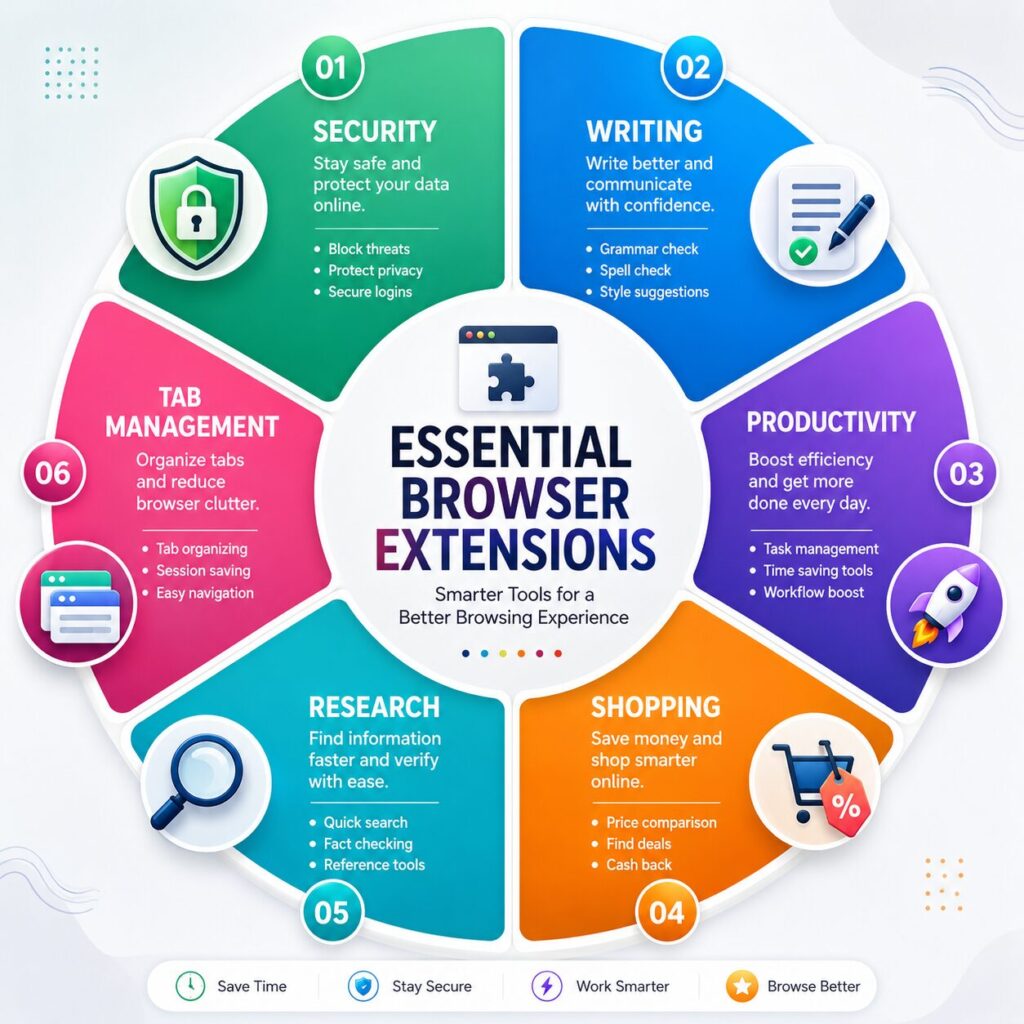
Browser extensions are small software add-ons that provide additional features such as password management, ad blocking, grammar checking, and screenshot capture.
A few well-designed extensions usually have little impact, but installing too many can reduce performance and increase memory usage.
Many popular extensions offer free versions, while advanced features may require a subscription.
Google Chrome and Microsoft Edge have access to large extension libraries, while Firefox and Safari also support many useful extensions.
Extensions with excessive permissions from untrusted developers can pose privacy risks. Always install extensions from official stores and trusted publishers.
Only install the extensions you genuinely use. Keeping your browser lightweight generally improves speed and security.
Many extensions synchronize settings when you sign in with your browser account, although availability depends on the extension.
Yes. Removing extensions you no longer use helps improve browser performance and reduces potential security risks.
Choosing the Best Browser Extensions can make everyday browsing faster, more organized, and more secure. Whether you want to improve your writing, manage passwords, block intrusive ads, capture screenshots, or organize dozens of tabs, the right extensions can save time and simplify your workflow.
The key is quality over quantity. Instead of installing every popular extension, select only the ones that solve real problems in your daily routine. Regularly review your installed extensions, remove those you no longer need, and keep the remaining ones updated.
With a carefully chosen set of browser extensions, your web browser can become a much more powerful tool for work, study, and everyday internet use.
This article is published by Tivorenza.com to help readers understand technology in a simple and practical way. We regularly update our software reviews and technology guides to ensure they remain accurate, beginner-friendly, and practical for students, professionals, freelancers, and everyday internet users.

