Physical Address
304 North Cardinal St.
Dorchester Center, MA 02124
Physical Address
304 North Cardinal St.
Dorchester Center, MA 02124


Wondering if public Wi-Fi is safe? These 8 simple public WiFi safety tips help protect your passwords and data at cafes, airports and hotels.
Picture this. You are at the airport and your flight is delayed. You spot a free WiFi network called “Airport_Free_WiFi.” You join it in two seconds. Now you are checking email, scrolling social media, and maybe buying a last-minute gift online.
Free WiFi feels like a gift. But is public Wi-Fi safe? The short answer is: not always. The good news is that you do not need to be a tech expert to protect yourself. These public wifi safety tips are simple, and anyone can follow them.
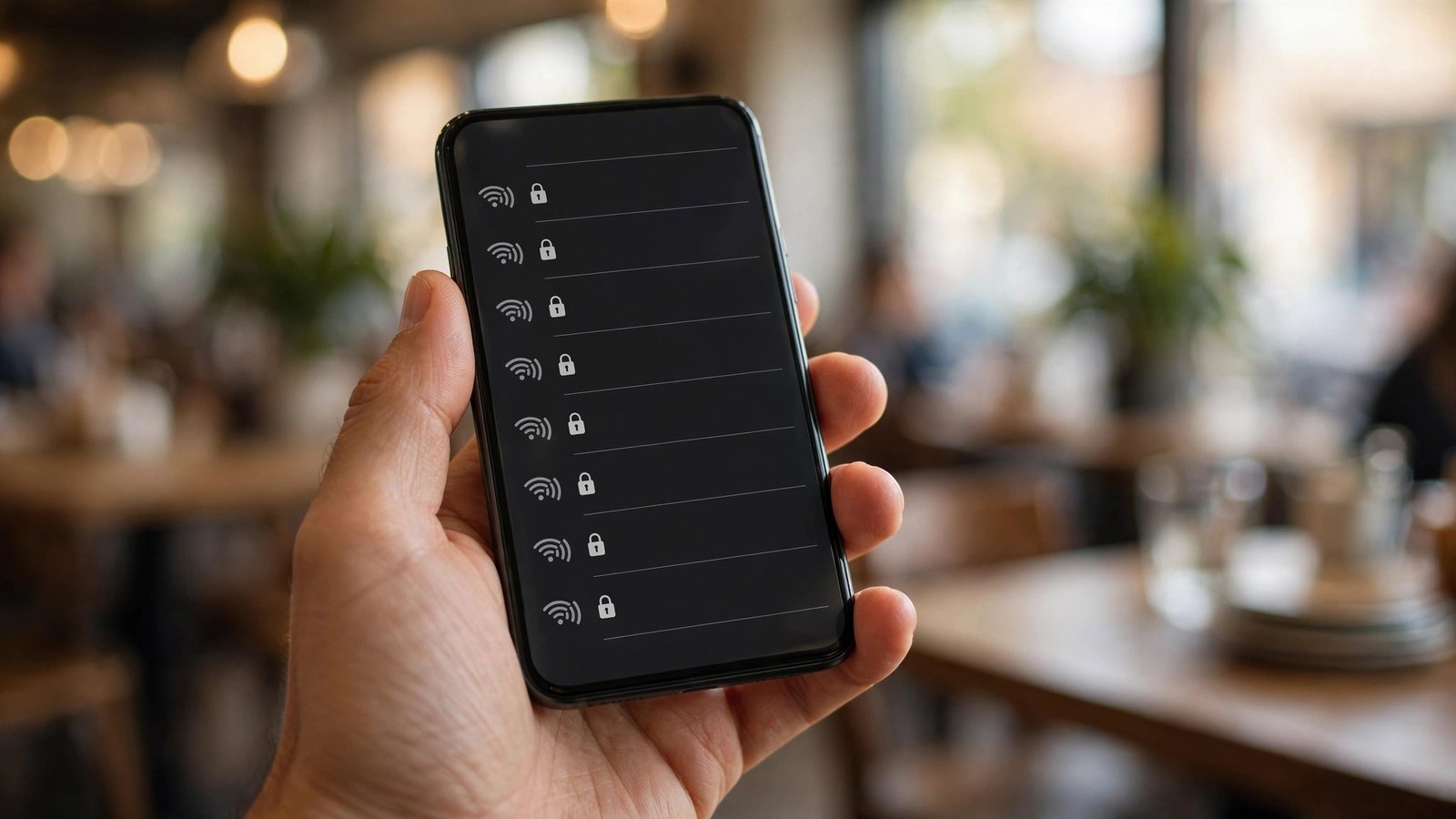
Public WiFi is a network that anyone can join. At a cafe, an airport, or a hotel, dozens of strangers share the same network. That sharing is where the risk starts.
Think of a public network like a crowded room. If you speak loudly, everyone hears you. In the same way, other people on the same network may be able to snoop on unprotected traffic. If the website you use is not encrypted, a skilled stranger could see what you type. That includes passwords and card numbers.
Some attackers set up fake WiFi networks. This trick is called an “evil twin.” The fake network copies the name of the real one. You might see “CoffeeShop_WiFi” and “Cafe Free WiFi” side by side, and you cannot tell which one is real just by looking.
If you join the fake one, the attacker sits in the middle. They can watch everything you do online. Always ask the staff for the exact network name before you connect. One quick question can save you a lot of trouble.
You do not need special skills for any of these. Each one takes less than a minute.
A VPN (Virtual Private Network) is like a secret tunnel that scrambles everything you do online, so nobody on the same network can read it.
When does it help? A VPN protects you on any network you do not fully trust. That means cafes, airports, hotels, and even a friend’s WiFi that you know nothing about. It is most useful when you check email, shop online, or log in to accounts away from home.
The good news is that a VPN is easy to use. You install an app, tap one button to connect, and you are protected. Some reputable providers offer free plans with a limited amount of data each month. That is often enough for a short trip. If you travel a lot, a paid plan often costs less per month than a cup of coffee.
One honest note: a VPN protects your traffic, but it does not stop you from joining a fake hotspot in the first place. It also cannot protect you if you type your password into a fake login page. So use a VPN together with the other tips above, not instead of them.
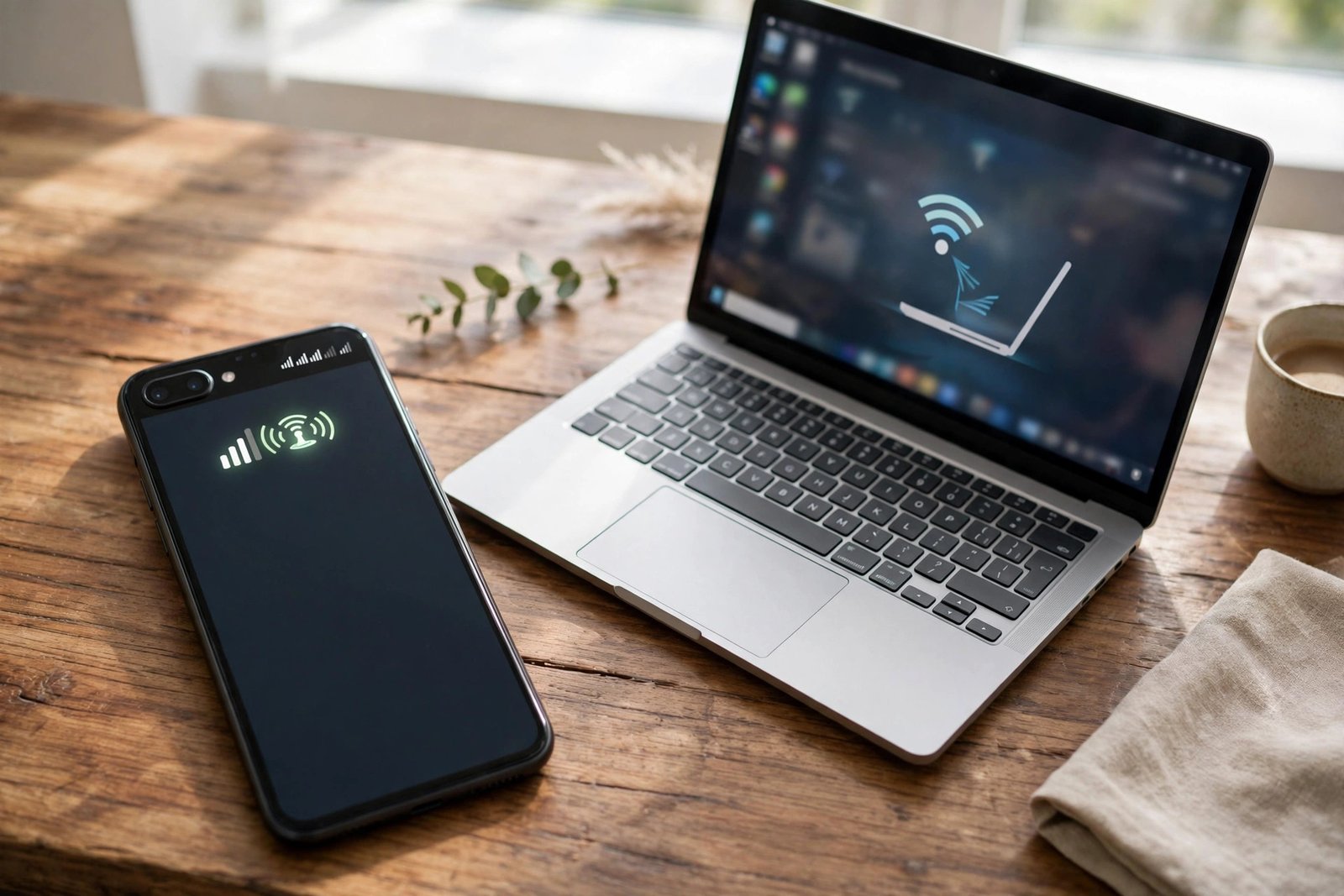
Here is a simple truth. Using your phone’s mobile data is generally safer than using public WiFi. Cellular connections are encrypted by your phone company. A stranger at the next table cannot easily listen in.
Need internet on your laptop? Turn on your phone’s personal hotspot. On most phones, you open Settings, find the hotspot or tethering option, and turn it on. Then connect your laptop to your phone, just like any WiFi network. Give your hotspot a strong password so strangers cannot join it.
Watch your data plan, though. Hotspots use your mobile data. Streaming video can eat it up fast. For email, maps, and messages, it is perfect.
Sometimes your gut is right. Strange pop-ups, very slow speeds, or a login page that asks for too much information are warning signs. If something feels wrong, act fast.
It is best to avoid it. Public networks are shared with strangers, and banking details are the most valuable thing you own online. If you must check your balance, use your mobile data or turn on a VPN first. When in doubt, wait until you are home.
Not automatically. A network is not safe just because an airport or a hotel offers it. Treat every public network as untrustworthy. Always ask the staff for the exact network name, look for the padlock on websites, and avoid sensitive logins.
HTTPS encrypts your connection to that website, which is a big help. It keeps your passwords and card details hidden from snoopers on the network. But it does not encrypt everything, such as some apps or background traffic. A VPN adds a full layer of protection on top of HTTPS.
No. With auto-join on, your phone may connect to a fake hotspot without asking you. Turn auto-join off in your WiFi settings. Join networks yourself, only after you know the exact name.
Some reputable VPN companies offer free plans, and those can be fine for light use. But be careful. Unknown free VPN apps may log your activity or show you ads. Choose a well-known provider, read recent reviews, and download the app from the official app store.
Public WiFi is convenient, but it comes with real risks. The good news is that staying safe is not hard. Ask for the real network name. Look for the padlock. Turn off auto-join. Use a VPN or your mobile data. These small habits take seconds, and they protect your passwords, your money, and your peace of mind. Safe travels, online and off.

