
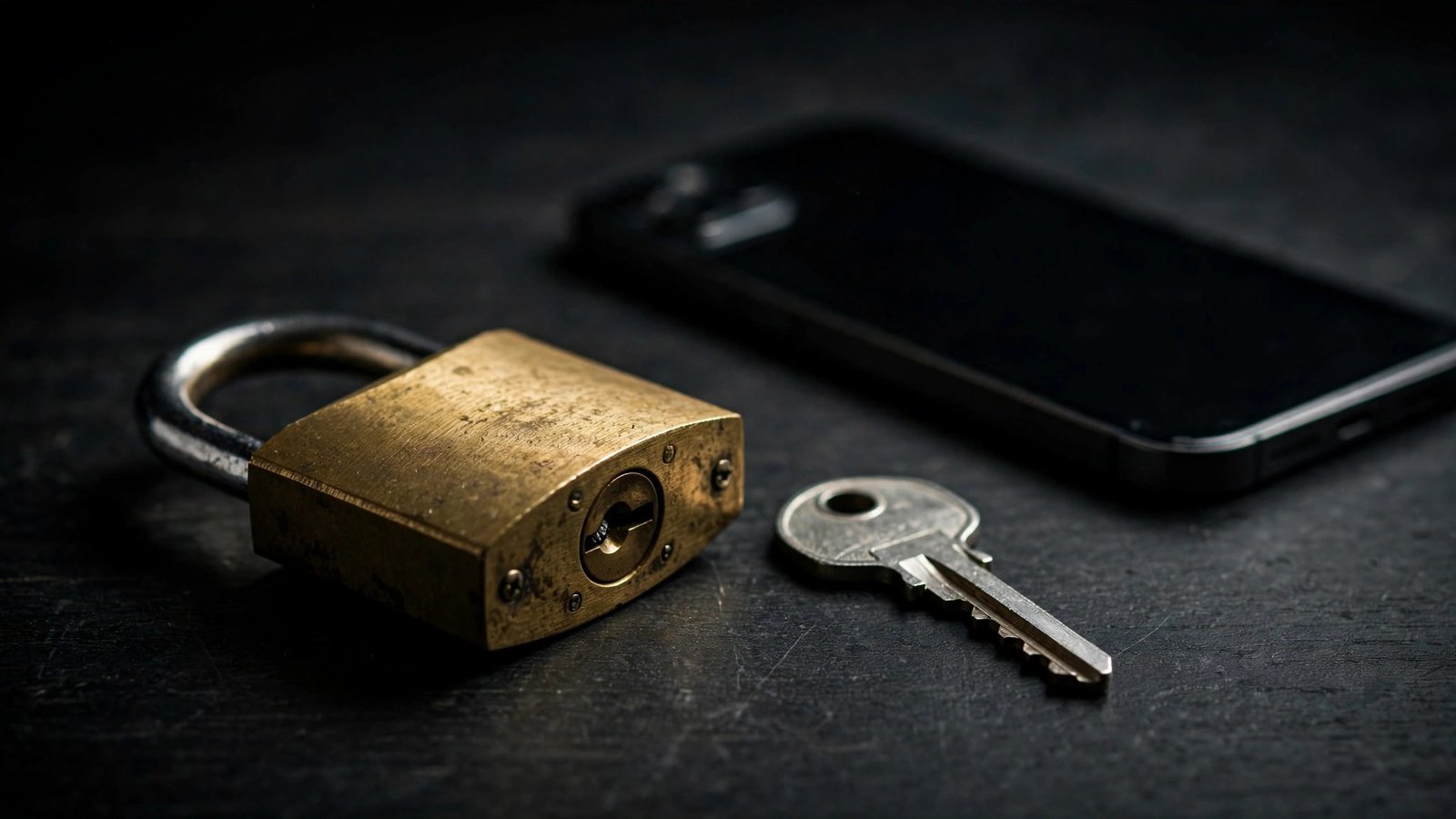
Using the same password for everything is like using one key for every door in your life: your house, your car, your office, and your bank locker. If someone copies that one key, they can open everything. This guide to two-factor authentication for beginners will walk you through how passwords, passkeys, and 2FA actually work — in plain, simple words — and how you can set them all up in about ten minutes.
If those words sound scary, don’t worry. You already use these ideas in real life every day. Let’s start.
Passwords Alone Aren’t Enough Anymore
Think of your password as a key to your house. It’s important, but it’s the only thing standing between a stranger and your front door. Now imagine you use the same key for your house, your car, your office, and your bank locker. If a thief copies that one key, everything is open.
That is exactly what happens when you reuse one password on many websites. From time to time, a website’s database of passwords gets stolen and published online. This is called a data leak. When that happens, attackers take the leaked passwords and try them on other websites like email, banks, and shopping apps. This trick is so common it even has a name: credential stuffing.
So if your email and your bank share the same password, one leaked website can put your money at risk. Scary? A little. But the fix is simple, and we’ll get there step by step.
Here is what puts your password at risk:
- Reusing passwords: One leaked password unlocks many accounts.
- Weak passwords: Names, birthdays, and simple words like “password123” are easy to guess.
- Phishing: Fake emails and fake login pages trick you into typing your password on a scammer’s website.
- Spyware and shoulder-surfing: Someone can watch you type or steal what you type with malware.
No single trick fixes all of these. That is why smart security uses layers — a strong password plus something extra. That extra layer is called two-factor authentication.
A Strong Password You’ll Actually Remember

Good news: a strong password does not have to look like “K7!z#qP9”. In fact, those hard passwords are often weaker in practice, because people write them on sticky notes or reuse them everywhere.
The best trick for beginners is a passphrase: a string of several random words joined together. Something like “correct horse battery staple” or “purple monkey dancing lamp”. It is easy to remember and very hard for a computer to guess, because every extra word makes it far longer and stronger.
Follow these three simple rules and you will be ahead of most people:
- Make it long: Use at least four or five random words. Longer is always better.
- Make every password unique: Never reuse the same password on two different websites. Remember the one-key-for-every-door problem.
- Let a password manager remember them: A password manager is a safe app that stores all your passwords behind one master password. Most phones have one built in, and you only need to remember the master password.
A passphrase you can picture in your mind — like four random words that make you smile — is the sweet spot: memorable for you, nearly impossible for a stranger to guess.
Two-Factor Authentication: How It Works
Two-factor authentication — usually shortened to 2FA — is simply a second check after your password. Think of it like an ATM. Your bank card alone is not enough; you also need your PIN. Two things, not one.
Here’s how it works online: you type your password as usual. Then the website asks for a second proof that it really is you. This is usually a short code that only your phone can see. Even if a thief steals your password, they cannot log in without that code.
That’s the whole idea. Password = something you know. The second factor = something you have (your phone). An attacker would need to steal both, which is much harder.
Turning on 2FA is free on almost every major website, and it takes about a minute per account. Look for it under Settings, then Security or Privacy. Start with the accounts that matter most: your email and your bank. Your email is the key to everything else, because most password resets go through it.
The Three Flavors of Two-Factor Authentication
Not all second factors are equal. Here are the three main types, from simplest to strongest. For two-factor authentication for beginners, start with whichever one feels easiest — any of them is much better than none.
Text message codes (SMS)
The website sends a 6-digit code to your phone as a text message, and you type it in. This is the easiest type to set up, and you already know how to use it.
One honest warning: SMS codes are the weakest of the three. Text messages can sometimes be intercepted, and scammers can occasionally trick phone companies into moving your number to their phone (this is called a SIM swap). Still, SMS codes stop the vast majority of basic attacks. SMS 2FA is far better than no 2FA at all.
Authenticator apps
An authenticator app — like Google Authenticator or Microsoft Authenticator — lives on your phone and generates a new code every 30 seconds. It works even without internet or mobile signal, which is great when you’re traveling.
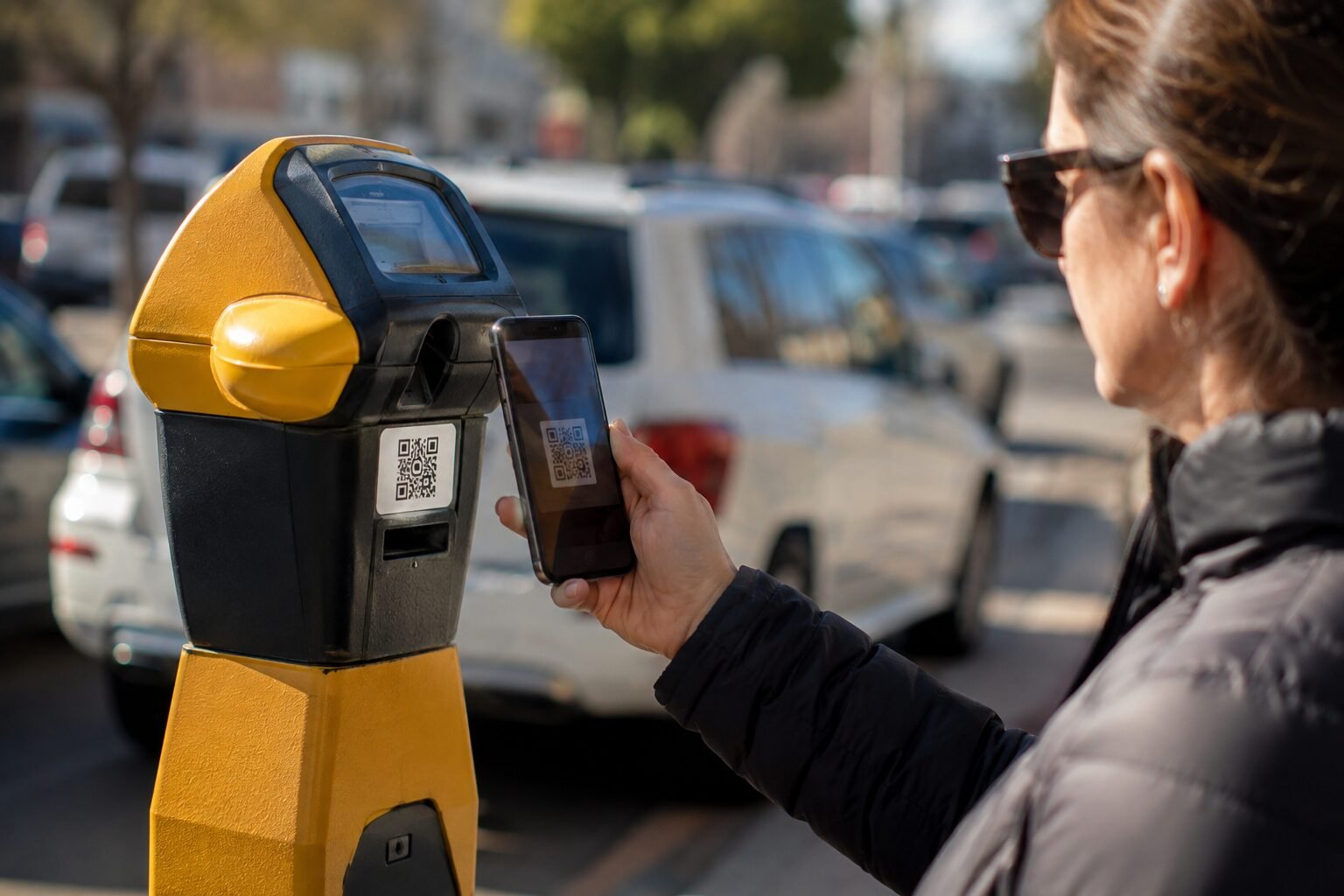
Why is it better than SMS? The codes never travel through the phone network, so they can’t be intercepted the way text messages can. Setting it up is simple: the website shows you a square barcode (a QR code), you scan it with the app, and you’re done. This is the type most security guides recommend for beginners who want a real step up.
Physical security keys
A security key is a small USB device — about the size of a pen drive — that you plug in or tap when logging in. It is the strongest option of the three and is nearly impossible to fool, because it only works on the real website, never on a fake copy.
Security keys are slightly less convenient, and you need to buy one, but for your most important accounts (like your main email or bank), they are the gold standard. Many people keep one on their keychain and one stored safely at home as a spare.
Whatever type you choose, always save the backup or recovery codes the website gives you. These are one-time codes that let you log back in if you lose your phone. Write them on paper and keep them somewhere safe at home — not as a screenshot in your photos.
Passkeys: Logging In Without Passwords
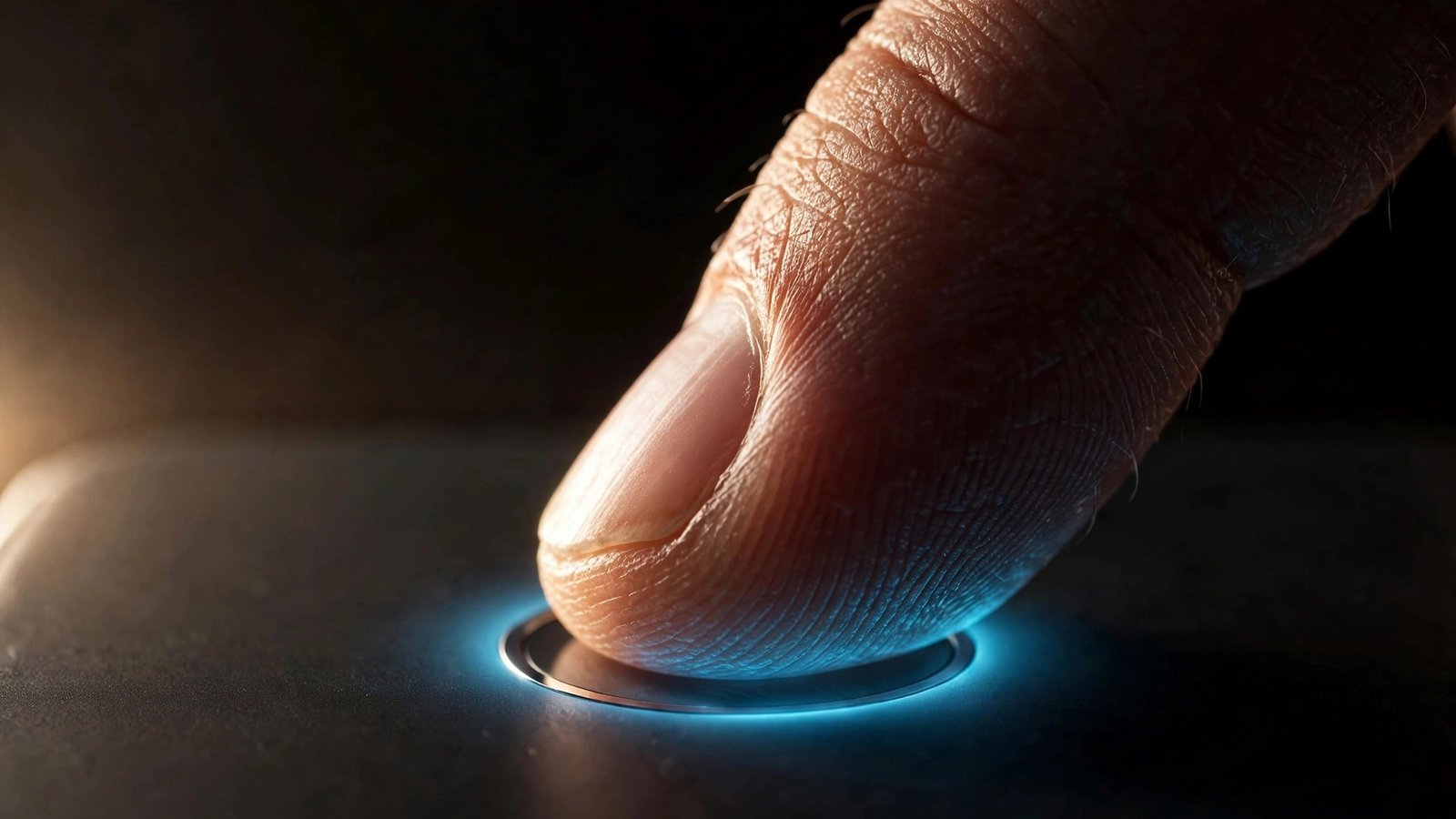
Passkeys are the newest way to log in — and they might be the best news in this whole guide. A passkey lets you sign in with your fingerprint, your face, or your phone’s PIN. Nothing to remember. Nothing to type.
Think of it like this: instead of a key you carry around (a password), your phone proves who you are, the same way your fingerprint unlocks your phone screen. The big companies — Google, Apple, and Microsoft — all support passkeys now, and many popular websites and apps do too.
Why are passkeys so exciting? Two big reasons:
- They are phishing-resistant: There is no password for a scammer to steal. Even if you land on a fake login page, the passkey simply won’t work there.
- They sync across your devices: Passkeys can be saved in services like iCloud Keychain or Google Password Manager, so the passkey you create on your phone is available on your other devices too.
Passkeys don’t replace everything yet — many smaller websites still use passwords — but where they’re offered, they’re usually the simplest and safest choice. If a website offers you a passkey option, say yes.
Your 10-Minute Security Upgrade
Ready? You don’t need to do everything today. Just follow these steps in order. Each one takes a couple of minutes.
- Step 1: Turn on two-factor authentication for your main email account. It’s the master key to all your other accounts.
- Step 2: Turn on 2FA for your bank and any money or shopping apps.
- Step 3: Pick an authenticator app (Google Authenticator or Microsoft Authenticator) and use it for at least one account.
- Step 4: Save your backup/recovery codes on paper and store them somewhere safe at home.
- Step 5: Replace your weakest reused passwords with unique passphrases, starting with email and bank. Let your phone’s password manager store them.
- Step 6: Next time a website offers a passkey, try creating one. You’ll love how fast it feels.
That’s it. Ten minutes of setup, and you’re safer than the vast majority of people online.
Honest Answers to Nervous Questions
Is two-factor authentication free?
Yes. On almost every website and app, turning on 2FA costs nothing. Text codes and authenticator apps are completely free. Physical security keys are the only type you pay for, and even then it’s a one-time purchase.
What happens if I lose my phone with 2FA on it?
This is why backup codes matter. When you turn on 2FA, the website gives you a set of backup or recovery codes — save them on paper somewhere safe. If your phone is lost or broken, you can use one of these codes to get back in. This is also why step 4 of the action plan is so important.
Are SMS text codes safe enough, or should I use an authenticator app?
SMS codes are much better than no 2FA at all, so start there if it’s the easiest option for you. But authenticator apps are more secure because their codes are generated on your phone and never travel over the network. If you’re comfortable installing an app, it’s worth the upgrade — it takes about a minute.
Do passkeys replace passwords completely?
Not quite yet. The biggest companies and many popular websites support passkeys, but plenty of smaller sites still use passwords. Think of 2026 as a transition period: use passkeys wherever they’re offered, and keep strong unique passwords (stored in a password manager) everywhere else.
Can hackers still get in if I have 2FA turned on?
Nothing is 100% unbreakable, but 2FA blocks the most common attacks — especially stolen and leaked passwords. Security keys and passkeys are the hardest to defeat because they resist phishing. Combined with unique passwords, 2FA makes you a very difficult target, and attackers usually move on to easier ones.
Security doesn’t have to be complicated or scary. One strong passphrase, one extra tap on your phone, and you’re already doing more than most people ever will. Start with your email today, add your bank tomorrow, and you’ll sleep a little better knowing there’s a second lock on your digital doors.