

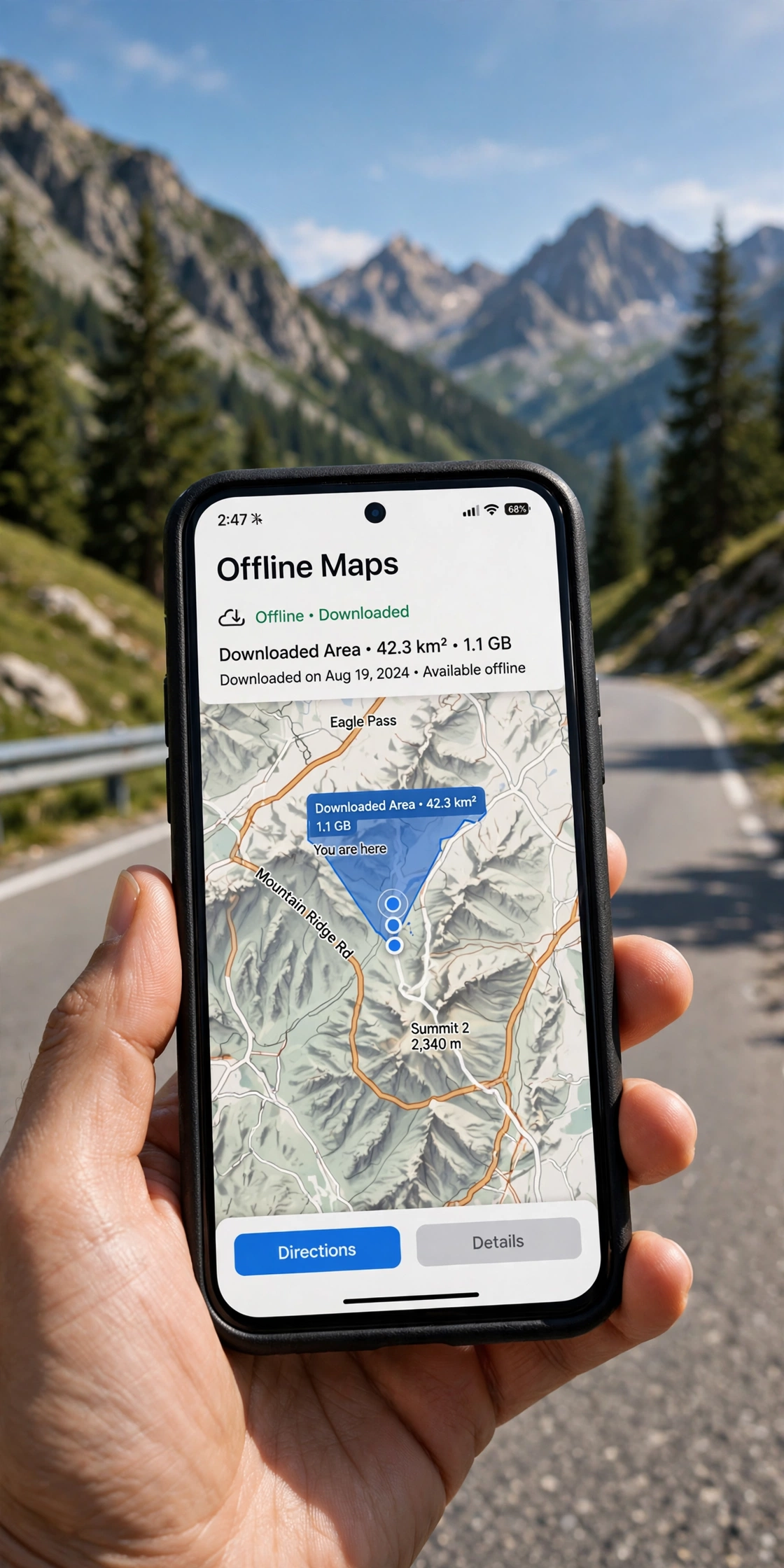
Picture this: you are driving through the countryside, the road keeps twisting, and your phone’s signal bars quietly disappear one by one. The map freezes. The little blue dot stops moving. For a moment, you are on your own.
It does not have to be that way. Google Maps lets you download maps to your phone ahead of time, so you can search, browse, and navigate without mobile data or Wi-Fi. If you have ever wondered how to use Google Maps offline, this guide walks you through everything — from what an offline map actually is, to downloading your first area, to the small limitations worth knowing.
What an Offline Map Actually Is
An offline map is simply a copy of Google Maps’ map data, stored directly on your phone. When you save an area — say, the whole of a city or a stretch of countryside you are about to drive through — your phone keeps the roads, place names, and landmarks for that area in its memory. Later, when your connection drops, the app reads the map from storage instead of trying to reach the internet.
There is an important detail here that trips people up: the map itself is downloaded, but the live parts of the app are not. That means turn-by-turn navigation with a saved route generally works offline, while things that need fresh data — live traffic, transit departures, current business hours — do not. Think of it as carrying a paper map that can also point you to the next turn, rather than a fully live assistant.
Why Bother Downloading Maps at All
Dead zones are more common than most of us expect. Rural roads, mountain valleys, tunnels, underground car parks, and the edges of national parks all eat phone signals for breakfast. Even in a city, concrete buildings and crowded networks can leave your data crawling. An offline map takes all of that stress away.
Travellers get a second benefit: no roaming charges. If you are abroad and trying to keep your mobile data bill sane, a downloaded map means you can explore a new city on foot without buying a local SIM or paying for data every time you check which way to turn.
And honestly, it just feels good to know you have a backup. Batteries, signal, apps — all of it can fail. A map sitting on your phone is one less thing to worry about.
Before You Start: Two Quick Checks
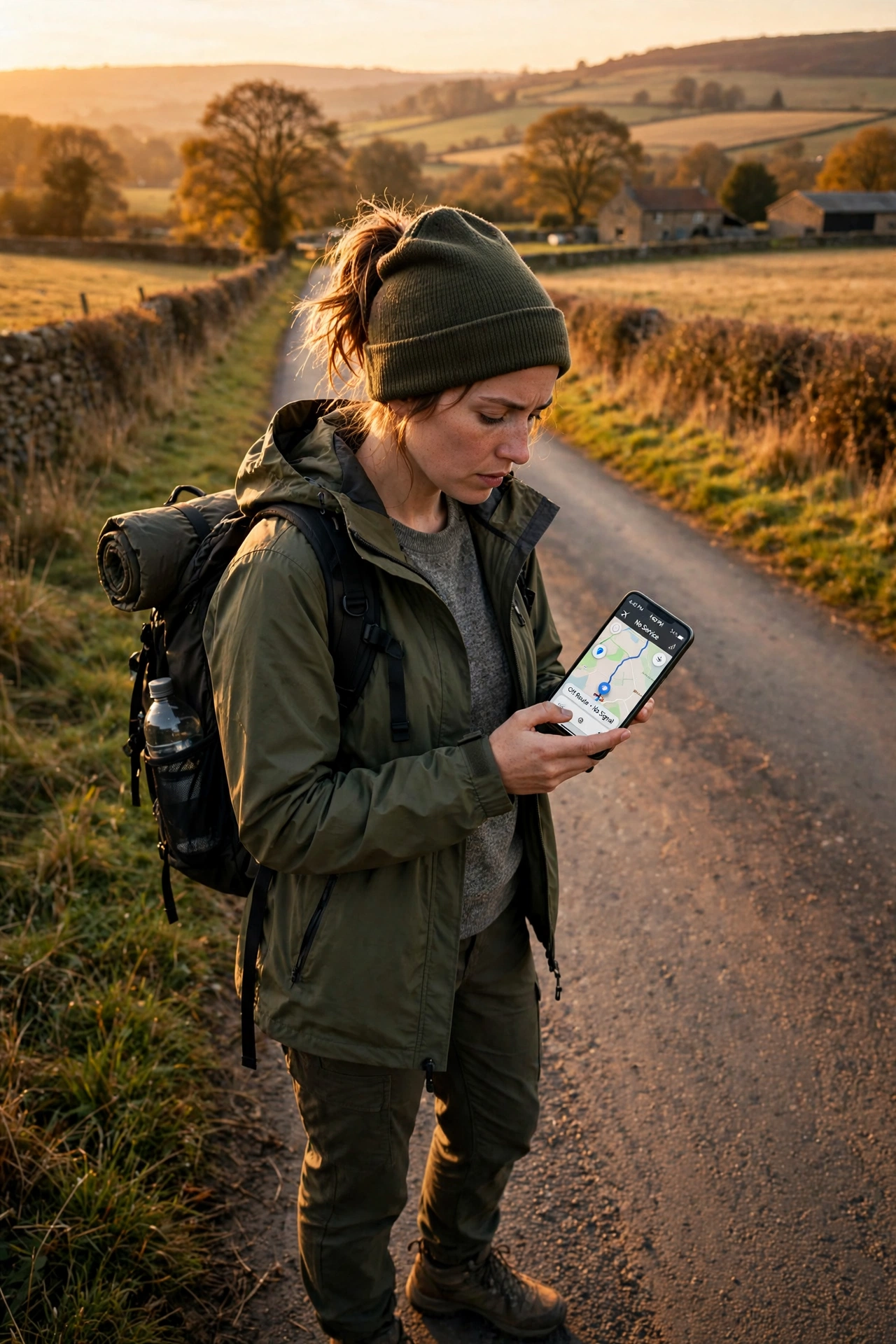
Before downloading anything, there are two things worth sorting out. First, storage space. Offline maps are not tiny — a large city can take up a noticeable chunk of your phone’s storage, and a bigger region even more. Check how much free space you have and be ready to clear out some old photos or apps if it is tight.
Second, do the downloading on Wi-Fi. This is the single most important tip in this whole article. Map files are large, and downloading them over mobile data defeats the whole point — and can burn through a data allowance fast. Connect to your home Wi-Fi, a cafe, or your hotel network before you begin. The download runs in the background, so you can start it and make a cup of tea.
How to Save a Map Area for Offline Use
Now the main event. The exact buttons and menu names in Google Maps shift a little from time to time, so I will describe the flow in plain steps rather than quoting button labels that might already be outdated on your phone. The shape of the process has stayed the same for years:
Step through it calmly
Open Google Maps on your phone and make sure you are signed in — that way your downloads stay attached to your account. Look for your profile picture or account icon in one of the corners of the screen, and tap it. Somewhere in the menu that opens, you will find the offline maps section. In newer versions of the app it may appear as its own entry; in older ones it can sit inside a settings or “your places” style area. Poke around — it is there.
Once you are in the offline maps area, you will see an option to select your own map or download a new area. Tap it, and a map view appears with a highlighted rectangle or boundary. Move the map and zoom in or out until the highlighted area covers the place you want — your destination city, the valley you are hiking through, the motorway corridor of your road trip.
There is usually a limit on how large a single download can be, which is the app’s way of keeping file sizes manageable. If your area is too big, the app will tell you, and you can either zoom in a little or split your trip into two or three downloads. Bigger is not always better here — a tighter area means a smaller file and a faster download.
Tap the download button, and let it run. Keep your phone awake or at least let it finish in the background on Wi-Fi. When it completes, the area shows up in your list of saved offline maps, and it stays there ready for the day your signal disappears.
Finding Your Way Without a Signal
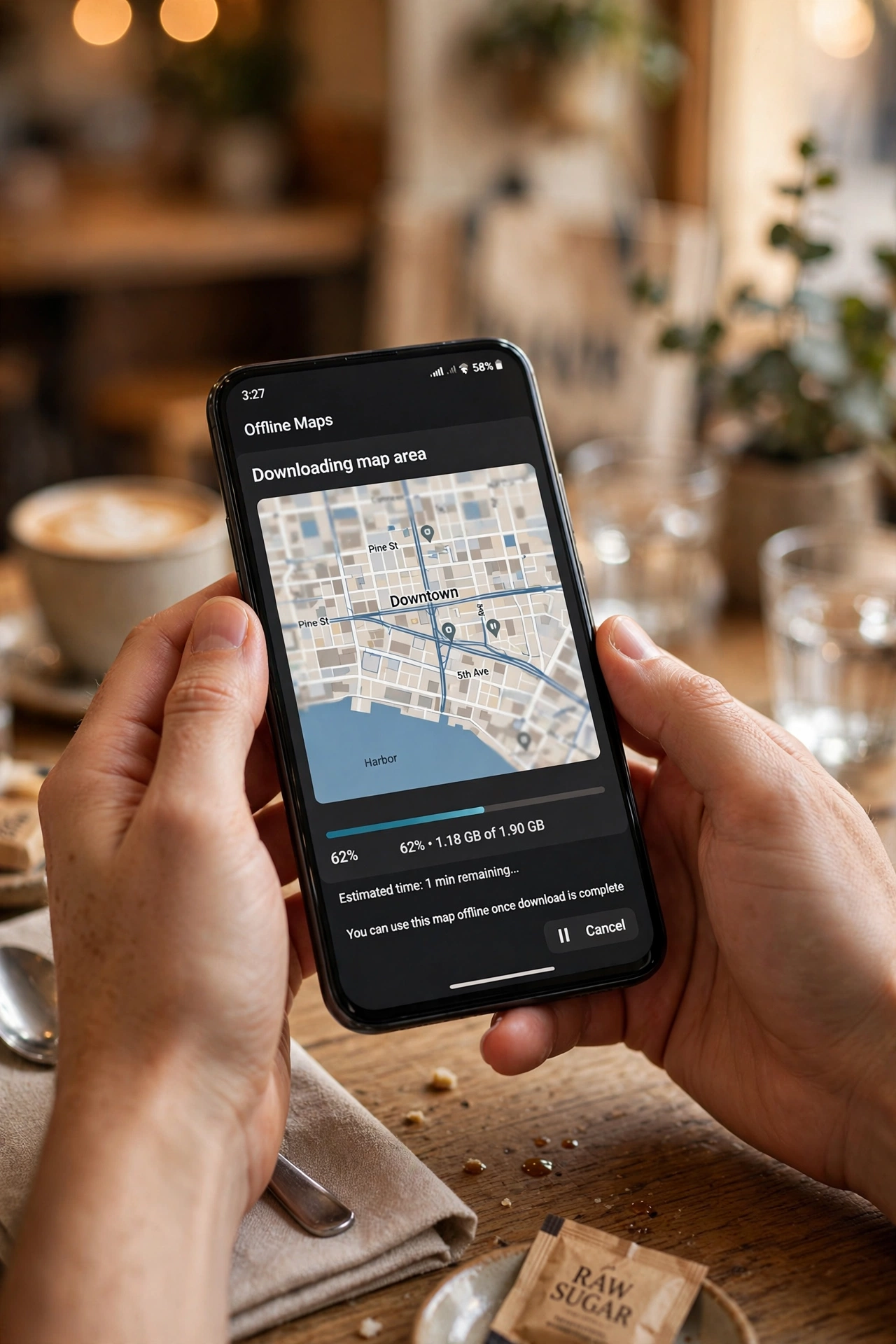
Using an offline map feels almost identical to using the app normally, with a few quirks. When you open Google Maps with no connection, it will usually pull up your downloaded area automatically. You can search for addresses and place names inside the saved region, and they should appear.
For navigation, the trick is to start your route while you still have a connection if you can — that way the app has the route calculated and ready. That said, routes within a downloaded area can typically be generated offline too, since the road data is stored on your device. Once you are moving, your phone’s GPS still works without mobile data (GPS comes from satellites, not from the phone network), so the blue dot follows you along the saved roads.
One honest caveat: without a live connection, your route will not update if you go off course and the detour needs fresh road data. It will try its best with what it has stored, but for complicated rerouting, it may just tell you to head back to the saved route. Keep an eye on the bigger picture — glance at the map, not just the next instruction.
Managing Your Downloads Over Time
Offline maps are not “set and forget.” Maps change — new roads open, old ones close, businesses move — and the app knows it. Most versions of Google Maps update your downloaded areas automatically when you are on Wi-Fi, so your copy stays fresh. But it is worth checking the offline maps list every few months, especially before a big trip.
If you downloaded a whole country for one holiday and will never return, delete it. That frees up space for the places you actually go. The same goes for downloads you grabbed “just in case” and never opened — they are just occupying storage. A tidy offline maps list is a fast one: keep what you use, remove what you do not.
Also worth knowing: some phones let you choose where downloads are saved, for example on an SD card if your phone supports one. If your internal storage is always full, that option can be a lifesaver.
Smart Habits for Travel Days
A little preparation turns offline maps from a nice feature into a genuine travel companion. Before a road trip, download not just your destination but the whole route corridor — the towns along the way, the alternative highway, the service areas. Dead zones love to appear exactly where you least expect them.
Save the important spots, too. Your hotel, the train station, the car rental return — drop a pin or save these places in the app before you lose signal. Finding “home base” on a saved map is much easier when it is already marked.
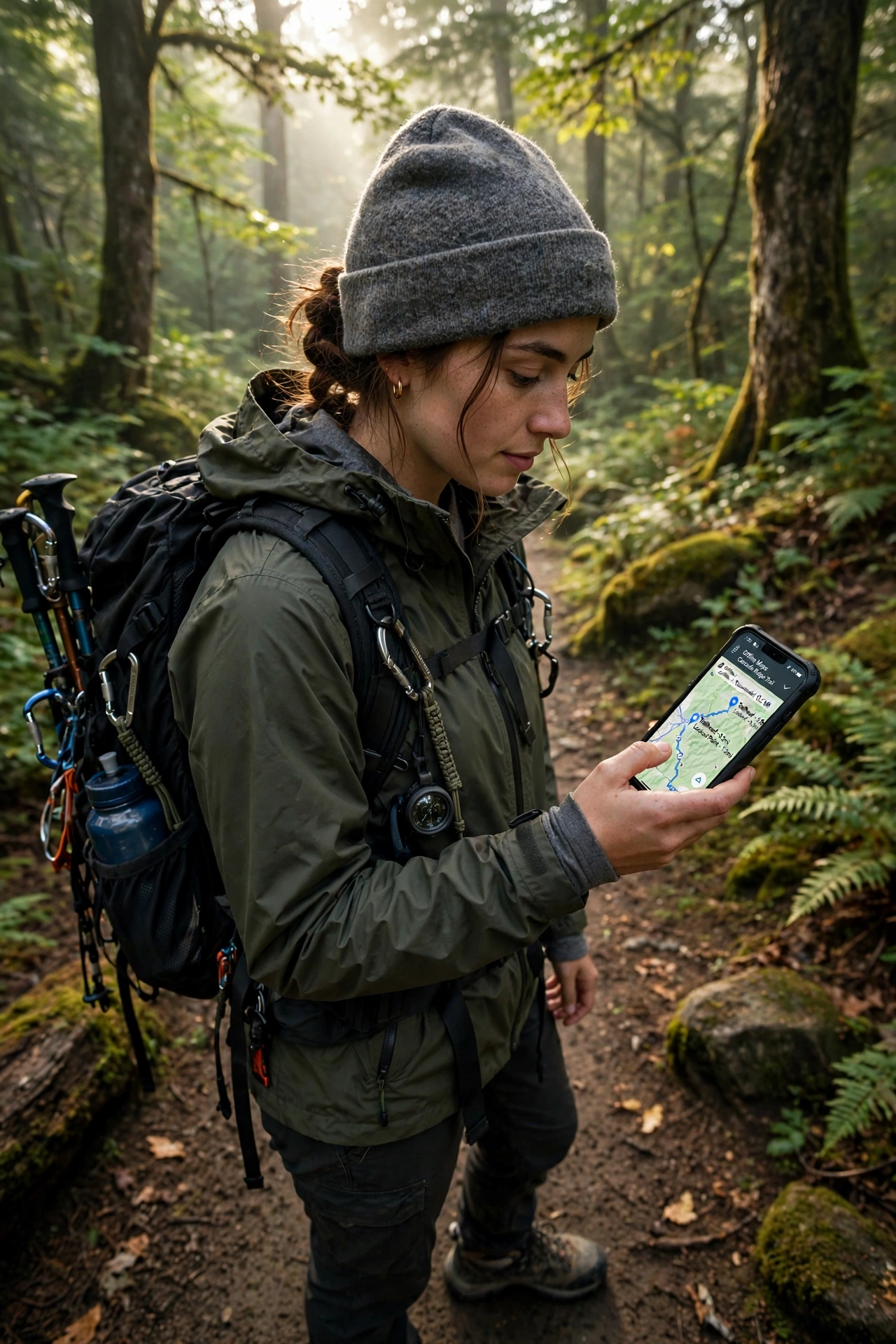
If you are hiking or heading into the wilderness, be extra careful: a city-sized download is not enough for a mountain range. Zoom out and check that your download covers the full trailhead, the trails themselves, and a margin around them. Getting lost in the woods with a map that ends just before the forest is not an experience you want.
Finally, keep a charged power bank in your bag. GPS navigation drains batteries noticeably faster than normal use, and offline maps cannot help you if your phone dies halfway up the mountain.
What Offline Maps Can’t Do (and Why That’s Fine)
Let us be honest about the limits so they never catch you out. Live traffic is gone offline — the app cannot know about a jam or a road closure without the internet. Public transport directions and real-time transit schedules need a connection too, as do ride-hailing estimates and current business hours. Street-level imagery and indoor maps may be partially available or missing entirely.
None of this is a flaw; it is just physics. A downloaded map is a snapshot, and snapshots cannot show live events. The way to handle it is simple: plan around the limits. Check traffic and transit while you still have Wi-Fi, download what you need, and treat the offline map as your reliable fallback rather than your only tool.
Offline Maps: The Usual Questions
Do offline maps expire?
They can get stale, yes. The app generally refreshes your downloads automatically over Wi-Fi to keep them current. If a download gets very old and has not been updated, the app may prompt you to update or re-download it. Checking the list before a trip is a good habit.
Can I download a whole country?
Usually not in one go — there is a size limit per download. For a large region, split it into several overlapping downloads: a few cities, the routes between them. It takes a few extra minutes to set up but works just as well.
Does GPS work without mobile data?
Yes. Your phone’s GPS receiver talks to satellites directly, so your position on a downloaded map still updates in real time. What disappears without data is everything that needs the internet: traffic, transit, fresh search results.
Will it use my mobile data anyway?
The offline map itself will not. But be aware that the app may still try to reach the internet for other features — live traffic, for instance. If you are worried about roaming charges, the safest move is to turn off mobile data entirely and navigate purely on the downloaded map.
What if I need an area I didn’t download?
Then you are back to paper-map skills: ask a local, follow road signs, or head somewhere with Wi-Fi and download on the spot. This is why the “download the whole route corridor” habit from the travel section matters so much.
Download, Then Roam
Offline maps are one of those features that seem boring until the day they save your trip. Ten minutes of downloading on your home Wi-Fi buys you calm, confident navigation through every dead zone on your journey — no signal bars required.
So here is your weekend mission: open Google Maps, save the area around your home, and take a walk with your mobile data switched off. Watch the blue dot glide along the saved streets. Once you have seen it work, you will never set off on a road trip, a hike, or a foreign holiday without downloading your map first. Happy roaming — signal or not.














