

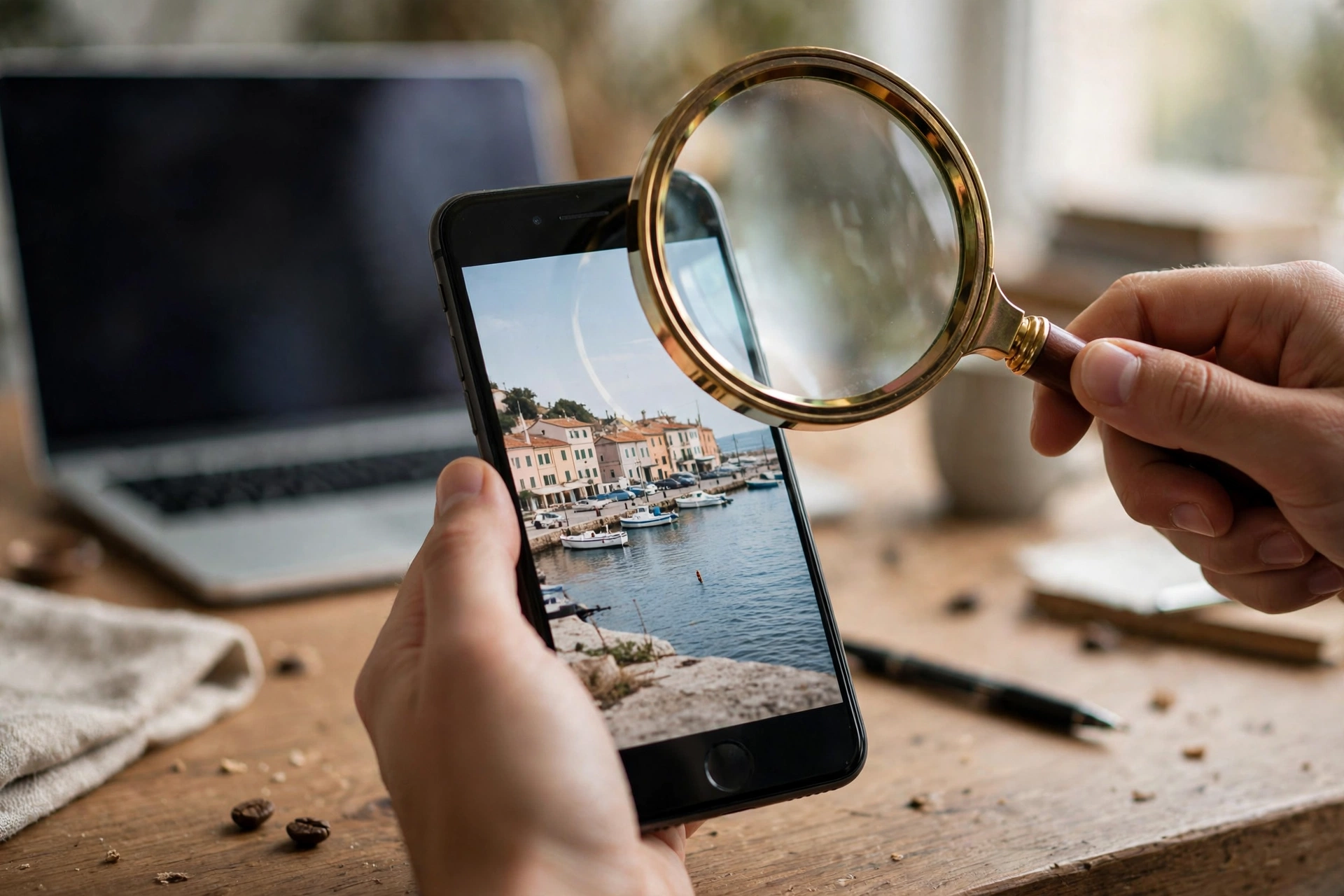
Every week, some photo races around the internet that turns out to be five years old, from a different country, or stolen from a stranger’s holiday album. And every week, thousands of people share it before anyone checks. The good news: checking takes less than a minute, needs no special software, and works on any phone or computer. It is called reverse image search — searching with a picture instead of words — and once you know how to do it, you will never look at a suspicious photo the same way again.
Normal search engines match words to words. Reverse image search flips the question: you give the search engine the image, and it finds every place online where that image — or ones that look like it — has appeared. Photographers use it to catch people stealing their work. Journalists use it to verify breaking-news photos. And you can use it to dodge scams, identify mystery objects, and win every “where was this taken?” argument. Here is the whole skill, start to finish.
Why typing words into Google is not enough
Imagine a friend sends you a photo of a “protest happening right now in your city.” You could search for news about protests, but that tells you nothing about the photo itself — it could be from 2019, or from another continent entirely. Words describe what you think you are seeing; the image is the evidence, and reverse image search goes straight to the evidence.
Behind the scenes, the search engine converts the picture into a kind of digital fingerprint — noting shapes, colours, and patterns — and compares it against the billions of images it has indexed. It does not “understand” the photo the way you do; it matches the fingerprint. That is why it can find an image even when it has been cropped, resized, or slightly edited, and why it sometimes surfaces lookalikes that are merely similar. Knowing this makes you a much better reader of the results.
The two ways to start a search
Every reverse image search begins the same way: with the picture in hand. From there you have two doors.
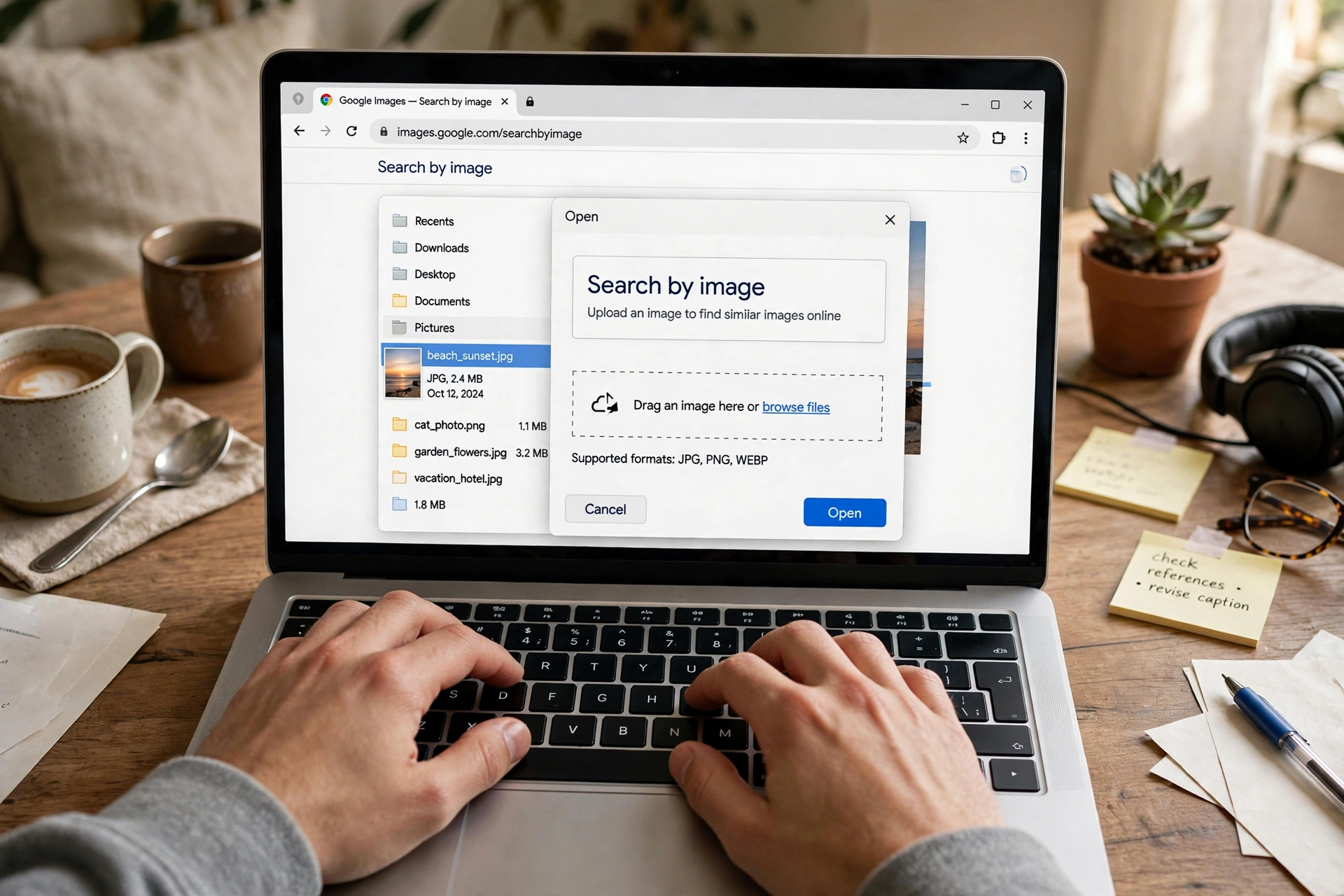
Door one: upload or paste. Open your search engine’s image search page and look for the camera icon. Click it and you can either upload a photo from your device or paste the web address of an image you found online. This is the universal method — it works on any computer and in any mobile browser if you switch to the desktop view of the page.
Door two: right-click the image itself. On most desktop browsers, right-clicking any photo on the web offers a “search image” option in the menu. One click, and a new tab opens with the results. On phones, it takes a couple more taps — save the photo to your gallery first (or take a screenshot), then upload it through door one. Both doors lead to the same place.
Reading the results like a detective
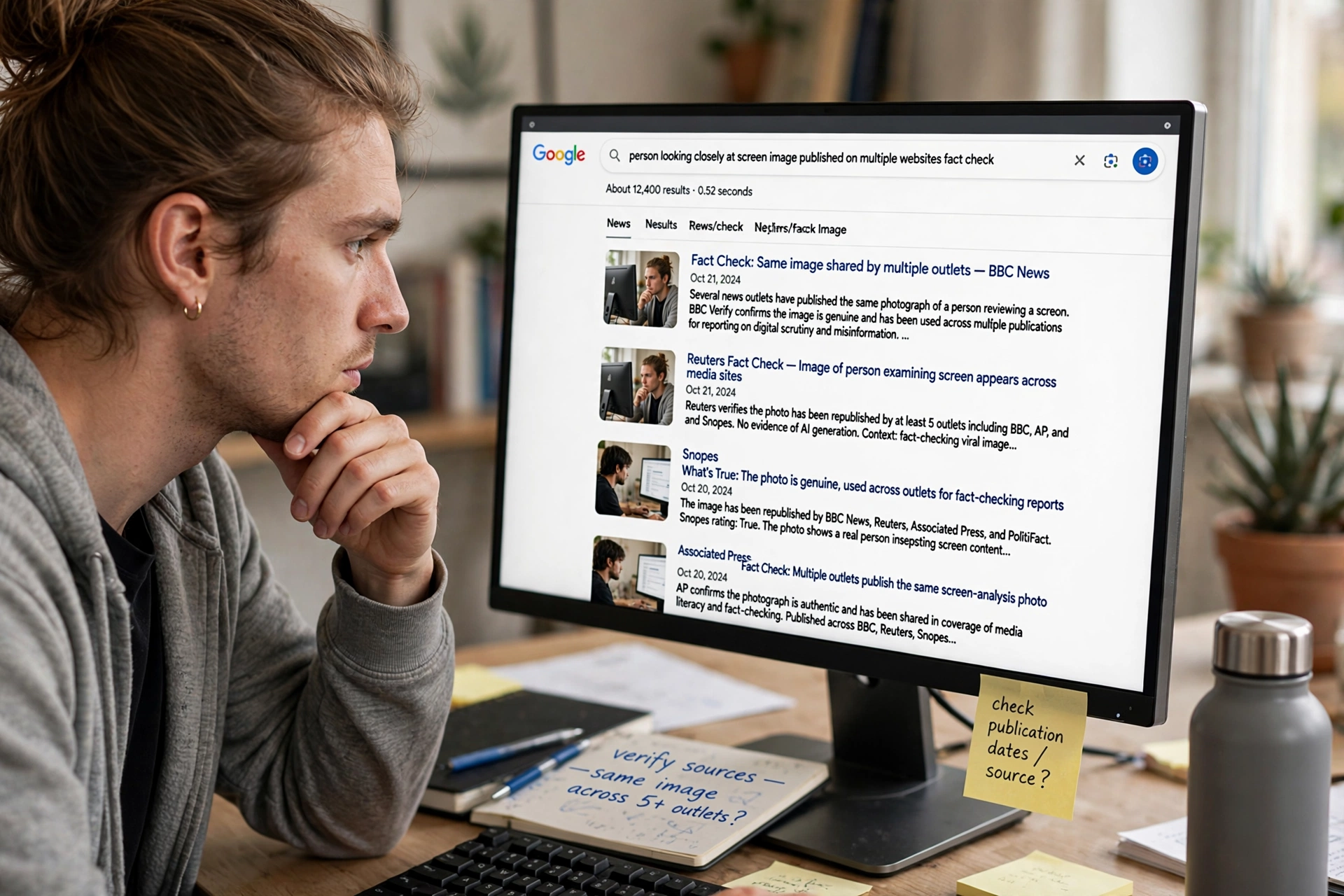
The results page is where beginners get overwhelmed, so let us decode it. You will typically see three things. First, visually similar images — the search engine’s best guesses at matches and near-matches. Second, pages containing the image — a list of websites where that exact photo appears. Third, sometimes, a label for what the engine thinks the image shows, like a landmark name or a product.
Your detective work is in the second list: the pages. Open the oldest-looking results first. If a photo is claimed to show “today’s flood in Chennai” but the same image appears on a 2021 article about floods in Bangladesh, you have your answer. Check the context around the image on those pages, not just the thumbnail — captions and article dates are the real evidence. And if every result is brand new and the photo appears nowhere else, that is information too: either it is genuinely fresh, or it was generated or altered recently.
Six everyday moments this trick rescues you
This is not just a journalist’s tool. Here are the situations where ordinary people use it constantly:
1. The too-perfect profile picture. Someone charming messages you on a dating app or social network, and their photos look like a magazine shoot. One reverse search reveals the same face on a model’s portfolio or a stock photo site. Romance scammers steal attractive photos by the thousand; this check takes thirty seconds and saves months of heartache.
2. The unbelievable news photo. Before you share that dramatic image, search it. You will be amazed how often “breaking” photos are recycled from old disasters in other countries. Sharing a debunked photo is embarrassing; checking first takes less time than writing the caption.
3. The stolen artwork or photograph. Creators: search your own images occasionally. If someone is using your photo to sell their product or illustrate their article without permission, the results page is your evidence trail.
4. The mystery object. A plant in your garden, a gadget at a flea market, a landmark in the background of an old family photo — reverse image search identifies things words struggle to describe. It is surprisingly good at plants, products, and places.
5. Finding a better version. That perfect wallpaper or presentation image, but only in tiny, blurry resolution? Search it and find the same photo in high resolution or without a watermark, straight from the original source.
6. Shopping smarter. See a product photo in an ad that looks suspiciously cheap? Search the image. If the identical photo appears on five unrelated stores with five different prices, you are looking at a dropshipping listing, not a bargain.
Where the tool has blind spots
Honesty matters here, so know the limits. Reverse image search only knows about images the search engine has already indexed — brand-new photos, images inside private accounts, and photos from apps that block indexing will not show up. Heavily edited images can slip past the fingerprint matching, and the tool cannot tell you whether a photo is AI-generated with any reliability.
Also, absence of evidence is not evidence of authenticity. If a suspicious photo returns zero results, do not declare it genuine — treat it as “unverified” and look for other clues: does the lighting match the claimed time of day, do signs and number plates fit the claimed country, does the story around the photo check out? Reverse image search is one powerful check in a small toolkit, not the whole toolkit.
What beginners usually ask
Is it free? Yes — the major search engines offer it at no cost, with no account needed. Anyone telling you to pay for “advanced photo verification” for casual use is selling you something you do not need.
Can I do it on my phone? Absolutely. Save or screenshot the image, open the image search page in your browser, tap the camera icon, and upload. It is two extra taps compared to desktop, nothing more.
Does uploading a photo make it public? No. The upload is processed for matching and is not published anywhere. Still, use common sense — do not upload sensitive personal documents to any online service.
What if the image is a screenshot with text on it? Crop to just the photo part first. Text overlays and memes confuse the fingerprint matching; the cleaner the image, the better the matches.

Give it a try on a photo today
Reading about this is useful; doing it once makes it permanent. Pick a photo right now — the last viral image someone forwarded to your family group is ideal — and run it through a reverse image search. Read the pages list, check the oldest result, and see what the photo’s real story is.
You will probably be surprised, and that surprise is the point. The internet rewards the curious and punishes the credulous. Thirty seconds of checking puts you firmly in the first camp — and once your friends see you debunking fakes in the group chat, do not be surprised when you become the designated fact-checker. Wear the title with pride.














