

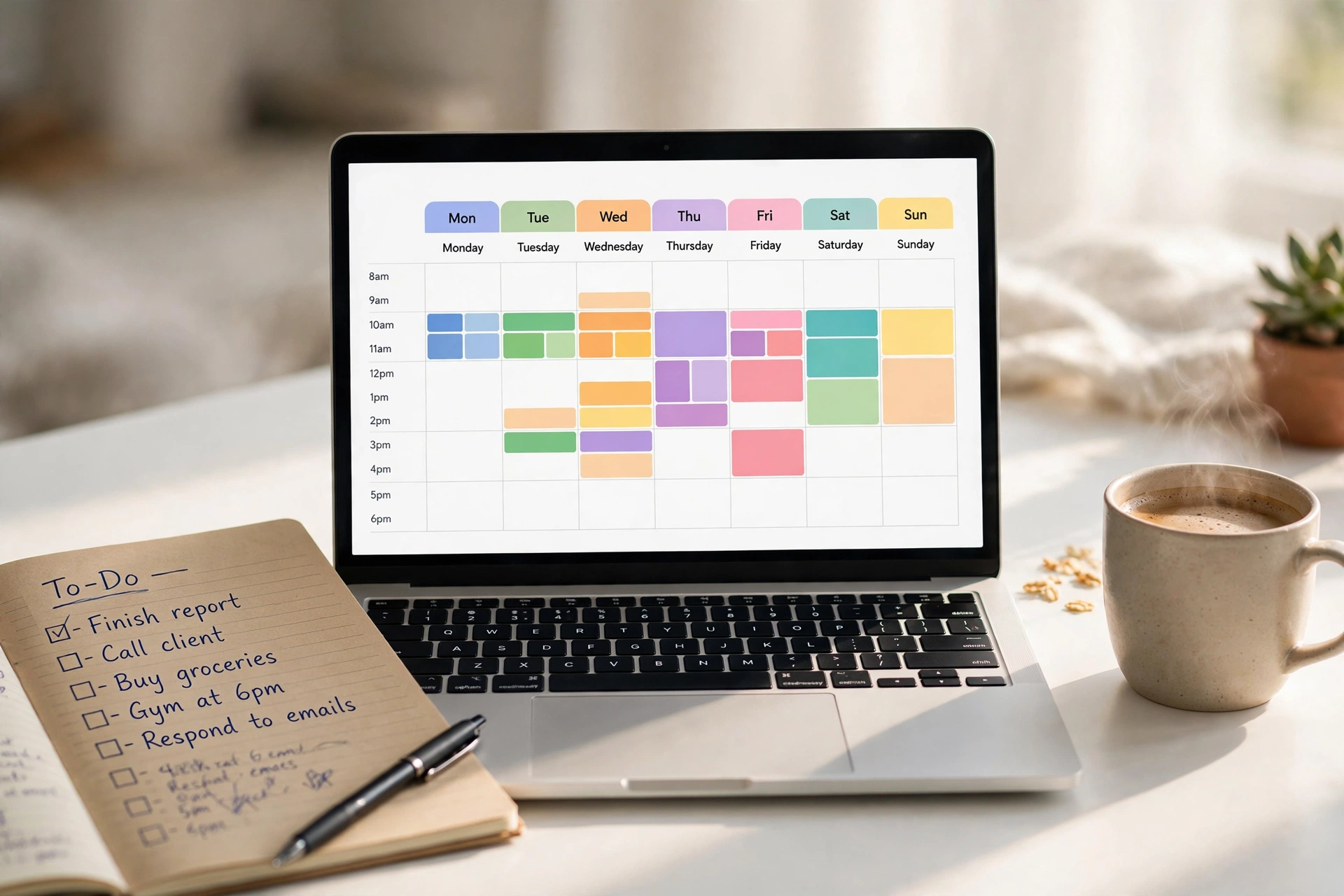
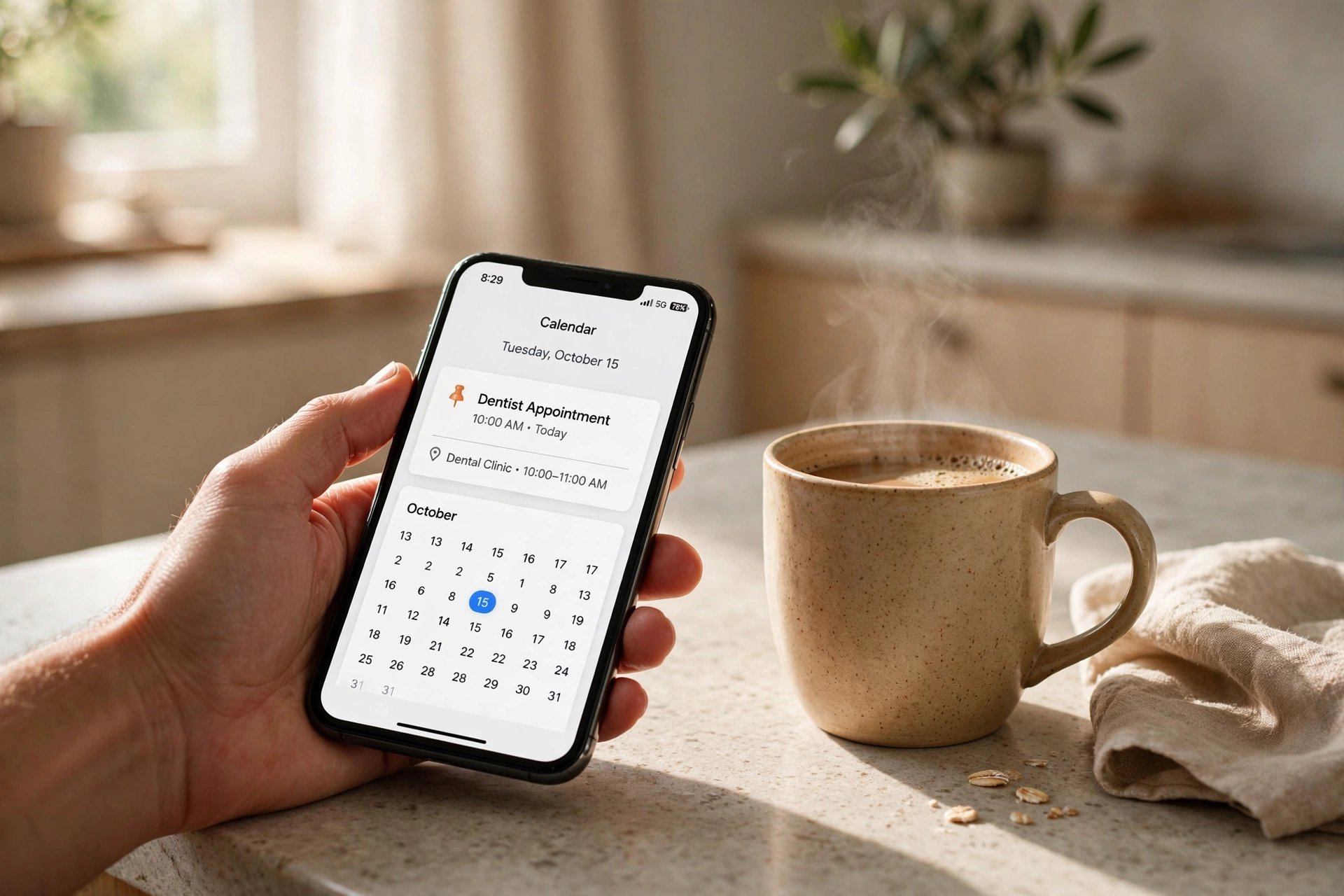
Here’s a familiar Monday: you wake up, glance at your phone, and realise the dentist appointment you swore was Thursday is actually today — in forty minutes. Meanwhile your partner has booked dinner with friends on the same evening as your work event, and nobody told anybody. The problem usually isn’t your memory. It’s that your plans live in three different places: your head, a chat thread, and a sticky note that’s already lost.
Google Calendar fixes exactly this, and it costs nothing. Most people who “use” it only scratch the surface — they add the odd appointment and still get ambushed by their own schedule. This guide shows you how to use Google Calendar properly: the setup that takes twenty minutes, the features that do the remembering for you, and the small habits that turn a chaotic week into a calm one.
Start With a Twenty-Minute Setup
Everything good that follows depends on one unglamorous step: getting the app where you need it and signed in. Google Calendar is free with any Google account and works in a web browser, on Android phones, and on iPhones (via the Google Calendar app). Install it on your phone, sign in with the same Google account you use for Gmail, and open it on your computer too — the big screen is where planning is easiest, the phone is where reminders save you.
Next, turn on notifications in two places: inside the calendar’s own settings, and in your phone’s system settings so the app is allowed to buzz you. A calendar that can’t notify you is just a diary you never open. While you’re in settings, check that your time zone is correct — wrong time zones are a classic source of mysteriously shifted appointments, especially after travel.
Finally, take a quick tour of the views. The Schedule view is a simple upcoming list (great on phones), Day and Week show your time as blocks (great for planning), and Month gives the big picture. Most people live in Week view on computers and Schedule view on phones. There’s no wrong answer — pick what your brain likes.
Add Events the Way That Actually Sticks
Creating an event is simple — click or tap a time slot, type what it is — but a few details separate a useful event from a useless one. Always give events a clear, specific title: “Dentist — Dr. Sharma, bring insurance card” beats “appointment” every time, because future-you won’t remember what “appointment” meant. Add the location too; on your phone, tapping it opens directions instantly, which is a small miracle when you’re running late in an unfamiliar area.

Use the description field for anything you’d otherwise have to hunt for: the video call link, the booking reference, the name of the person you’re meeting, the dish you’re bringing. Two minutes of typing when you create the event saves ten minutes of panicked searching later. And for anything with other people involved, add them as guests — they’ll get an invitation, and you’ll all see updates automatically if plans change.
For repeating commitments — weekly football, monthly bill payments, a daily medication reminder — use the repeat option instead of creating dozens of separate events. Set it once (“every Tuesday at 7pm”) and let the calendar do the repetitive work forever. Just be careful to set an end date for things that aren’t truly permanent, or you’ll be declining your own events for years.
Make Reminders Do the Remembering
This is the feature that changes everything: notifications. Every event can have reminders that nudge you before it starts — the default is often ten minutes, which is fine for meetings but useless for things that need preparation. The trick is to match the reminder to the event: a flight needs a reminder the day before (passport, packing), a birthday needs a week (buy the gift), a video call needs fifteen minutes (find headphones, look presentable).
You can set multiple reminders per event — one the evening before to prepare, one an hour before to leave. For the truly forgetful (no judgement — this author included), create events for things that aren’t appointments at all: “take the bins out,” “water the plants,” “call Mum.” A calendar reminder is simply a future note to yourself that refuses to get lost.
One more underused gem: tasks and goals live alongside events. If your version of the app offers a task list, use it for things with deadlines but no fixed time (“submit expenses by Friday”). They sit visibly in your day until done, which is exactly the right amount of nagging.
Share a Calendar and Stop the Double-Booking
If you live with a partner, family, or flatmates, shared calendars are transformative. Instead of asking “are we free Saturday?”, you just look. Create a separate calendar called something like “Family” (calendars are like separate layers you can toggle on and off), then share it with the relevant people by adding their email addresses. Everyone sees the same events, and anyone can add to it.
The key etiquette: keep personal and shared calendars separate. Your dentist appointment doesn’t need to be on the family calendar, but “date night — no babysitter needed” absolutely does. Use different colours for each calendar so you can tell at a glance whose thing is whose. And agree on one rule as a household: if it’s not on the shared calendar, it doesn’t exist. The first time this prevents a double-booked Saturday, everyone becomes a believer.
Sharing works beyond family too. Share a calendar with a study group, a sports team, or colleagues for a project. Guests you invite to individual events only see those events; people you share a whole calendar with see everything on it — so share thoughtfully.
See Your Whole Week in One Glance
Here’s a habit worth stealing from relentlessly organised people: the Sunday evening review. Spend ten minutes with Week view open — look at what’s coming, add anything you’ve been carrying in your head, move things that clash, and set reminders where they matter. This single habit eliminates most “I forgot” moments, because nothing important stays only in your head past Sunday night.
While reviewing, use colour coding deliberately. Most calendar apps let you colour individual events: red for can’t-move deadlines, blue for work, green for personal, yellow for family. A week that looks like confetti is a week you can’t read; three or four consistent colours is a week you understand in seconds.
Also learn to block time for the important-but-not-urgent. Exercise, side projects, and rest never schedule themselves — they get eaten by everything else. Put “gym” or “reading hour” on the calendar like any other appointment. It feels oddly formal at first, and then it starts working, because what gets scheduled gets done.

Tame the Notification Noise
There’s a failure mode to watch for: calendar enthusiasm curdling into notification fatigue. If your phone buzzes forty times a day, you’ll start ignoring all of it — including the reminders that matter. The fix is ruthless prioritisation. Turn off notifications for low-stakes events, keep them for things with real consequences, and use gentle defaults (a single reminder) for everything in between.
Similarly, decline the calendar spam problem early. If you start receiving invitations for things you never asked about, don’t just ignore them — decline them, and check your settings so unknown senders can’t add events to your calendar automatically. A clean calendar is a trusted calendar.
And give yourself travel buffers. If meetings are back-to-back across town, the calendar doesn’t know about traffic. Either add travel time as its own event or set the location so your phone can warn you when to leave — many phones offer “time to leave” alerts based on current traffic, which is genuinely one of the best modern inventions.
What New Calendar Users Usually Ask
Do I need internet for it to work? Mostly no — the phone app works offline and syncs when you’re back online. Just don’t rely on last-second changes syncing without a connection.
Can I use it without a Google account? Not really — the account is what syncs everything between your devices. The good news is that one free account covers Gmail, Calendar, Drive, and everything else.
What if I share a calendar and someone deletes something? Deleted events can usually be recovered from the trash within about a month, and you can see who changed what. For high-stakes shared calendars, agree that only the event’s creator edits it.
How do I stop double notifications on phone and computer? Pick one primary device for alerts — usually the phone — and mute calendar notifications on the other. Two buzzes for everything trains you to ignore both.
Is my calendar private? Your calendars are private by default; only people you explicitly share with (or invite to events) see anything. Double-check before sharing a whole calendar that it doesn’t contain anything sensitive.
Your Week, Handled
Nobody becomes an organised person by downloading an app — but an app used well removes the friction that keeps disorganised people disorganised. Twenty minutes of setup, honest event titles, reminders matched to the stakes, one shared calendar for the household, and a ten-minute Sunday review: that’s the whole system. It’s not glamorous, and that’s the point. The best calendar is the boring one you trust completely, so your brain is free for everything that isn’t scheduling.
Start tonight: open your calendar, add the three things you’re most likely to forget this week, and set reminders you’d actually thank yourself for. Future-you is already grateful.














