Physical Address
304 North Cardinal St.
Dorchester Center, MA 02124
Physical Address
304 North Cardinal St.
Dorchester Center, MA 02124

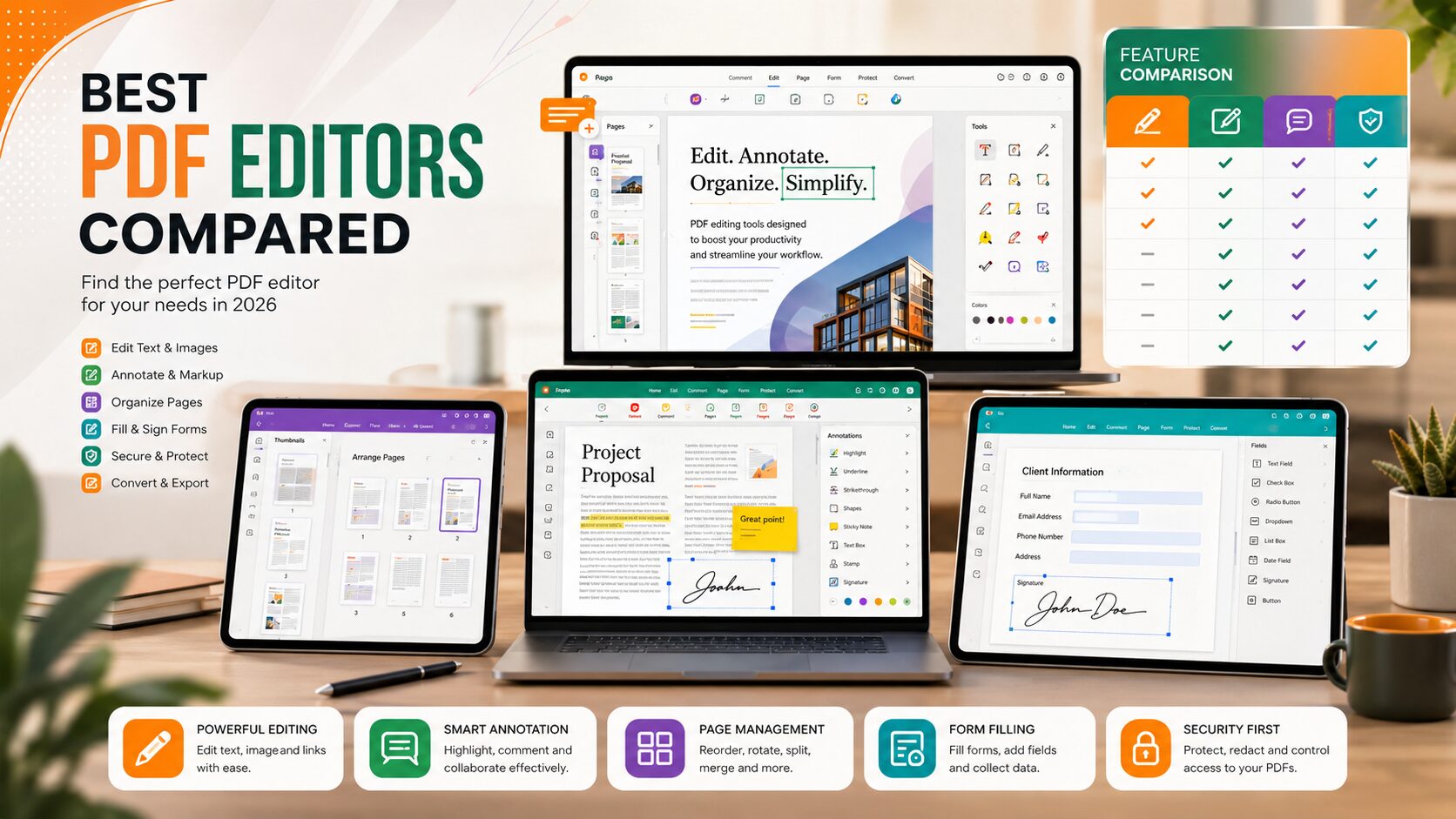
PDF files are everywhere. Whether you’re filling out a job application, signing a contract, submitting an assignment, or sharing business documents, PDFs have become the standard format for exchanging files because they preserve formatting across different devices.
However, editing a PDF isn’t always easy. Unlike Word documents, PDFs are designed to keep their layout unchanged, which means you’ll often need dedicated software to make even small changes.
The good news is that you don’t always need an expensive subscription. Many excellent free PDF editors now offer features like text editing, annotations, form filling, digital signatures, page organization, and file conversion without charging anything.
In this guide, we’ll compare the Best Free PDF Editors available in 2026, explain their strengths and weaknesses, and help you choose the right tool for your needs.
A PDF editor is software that allows you to modify PDF documents instead of simply viewing them.
With the right editor, you can:
Some editors also include advanced features like OCR (Optical Character Recognition), password protection, and cloud collaboration.
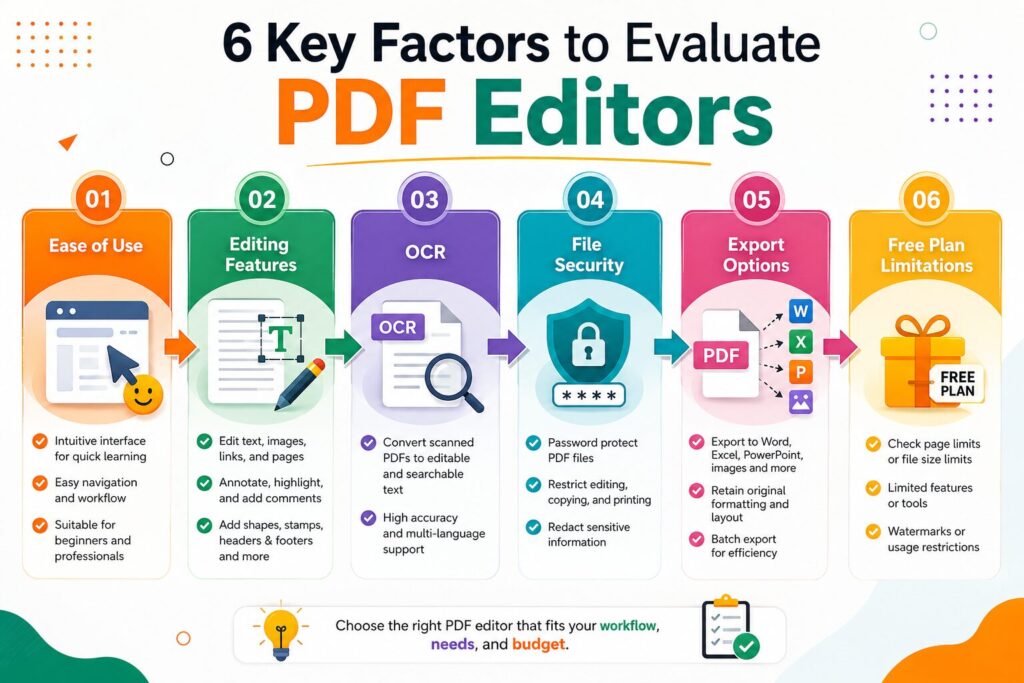
Not every free PDF editor offers the same experience. Some are perfect for students, while others are better suited for office work or business use.
To create this list, we compared each tool based on:
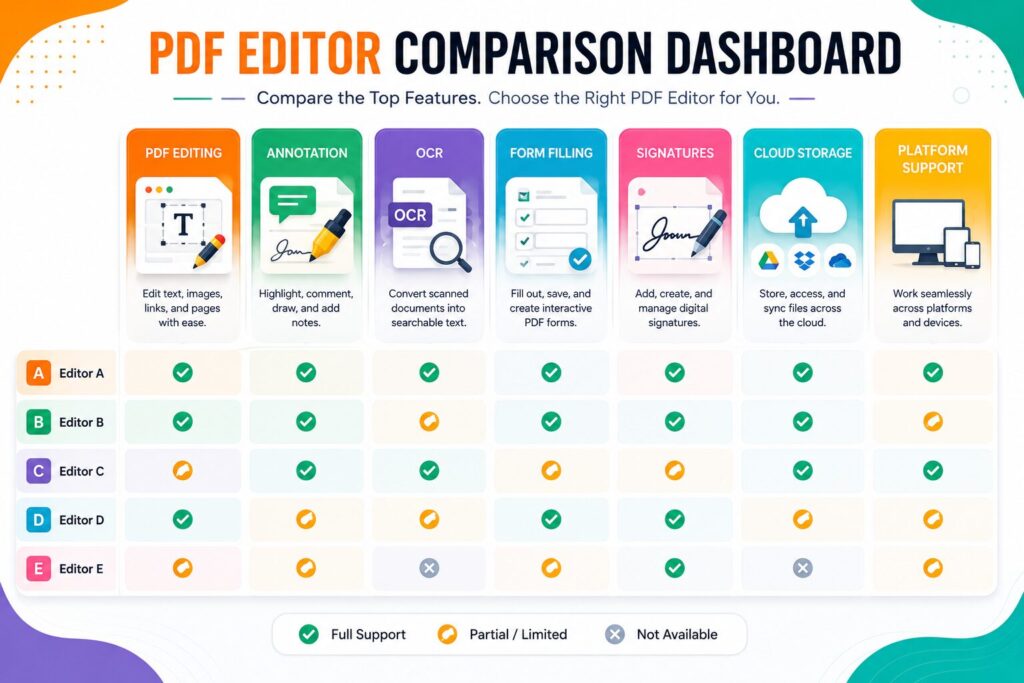
| Software | Best For | Windows | macOS | Web | OCR | Rating |
|---|---|---|---|---|---|---|
| PDFgear | General Editing | ✅ | ✅ | ✅ | ✅ | ⭐⭐⭐⭐⭐ |
| PDF24 Creator | Windows Users | ✅ | ❌ | Limited | ❌ | ⭐⭐⭐⭐ |
| LibreOffice Draw | Basic Editing | ✅ | ✅ | ❌ | ❌ | ⭐⭐⭐⭐ |
| Sejda PDF | Web Editing | ✅ | ✅ | ✅ | Limited | ⭐⭐⭐⭐ |
| Smallpdf | Quick Tasks | ✅ | ✅ | ✅ | Limited | ⭐⭐⭐⭐ |
PDFgear has quickly become one of the most popular free PDF editors because it offers features that were once available only in premium software.
It allows users to:
Its clean interface makes it especially suitable for beginners.
PDF24 Creator is an excellent choice for Windows users.
It includes dozens of PDF utilities in one application, including compression, conversion, page extraction, password protection, and document merging.
One of its biggest advantages is that many features work completely offline.
LibreOffice Draw is a free open-source application capable of editing many PDF files.
Although it isn’t as polished as dedicated PDF editors, it works well for basic text editing and document modifications.
LibreOffice Draw is a good option if you already use the LibreOffice suite and only need occasional PDF editing.
Sejda PDF is one of the easiest web-based PDF editors available today. Because it runs in your browser, you don’t always need to install software.
It includes tools for:
If you only edit PDFs occasionally, Sejda PDF is an excellent choice.
Smallpdf focuses on making PDF editing simple. Instead of offering dozens of complicated menus, it provides easy-to-use tools for common tasks.
Popular features include:
| Feature | PDFgear | PDF24 | LibreOffice Draw | Sejda | Smallpdf |
|---|---|---|---|---|---|
| Edit Text | ✅ | ✅ | ✅ | ✅ | Limited |
| Add Images | ✅ | ✅ | ✅ | ✅ | ✅ |
| OCR | ✅ | ❌ | ❌ | Limited | Limited |
| Merge PDFs | ✅ | ✅ | ❌ | ✅ | ✅ |
| Split PDFs | ✅ | ✅ | ❌ | ✅ | ✅ |
| Digital Signature | ✅ | Limited | ❌ | ✅ | ✅ |
| Offline Use | ✅ | ✅ | ✅ | Desktop Version | ❌ |
The best choice depends on your needs.
| User Type | Recommended Software |
|---|---|
| Student | PDFgear |
| Office Employee | PDF24 Creator |
| Freelancer | PDFgear |
| Small Business | PDFgear or Sejda |
| Occasional User | Smallpdf |
| Open-Source Enthusiast | LibreOffice Draw |
Instead of choosing the software with the longest feature list, select one that matches the way you actually work.
Free PDF editors have improved significantly over the past few years.
Some of the biggest benefits include:
For students and freelancers, these tools can easily handle most daily PDF tasks.
While free software is useful, there are some limitations.
Understanding these limitations helps you choose the right tool without unrealistic expectations.
Before installing any software, ask yourself these questions:
If you regularly work without internet access, desktop software like PDFgear or PDF24 Creator is a better option.
Choose software that supports OCR if you frequently work with scanned PDFs.
Many professionals need secure electronic signatures for contracts and business documents.
Frequent users may benefit from software with more advanced editing capabilities and fewer usage restrictions.
Many users install the first PDF editor they find without checking its features.
Avoid these common mistakes:
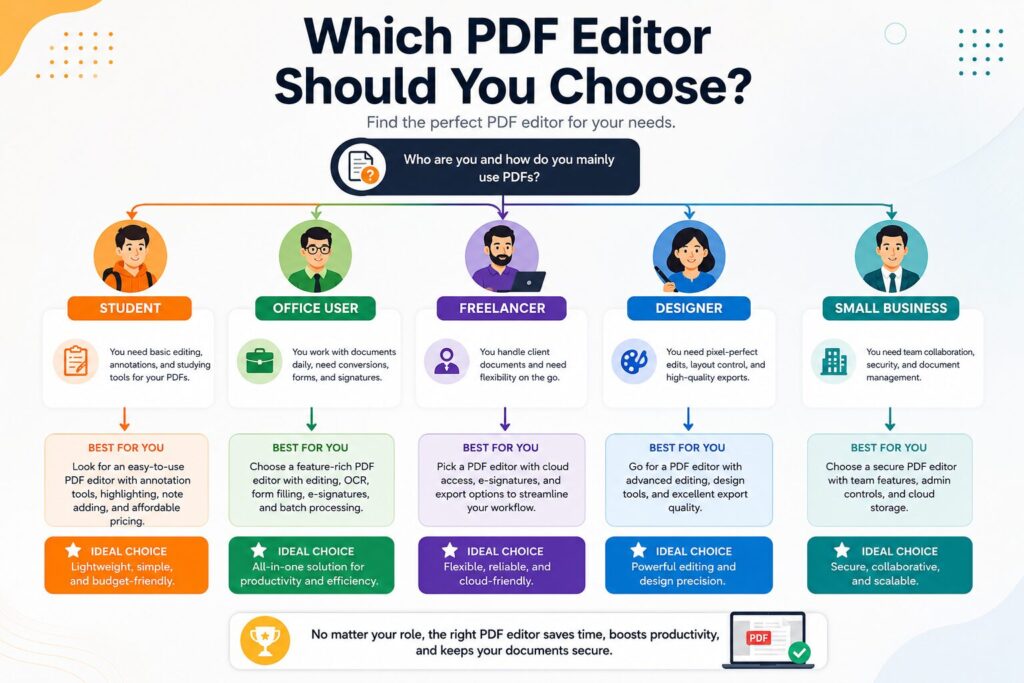
PDFgear is one of the best choices because it combines a simple interface with powerful editing features.
Yes. Several free PDF editors allow basic text editing without requiring a paid subscription.
PDFgear offers OCR support for scanned PDF documents, making it a strong option for users who need text recognition.
Trusted services generally use secure connections, but you should avoid uploading confidential documents unless you trust the provider and understand its privacy policy.
Yes. Many free PDF editors include basic electronic signature tools.
PDF24 Creator is an excellent choice for Windows users because it offers many offline PDF tools.
Yes. Most of the editors listed in this guide include free merge and split features.
Some do, while others—such as PDFgear and PDF24 Creator for many common tasks—allow editing without adding watermarks.
Finding the Best Free PDF Editors is easier today than ever before. Whether you’re a student submitting assignments, a freelancer sending proposals, or a business owner managing contracts, there’s a free PDF editor that can handle your everyday document tasks.
For most users, PDFgear offers the best overall balance of features, ease of use, and value. PDF24 Creator is ideal for Windows users who prefer offline tools, while Sejda PDF and Smallpdf are excellent for quick web-based editing. If you prefer open-source software, LibreOffice Draw remains a practical option.
Before choosing a PDF editor, think about how often you’ll use it, whether you need OCR or digital signatures, and if offline editing is important. Matching the software to your workflow will help you get the most value from a free solution.
This article is published by Tivorenza.com to help readers understand technology in a simple and practical way. We regularly update our content to keep our software reviews accurate, beginner-friendly, and useful.

