Physical Address
304 North Cardinal St.
Dorchester Center, MA 02124
Physical Address
304 North Cardinal St.
Dorchester Center, MA 02124

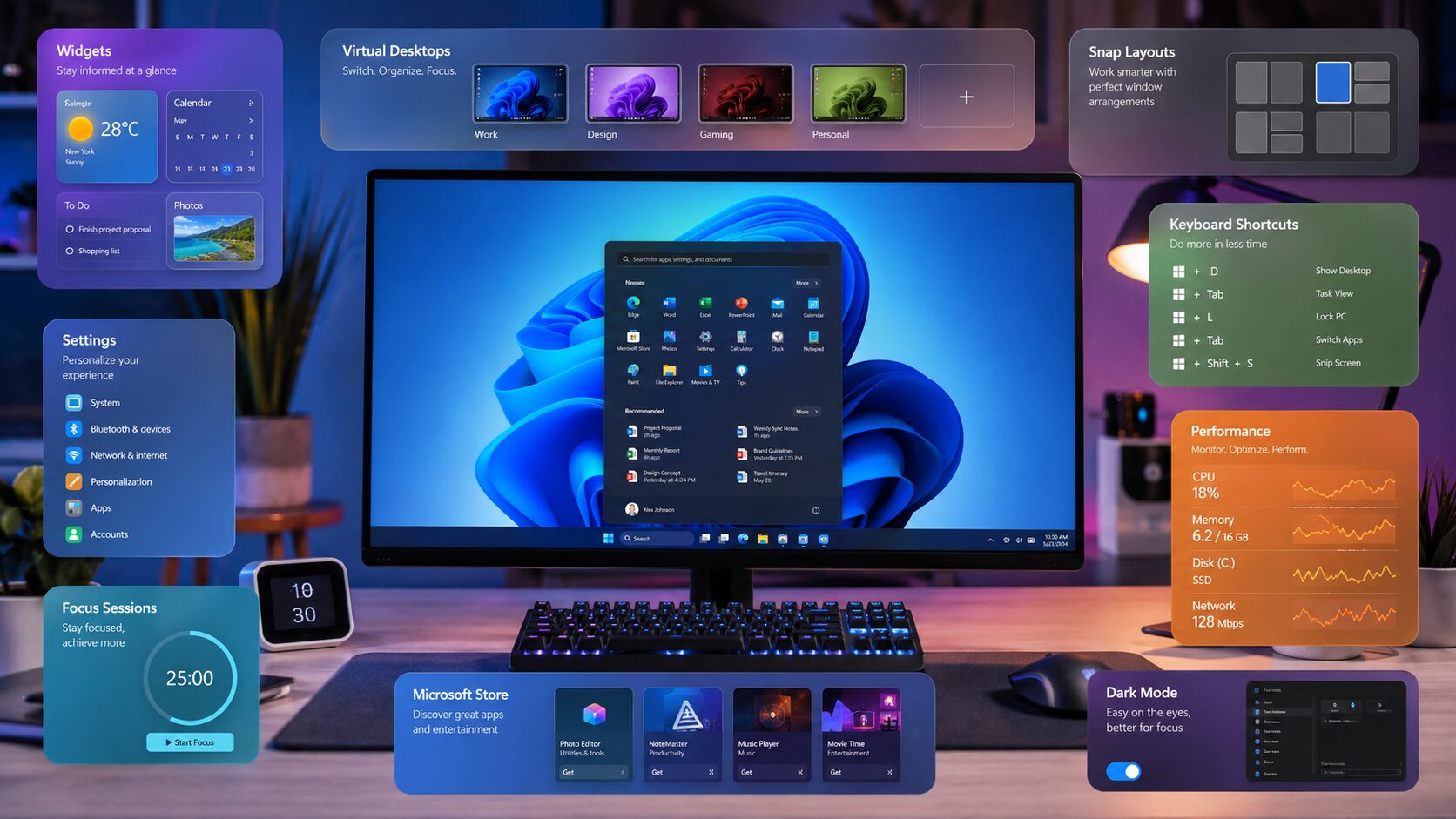
If you’ve recently bought a new computer or upgraded from Windows 10, you’re probably wondering how to get the most out of Windows 11. Although the operating system looks modern and clean, many of its best features are hidden beneath menus that beginners rarely explore.
The good news is that you don’t need to be a computer expert to improve your Windows experience. A few simple settings and built-in tools can help you work faster, stay organized, improve security, and even extend your laptop’s battery life.
In this guide, you’ll discover practical Windows 11 Tips and Tricks that every beginner should know. From customizing the Start Menu to using powerful multitasking features, these tips will help you use your computer more efficiently from day one.
Windows 11 includes dozens of built-in features that many users never use.
Learning these features can help you:
Even spending a few minutes learning these features can make your daily computer usage much smoother.
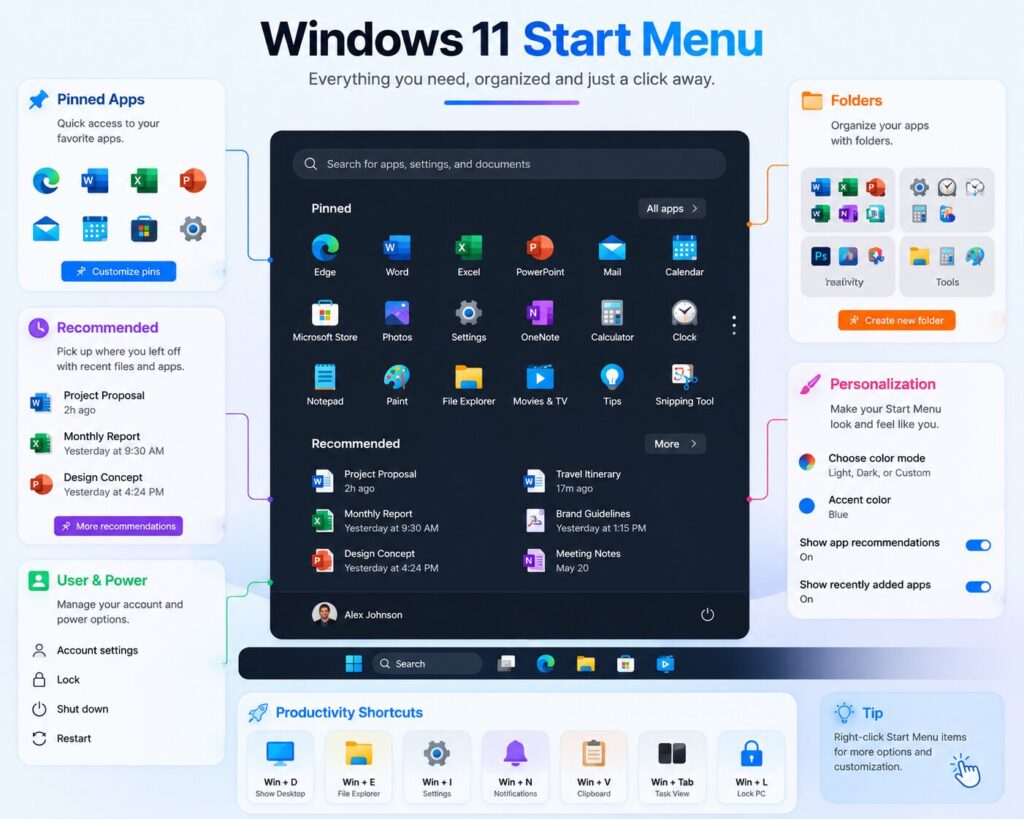
The Start Menu is the first thing most people see after turning on their computer.
You can personalize it by:
A cleaner Start Menu makes it much easier to find frequently used applications.
One of Windows 11’s most useful features is Snap Layouts.
Instead of manually resizing windows, you can quickly organize multiple applications on your screen.
For example:
This feature is especially useful for students, programmers, designers, and office workers.
Virtual Desktops allow you to separate different types of work.
For example:
Desktop 1:
Office work
Desktop 2:
Personal browsing
Desktop 3:
Video editing
Desktop 4:
Gaming
This keeps your workspace organized and reduces clutter.
Normally, pressing Ctrl + C copies only one item.
With Clipboard History enabled, Windows remembers multiple copied items.
Press:
Windows + V
to access your clipboard history.
This feature saves a surprising amount of time during everyday work.
Focus Sessions help reduce distractions by combining timers, notifications, and productivity tools.
They’re useful when:
Working in focused time blocks often improves concentration.
Many beginners use only basic File Explorer features.
Useful improvements include:
These small changes make file management much easier.
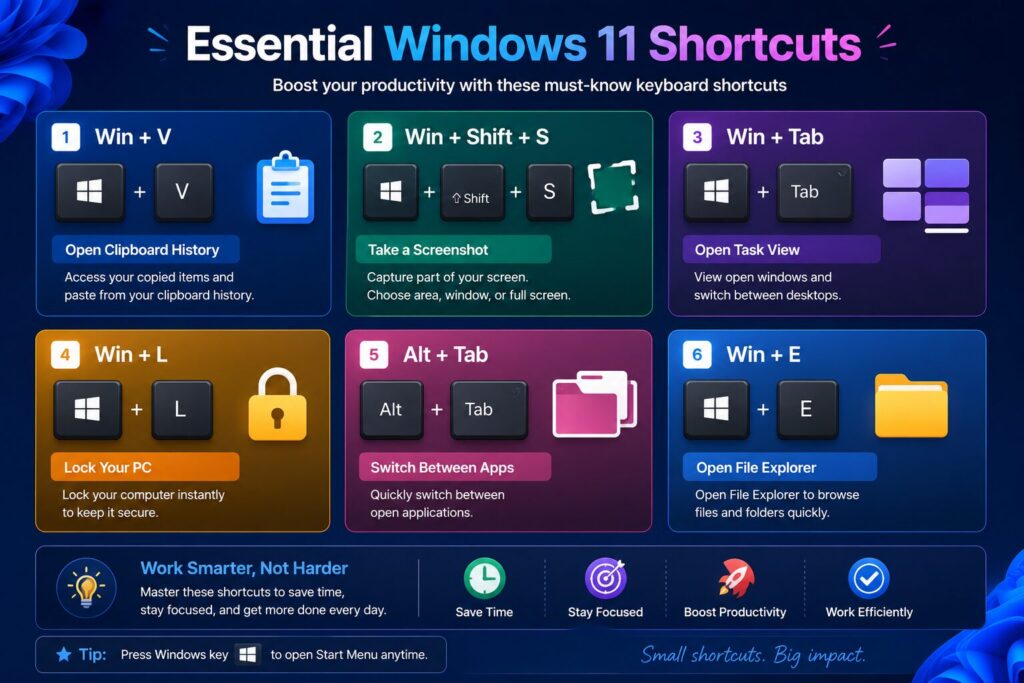
| Shortcut | Function |
|---|---|
| Win + E | Open File Explorer |
| Win + V | Clipboard History |
| Win + L | Lock Computer |
| Win + Shift + S | Screenshot |
| Alt + Tab | Switch Apps |
| Win + Tab | Task View |
Learning just a few shortcuts can save several minutes every day.
This shortcut instantly minimizes all open windows and shows the desktop.
Press it again to restore your previous windows.
It’s useful when you need quick access to desktop files without manually minimizing every application.
Pressing Windows + . (period) opens the emoji and symbol panel.
Besides emojis, it also provides:
This is especially helpful when writing emails, social media posts, or documents.
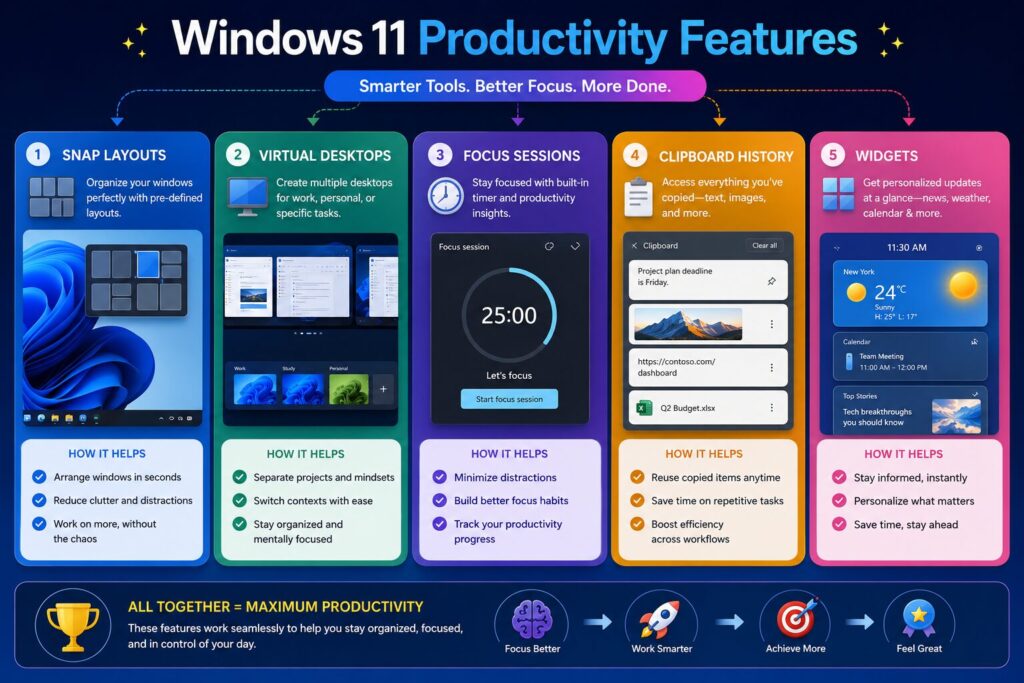
Windows 11 includes several built-in tools designed to improve productivity without installing additional software.
Widgets display useful information like:
You can customize which widgets appear based on your preferences.
Instead of opening the full Settings app, Quick Settings lets you quickly control:
This saves time when adjusting frequently used settings.
If notifications interrupt your work, Focus Assist can temporarily hide unnecessary alerts.
You can allow important notifications while blocking distractions during work or study sessions.
Task Manager helps you identify applications that consume too much memory or CPU power.
If your computer becomes slow:
Even a new computer can feel slow if too many programs run automatically.
Here are a few simple ways to improve performance.
Many applications launch automatically when Windows starts.
Disabling unnecessary startup apps can noticeably reduce boot time.
Go to:
Settings → Apps → Startup
Turn off applications you don’t need immediately after startup.
Microsoft regularly releases updates that improve:
Installing updates helps your computer run more smoothly.
Low disk space can slow your computer.
Use Storage Sense to automatically remove temporary files, recycle bin contents, and unnecessary downloads.
Many users rarely restart their computers.
Restarting clears temporary processes and often improves system performance.
Protecting your personal information is just as important as improving performance.
Windows 11 includes built-in antivirus protection through Windows Security.
Keep real-time protection enabled unless you have another trusted antivirus installed.
Open:
Settings → Privacy & Security
Review which applications can access:
Disable permissions that you don’t need.
If your device supports it, Windows Hello allows you to sign in using:
These methods are usually faster and more secure than traditional passwords.
Whenever you leave your desk, press:
Windows + L
Your computer locks immediately, helping protect your personal data.
Avoiding a few common mistakes can improve your experience.
Small habits like these can keep your PC running smoothly for years.
Yes. Most built-in Windows 11 features are easy to learn and can significantly improve productivity without requiring technical knowledge.
Performance depends on your hardware, but Windows 11 includes several optimizations that can improve responsiveness on supported devices.
Snap Layouts is one of the best multitasking features because it allows you to organize multiple windows quickly.
You can improve performance by disabling unnecessary startup apps, keeping Windows updated, freeing storage space, and restarting your computer regularly.
For most home users, Windows Security provides strong built-in protection when kept updated and used with safe browsing habits.
Yes. Virtual Desktops help separate work, study, entertainment, and personal activities, making your workspace more organized.
Many users find Windows + V (Clipboard History), Win + Shift + S (Screenshot Tool), and Alt + Tab (Switch Apps) among the most useful.
Install security and feature updates whenever they become available to keep your computer secure and running efficiently.
Learning a few Windows 11 Tips and Tricks can make a big difference in how you use your computer every day. Instead of relying only on basic features, you can take advantage of powerful built-in tools like Snap Layouts, Virtual Desktops, Clipboard History, Focus Sessions, and Windows Security to work faster and stay organized.
The best part is that these features are already included with Windows 11, so you don’t need to install extra software. Start by trying one or two tips, and gradually explore the others as you become more comfortable. Over time, these small improvements can help you save time, boost productivity, and enjoy a smoother Windows experience.
This article is published by Tivorenza.com to help readers understand technology in a simple and practical way. We regularly update our guides to ensure they remain accurate, beginner-friendly, and useful for everyday computer users.

