

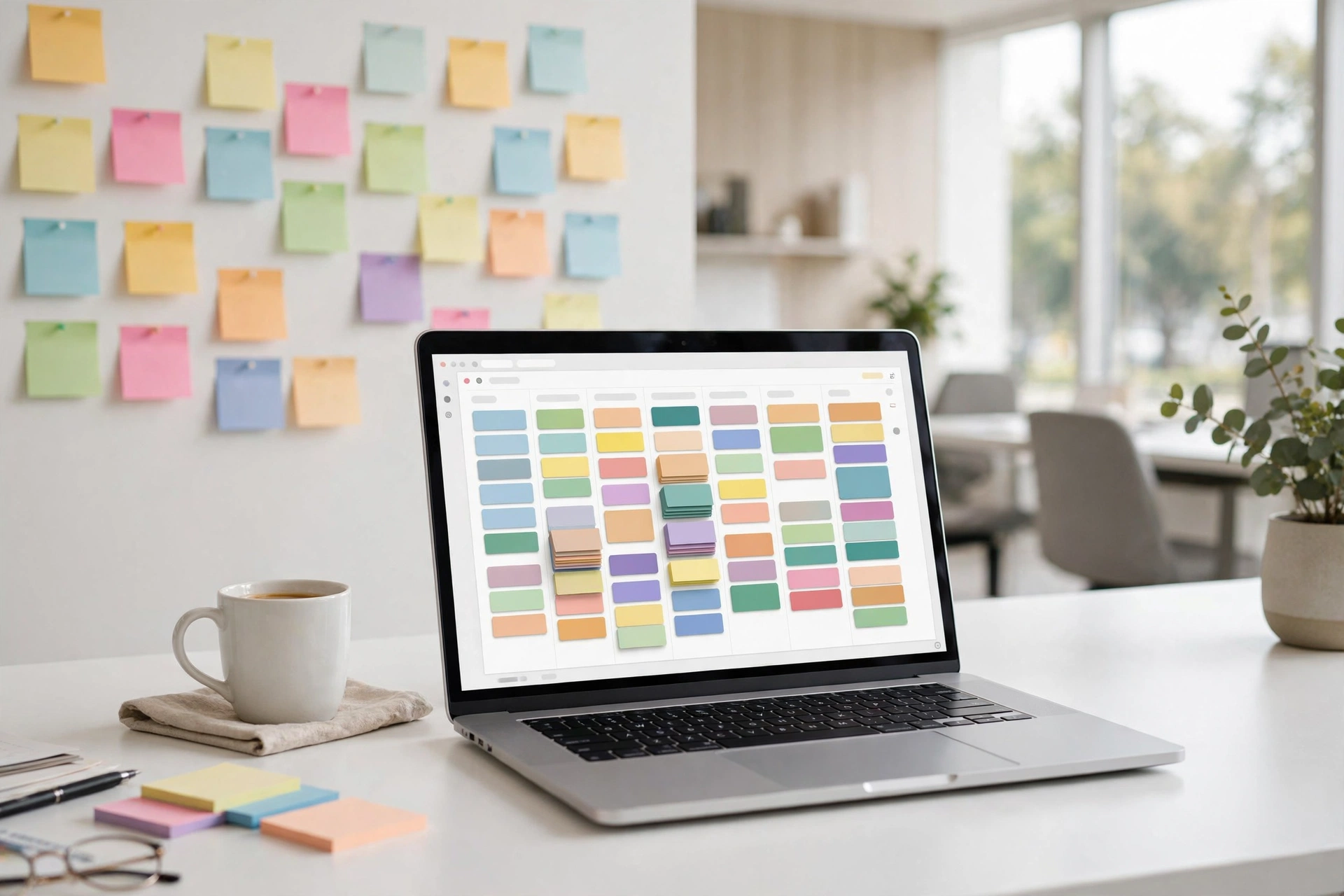
Be honest: where is your to-do list right now? A note on your phone, a sticky note on the fridge, three messages you sent to yourself, and something you definitely wrote down somewhere important. I have lived that scattered life, and the worst part is not the mess — it is the low hum of anxiety from never quite trusting that everything is captured. Trello promises a calmer version: one board where every task lives, visible at a glance. I spent real time with it as a beginner, and this review is the honest version — what clicked, what annoyed me, and whether it is worth your time.
What Trello Actually Is
Trello is a task organizer built around a simple idea: boards, lists, and cards. A board is a project — say, “Moving House” or “Blog Launch.” Inside the board sit lists, which are columns like “To Do,” “Doing,” and “Done.” Inside each list sit cards, and each card is one task.
The satisfying part is dragging. Finished something? Grab its card and slide it from “Doing” to “Done.” That tiny motion scratches an itch that crossing things off a paper list never quite reached. Your whole project sits in front of you like sticky notes on a wall, except the wall never runs out of space and you never lose a note behind the sofa.
That is the whole concept. Everything else — labels, checklists, due dates — is decoration on this one idea. If boards, lists, and cards make sense to you, Trello will feel obvious within minutes.
Your First Board, Built Slowly
Sign up and Trello offers to make your first board. Name it after something real in your life, not “Test Board” — real projects teach faster. I used “Kitchen Renovation.” Pick a background color that makes you happy; you will stare at this board a lot.
The board starts with sample lists. Rename them to match how your brain works. Mine became “Ideas,” “This Week,” and “Done.” Then add your first card: click “Add a card,” type the task, press Enter. Do five or six. Do not organize yet — just dump everything out of your head and onto the board.
Now drag one card from “This Week” to “Done.” Watch it land. That small animation is Trello’s whole sales pitch, and it works. You just built a system in under ten minutes.

The Bits That Actually Help Beginners
Cards open up when you click them, and inside sits the useful stuff. Checklists break a scary task into small steps — “Book flights” becomes search, compare, book, confirm. Due dates add a gentle deadline with a colored reminder when time runs short. Labels are colored tags for categories, handy when one board holds work and personal tasks side by side.
Attachments deserve a mention. Drop a photo, a document, or a link onto a card and it lives with the task instead of drowning in your downloads folder. Planning a trip? The hotel confirmation sits on the “Book hotel” card. Months later you will wonder how you ever kept these things in separate places.
None of this requires a tutorial. Click around inside a card for two minutes and you will find everything. Trello’s best design decision is that the features reveal themselves exactly when you need them.
One more quiet gem: the activity log inside each card. Every move, comment, and change gets stamped with who did it and when. Working with someone else, this ends the “wait, who moved that?” arguments before they start. On a shared board it is the difference between guessing and knowing — and on a personal board it is oddly satisfying to scroll back and see how much you actually got done this month.
Where It Gets Annoying
An honest review includes the friction, so here it is. Trello sends a lot of notifications by default. Every comment, every move, every mention pings you. Spend five minutes in the notification settings early and turn most of them off, or the app becomes the distraction it was meant to kill.
Some genuinely useful features sit behind the paid plan. The free version covers boards, cards, checklists, and the basics most beginners need — but if you fall in love with the tool and want the fancier extras, those cost money. I never hit the free plan’s walls as a beginner; heavy users might.
The third annoyance is self-inflicted: Trello makes organizing so pleasant that you can spend an hour perfecting your board instead of doing the tasks on it. Set a timer if you feel the urge to color-code everything. The board serves the work, not the other way around.

Who Should Skip It
Trello is not for everyone, and that is fine. If your to-do list fits on one sticky note most days, a whole board system adds ceremony without benefit. A simple notes app wins for short, stable lists.
It also struggles as a calendar. Due dates exist, but Trello will not replace a proper calendar for appointments and schedules. Use it for tasks with flexible timing; keep time-bound events where they belong.
Where Trello shines is the middle ground: projects with many moving pieces, shared plans with a partner or a team, and anyone whose brain calms down when tasks are visible in one place. If you nodded at the scattered-lists description in the intro, you are the audience.
A Small Habit That Makes It Stick
Tools fail when checking them feels like a chore. The habit that made Trello stick for me took thirty seconds: every morning, coffee in hand, I open the board and drag today’s tasks into “Doing.” Every evening, I drag finished ones to “Done” and glance at what is left.
That tiny ritual turns the board into a daily companion instead of another forgotten app. The board never judges the “Doing” column on a bad day — it just waits. And on good days, dragging five cards to “Done” feels like a small parade.
Start with one board and one daily glance. Add a second board only when the first one genuinely overflows. Restraint at the start is what keeps the tool useful a year later.
Once a week, give the board five minutes of honesty. Archive the cards you finished, delete the ones that stopped mattering — not every idea deserves eternal residence — and move anything stale back into “Ideas.” A board that only grows eventually becomes a second junk drawer. A board you prune stays a tool you trust.

What Beginners Usually Ask
Is Trello really free?
There is a free plan that covers everything in this review — boards, lists, cards, checklists, due dates. Paid plans exist for teams that want extras, but beginners can run on free comfortably for a long time.
Can I use it with someone else?
Yes, and shared boards are where Trello gets fun. Invite a partner, a roommate, or a colleague, and you both see the same board update as it happens. Assign cards to people so everyone knows who owns what.
Does it work on my phone?
There are apps for phones and tablets, and they sync with the web version. The phone app is great for checking and ticking off; the computer is better for the initial setup and big reorganizations.
I tried a task app before and quit. Why would this be different?
Maybe it will not be — and that is an honest answer. Trello’s advantage is visibility: your tasks sit in front of you instead of hiding inside a list. If seeing everything at once motivates you, it sticks. If not, no app fixes that, and that is okay too.
Your Turn: Build One Board This Weekend
Here is the whole pitch, minus the hype: Trello takes the tasks rattling around your head and puts them somewhere you can see. The free plan handles real life, the learning curve is an afternoon, and the drag-to-done motion never quite gets old.
Pick one real project this weekend — a trip, a move, a side project — and build a single board for it. Dump the tasks, drag a few to Done, and see how it feels. If your brain quiets down, you have found your tool.














