

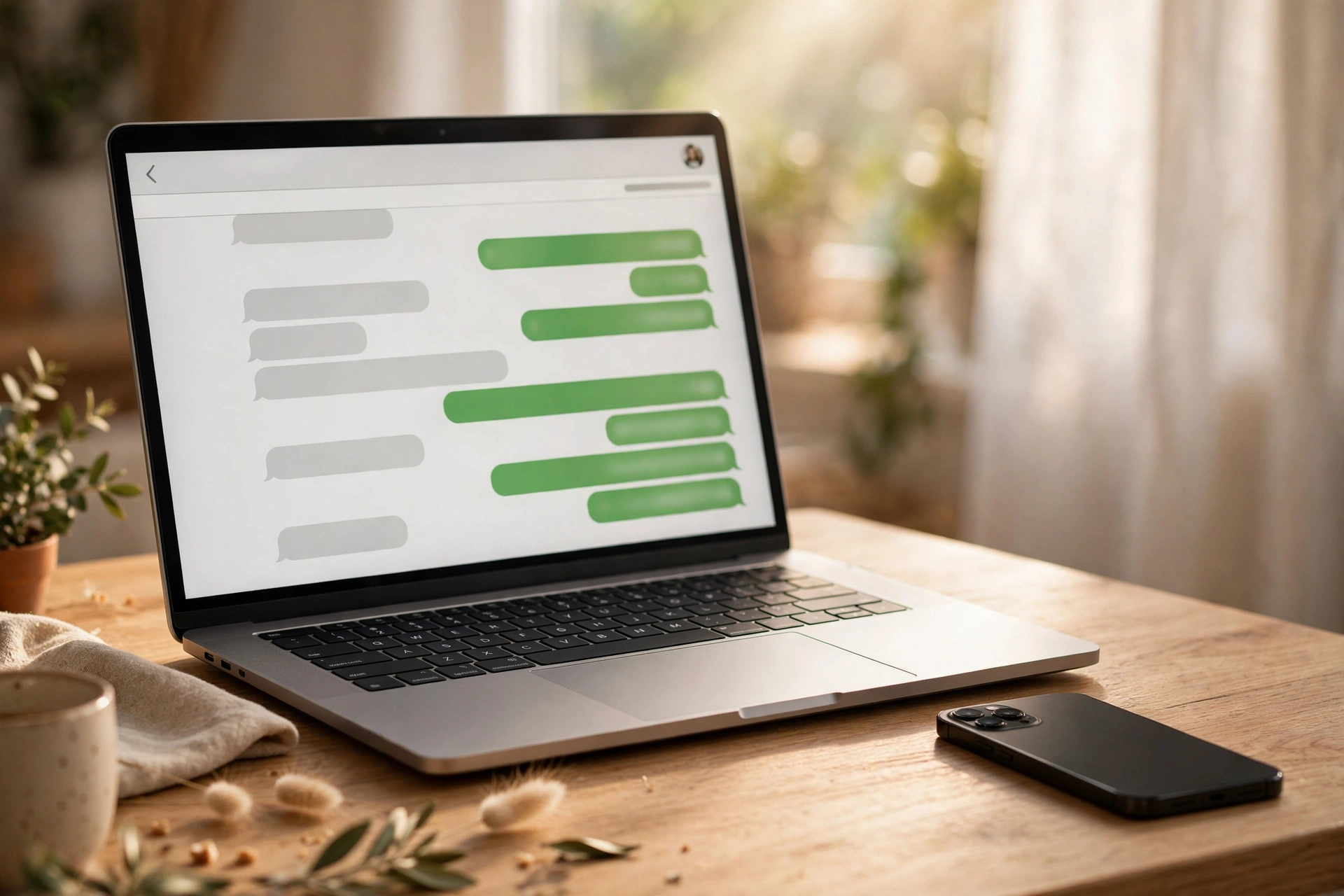
There is a special kind of tiredness that comes from typing a long message on a phone keyboard. Your thumbs cramp. Autocorrect turns your careful sentences into nonsense. And when the reply needs a document from your laptop, you end up emailing files to yourself like it is still 2012. If any of that sounds familiar, WhatsApp Web might quietly change your daily routine. It puts your WhatsApp chats on your computer screen, with a full keyboard, big text, and your files right where you need them. Setting it up takes about two minutes, and this guide walks through the whole thing the way a friend would — including the one rule that confuses almost everyone.
What WhatsApp Web Actually Is
WhatsApp Web is simply your WhatsApp, opened in a web browser on your computer. Same chats, same contacts, same conversations you were having on your phone — just displayed bigger, with typing that does not punish your thumbs.
Nothing gets downloaded or installed. You open your browser, visit the WhatsApp Web page, and your chats appear there like they were always meant to be on a big screen. When you send a message from your computer, it shows up on your phone too. The two stay in sync, back and forth, all day.
It is not a separate account or a second WhatsApp. Think of it as a window into the account you already have. Your phone stays the boss; the computer is just a convenient extra screen.
Linking Your Phone Takes Two Minutes
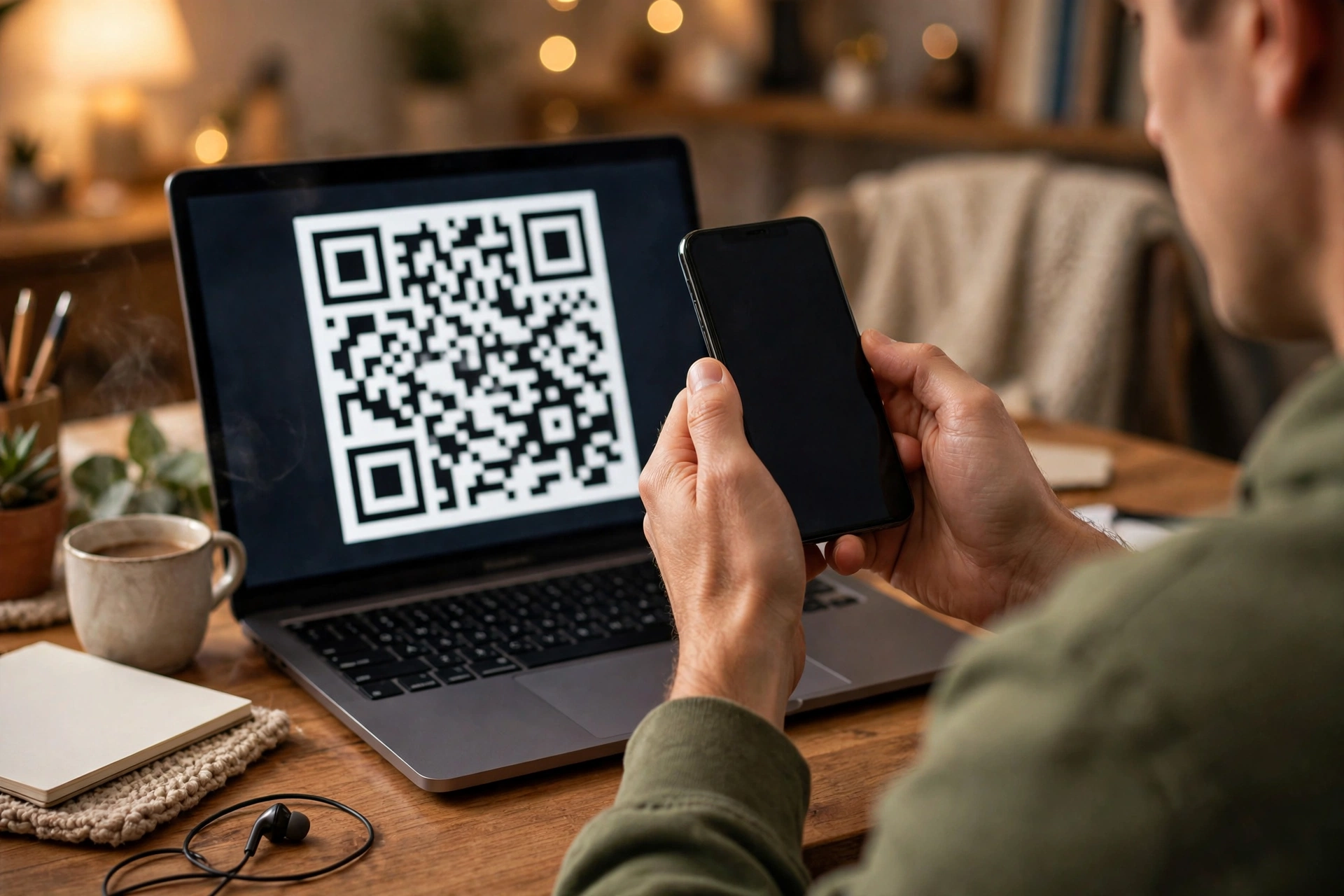
Getting started feels oddly magical the first time. Open your computer’s browser and head to the WhatsApp Web page. You will see a big square QR code — one of those pixelated boxes that looks like a maze.
Now pick up your phone. Open WhatsApp, look for the menu or settings, and tap the option for linked devices. Your phone’s camera switches on. Point it at the QR code on your computer screen, hold steady for a second, and that is honestly it. Your chats load in your browser like they were waiting for you.
The first time I watched someone do this, they laughed. After years of typing passwords and verifying codes for every new service, pointing a camera at a square felt suspiciously easy. Sometimes the easy things just work.
If the code refuses to scan, two small fixes solve it almost every time. Brighten your computer screen a notch — dim displays make the camera’s job harder — and hold the phone steady instead of waving it around. Give it a few seconds; the camera needs a moment to lock on. I have linked three different computers this way, and every “failure” was just a dark screen or a shaky hand.
What You Can (and Cannot) Do on the Big Screen
Most of daily chatting works exactly like you would hope. You can send and read messages, reply with a proper keyboard, share photos and documents straight from your computer’s folders, and start new chats or group conversations. Voice messages and calls work too, assuming your computer has a microphone and camera.
A few things stay phone-only. Some privacy settings and account-level changes live on your phone, and older computers may struggle with calls. For ordinary messaging though — the thing you actually do a hundred times a day — the browser version handles it all.
The practical win is speed. Dragging a photo from a folder into the chat beats finding it on your phone, tapping share, scrolling to the right chat. Replying to a long message with ten fingers beats pecking at glass. You will notice the difference within a day.
The One Rule That Trips Everyone Up
Here is the part nobody explains upfront: WhatsApp Web talks to your phone. The two devices link together, and the connection depends on your phone being switched on and connected.
In practice this means if your phone dies or sits in a dead zone, your computer screen stops updating. New messages wait until your phone wakes back up. Your phone does not need to be next to you, and its screen can be off — it just needs to be alive and online.
People discover this rule at the worst moments — mid-conversation, phone battery at two percent, wondering why the chat went silent. Now you know. Keep the phone charged nearby and the whole thing runs quietly in the background.

Shared Computer? Log Out Like You Mean It
If you use WhatsApp Web on a computer that is not yours — a family PC, a library machine, a friend’s laptop — log out when you finish. Click the menu in the web version and choose Log out. Closing the browser tab alone does not sign you out; reopening it later would show your chats to whoever sits down next.
You can also manage everything from your phone. The linked devices screen shows every computer connected to your account. See one you do not recognize? Log it out from your phone in one tap. Checking this list every few weeks is a small habit that pays off.
This is the only part of WhatsApp Web that deserves real caution, and it is easy to handle. Treat a logged-in browser like an unlocked diary: fine on your own desk, never left open on someone else’s.
Little Tricks Worth Knowing
Once the basics feel natural, a few extras earn their place. The search bar finds old messages faster than scrolling — type a name, a word, even a rough description. The attachment button accepts documents, photos, and videos from your computer directly, which makes sending work files painless.
You can also keep the chat window pinned as its own browser tab and let desktop notifications do the watching. A small popup tells you a message arrived, so you never have to keep the tab open in front of you. Turn notifications off when you need focus; the messages wait.
And if you juggle several conversations at once, the bigger screen genuinely helps. Names stay visible, threads stay readable, and your thumbs get the break they deserved years ago.
Two more small wins round it out. Star important messages so they stop sinking into long chats — the starred list becomes your personal “deal with this later” pile. And muting a noisy group for a few hours is kinder than leaving it; you stay a member, the buzzing stops, and you catch up when you choose to. Both take seconds and both quietly lower the daily noise of group chats.
Quick Answers Before You Begin
Is WhatsApp Web free?
Yes. It is part of the WhatsApp you already use — no extra charge, no separate subscription. If a site ever asks you to pay for it, leave that site.
Do my messages stay private on the computer?
Your chats keep their end-to-end encryption on the web version too. That said, privacy is also about who can see your screen. Lock your computer when you walk away, the same way you lock your phone.
Why did my chats stop loading?
Nine times out of ten, the phone is the reason — dead battery, airplane mode, or no signal. Wake the phone up, reconnect it, and the browser catches up on its own. Refreshing the page helps when it gets stuck.
Can someone else read my chats from their computer?
Only if they linked your account themselves, which needs your phone and your confirmation. Check your linked devices list on your phone whenever you feel unsure — unknown devices get logged out in one tap.
One Last Nudge: Send That Message Today
You now know everything that matters: what it is, how to link your phone, what works, and the two habits that keep it safe. The whole setup takes less time than brewing tea.
So try it today. Link your phone, send one message from your computer — maybe that long reply you have been putting off — and notice how much faster a real keyboard feels. Your thumbs will thank you.














