Physical Address
304 North Cardinal St.
Dorchester Center, MA 02124
Physical Address
304 North Cardinal St.
Dorchester Center, MA 02124


Learn AI text to speech step by step: turn scripts into natural voiceovers for YouTube, presentations, and podcasts using free, beginner-friendly tools.
Have you ever wished your writing could speak? Maybe you wrote a script for a YouTube video but you hate the sound of your own voice. Maybe you made a presentation and you want it to talk through the slides. Or maybe you just want to listen to an article instead of reading it.
AI text to speech makes all of this possible. It turns written words into spoken audio that sounds natural and human. You type or paste your text, pick a voice, and press a button. A few seconds later, you have an audio file you can use in videos, slides, or podcasts.
The best part? You can start for free, and you do not need any technical skills. In this guide, I will walk you through everything as a complete beginner: what ai text to speech is, which free tools to use, and how to make your first voiceover in five simple steps.
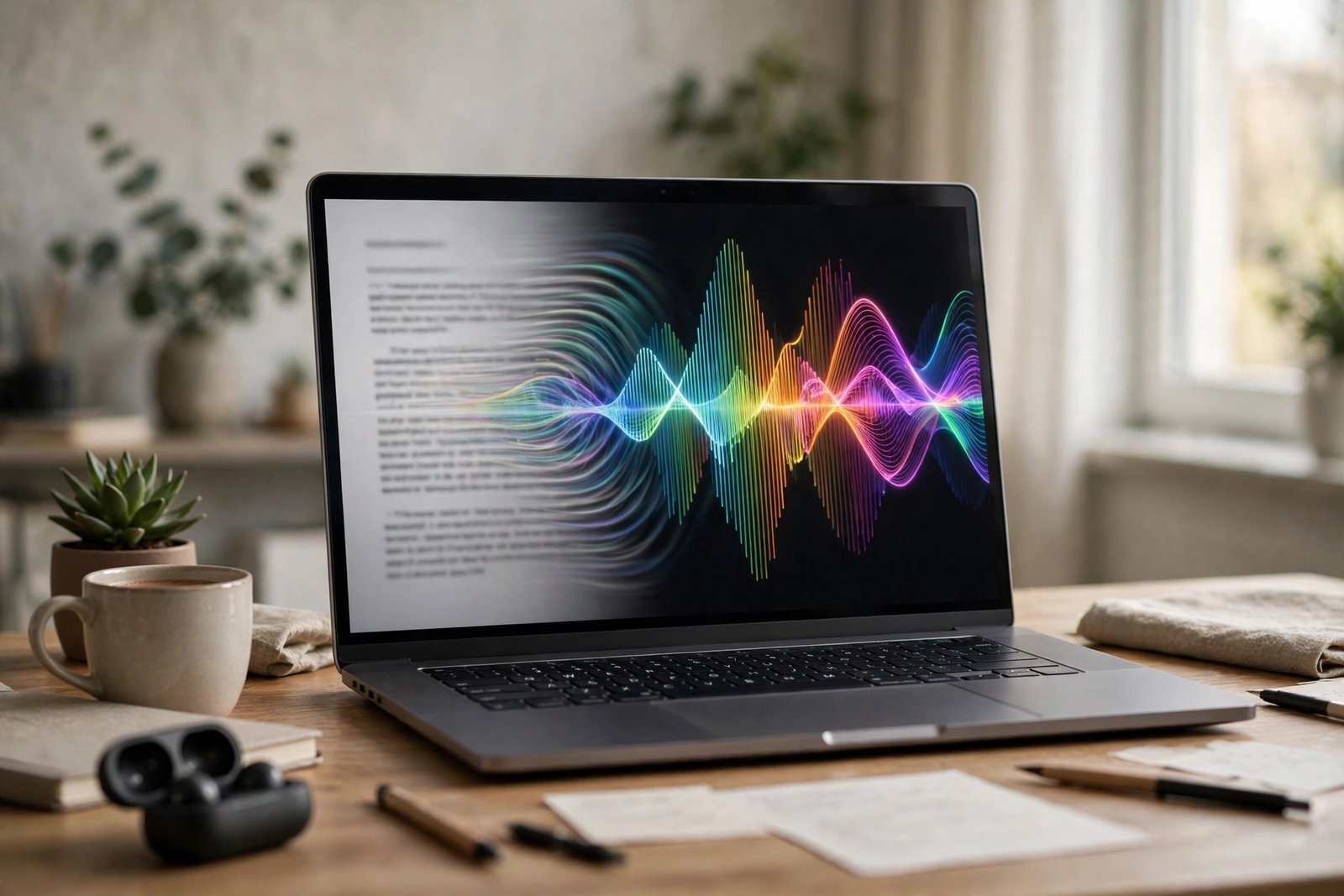
Text to speech is not new. Old computer voices sounded like robots, and everyone could tell they were fake. Modern ai text to speech is very different. It uses artificial intelligence to study how real humans speak, so the result has natural rhythm, clear pronunciation, and even emotion.
Here is how it works in simple terms:
People use ai text to speech for YouTube video voiceovers, presentation narration, podcast intros, and even to listen to long articles while walking or cooking.
Many creators never show their faces or record their own voices. Maybe they are shy, or their room is too noisy. With ai text to speech, you write your script, generate a voiceover, and add it to your video. You get a clear, professional-sounding narrator every time.
You can create a voiceover for every slide and export the whole thing as a video. This is great for online classes, training videos, or talks you need to send to someone who cannot attend live.
Every podcast needs a short intro, like “Welcome to the show!” Recording that in a quiet room with a good microphone is not always easy. AI voices give you a clean intro in seconds, in a warm, excited, or calm style.
Sometimes reading is just not convenient, like when you are cooking or resting your eyes. Text to speech can read articles and documents out loud to you, which is also a big help for people who struggle with small text on a screen.
These three tools are free, beginner-friendly, and good starting points. Free plans can change over time, so always check each tool’s own website for the latest limits before you start a big project.
ElevenLabs is one of the most popular ai text to speech tools because its voices sound very natural. You sign up with an email address, paste your script, choose a voice, and press generate. The free plan gives you roughly 10 minutes of audio per month, which is plenty for testing and short projects. Note that the free plan is mainly for personal testing: if your videos earn money, check ElevenLabs’ current terms, because commercial use may need a paid plan.
If you use the Microsoft Edge browser, you already have a free text to speech tool built in. Open any webpage or PDF, right-click and choose Read aloud, or press Ctrl + Shift + U. It is completely free with no sign-up. Use Voice options to pick a different voice or change the reading speed. It is perfect for listening to articles and proofreading your own writing, but it does not save an audio file, so it is a listening tool rather than a voiceover maker.
Clipchamp is Microsoft’s free video editor, and it includes a text to speech feature. Inside your video project, you add a text-to-speech clip, type your script, pick a voice and language, and set the speed. The audio lands right on your video timeline, so there is no separate file to manage. Clipchamp’s features are updated often, so the exact steps may look a little different from version to version.

Picking the right voice is one of the most fun parts of ai text to speech. Most tools let you listen to short samples first. Take five minutes to try several voices instead of grabbing the first one.
There is no single “best” voice. The best voice is the one that fits your project and that you enjoy listening to.
Ready to try it yourself? The steps below use ElevenLabs as the example, but they work in almost every ai text to speech tool.
Write what you want the voice to say in a notes app. Keep your sentences short, because short sentences sound more natural when spoken out loud. Beginner tip: read your script out loud to yourself first. If a sentence feels strange in your mouth, it will sound strange from the AI too.
Browse the voice list and play a few samples. Pick one that fits your project. Most tools let you filter by gender or accent, which makes choosing faster.
Look for settings like speed, stability, or style. For your first try, keep it simple: set the speed to normal (1x) and leave everything else at the default values. You can experiment later.
Press generate and listen to the result. If a word is mispronounced, try spelling it the way it sounds. If the pace feels rushed, slow it down a little. When you are happy, download the file. It usually saves as an MP3, which works almost everywhere.
Your voiceover is ready. The next section shows you exactly how to add it to a video or a slide deck.
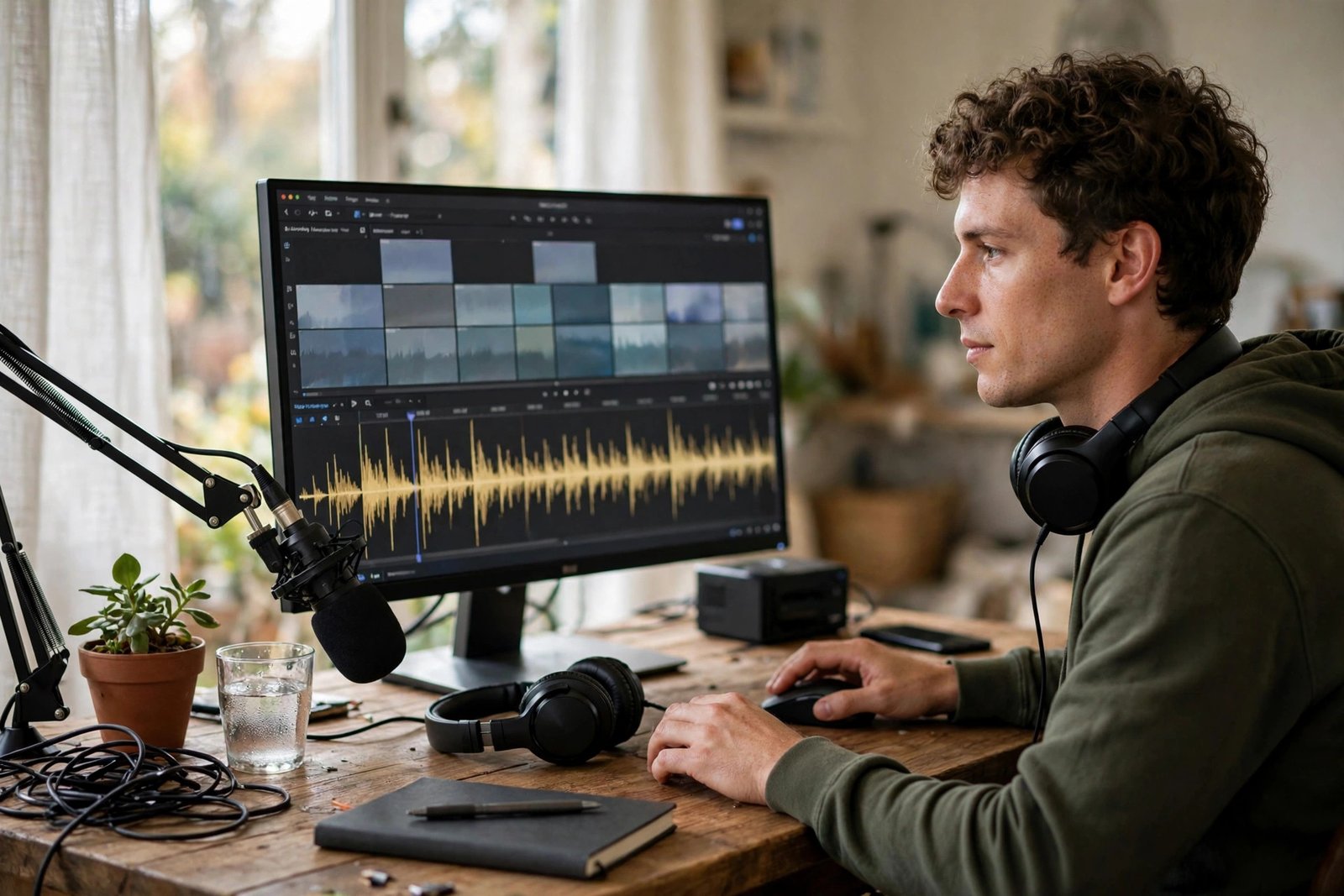
Beginner tip: keep background music quiet under the voiceover. Viewers should hear your narration clearly without the music fighting it.
In PowerPoint, open a slide, go to Insert, then Audio, then Audio on My PC, and choose your MP3 file. Repeat for each slide that needs narration. Then use Export to save the presentation as a video, and your slides will play with your voiceover automatically.
Yes, you can start for free. ElevenLabs offers a free plan with a monthly limit, Microsoft Edge Read Aloud is completely free with no sign-up, and Clipchamp includes text to speech in its free video editor. Free plans have limits, so check each tool’s website for the latest details.
No. That is one of the biggest advantages. The AI creates the voice for you, so you need no microphone, no quiet room, and no recording equipment.
It depends on the tool and the plan. Some free plans are for personal or testing use only, and monetized videos may require a paid plan. Always read the tool’s terms of service before publishing videos that earn money.
Maybe. Modern AI voices sound very natural for short, clear scripts. A natural-sounding script and the right voice go a long way.
For just listening to text, start with Microsoft Edge Read Aloud, since it is already in your browser and needs no sign-up. For a downloadable voiceover, start with ElevenLabs’ free plan or Clipchamp’s built-in text to speech.
AI text to speech turns your written words into natural-sounding voiceovers in minutes. You write or paste a script, choose a voice, adjust the speed, preview the result, and add it to your video or presentation. No microphone, no studio, no recording stress.
Start small. Generate one short voiceover today with a free tool and listen to the result. Once you hear your own script spoken back to you, you will see possibilities everywhere: your next YouTube video, your next class presentation, your next podcast intro. Pick a tool from this guide, press generate, and give your words a voice.

