Physical Address
304 North Cardinal St.
Dorchester Center, MA 02124
Physical Address
304 North Cardinal St.
Dorchester Center, MA 02124


Learn how to create videos with AI in 5 simple steps. This beginner-friendly guide covers text-to-video tools, prompts, voiceovers, and free-plan tips.
If you want to learn how to create videos with ai, here is the good news: you do not need a camera, editing skills, or a big budget. AI video tools turn your written words into a real, watchable video.
Here is how it works. You write what you want, and the tool builds the video for you. It finds or creates the visuals, adds a voice that reads your words out loud, and adds background music. Something that once needed a full video team can now take one afternoon on your laptop.
This guide shows you the process step by step. By the end, you will know how to go from a simple idea to a finished video you can share on YouTube, TikTok, or Instagram.
Text-to-video is the simplest way to start. You type a short description, called a prompt, and the AI creates a video clip that matches it.
For example, you could write: “A dog playing on a sunny beach, gentle waves in the background.” The AI generates a short clip of that scene. These clips are usually a few seconds long, so people often combine several to make a full video.
Script-to-video goes one step further. You give the tool a full script, and it builds a complete video around it. It adds matching visuals for each line, a voiceover that reads your script, captions on the screen, and background music.
Many beginners prefer script-to-video because you get a finished video in one go. You only need to review it and fix small things.
There are many AI video tools, and they change often. Here are three beginner-friendly options. This is a starting point, not a full review.
InVideo AI is a browser-based tool that turns prompts into full videos. You type an idea, and it writes a script, picks or generates visuals, adds a voiceover, and adds music.
It has a free plan you can try. As of 2026, the free plan reportedly includes limited AI generation time per week and watermarked 720p exports. Paid plans remove the watermark and unlock higher quality and more generation time.
CapCut is best known as a free video editor, but it also has AI features. It can generate short clips from a text prompt, turn a script into scenes, and create AI voiceovers and auto-captions.
CapCut’s free plan is generous: it lets you edit and export at 1080p with no watermark on basic exports. The AI generation features have some limits on the free plan, and CapCut Pro unlocks more credits and extra features.
Magic Hour is a collection of AI tools for video, including text-to-video and fun effects. It is simple to use and good for short, creative clips for social media. It offers a free plan so you can try the tools, but free plans usually have limits or watermarks, so check the official website for current details.
These five steps work with almost any AI video tool.

Every good AI video starts with good words. If you are making a full video, write a short script first. Keep it simple and cover one idea at a time.
Aim for about 100 to 150 words for a one-minute video. That is roughly what a calm voiceover reads in sixty seconds.
If you are making a single text-to-video clip, write one clear prompt instead. Describe the main subject, the setting, and the mood.
Next, choose your tool. If you want the tool to do almost everything for you, try a script-to-video tool like InVideo AI. If you want more control over editing, use CapCut with its AI features.
Most tools will ask you to pick a style or format:
Pick what fits your audience. A product demo for YouTube looks best in wide format. A quick tip for TikTok works best in vertical.
Paste your script or prompt into the tool and press generate. The AI builds your scenes, picks or creates visuals, and adds a voiceover that reads your words.
Most tools also include a library of free background music. Choose music that matches the mood: a soft track for an explainer, an upbeat track for a product video. Generation usually takes a few minutes, so be patient.
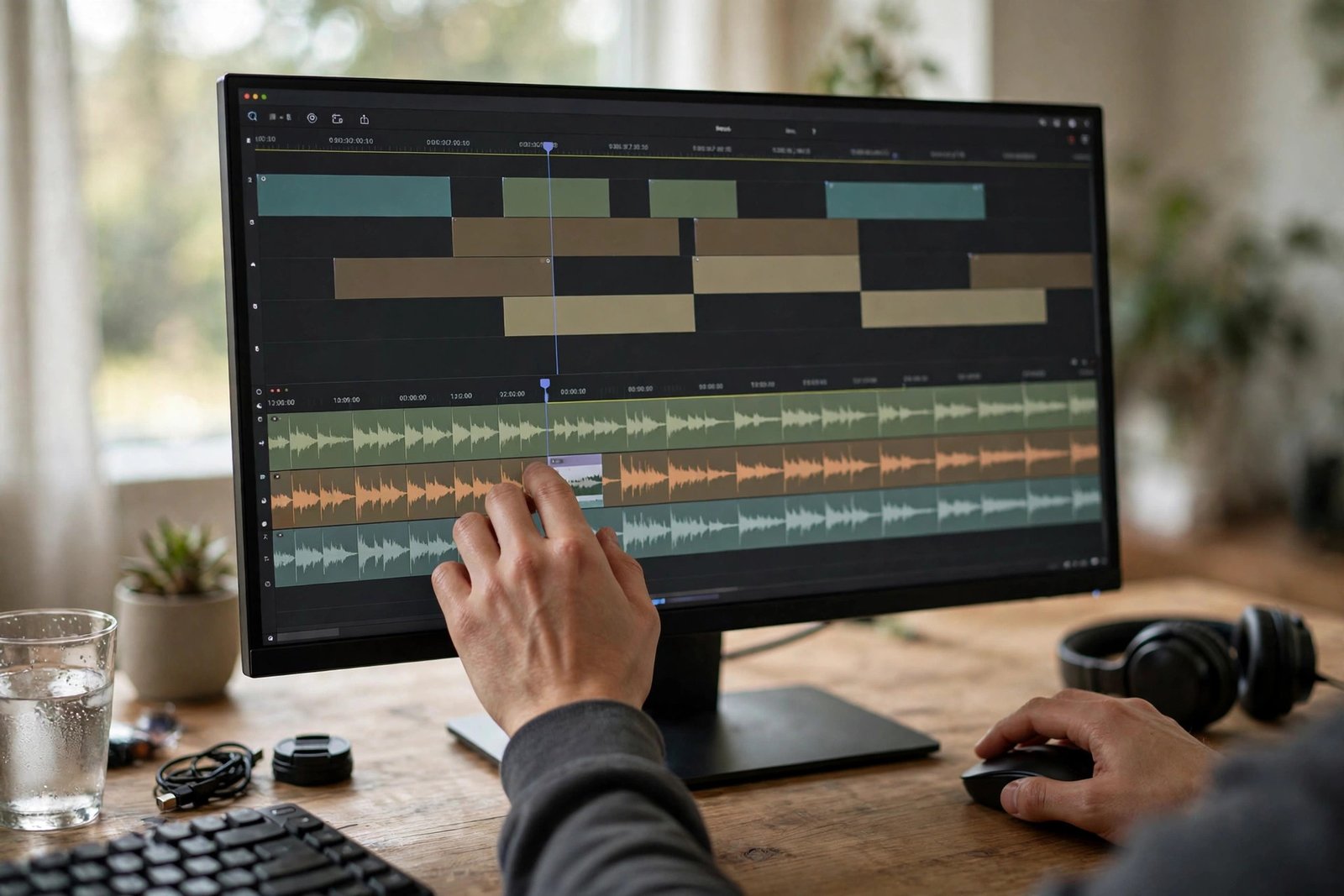
Watch your video from start to finish and check these things:
This step takes your video from okay to good. Ten minutes of careful checking makes a big difference.
When you are happy with the preview, export it. This turns your project into a video file you can download and share.
Before exporting, check the resolution (1080p is a safe choice for most platforms) and the format (MP4 works almost everywhere). Then download the file and upload it to YouTube, TikTok, or Instagram.
Remember that free plans usually have limits or watermarks. For practice videos, a watermark is completely fine.
A prompt is the description you give the AI. Good prompts lead to good videos. Keep these tips in mind:
Example of a good prompt: “A close-up of hands kneading bread dough on a wooden table, warm kitchen light, cozy and peaceful mood.” It covers the subject, setting, action, and mood in one sentence.
Most AI video tools let you start for free, but free plans usually have limits or watermarks. Here is what to expect:
The smart approach is to start free, learn the workflow, and only upgrade when you are making videos regularly. Plans and limits change often, so check each tool’s official pricing page for the latest details.
No. Text-to-video and script-to-video tools create or find the visuals for you, so you can make a full video without filming anything.
A simple one-minute video usually takes under an hour, including writing the script, generating the video, and reviewing it. Short clips can take just a few minutes.
You can start for free on most tools, but free plans usually have limits or watermarks. For watermark-free videos, higher quality, or high volume, you will likely need a paid plan. Check each tool’s website for current details.
Yes, AI videos work on all major platforms. Make sure your video follows the platform’s rules and uses music and images you have the right to use. Most tools include licensed music and stock footage for this reason.
No. The tools are designed for beginners and handle most of the editing for you. If you want to fine-tune your video afterward, a free editor like CapCut makes that easy too.
Learning how to create videos with ai is easier than it sounds. Write a short script or prompt, pick a beginner-friendly tool, generate your scenes, add a voiceover and music, preview and fix, then export and share.
Your first video will not be perfect, and that is completely normal. Start free, keep your prompts simple and specific, and improve one video at a time. Before long, you will be creating videos that once felt impossible without a full team.

