


Staring at a plant you can’t name, a menu you can’t read, or a gadget with no label — and feeling a bit silly about it — is something everyone goes through. Your phone can actually answer those questions for you, and it takes about ten seconds once you know where to tap. This guide walks through Google Lens for complete beginners, step by friendly step.
What Google Lens Actually Does
Think of Google Lens as eyes for Google. You point your phone’s camera at something — a flower, a pair of shoes, a street sign — and Lens tries to tell you what it is or find useful matches online. No typing, no guessing keywords. The picture does the asking.
It works in a few different ways depending on what you show it. A leafy plant might get identified by name, with care tips alongside. A written note becomes text you can copy. A sign in another language gets translated right on your screen. Underneath, it’s just Google’s search doing the heavy lifting, but the camera removes all the friction of typing.
One important thing up front: Lens is a helper, not an expert. It makes its best guess based on what it sees, and guesses can be wrong. Treat it like asking a knowledgeable friend — great for curiosity and everyday questions, but don’t bet anything important on a single answer.
Finding It on Your Phone
Here’s the part that trips people up: Google Lens doesn’t have one fixed home, and it never did. But you’ll find it in a few reliable places, and the easiest one takes seconds.
On most Android phones, open the Google app (the one with the colorful G) and look for the little camera icon — that’s Lens — in the search bar at the top. Tap it, and your camera view opens with Lens ready. Some Android phones also have a separate Lens app you can install or that came pre-installed. Either door leads to the same room.
On an iPhone, the path is nearly identical: open the Google app, tap the camera icon in the search bar, and you’re in. Apple doesn’t bundle Lens into its own camera, so the Google app is the way in. You’ll need to be signed in with a Google account the first time, which takes a minute if you haven’t already.
There’s one more entry point worth knowing: Google Photos. Open any photo in the app, tap the Lens icon, and it scans the image just like a live camera shot. This one is gold for photos you took last week or last year — more on that shortly.
If you can’t find the camera icon in your Google app, check in your app store that the Google app itself is up to date. Buttons move around over time; when in doubt, look in your app for the camera-shaped icon near the search bar.
Pointing It at the World
This is where the fun starts. Open Lens, point your camera at something, and tap the shutter button. Lens freezes the frame and gets to work. Within a couple of seconds you’ll see results — a name, matching images, links, sometimes a translation overlaid on the screen.
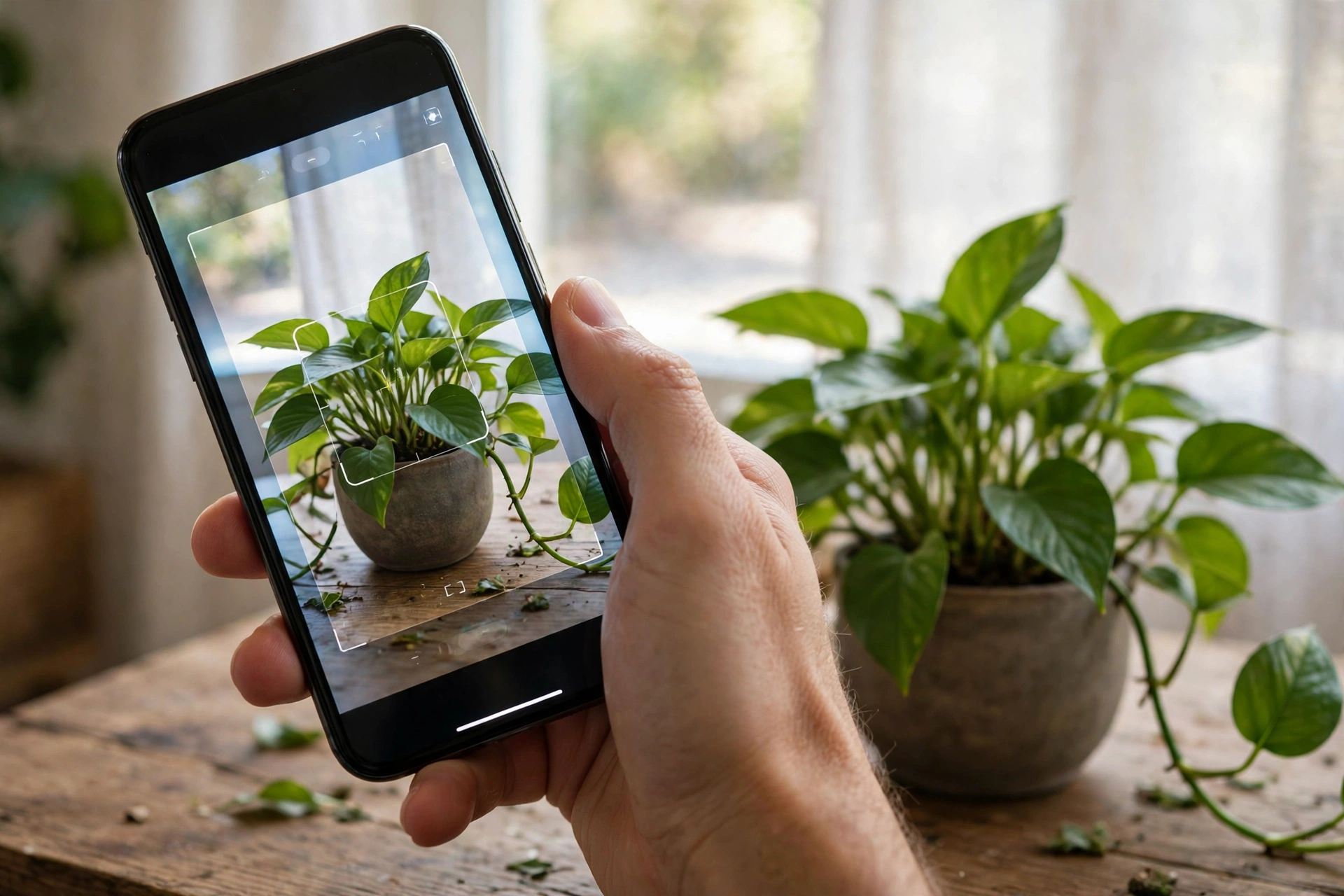
Plants are the classic first try. Hold the camera a comfortable distance from the plant — close enough that the leaves fill a good chunk of the screen — and tap. Lens usually names common houseplants and garden flowers correctly, and often pulls up care information like how much water it likes. Gardeners have been using this trick for years.
Animals work the same way. That dog breed you can’t place, the bug on your window, the bird at your feeder — point, tap, and see what comes back. With living things, double-check anything that matters, because similar-looking species can fool even a decent system.
Products are Lens at its most practical. See a lamp you love at a friend’s place? A jacket someone is wearing? Scan it and Lens finds the same or similar items for sale online, which makes gift shopping oddly easy. It reads barcodes too, so pointing it at a product barcode often pulls up details and reviews.
Landmarks and buildings are another strong suit. Travelling somewhere new, point your phone at a church tower or a statue and Lens often names it, with a bit of history attached. It’s like having a tour guide in your pocket who never gets tired.

Reading Menus in Languages You Don’t Speak
Abroad and facing a menu you can’t decode? Open Lens, point the camera at the page, and switch to the translate mode (the button usually looks like a translation symbol). The foreign text gets overlaid with your language right on the screen, live.
It feels like magic the first time. Order with confidence instead of pointing at a random line and hoping for the best. Street signs, museum plaques, and train schedules work the same way — anything printed in a language you can’t read.
One tip: good lighting helps a lot. Dim restaurant lighting is the enemy of text recognition. Angle your phone so no shadow falls across the page, hold it steady, and wait a second for the overlay to settle. If it struggles, tap the shutter to freeze a clear frame instead of using the live view.
Old Photos Work Too
You don’t always have to scan something live. Remember that Lens button inside Google Photos? Open any picture from your gallery and tap it.
That photo of a restaurant you visited months ago — Lens can pull the name from the sign in the shot. The screenshot of a dress you liked — Lens finds where to buy it. A picture of your child’s maths homework — Lens can show step-by-step solutions, which is handy when the school teaches it differently from how you learned it.
This is also how you use Lens on images other people send you. Save the photo, open it in Google Photos, tap the Lens icon. Works on screenshots, saved memes, downloaded pictures — anything sitting in your camera roll.
Copying Text Out of Pictures
Here’s a quieter superpower. Point Lens at printed text — a business card, a recipe from a book, a wifi password written on a cafe wall — and use the text mode to grab the words. Then copy them and paste into a note, a message, wherever you need.
The handwriting option does the same with notes, though fair warning: it handles neat writing far better than a doctor’s scrawl. If the letters are clear, it usually nails it.
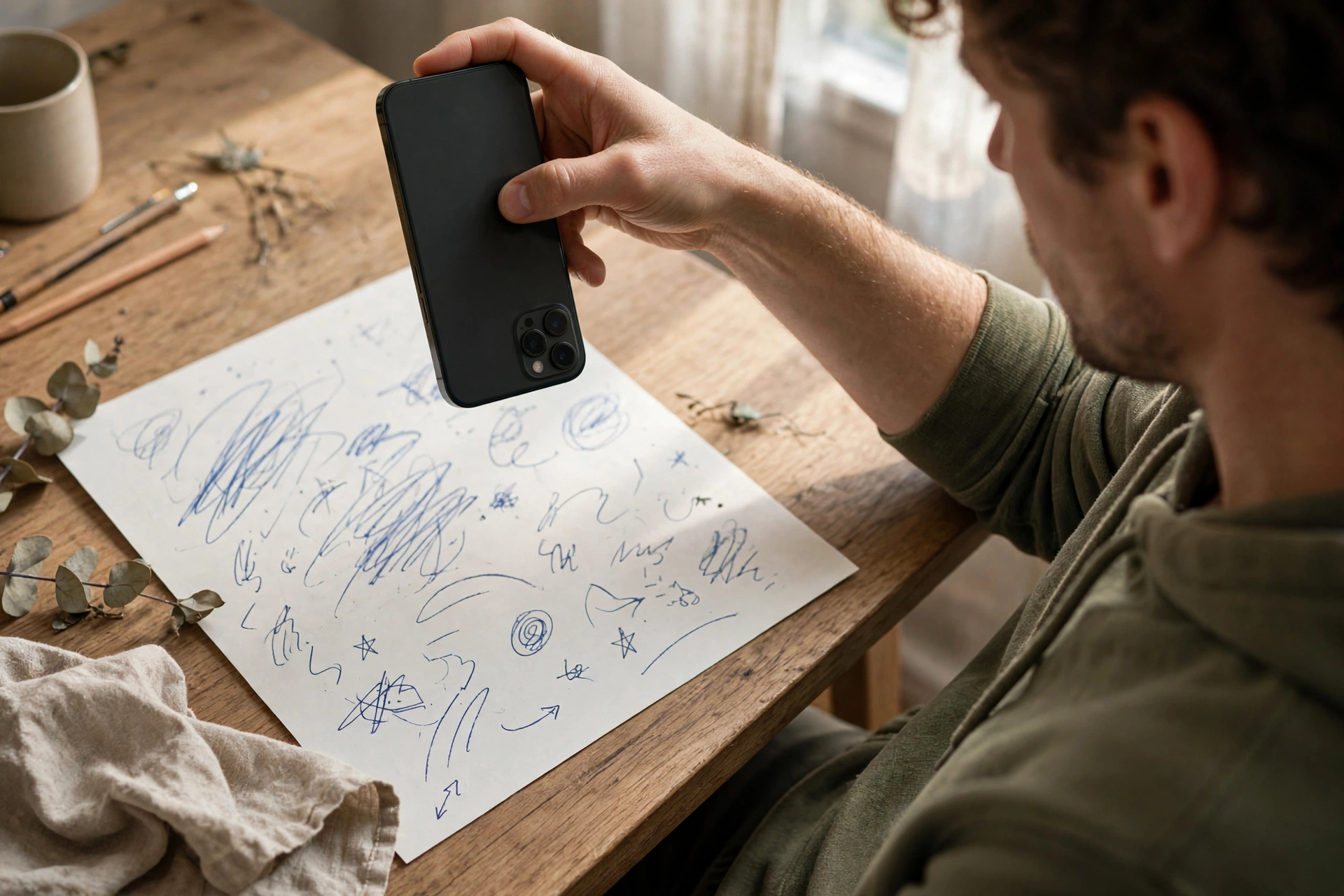
Why bother? Because retyping long passwords, addresses, or paragraphs from paper is slow and error-prone. Letting the camera do it takes seconds, and you can edit the result before pasting if a character came through wrong.
Where It Falls Short (Being Honest)
No honest guide would skip this. Lens needs an internet connection — without one, it simply can’t look anything up. So it’s no help in a basement with no signal or on a flight without wifi.
Results aren’t perfect. Two similar-looking plants, a blurry photo, or an unusual angle can all send it down the wrong path. When the stakes are low — naming a flower for fun — a wrong answer costs nothing. When they matter, they matter. Never use Lens to identify mushrooms, berries, or anything you plan to eat. Never use it to identify a medication or make a medical decision. Get a human expert for those.
Private things deserve caution too. Scanning personal documents, IDs, or bank details feeds images to Google’s servers. There’s nothing shady about it — that’s how the lookup works — but keep it in mind and don’t scan anything you wouldn’t want leaving your phone.
And privacy aside, treat every answer as a lead, not gospel. A quick glance at the sources Lens shows is always worth the three seconds it takes.
Things People Ask Before Trying It
Does it cost anything? No. Lens is free and comes with the free Google app.
Does it work without the Google app? On Android you can use the standalone Lens app or Google Photos. On iPhone you need the Google app or Google Photos. Either way, some Google app is involved.
Can it identify everything? Not even close, and anyone who claims otherwise is overselling it. Common plants, popular products, famous landmarks — strong. Obscure objects, blurry shots, things with few photos online — shaky.
Do my scans get saved? Google keeps activity data according to your account’s privacy settings, which you can review and delete in your Google account. If that bothers you, check those settings before scanning anything personal.
Is there a catch for older phones? If your phone can run the current Google app, Lens will work. No special hardware needed — just a working camera.
Worth Pointing Your Camera At?
Absolutely — with the limits above in mind. Start with something low-stakes tonight: a plant on your windowsill, a product box, the book on your table. Point, tap, see what comes back. Most people get their first “oh, that’s what it is” moment within a minute, and after that, using it becomes a habit. The camera was already the most-used app on your phone; now it can answer questions too.














