

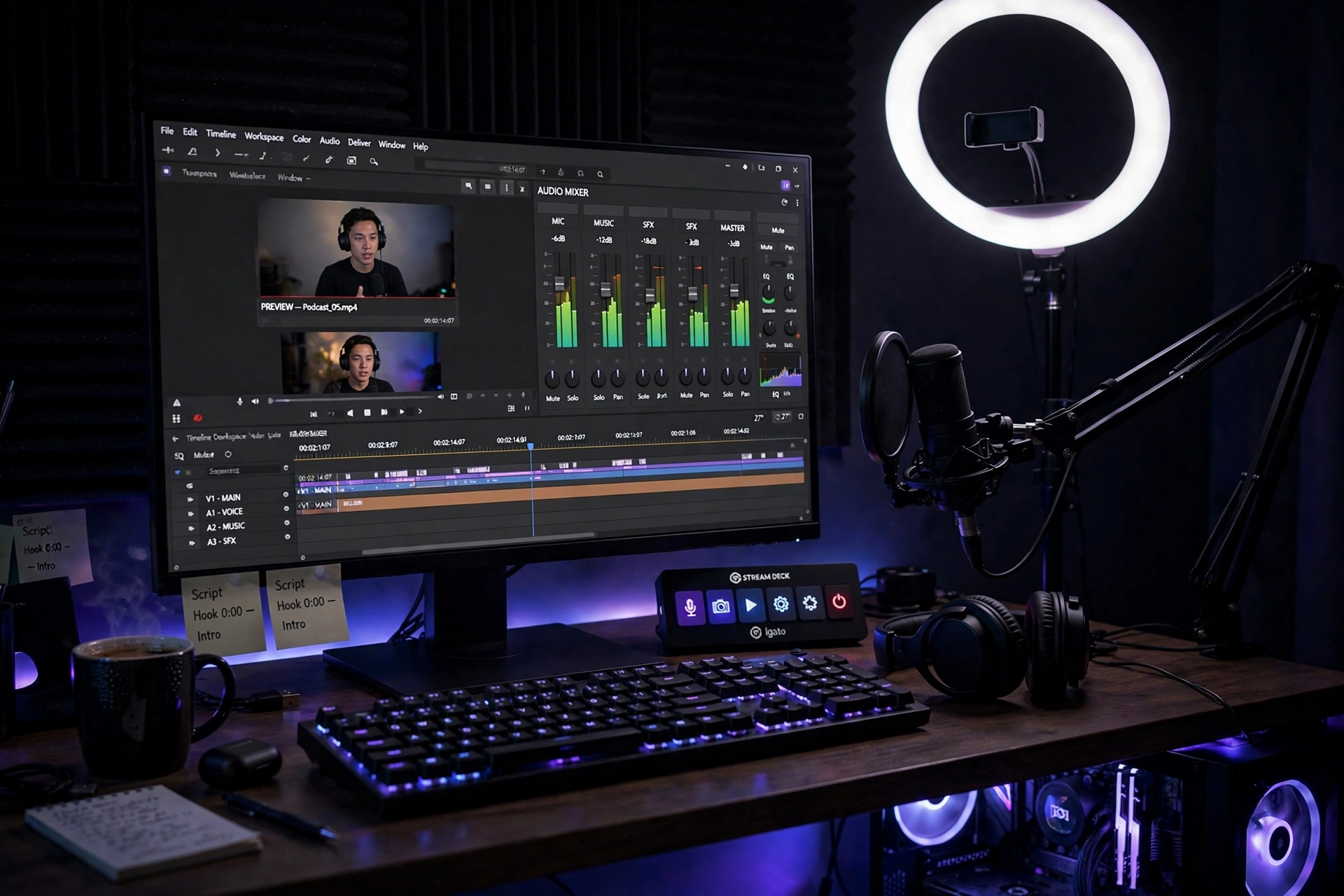
Every big streamer you watch — the gamers, the podcasters, the people teaching guitar to thousands — started somewhere, and a remarkable number of them started with the same free download. OBS Studio is the open-source software behind an enormous share of the internet’s live video, it costs absolutely nothing, and it runs on ordinary computers. It is also, if we are being honest, the kind of software that makes a beginner stare at the screen and quietly close the window. This review is for that beginner: what OBS Studio actually is, how hard it really is, and whether it deserves a place on your computer.
The short version: OBS Studio is a free, community-built program for recording and live-streaming video from your computer. It captures your screen, your webcam, your microphone, and anything else you connect, mixes them into one polished broadcast, and sends it to platforms like YouTube or Twitch — or simply saves it as a video file. No subscription, no watermark, no feature paywalls. The catch is the learning curve, which is real but shorter than its reputation suggests.
What OBS Studio actually is (and who it is for)
Think of OBS as a tiny television control room that lives on your computer. A TV director switches between cameras, overlays graphics, and fades to commercial breaks; OBS lets you do the same with your webcam, your screen, images, and text. Professionals use it to run multi-camera productions. Beginners use it for far simpler jobs: recording a tutorial, streaming a game to friends, or capturing a presentation with their face in the corner.
It is built and maintained by volunteers as open-source software, which explains both its price (free forever) and its personality (powerful, plain-looking, documented by the community rather than a marketing team). It runs on Windows, Mac, and Linux. If your goal is “record my screen with decent quality” or “try streaming without spending money,” you are exactly who it is for.
The first five minutes: install and the auto setup
Here is the genuinely good news: getting started is far easier than the screenshots suggest. The download comes from the official OBS website, installs like any normal program, and on first launch offers an auto-configuration wizard. Take it. The wizard asks what you mainly want to do — stream or record — runs a quick test of your computer, and picks sensible settings for you.
After the wizard, you are looking at the main window: a big preview in the middle, and panels along the bottom with slightly intimidating names. Do not touch most of them yet. Add one source (your screen or webcam), press the big “Start Recording” button, talk for thirty seconds, and press stop. Congratulations — you have used OBS Studio, and the video is sitting in your videos folder. Everything else is refinement, and you now know the core loop: add sources, press record, stop.
Scenes and sources, explained without the jargon
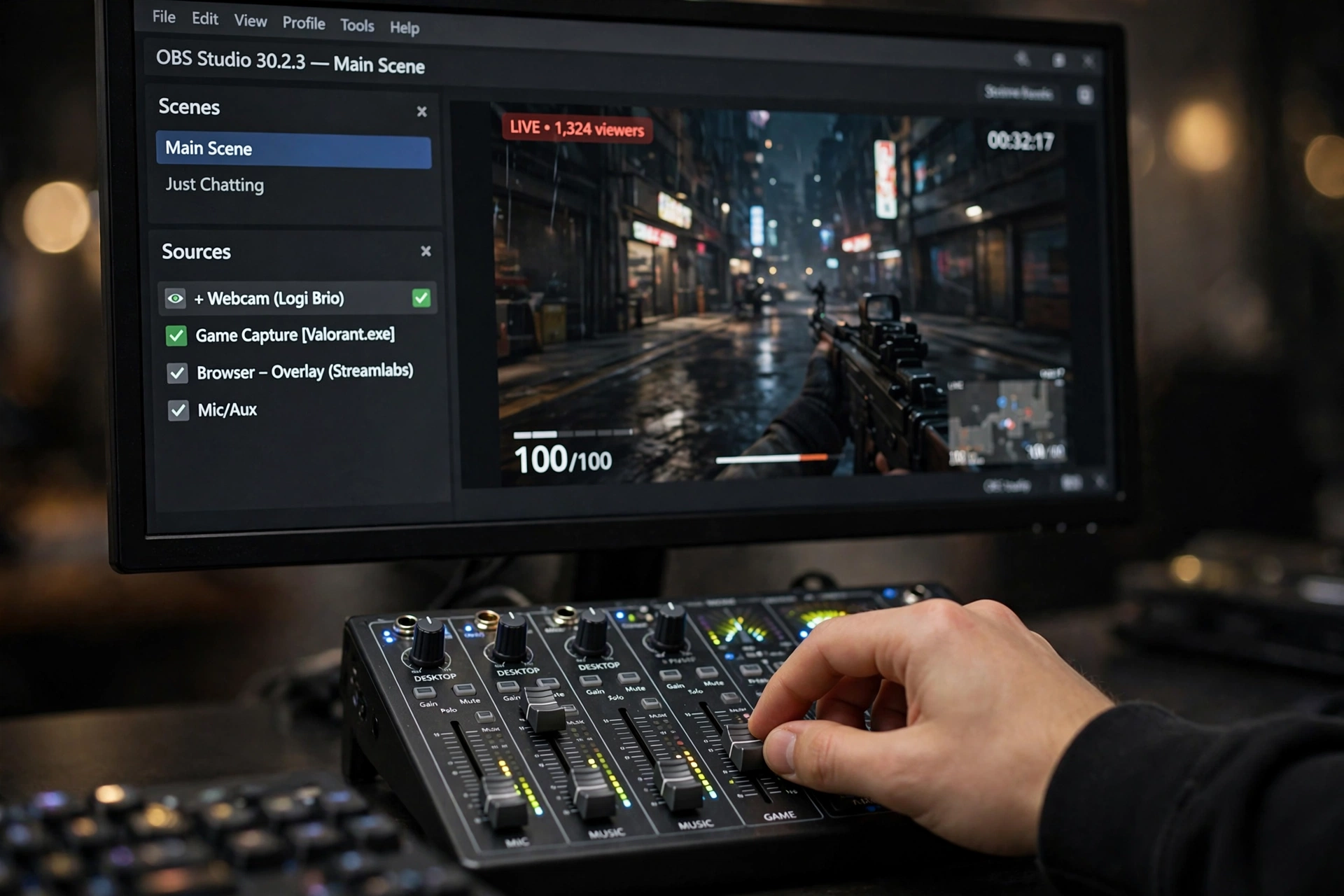
The two words that confuse every beginner are “scenes” and “sources,” so let us kill the confusion. A source is anything OBS can capture: your screen, a window, your webcam, your microphone, an image, a piece of text. A scene is a saved arrangement of sources — a recipe for what the viewer sees at one moment.
Why does this matter? Because switching scenes is how streams feel professional. Your “starting soon” scene might show a logo and music. Your main scene shows your game with your webcam in the corner. Your “be right back” scene shows a funny image. You build each once, then flip between them with one click or a keyboard shortcut. It is the single feature that makes a beginner’s stream look like they know what they are doing, and it takes about ten minutes to learn.
What it costs you versus what it costs to learn
Let us be precise about “free.” OBS Studio itself costs nothing and has no paid version, no locked features, no trial countdown. What it costs is time: expect an evening of tinkering to feel comfortable, and a week of casual use before it feels natural. Compare that with paid streaming software, which tends to be friendlier on day one but charges you every month forever — and often does less under the hood.
The hardware question comes up a lot. You do not need a gaming beast to start. Recording tutorials and simple streams works on modest laptops; the auto-configuration wizard deliberately picks settings your machine can handle. What helps most is not a faster computer but a decent microphone — viewers forgive mediocre video, but they leave bad audio. A basic USB microphone is the single best upgrade a beginner streamer can make, software aside.
Where it honestly frustrates beginners
A fair review includes the rough edges. First, the interface looks like engineering software, not a friendly app — the learning curve is mostly psychological, but it is real. Second, audio routing confuses everyone at first: getting your microphone, your game sound, and your music at the right levels takes some fiddling, and the terminology (“desktop audio,” “mic/aux”) does not help.
Third, troubleshooting is a community affair. There is no support hotline; when something breaks, you search forums and video tutorials like everyone else. The community is large and helpful, but it is still DIY. Finally, OBS does almost nothing automatically — no auto-edited highlights, no built-in fancy overlays, no hand-holding. It is a workshop full of excellent tools, not a magic button. If you want magic buttons, simpler (usually paid) tools exist.
Who should download it, and who should skip it
Download it if: you want to record tutorials, presentations, or gameplay; you are curious about streaming and want to try it for free; you like learning tools properly and do not mind an evening of setup; you need something that works on Linux as well as Windows and Mac.
Skip it (for now) if: you only want to record your screen occasionally — your operating system’s built-in recorder is simpler; you need to be live in the next ten minutes with zero learning; you want heavy automation and are happy to pay for it. There is no shame in starting simple and graduating to OBS later — many streamers did exactly that.
Honest answers to the questions we keep hearing
Is OBS Studio really free, or is there a catch? Really free. It is open-source software maintained by volunteers and funded by sponsors. There is no premium tier hiding the good features — what you download is the whole program.
Will it slow down my computer or my games? It uses some processing power, unavoidably — it is encoding video in real time. On a modest machine, stick to the wizard’s recommended settings and close heavy background apps while recording. Most beginners are surprised how well it runs.
Can I stream to YouTube and Twitch? Yes — you paste a stream key from your platform account into OBS’s settings, and it handles the rest. Getting the key takes a few minutes on the platform’s website, and plenty of beginner tutorials walk through it click by click.
How long until I am actually good at it? Comfortable in an evening, fluent in a couple of weeks of regular use. The plateau is friendly: the basics cover 90 percent of what most people ever need.
Worth installing this weekend
Here is the honest verdict: OBS Studio is the rare free tool that professionals never outgrow, which makes it an unusually good thing to learn as a beginner. Yes, the first hour feels like sitting in a cockpit. But the cockpit metaphor cuts both ways — an hour of learning buys you a skill that paid tools would charge you monthly to approximate.
If you have ever thought “I could make videos about this” — your hobby, your expertise, your gameplay — this weekend is a fine time to find out. Download it, run the wizard, record thirty seconds of yourself talking about something you love. The software is free. The only real investment is your curiosity.














