Physical Address
304 North Cardinal St.
Dorchester Center, MA 02124
Physical Address
304 North Cardinal St.
Dorchester Center, MA 02124


My sister runs a small home-baking business and used to spend nearly an hour every week trying to make her cake photos look decent for Instagram — bad lighting, cluttered kitchen backgrounds, blurry close-ups taken in a rush before the cake got picked up. Then she started using a free AI photo editor on her phone, and that hour turned into about ten minutes. That’s really the story of AI photo editing in 2026: it’s not about magic, it’s about giving ordinary people editing power that used to require real skill and a lot of patience.
If you’ve been overwhelmed by how many “AI photo editor” apps have popped up lately, you’re not imagining it. New ones seem to launch every month, each claiming to be the fastest or the smartest. The good news is that a handful of genuinely free options now do most of what casual users actually need, without forcing you into a subscription the moment you want to export a photo.
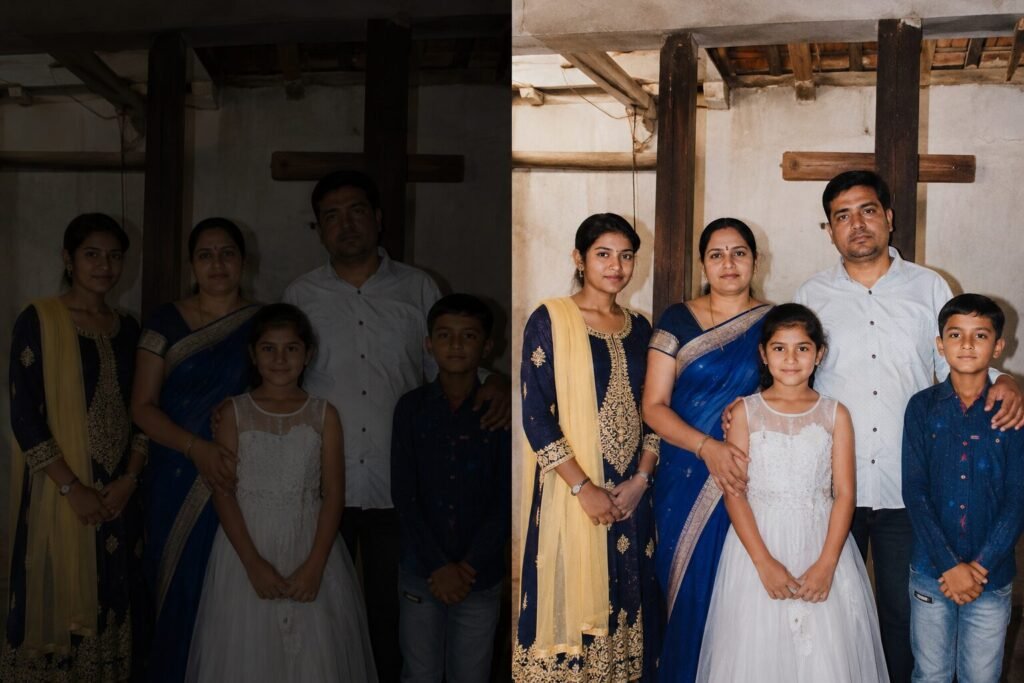
Before picking an app, it helps to know what “AI-powered” really means in this context, because the term gets used loosely. Most modern tools now offer some combination of the following:
Not every free app does all of these well, which is exactly why it’s worth comparing a few before settling on one for your regular workflow. Some apps are excellent at background removal but weak at restoration, while others go the opposite way.
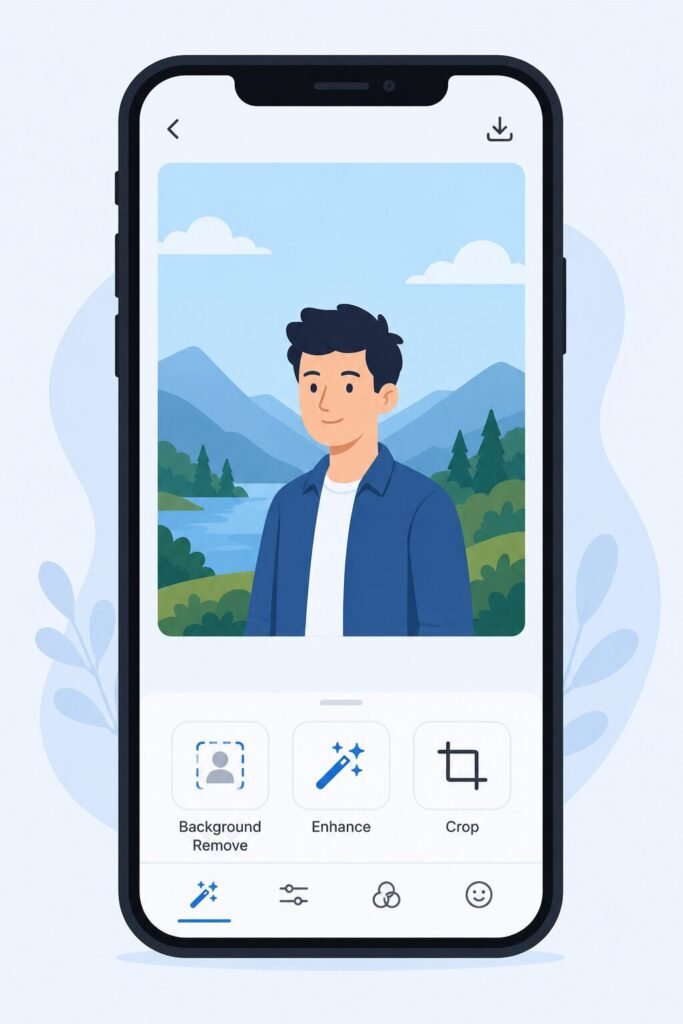
Canva remains one of the most beginner-friendly options, especially if you’re already editing social posts, flyers, or presentations. Its background remover and one-click enhance tools are genuinely free to use for basic edits, though more advanced generative features sit behind a paid tier. What makes Canva stand out isn’t raw editing power — it’s how naturally photo editing fits into a broader design workflow. If you’re producing content for a small business or a Facebook page, this all-in-one approach can save real time.
It’s a strong pick if design, not pure photography, is your main goal. You won’t get pixel-level control here, but for quick turnarounds, that trade-off is usually worth it.
Pixlr feels closer to a traditional photo editor with AI shortcuts layered on top. It’s browser-based, so there’s nothing to install, and it handles background removal and basic retouching cleanly without demanding much of a learning curve. For someone who wants a bit more control than Canva offers but doesn’t want the complexity of a full professional suite, Pixlr sits nicely in the middle.
One thing worth knowing: because it runs in your browser, performance can vary depending on your internet connection and device, so very large image files may take a moment longer to process than on a native app.
If you’ve ever used Photoshop, Photopea will feel instantly familiar — it’s a free, browser-based editor that mimics Photoshop’s layout closely, with AI-assisted tools bolted on for selection and cleanup. It supports layers, masks, and most of the file formats professionals expect, which makes it popular among people who’ve outgrown simpler apps but aren’t ready to pay for a subscription.
It’s a favorite among people who want more manual control alongside the automation, and it’s genuinely one of the few free tools that doesn’t feel like a watered-down version of something else.
Picsart leans creative and social-first, with a large library of community filters, stickers, and quick generative edits. It’s particularly popular with younger users editing for Instagram or TikTok, and the sticker and overlay community adds a fun, collaborative feel that the other apps on this list don’t really have.
The trade-off is that the free version can feel a bit ad-heavy and occasionally nudges you toward upgrades, and some generative edits come out lower resolution than you’d expect. Still, for fast, trend-driven social content, it holds its own.
Rather than trying every app on this list, ask yourself three quick questions before committing your workflow to one:
Do you need speed or precision? If you’re editing product photos or portraits at volume, prioritize apps with true one-tap fixes, like Canva or Pixlr. If you want fine control over every pixel, pick something closer to a traditional editor like Photopea.
Does the free tier actually stay free? Some apps quietly cap you at a handful of edits per day or slap a watermark on exports unless you upgrade. Test the export before you commit, not after you’ve already built a workflow around an app.
Where does your photo go? Cloud-based editors upload your image to a remote server to process it, which is fine for most casual use but worth knowing if you’re editing anything sensitive, private, or client-related. Desktop-based tools tend to keep processing local to your device.
AI enhancement tools are good, but not flawless. Skin retouching can occasionally look artificial or overly smoothed, and background removal sometimes struggles with fine details like flyaway hair, glass, or transparent objects. Upscaling, too, can introduce odd artifacts if you push a very low-resolution photo too far.
A quick manual check before publishing anything important is still worth the extra thirty seconds. Zoom in on edges, check skin tones under different lighting, and don’t be afraid to undo an AI suggestion if it doesn’t look right. The best results usually come from treating these tools as a fast first draft, not a final decision-maker.
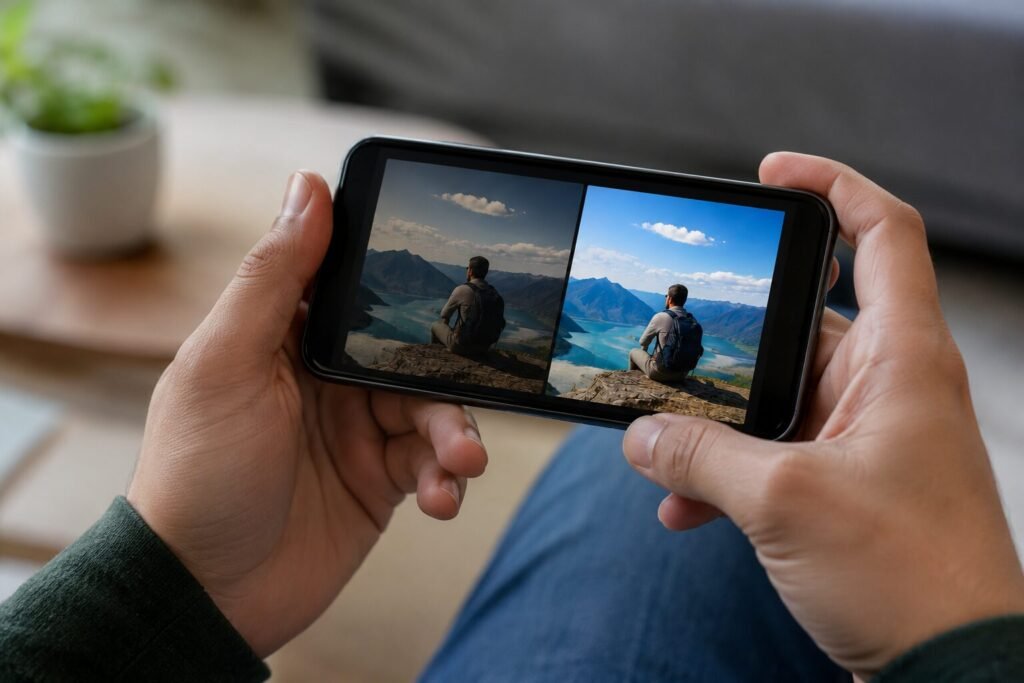
A few habits tend to trip up first-time users of these apps:
Avoiding these small pitfalls makes a bigger difference to the final result than switching between apps ever will.
You genuinely don’t need expensive software to get clean, professional-looking photos in 2026. Start with Canva or Pixlr if you want the gentlest learning curve, and branch into Photopea if you find yourself wanting more control over the details. Pick one, use it consistently for a week, and you’ll likely notice your photos improving faster than you’d expect — without spending a single rupee or dollar on software.

