Physical Address
304 North Cardinal St.
Dorchester Center, MA 02124
Physical Address
304 North Cardinal St.
Dorchester Center, MA 02124

New to design? This Canva for beginners guide shows you how to create stunning posts, resumes, and presentations — free, with zero experience needed.
You have probably seen beautiful Instagram posts, YouTube thumbnails, and presentation slides and thought, “I could never make that.” With Canva for beginners, you absolutely can. Canva is a free online design tool that lets anyone create professional-looking graphics using simple drag and drop — no design degree, no expensive software, no experience needed.
Whether you want to design posts for your business, a resume that stands out, or birthday invitations for your family, Canva makes it possible in minutes. This guide will take you from zero to your first finished design, step by step.
Canva is a web-based design platform — meaning it runs in your browser, so there is nothing heavy to install. It also has free mobile apps for Android and iPhone. Instead of starting from a blank page, you pick from millions of ready-made templates: social media posts, logos, resumes, presentations, posters, and more.
You then customize the template: change the text, swap the photo, adjust the colors. Everything works by clicking and dragging elements around the screen. It feels more like arranging stickers than doing “graphic design,” which is exactly why beginners love it.
Canva’s free plan is genuinely free forever — not a trial. It includes the drag-and-drop editor, over a million templates, millions of free photos and graphics, and 5GB of cloud storage. That is more than enough to learn and create real designs.
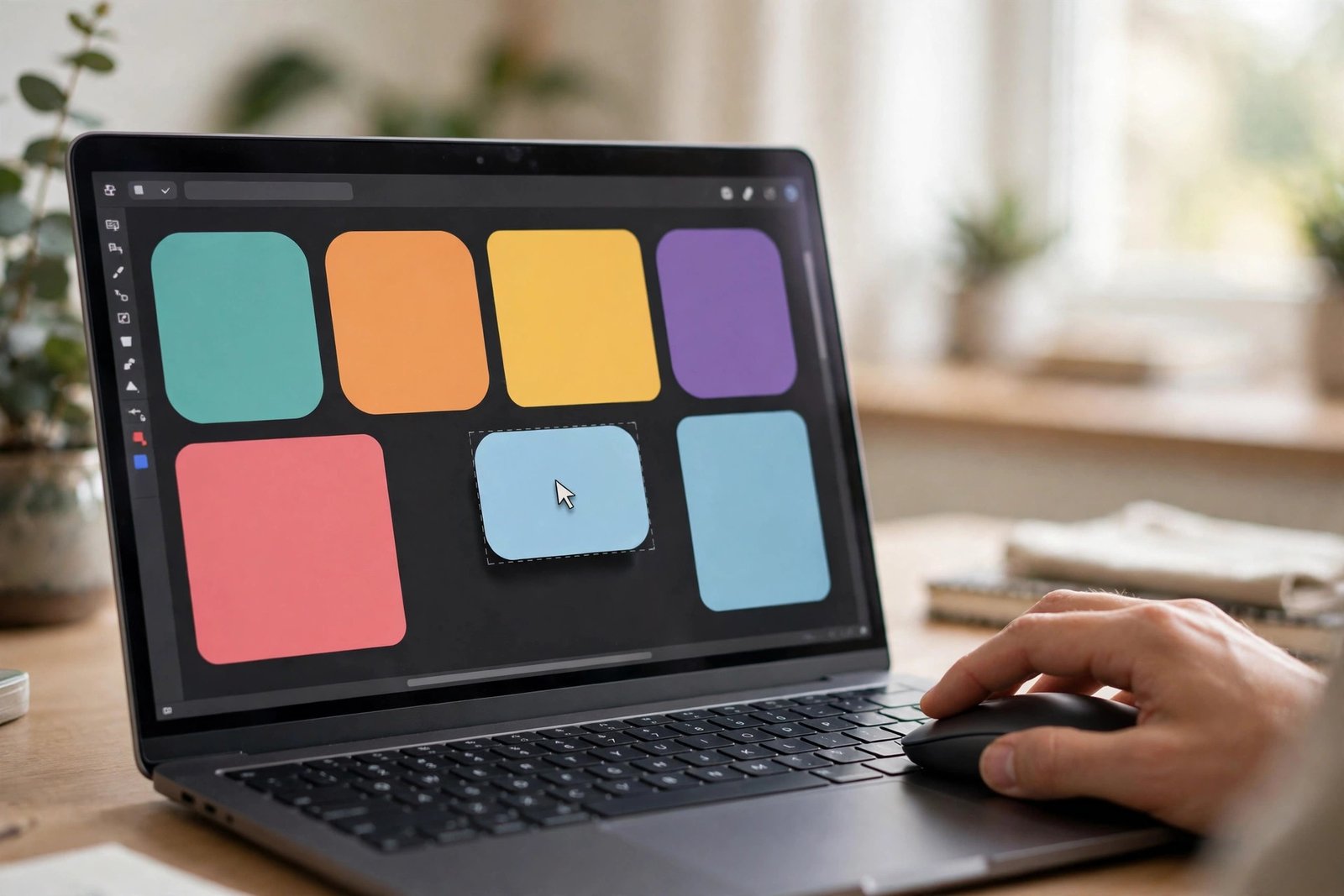
Let us get you set up. The whole process takes about ten minutes:
That is the entire workflow. Every future design you make will follow these same five steps.
Canva has hundreds of features, but beginners only need a handful. Master these and you can handle 90% of design tasks:
Your starting point for everything. Search by purpose (“wedding invitation,” “business card”) and filter by style or color. Templates save hours — even professional designers start from them.
Shapes, lines, icons, stickers, and illustrations you can add to any design. Need an arrow? A star? A decorative frame? Search Elements and drag it in. Free elements are marked clearly; premium ones show a small crown icon.
Click Text to add headings, subheadings, or body text. Canva offers hundreds of font combinations. A simple rule: use no more than two fonts in one design — one for headings, one for body text.
This is where your own photos and logos go. Upload once, and they stay in your account for every future design. Your 5GB of free storage holds plenty of images.
This popular tool erases photo backgrounds with one click — but it requires a paid Canva plan. Beginners can work around it by choosing photos that already have clean backgrounds.
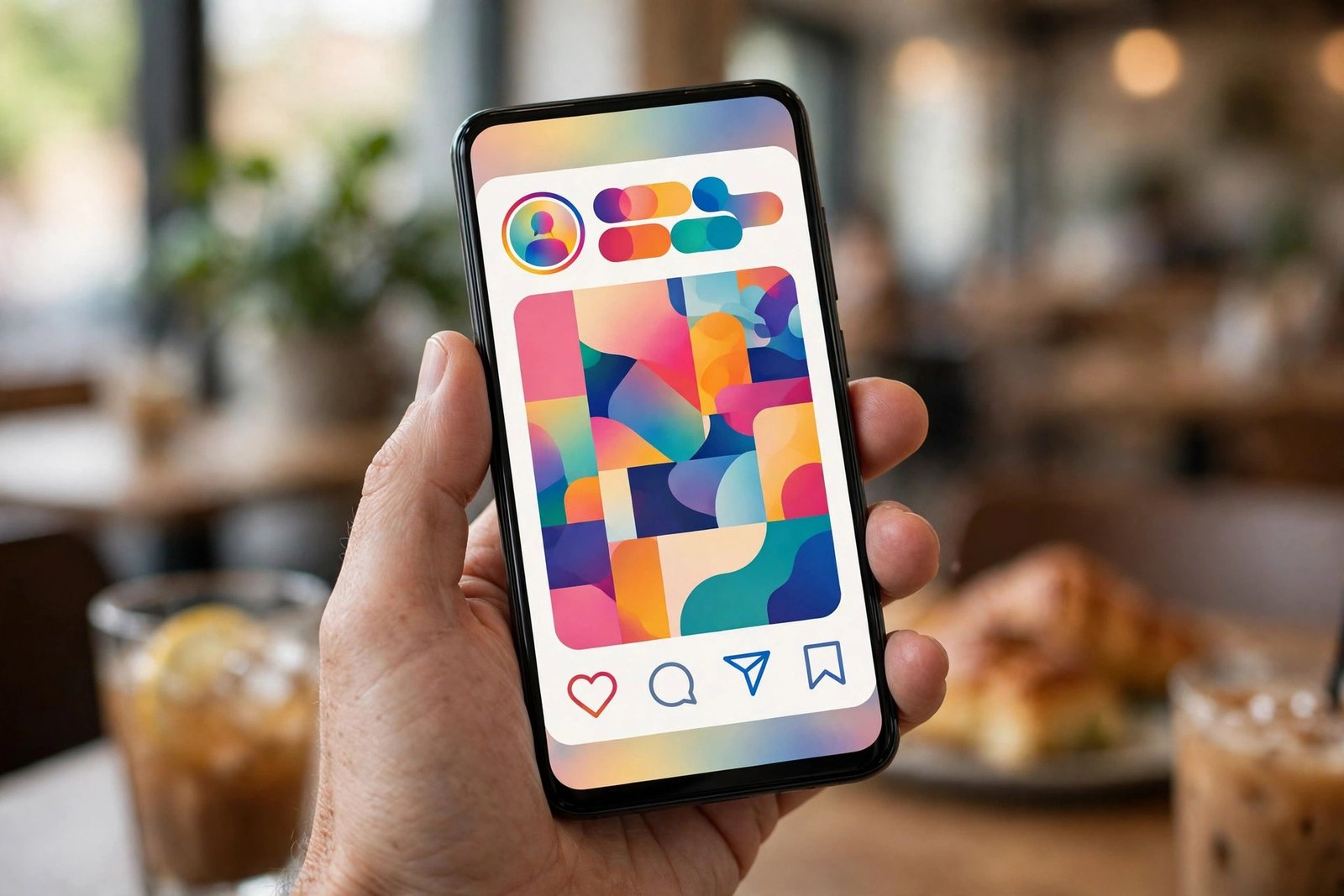
Let us make something real together: an Instagram post announcing a small business sale.
Practice this process with different templates a few times, and it will start feeling natural within a week.

Canva will regularly suggest its paid plan, Canva Pro. Here is an honest breakdown for beginners:
The free plan also includes a limited taste of Canva’s AI features, like AI-assisted writing and image generation, so you can experiment without paying.
Once you are comfortable with the basics, there is a whole world to explore: designing multi-page presentations, creating simple videos, making logos with the logo maker, and even scheduling social media posts directly from Canva. Many beginners turn their new Canva skills into freelance work — designing social media posts and marketing graphics for small businesses is one of the most popular beginner freelance services.
YouTube is full of free Canva tutorials for every level. Pick one small project per week — a resume this week, a poster next week — and your skills will grow faster than you expect.
Yes. Canva’s free plan costs nothing and does not expire. It includes the editor, over a million templates, millions of free photos and graphics, and 5GB of storage. Paid plans exist with extra features, but the free plan is fully usable on its own.
No. Canva works in your web browser on any computer. Free apps are also available for Android and iPhone if you prefer designing on your phone.
Yes, you can use your Canva designs for commercial purposes like social media marketing and business materials. Just check the licensing details for specific premium photos or elements you use, as a few have restrictions.
For social media graphics, presentations, resumes, posters, and marketing materials — absolutely. Many small businesses and freelancers use Canva as their main design tool. For highly complex work like detailed photo editing, dedicated software may still be better.
The basics take a few hours. Most beginners can create decent designs within their first day and feel confident within two to three weeks of regular practice.
Canva for beginners proves that good design is no longer reserved for professionals. With free templates, drag-and-drop tools, and a few simple rules about fonts and spacing, anyone can create graphics that look polished and professional. Open Canva today, pick a template, and make your first design — you will be surprised how quickly “I can’t design” turns into “look what I made.”

