
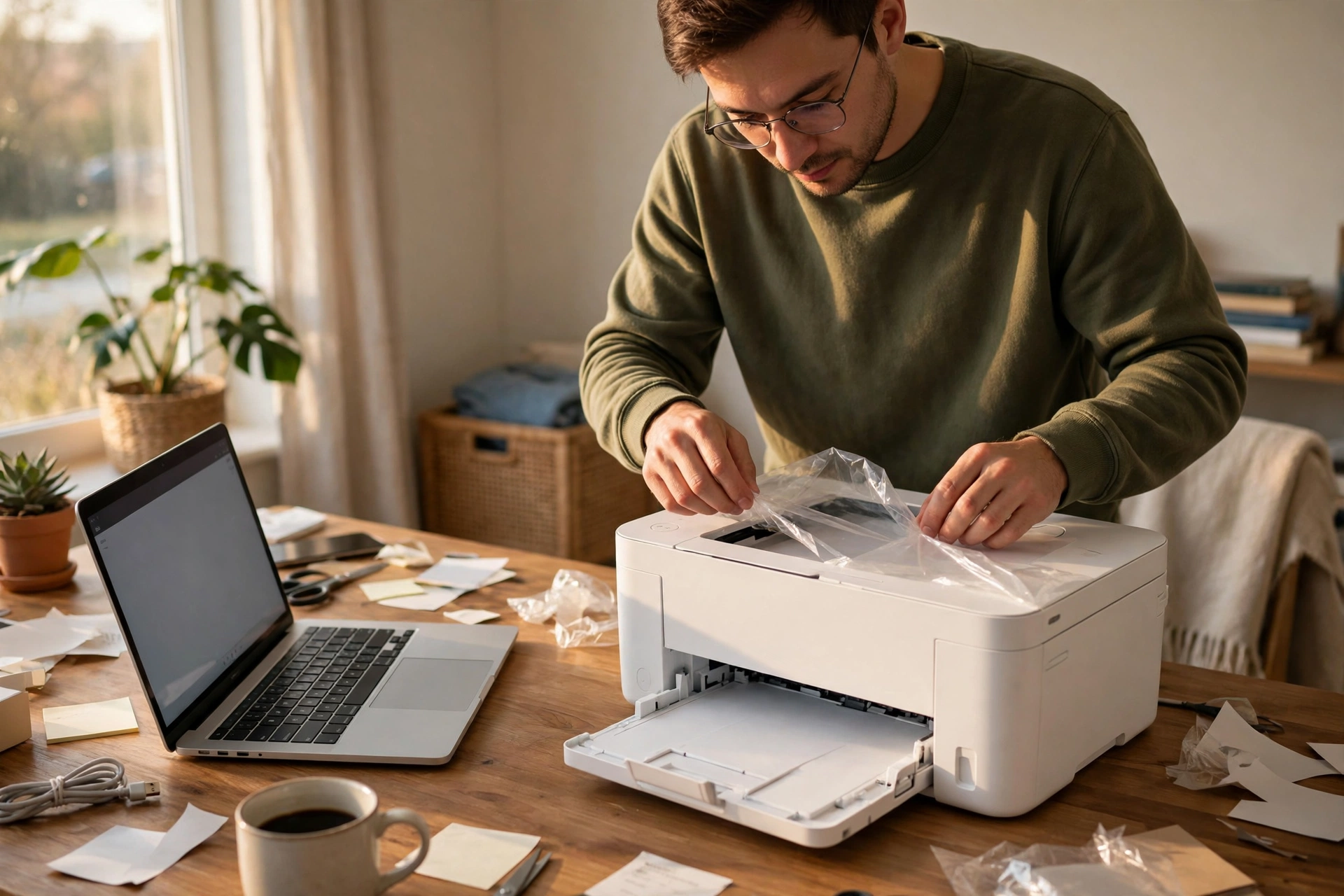
There is a special kind of frustration reserved for printers. You buy one, you plug it in, you press print — and nothing happens. The laptop cannot find it. The phone cannot find it. The printer sits there blinking at you like it has never heard of your Wi-Fi network, even though the router is ten feet away. If that sounds familiar, you are not bad at technology. Printer setup is genuinely fiddly, and most of the confusion comes from the fact that there are three or four ways to do it, depending on what kind of printer you own. This guide picks the simplest path for your situation, one calm step at a time, so you can get from a blinking box to a printed page without calling anyone for help.
Before you touch a single button
Two minutes of prep saves twenty minutes of swearing later. First, find your Wi-Fi password — the one you type when a guest asks for the network. It is often printed on a sticker on the bottom or back of your router, or saved on a phone that is already connected. Write it down on paper. Typing a long password on a tiny printer screen, one character at a time, is where most people go wrong, and hunting for it halfway through is a pain.
Next, put the printer somewhere sensible. Wi-Fi signal gets weaker through walls and floors, so a printer buried in a far cupboard or behind a metal filing cabinet will struggle no matter what you do. Somewhere in the same room as the router, or one room over, is ideal for the first setup. You can always move it later once it is working. Plug it in, switch it on, and give it a minute to wake up properly. A printer that is still warming up will ignore every button you press, and that silence feels personal even though it is not.
The button on the printer that does the heavy lifting
Many home printers have a shortcut built in, and it goes by the letters WPS. Look on your router for a small button marked WPS, and on your printer for a wireless button or a wireless menu option. Press the router’s WPS button, then, within about two minutes, press the printer’s wireless button or choose the WPS option on its screen. The two devices introduce themselves to each other, and the printer joins your network without you typing a password anywhere.
Watch for a steady wireless light on the printer. Blinking means it is still trying; a solid light usually means it is connected. If nothing happens after a couple of minutes, do not keep hammering the button — turn the printer off, wait ten seconds, turn it back on, and try once more. Some routers hide their WPS button on the back, and some internet providers switch WPS off by default, so if you cannot find the button at all, skip this method entirely. The next one works just as well.
Telling the printer the password yourself
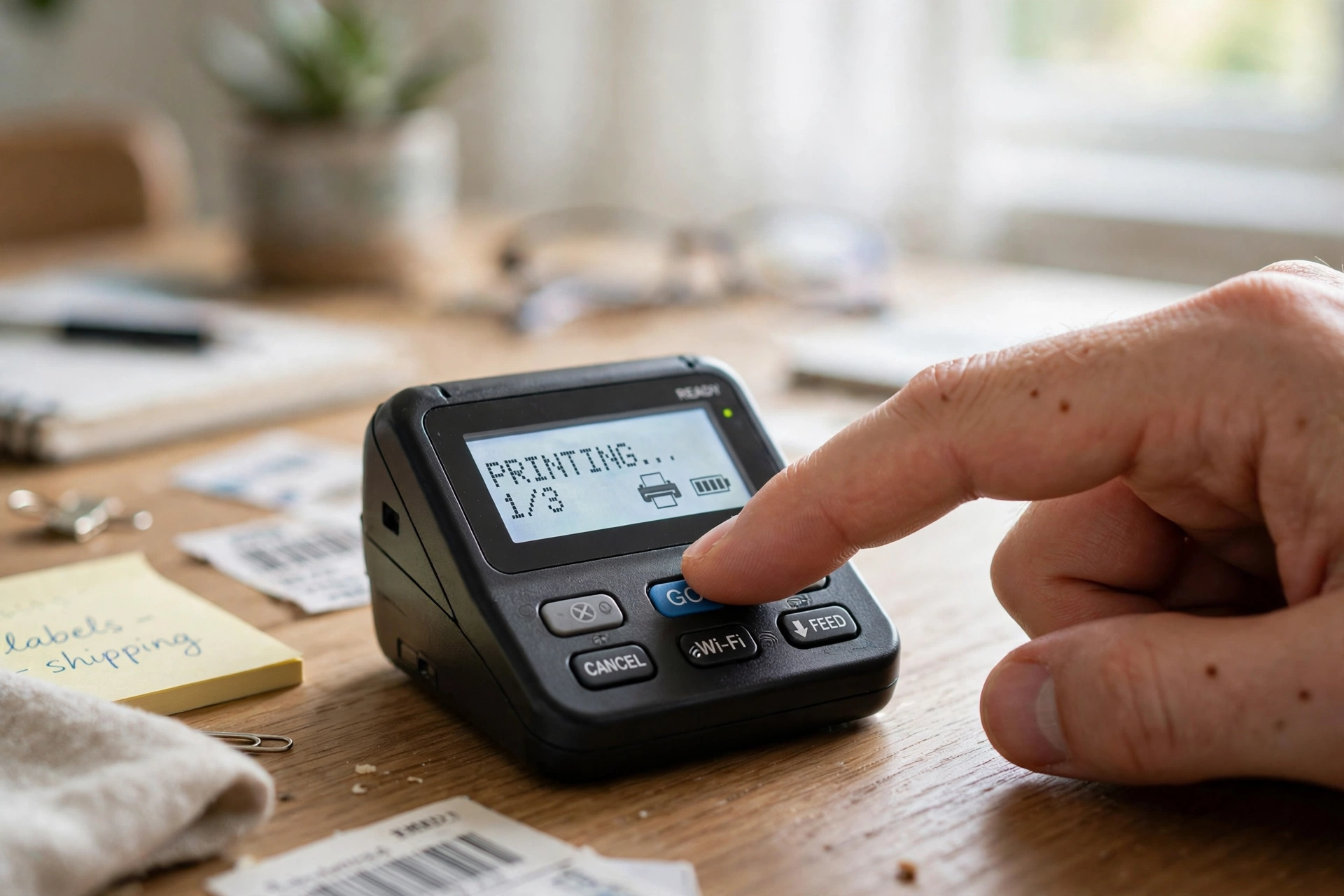
Printers with a little screen and a few buttons can join the network the old-fashioned way. Open the wireless or network settings on the printer’s screen, choose your network name from the list, and type the password carefully using the on-screen keyboard. Yes, it is slow. Yes, the arrow keys will test your patience. Take your time, and double-check the password before you confirm — one wrong character and the printer will fail silently, leaving you to wonder what went wrong.
Capital letters matter here, and so do lookalike characters: a zero and a capital O are different things. If the screen lets you show the password while you type, switch that on — it stops the most common mistake in this whole process. Once the printer says it is connected, print a network check page from its settings menu if it offers one.
No screen? Let the phone app do it
Cheaper printers often skip the screen entirely, and that is where the maker’s phone app comes in. Search your phone’s app store for the brand name on the front of the printer — the app is free, and it will be the one published by the printer maker, not a lookalike with a similar name. Open it, create an account if it asks, and choose the option to set up a new printer. The app will usually ask you to join a temporary network the printer creates, hand over your home Wi-Fi details, and then switch everything back.
Follow the app’s prompts exactly, even when they feel odd — being told to hold your phone near the printer, for example, is normal, not a glitch. Keep your phone’s Bluetooth switched on during setup, since many apps use it to find the printer. If the app stalls halfway, close it completely, switch the printer off and on again, and start over. A fresh attempt after a restart fixes more setup failures than any clever trick, and it costs you nothing but a minute.
Getting your laptop and phone to actually see it
A printer on your Wi-Fi is only half the job; your devices still need to notice it. On a Windows laptop, open Settings, then Bluetooth and devices, then Printers, and choose to add a printer. On a Mac, open System Settings, then Printers, and add it from there. Give the list a few seconds to fill up — printers are slow to announce themselves, and clicking around too fast can make you miss the entry entirely.
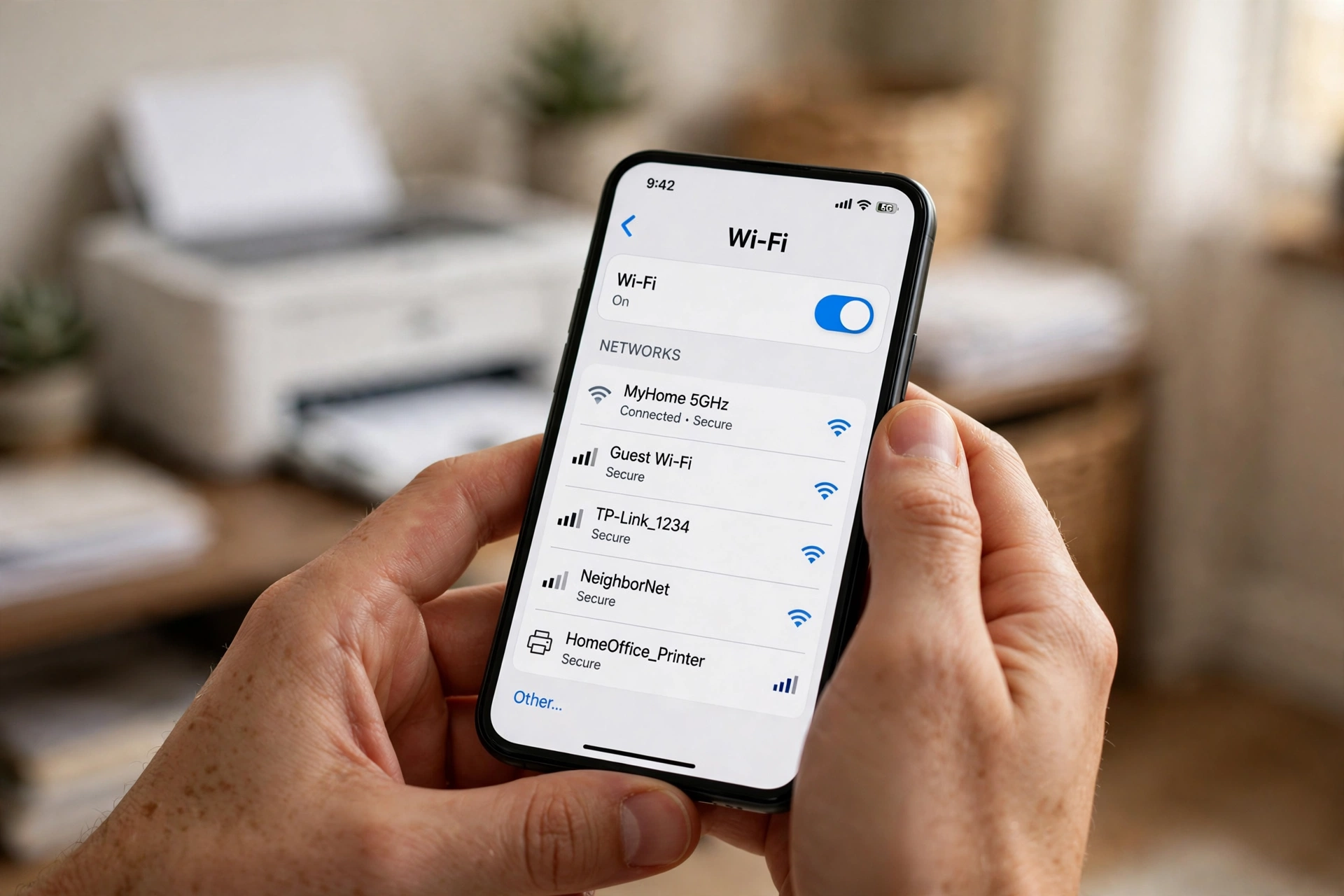
When your printer’s name appears, click it and let the computer finish the setup. It may download a small driver in the background; let it finish before you test anything. On a phone, you usually do not need to add anything at all: once the printer is on the same Wi-Fi network, the print option in your photos or documents app should offer it by name. If your phone and printer are on different networks — a guest network is the usual culprit — they will never see each other, so check both are on your main home network.
When it says offline and you want to give up
Sooner or later, every wireless printer will claim to be offline. Before you dismantle anything, run through this short list. Is the printer actually on? Is it on the same Wi-Fi network as the device you are printing from? Has the router been restarted since the last power cut? Routers sometimes hand out new network addresses after a restart, and printers are famously bad at noticing. Switching the printer off and on again forces it to ask for a fresh address, and that alone clears most offline sulks.
Next, test from near the router. If printing works there but not from the far room, signal is the issue, not the printer — moving the printer a few feet can change everything. If nothing works, remove the printer from your computer’s printer list and add it again from scratch. A clean re-add takes two minutes and often succeeds where hours of tweaking failed.
Small habits that keep it working
Once your printer is online, a few boring habits will keep it that way. Leave the printer switched on, or at least in its sleep mode, rather than cutting the power at the wall every night. Printers that fully power down have to rejoin the network each morning, and each rejoin is another chance for something to go wrong. Print something — anything — every week or two. Ink dries up in idle printers, and a printer with clogged nozzles will print streaky pages that look like a hardware fault when they are not.
When your internet provider swaps your router, or you change your Wi-Fi password, remember the printer. It will not learn the new password on its own, and it will sit offline until you run setup again. That catches more people than any other single cause — now you know, so it will not catch you.
What people usually ask before they start
Do I need a cable at all? No. A wireless printer needs only power and Wi-Fi. The USB cable in the box is a backup for setup on some models, and you can leave it in the box if the wireless route works. Can I print from my phone? Yes, once the printer is on your home Wi-Fi — your phone just needs to be on the same network. Why does my printer keep disappearing? Usually the router restarted, the password changed, or the printer went into a deep sleep and failed to wake its wireless connection properly. A restart of the printer fixes most cases.
Is a wireless printer less safe than a wired one? For a normal home, no. Your printer sits behind your home Wi-Fi password, the same as your laptop and phone. Keep your Wi-Fi password private, keep the printer’s software updated through its app, and you have covered the basics. And if your printer offers a direct wireless mode — where your phone connects straight to the printer instead of through the router — treat that as a handy guest trick, not your everyday setup, since it bypasses your home network.
Print something pointless, just because you can
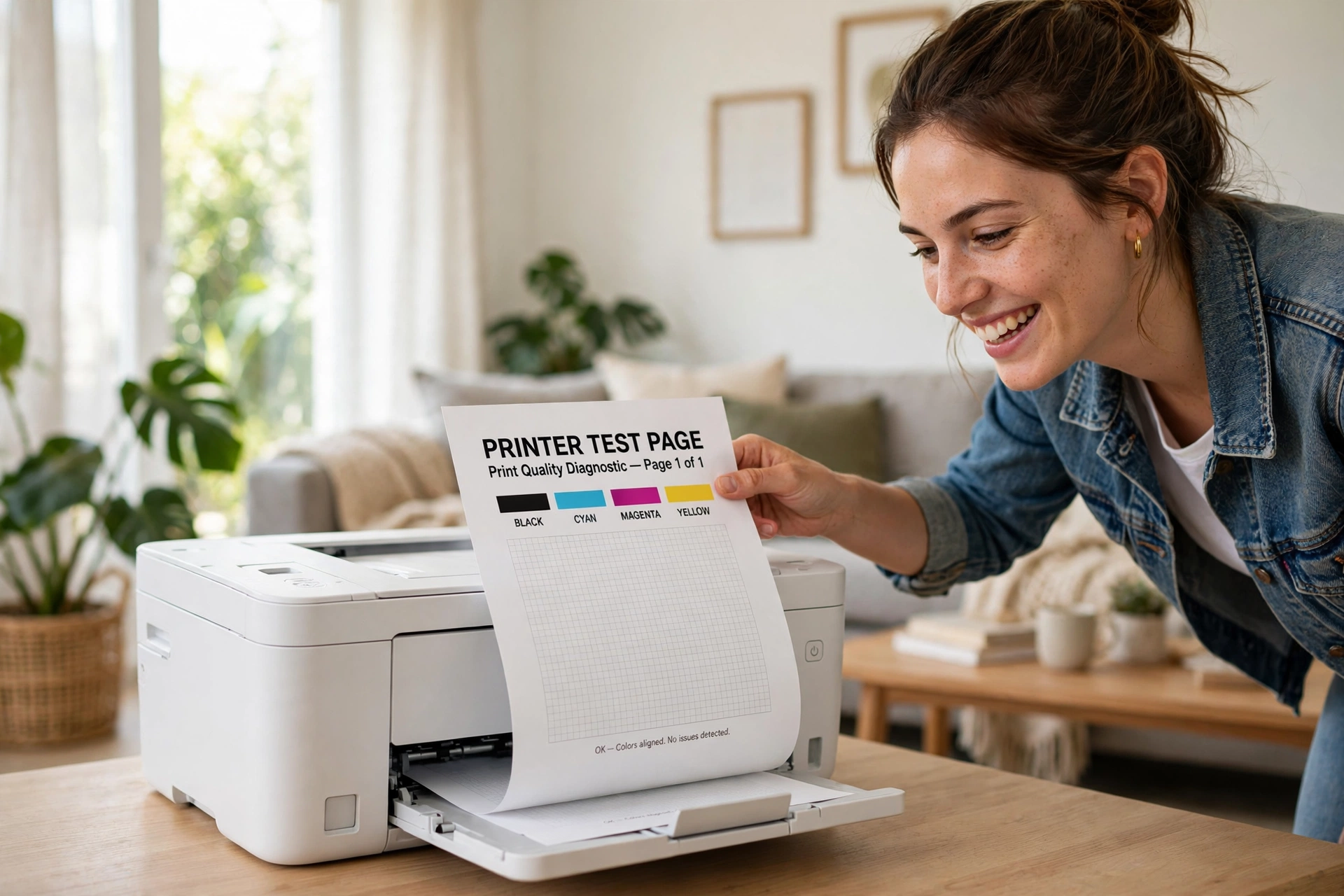
Here is my favourite part of this whole job: once the test page comes out clean, print something silly. A photo, a recipe, a list of films you want to watch. Not because you need it, but because after all that button-pressing and password-typing, you deserve the small satisfaction of watching your own printer do its job from across the room, no cable in sight. That is the whole point of wireless printing — not the technology, but the moment you stop thinking about it. If it breaks again next month, you now know the drill: check the network, restart the printer, re-add it if you must. You have done it once, and the second time takes half as long.