
Nothing is more annoying than watching your phone battery drop to 10 percent in the middle of the day. You start the morning at 100 percent, and by late afternoon you are hunting for a charger. The good news is that you usually do not need a new phone or a new battery. A few simple changes to your settings and habits can make your phone battery last longer — often noticeably so.
This guide walks you through 10 practical tips that work on both iPhone and Android. Nothing here requires technical knowledge, paid apps, or risky tweaks.
Your Screen Is the Biggest Battery Hog
The display uses more power than almost anything else on your phone. Every extra bit of brightness costs battery, and most phones ship with the screen set brighter than it needs to be. This is the single fastest win.
Turn the brightness down (or let your phone do it)
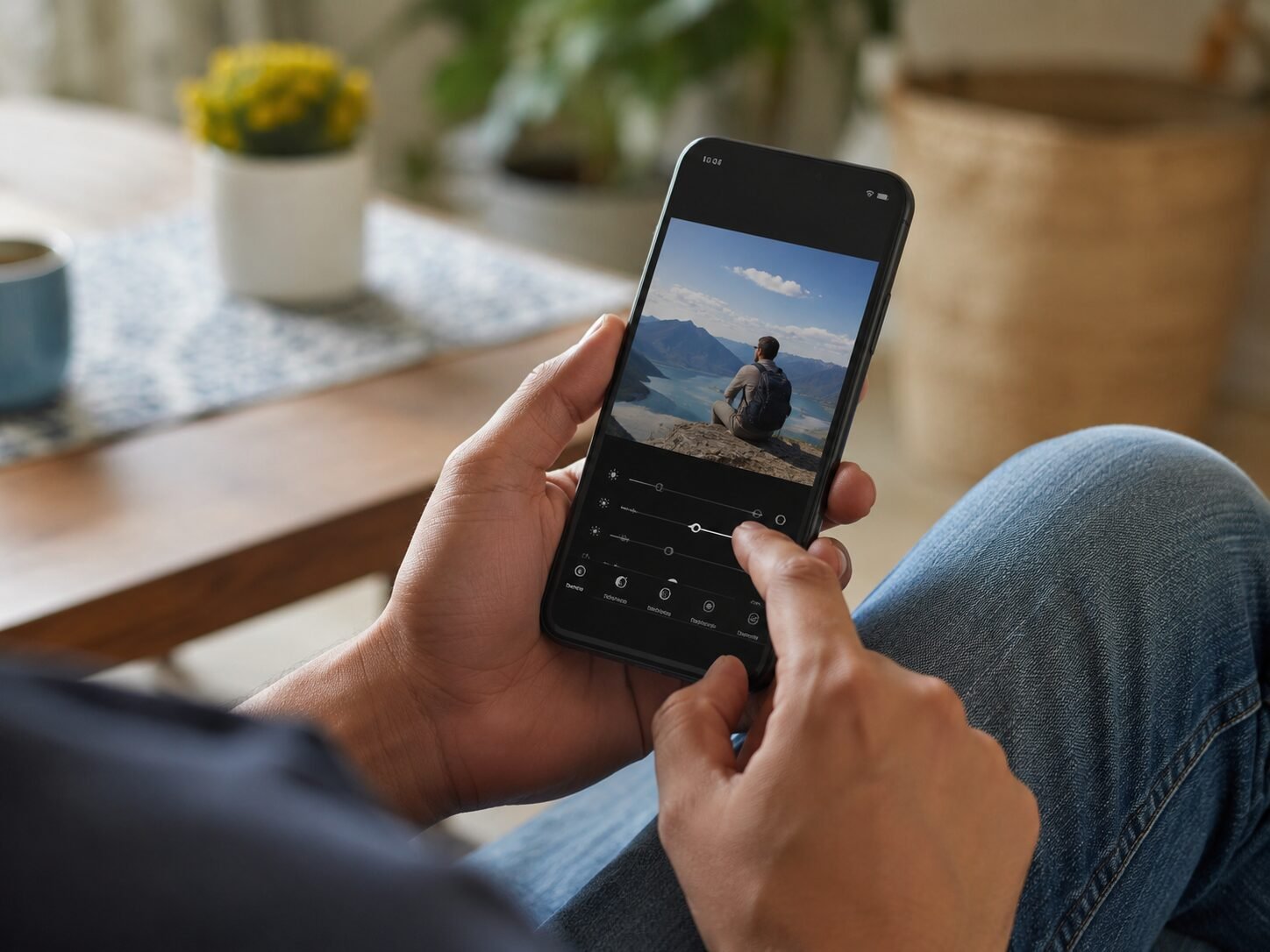
Go to your display settings and turn on adaptive or auto-brightness. Your phone will then adjust the screen to match the light around you — dimmer indoors, brighter in sunlight. If you prefer manual control, try keeping brightness around the middle of the slider for indoor use. You will be surprised how little difference it makes to readability, and how much difference it makes to battery life.
Shorten your screen timeout
Screen timeout is how long your phone waits before turning the display off when you are not touching it. Many phones default to one or two minutes, which means the screen often stays on while the phone sits untouched on a table. Drop it to 30 seconds. It takes a day to get used to, and then you never think about it again.
What Is Background Activity Doing to Your Battery?
Many apps keep working even when you are not using them — checking for messages, refreshing feeds, or tracking your location. Each small task sips a little power, and together they add up, especially overnight or when your phone sits in your pocket.
On iPhone, look for Background App Refresh under Settings, then General. You can turn it off completely or leave it on only for the apps where it genuinely matters, like messaging apps. On Android, the setting is usually called Background App Refresh or appears under each app’s battery settings as “Allow background activity.” Turn it off for apps that do not need to update constantly — games, shopping apps, and social media are common candidates.
Find the Apps Quietly Draining Your Battery
Before changing anything else, check exactly where your power is going. Both iPhone and Android show battery usage per app: on iPhone, open Settings, then Battery, and scroll down to see usage over the last 24 hours or 10 days. On Android, open Settings, then Battery or Battery Usage, for a similar list. An app you barely opened showing high usage is a red flag — restrict its background activity, turn off its notifications, or simply use it less.
Dark Mode: Does It Really Help?
Dark mode turns bright white backgrounds dark. On phones with OLED or AMOLED displays, which light up each pixel individually, dark pixels genuinely use less power — so dark mode can make a real difference in apps you use a lot. On older LCD screens the backlight stays on regardless, so it saves very little. Either way it is free and easy to try: on iPhone, find it under Settings, then Display and Brightness; on Android, under Settings, then Display, look for Dark Theme.
Wi-Fi, Bluetooth, and Location: Turn Off What You Are Not Using
Your phone constantly scans for Wi-Fi networks, Bluetooth devices, and your GPS position — even when you are not using any of them. When you leave home, turn off Wi-Fi if you will not be near a trusted network, and turn off Bluetooth when you are not using wireless earbuds or a smartwatch.
For location services, change app permissions from “Always” to “While Using the App” so apps only track you when open. On iPhone this is under Settings, then Privacy and Security, then Location Services. On Android: Settings, Location, App Location Permissions.
One more thing: a weak mobile signal makes your phone work harder to stay connected, which drains the battery faster. In poor-reception areas, switching to airplane mode for a while (when you do not need calls) can save a surprising amount of power.
Battery Saver Mode Is Your Friend, Not a Last Resort
Almost every phone has a battery saver or low power mode, and most people only turn it on at 5 percent in a panic. It works much better as a planned tool: it reduces background activity and visual effects to stretch your remaining charge.
On iPhone, Low Power Mode lives under Settings, then Battery. On Android, look for Battery Saver under Settings, then Battery — many Android phones can also switch it on automatically at a chosen percentage. If you have a long day ahead with no charger, switching it on at 50 percent in the morning is smarter than waiting for the evening panic.
Charging Habits That Actually Protect Your Battery
How you charge matters just as much as how you use your phone. Phone batteries are lithium-ion, and they age faster under certain conditions. A few habits can slow that aging and keep your battery healthy for longer.
The 20 to 80 guideline
Lithium-ion batteries are happiest in the middle of their charge range. Regularly draining to zero or sitting at 100 percent for hours puts extra stress on the battery. You do not need to be obsessive, but as a general habit, charge before you drop below 20 percent and unplug around 80 to 90 percent when convenient.
Overnight charging is mostly fine now
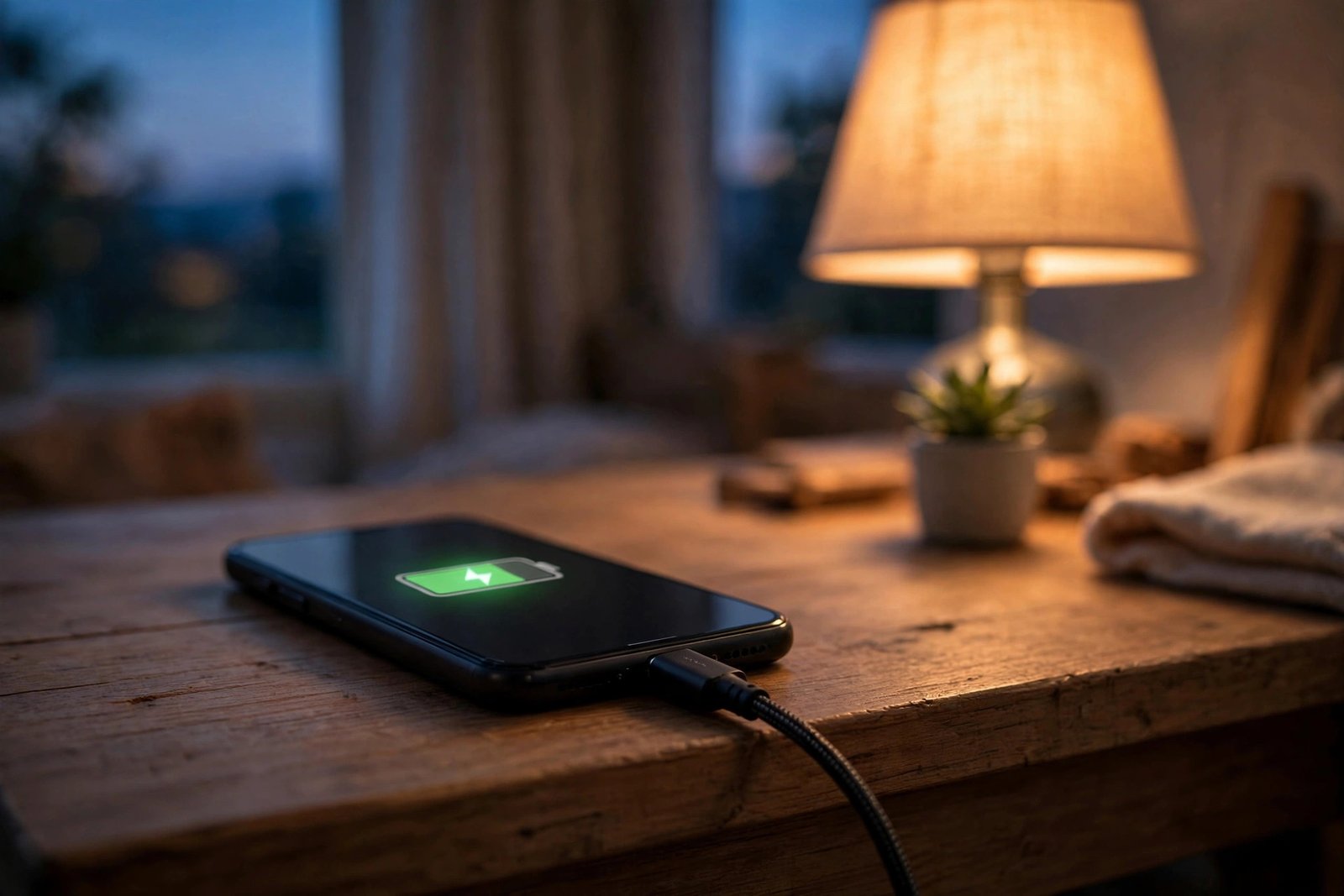
Leaving your phone plugged in all night used to be genuinely bad advice, but modern phones are smarter: both iPhone and many Android phones have an “optimized charging” feature that holds the battery around 80 percent until just before you wake up. Check it is turned on — on iPhone under Settings, Battery, Battery Health and Charging; on Android, look for Adaptive or Optimized Charging in battery settings.
Heat is the real enemy
If there is one thing to remember from this section, it is this: heat damages batteries faster than almost anything else. Do not leave your phone in direct sunlight or on a hot car dashboard, and do not charge it under your pillow. If your phone feels hot while charging, take it out of its case and move it somewhere cooler.
Keep Your Software Updated
Software updates are easy to ignore, but they often include battery fixes — manufacturers regularly patch bugs that cause excessive drain, and app developers do the same. Turn on automatic updates, or check manually every week or two. On iPhone: Settings, General, Software Update. On Android: usually Settings, System, Software Update. Update your apps too; both app stores can do this automatically.
A Few Small Things That Add Up
Beyond the big wins above, a handful of smaller tweaks are worth making once:
– **Turn off the always-on display** if your phone has one. It is convenient but constantly sips power.
– **Reduce notifications.** Every buzz lights up your screen and wakes the processor. Silence apps that do not need your attention.
– **Use Wi-Fi instead of mobile data when you can.** Wi-Fi generally uses less power than a cellular connection, especially for video and downloads.
– **Lower the screen refresh rate** if your phone offers 120Hz. The smoother animation is nice, but 60Hz uses less power.
– **Restart your phone occasionally.** A reboot once a week clears out stuck processes that might be draining power in the background.
Frequently Asked Questions
Is it bad to charge my phone overnight?
Not really, not anymore. Modern phones have optimized charging features that protect the battery by delaying the final part of the charge until morning. Just make sure the phone is in a cool, ventilated spot — not under a pillow — and that optimized charging is turned on in your settings.
Should I let my battery drain to 0 percent before charging?
No. That advice comes from old nickel-based batteries and does not apply to modern lithium-ion batteries. In fact, regularly draining to zero stresses the battery. Charge whenever it is convenient, ideally before you drop below 20 percent.
Do battery saver apps actually work?
Mostly no. The battery saver features built into iPhone and Android do the real work, and third-party “battery booster” apps cannot do anything the system does not already allow. Many of them run constantly showing ads, which drains the very battery they claim to save. Stick with your phone’s built-in tools.
Why is my battery suddenly draining much faster than usual?
A sudden change usually has a software cause, not a dying battery: a recently updated app misbehaving, an OS update still settling in, or poor signal in a new location. Restart your phone first — that alone fixes many sudden drain issues. If it persists for more than a few days, check the per-app battery usage screen to find the culprit.
Does 5G drain the battery faster than 4G?
Generally yes, especially when the signal is weak and the phone works hard to hold the connection. If battery life matters more than maximum speed, switch your phone to prefer 4G or LTE in the mobile network settings. Most people will not notice the speed difference in everyday use.
Small Changes, Noticeably Longer Days
You do not need to do all ten of these tips to see a difference. Start with the big ones — screen brightness, background activity, and battery saver mode — and your phone will likely last comfortably longer within a day or two. Then layer in the smaller tweaks and better charging habits over time.
Phone batteries do wear out eventually; that is normal chemistry, not a flaw. But with a little attention to your settings and habits, you can slow that process down and spend far less of your day thinking about your next charge.