

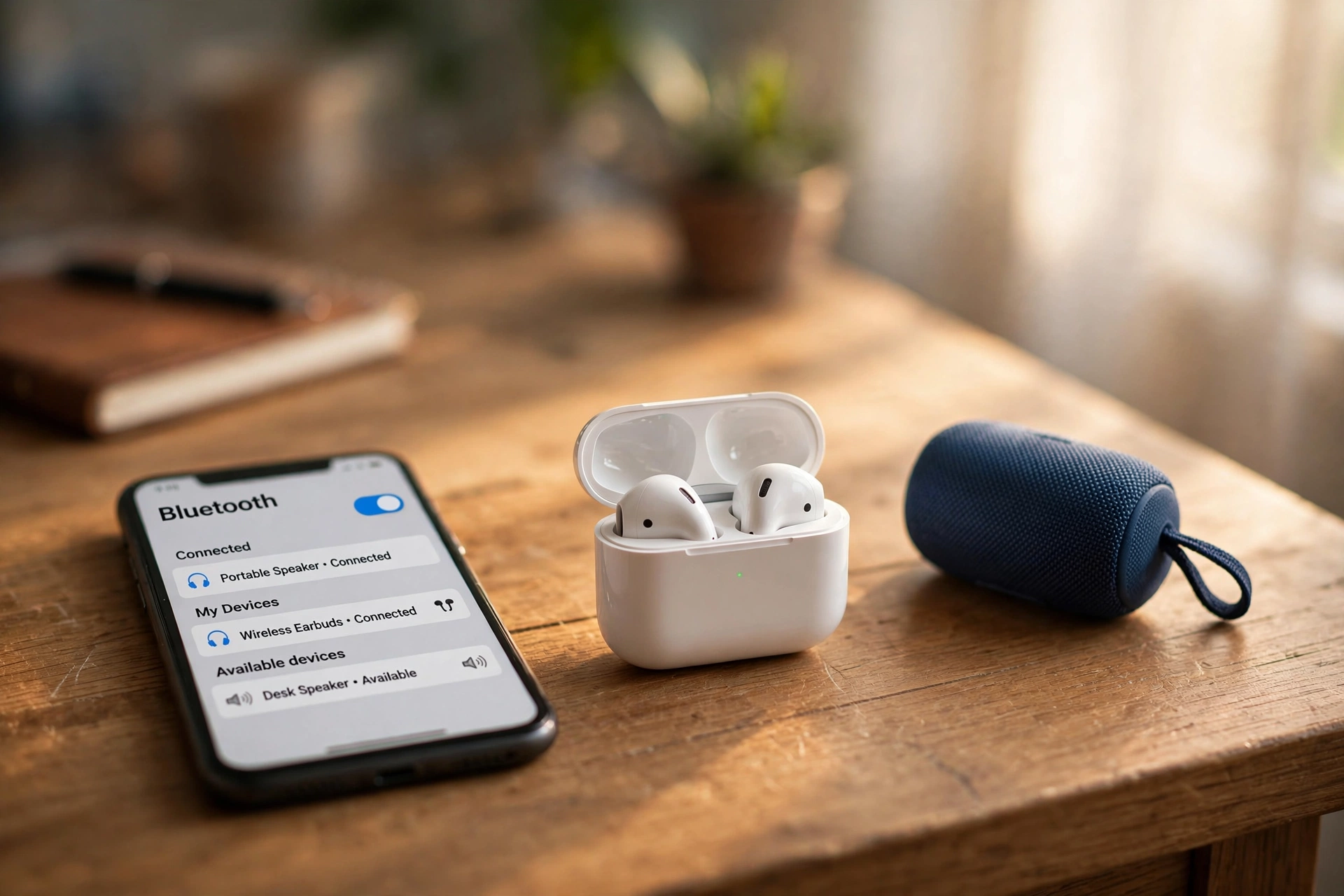
Almost everyone has lived through this scene: you unbox a shiny pair of wireless earbuds, follow the little instruction card, and… nothing. Your phone can’t see them. Or it sees them but refuses to connect. Or it connects, then drops out the moment you walk into the kitchen. Bluetooth is one of the most useful technologies in your home — and one of the most quietly infuriating when it misbehaves.
The good news is that nearly every Bluetooth pairing problem comes down to a handful of simple causes, and once you understand what’s actually happening behind the scenes, most of them take under two minutes to fix. This guide explains Bluetooth in plain English, walks you through pairing any device, and gives you a practical fix-it playbook for the moments things go wrong.
What Bluetooth Actually Is (in One Paragraph)
Bluetooth is a short-range wireless technology that lets devices talk to each other without cables — your phone to your earbuds, your laptop to a speaker, your tablet to a keyboard. It uses low-power radio waves, which is why your earbuds can run for hours on a tiny battery. The trade-off for that low power is limited range: most everyday Bluetooth devices are designed to work reliably within about 10 metres (roughly 30 feet) of each other, with walls and obstacles shortening that distance.
Think of it like a conversation across a room. When the two devices are close and nothing is in the way, they hear each other perfectly. Put a thick wall between them, fill the air with competing chatter (other wireless gadgets), or drain one side’s energy, and the conversation starts breaking up. Almost every Bluetooth headache you’ll ever meet is some version of that conversation going wrong.
The Two Words That Matter: Pairing and Connecting
People use “pairing” and “connecting” interchangeably, but they mean different things, and knowing the difference solves half of all confusion. Pairing is the one-time introduction: your phone and your earbuds exchange security details and agree to trust each other. It usually involves putting the earbuds into a special “pairing mode” so they show up as discoverable. Connecting is what happens every time after that — the devices recognise each other from the introduction and link up automatically.
Here’s the practical takeaway: if your devices have never met, you need to pair them. If they have met but aren’t talking right now, you need them to connect — and if connecting keeps failing, the old pairing may be corrupted, in which case you’ll “forget” the device and pair it fresh. That single insight — pair once, connect often, re-pair when confused — is the whole game.
Pairing Anything, the Universal Way
Different gadgets have different buttons and menus, but the pairing dance is almost always the same five moves. Learn these once and you’ll be able to pair virtually anything:
First, put the accessory into pairing mode. This is the step most people skip, and it’s the number one cause of “my phone can’t find it.” Brand-new devices often enter pairing mode automatically the first time you switch them on, but if the device has been paired before, you’ll need to trigger it manually — usually by holding the power button (or a dedicated Bluetooth button) for several seconds until a light starts flashing. Check the quick-start card that came in the box if you’re unsure; the flashing light is your confirmation.
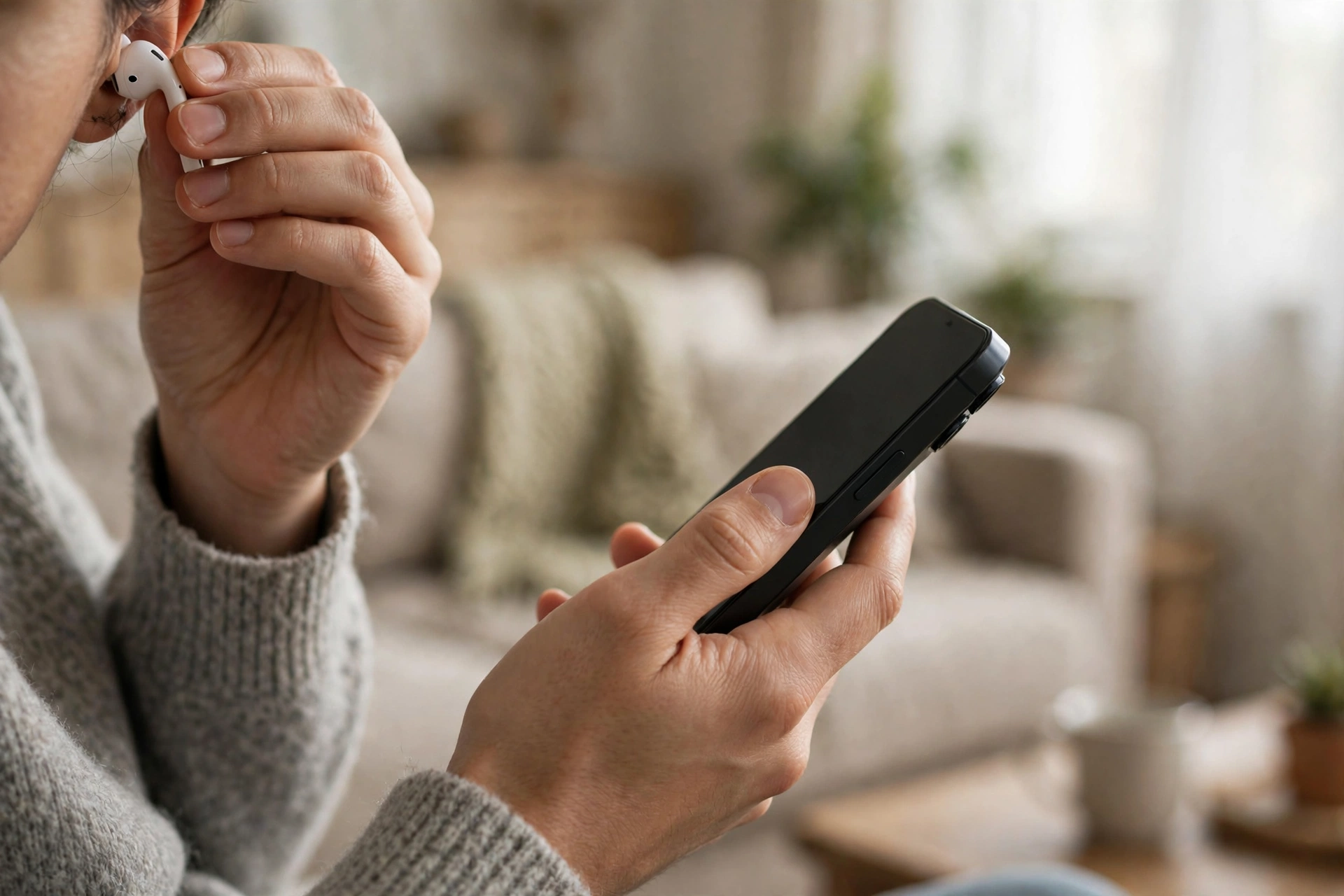
Second, open the Bluetooth settings on your phone, tablet, or computer and make sure Bluetooth is switched on. Third, wait a few seconds and look under the list of available devices for the name of your gadget — it often appears as the brand plus a model code. Fourth, tap the name and confirm any prompt that appears. Occasionally you’ll be asked to confirm a code matches on both screens; that’s just a security handshake, tap yes. Fifth, wait for the status to change to “Connected.” Done — from now on, the two should find each other automatically whenever both are switched on and nearby.
One habit worth building: pair new gadgets somewhere quiet, close together, with both devices well charged. Trying to pair earbuds while your phone is at 3% battery and you’re standing in a crowded electronics shop is asking for trouble.
Why Pairing Fails (and the Two-Minute Fix)
Let’s walk through the greatest hits of Bluetooth frustration, in the order you should check them.
Your device doesn’t appear in the list. Nine times out of ten, the accessory isn’t actually in pairing mode — it may have paired with something else earlier, or timed out of pairing mode while you were looking at your phone. Put it back into pairing mode (hold that button until the light flashes), then pull down to refresh the device list on your phone. Also check that the accessory isn’t already connected to another phone or laptop nearby — a gadget can usually only talk to one device at a time, and it will quietly ignore your phone while it’s chatting with your partner’s.
It appears but won’t connect. Move the two devices within a metre of each other and try again. If it still refuses, open your Bluetooth settings, find the device in the paired list, choose “Forget” or “Remove,” and pair from scratch. This clears out the corrupted introduction and is the single most effective Bluetooth fix in existence.
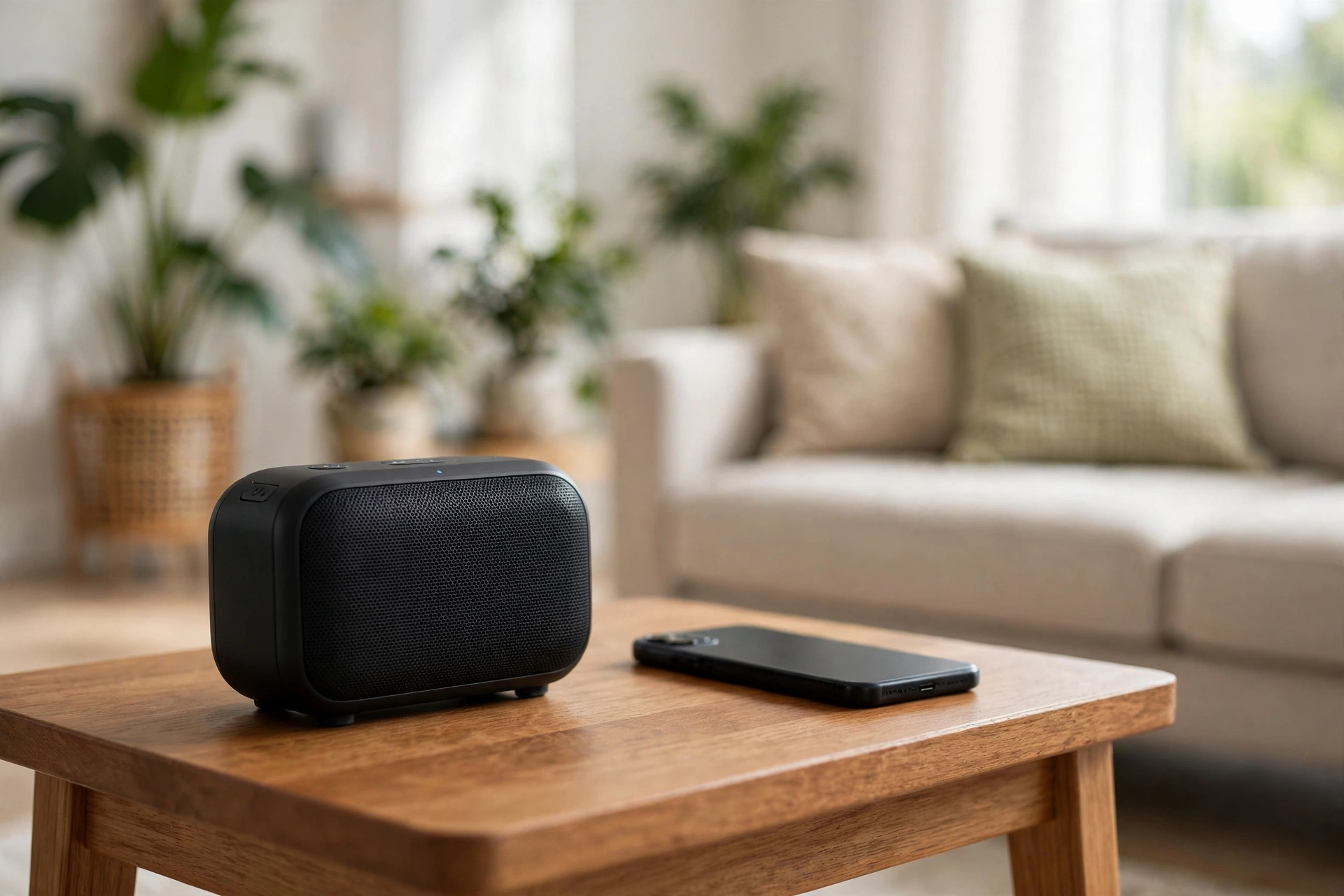
It connects, then keeps dropping. This is usually a range or interference problem. Your body, walls, and even a pocket full of coins can weaken the signal. Try keeping your phone in a front pocket or on the same side of your body as the earbuds’ main receiver. Microwaves, baby monitors, and busy Wi-Fi routers all share the same radio neighbourhood as Bluetooth, so if dropouts happen in one spot — say, next to the microwave — you’ve found your culprit. Also check battery levels on both sides; a dying battery is a classic cause of flaky connections.
The sound stutters or lags behind video. A little audio delay is normal with Bluetooth — the sound has to be compressed, beamed over, and decoded. If it’s severe, try disconnecting other Bluetooth gadgets you aren’t using, move closer, and restart both devices. Some phones and apps let you adjust audio delay settings, which can mask small lags during video watching.
One earbud goes silent. With true wireless earbuds, the two buds talk to each other as well as to your phone. Pop both buds back in the case, close the lid for ten seconds, then take them out — this forces them to re-establish their own little conversation. If one bud still stays silent, check for a firmware update in the manufacturer’s app, or reset the earbuds using the button combination in the manual.
Living Happily With Bluetooth Day to Day
A few small habits make Bluetooth dramatically less annoying over time. First, turn Bluetooth off when you’re not using it — not just to save battery, but to stop your phone from clinging to the wrong device. How many times has your music started blaring from the kitchen speaker because your phone auto-connected to it from the bedroom? Switching Bluetooth off when you leave the house prevents exactly that.
Second, keep your paired-device list tidy. Every phone accumulates a graveyard of old gadgets — hotel TVs, rental cars, a friend’s speaker from 2022. Your phone wastes time and energy trying to reconnect to ghosts. Once in a while, scroll through the list and forget anything you no longer own.
Third, update your devices. Manufacturers regularly release small software updates that fix Bluetooth bugs, improve connection stability, and sometimes even extend battery life. If your earbuds or speaker have a companion app, check it for updates every couple of months. The same goes for your phone’s own software updates.
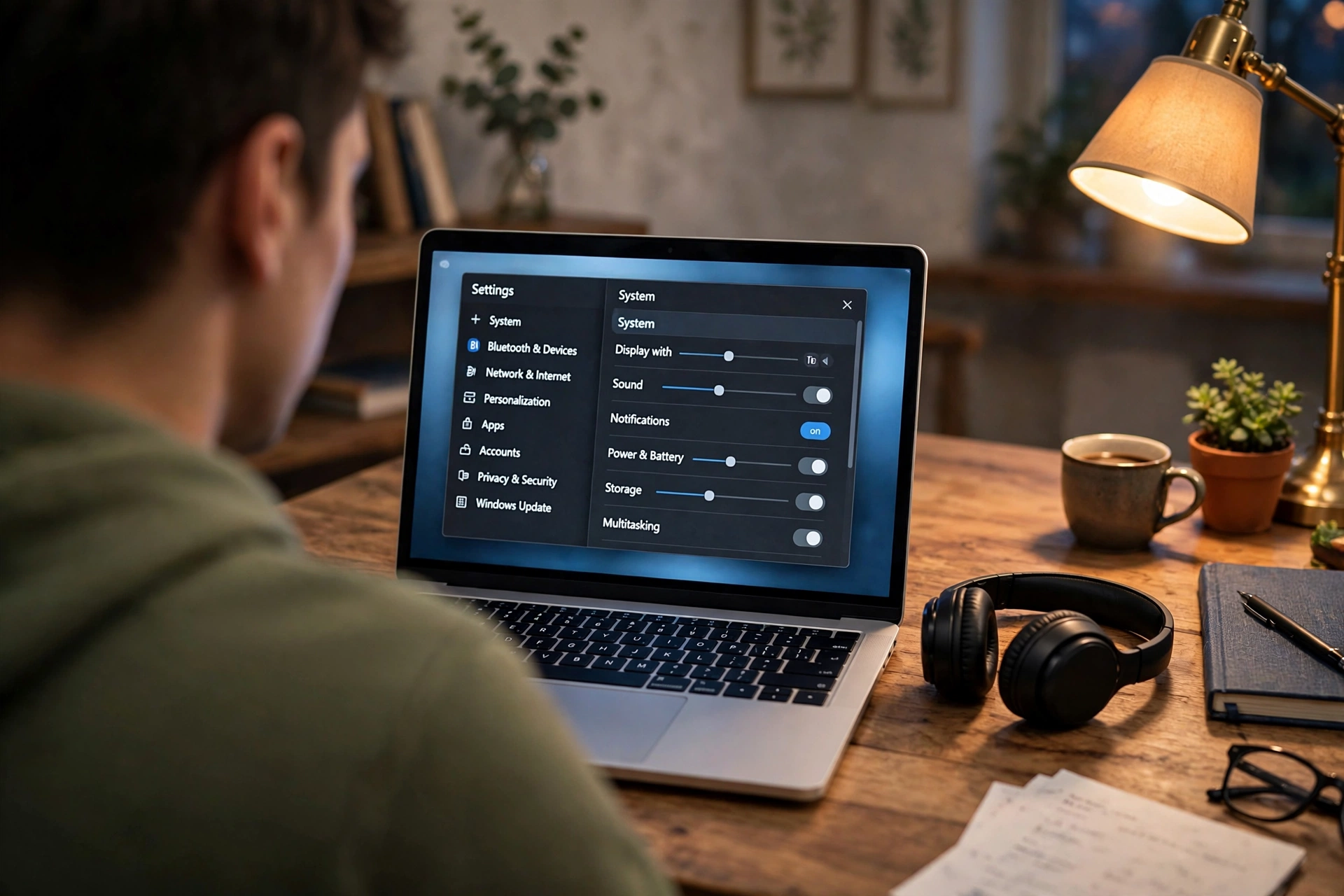
Fourth, charge things before they die completely. Bluetooth gadgets behave strangely at very low battery — connections drop, volume dips, pairing fails for no apparent reason. Topping up before a long trip avoids a whole category of mystery problems.
Bluetooth and Battery Life: What’s True
You’ll hear people say Bluetooth drains your phone battery, and they aren’t entirely wrong — but the effect on modern phones is small. Keeping Bluetooth switched on with nothing connected uses very little power; the real drain comes from actively streaming audio for hours. If your battery is struggling, the screen and mobile data are far bigger culprits than Bluetooth. That said, turning Bluetooth off overnight or when travelling without accessories is still a sensible, easy win.
On the accessory side, battery anxiety is mostly a solved problem: most wireless earbuds now last several hours per charge with the case providing multiple top-ups, and speakers commonly run all day. If your once-reliable earbuds suddenly die after an hour, the battery itself is likely ageing — lithium batteries wear out over a couple of years of daily use, and no settings tweak will bring them back.
Quick Answers Before You Pair
Can Bluetooth go through walls? Sort of — one thin interior wall is usually fine, but each wall weakens the signal, and thick concrete or metal kills it. For music around the house, keep the phone reasonably central.
How many devices can connect at once? Most phones can stay paired with many gadgets but actively connected to only a few — typically one audio device at a time for playback. Some newer earbuds and speakers support connecting to two devices simultaneously (phone plus laptop), which is handy if you take calls on one and listen on the other.
Is Bluetooth safe from eavesdropping? For everyday use, yes — modern Bluetooth encrypts the connection during pairing, so a stranger can’t easily listen in. As with everything wireless, keep your devices’ software updated and don’t accept pairing requests from gadgets you don’t recognise.
Why does my car take so long to connect? Cars are slow computers. Give it up to a minute after starting the engine. If it never connects automatically, delete the car from your phone’s paired list and the phone from the car’s list, then pair fresh — car systems are notorious for corrupted pairings.
Do I need Wi-Fi for Bluetooth? No. Bluetooth is completely independent of Wi-Fi and mobile data. That’s why your earbuds keep playing downloaded music in airplane mode (with Bluetooth manually re-enabled).
Time to Cut the Cord for Good
Bluetooth feels like magic when it works and like a personal insult when it doesn’t — but it’s rarely either. It’s a short-range radio conversation with simple rules: introduce devices once, keep them close and charged, clear out old introductions when they get confused, and remember that walls and microwaves are the enemy. The next time a gadget refuses to pair, you’ll know exactly where to look instead of jabbing buttons at random.
So go rescue that speaker from the drawer, put it in pairing mode, and enjoy the quiet satisfaction of wireless sound that just works. And when a friend complains their earbuds won’t connect, you’ll be the one with the two-minute fix.














