
You press the power button. You wait. You wait some more. Finally the screen appears, but every click feels slow, like walking through thick mud. If this sounds familiar, you are not alone. Almost every laptop gets slower over time. The good news is that you can speed up a slow laptop yourself, and it usually takes less than an hour.
The good news: in most cases, you do not need to buy a new laptop. A slow laptop is usually slow for simple, fixable reasons: too many programs starting at once, a full hard drive, or software that has not been updated in months. This guide will show you how to speed up a slow laptop step by step, whether you use Windows or a Mac. No technical skills needed. Just follow along.
Restart Your Laptop (Yes, Really)
Let us start with the simplest fix of all: restart your laptop. Many people never truly turn off their computers. They just close the lid, which only puts the laptop to sleep. Over days and weeks, small errors and leftover processes pile up in the background, and everything gets slower.
A full restart clears all of that out. It is like giving your laptop a fresh morning. On Windows, click the Start button, then the Power icon, then Restart. On a Mac, click the Apple menu in the top-left corner and choose Restart.
Try to restart your laptop at least once a week. It takes two minutes, and you will often notice the difference right away.
Stop Programs from Launching at Startup
Here is one of the biggest reasons laptops feel slow. Many programs set themselves to start automatically every time you turn on your computer. Chat apps, music apps, game launchers, cloud storage tools: they all wake up at once and fight for attention. Your laptop spends the first five minutes just trying to get them all running.
You can turn off the ones you do not need at startup. The programs will still work perfectly when you open them yourself later.
On Windows: Press Ctrl + Shift + Esc together to open the Task Manager. Click the Startup apps tab on the left. You will see a list of programs with a status of Enabled or Disabled. Right-click any program you do not need immediately (like a game launcher or music app) and choose Disable. Do not disable your antivirus or anything with Microsoft or Windows in the name if you are unsure what it does.
On Mac: Open System Settings, then go to General > Login Items. You will see a list of apps that open at login. Select any app you do not need right away and click the minus (-) button to remove it.
After this change, your laptop should start noticeably faster the next time you turn it on.
Ditch Programs You Never Open
Over the years, laptops collect programs like closets collect old clothes. Free trials, games you played once, tools you downloaded for a single task: they sit there taking up space and sometimes running quietly in the background.
On Windows: Open Settings > Apps > Installed apps. Look through the list. If you see something you do not recognize or have not used in months, click the three dots next to it and choose Uninstall. Be careful not to remove anything made by Microsoft that came with the system, or drivers with names like Intel, Realtek, or NVIDIA.
On Mac: Open the Applications folder from Finder. Drag any app you no longer want into the Trash, then empty the Trash. Some apps come with their own uninstaller, so check the app’s menu if dragging does not fully remove it.
If you are not sure what a program does, search its name on the internet before removing it. When in doubt, leave it alone. It is better to keep a mystery program than to delete something important.
Reclaiming Disk Space
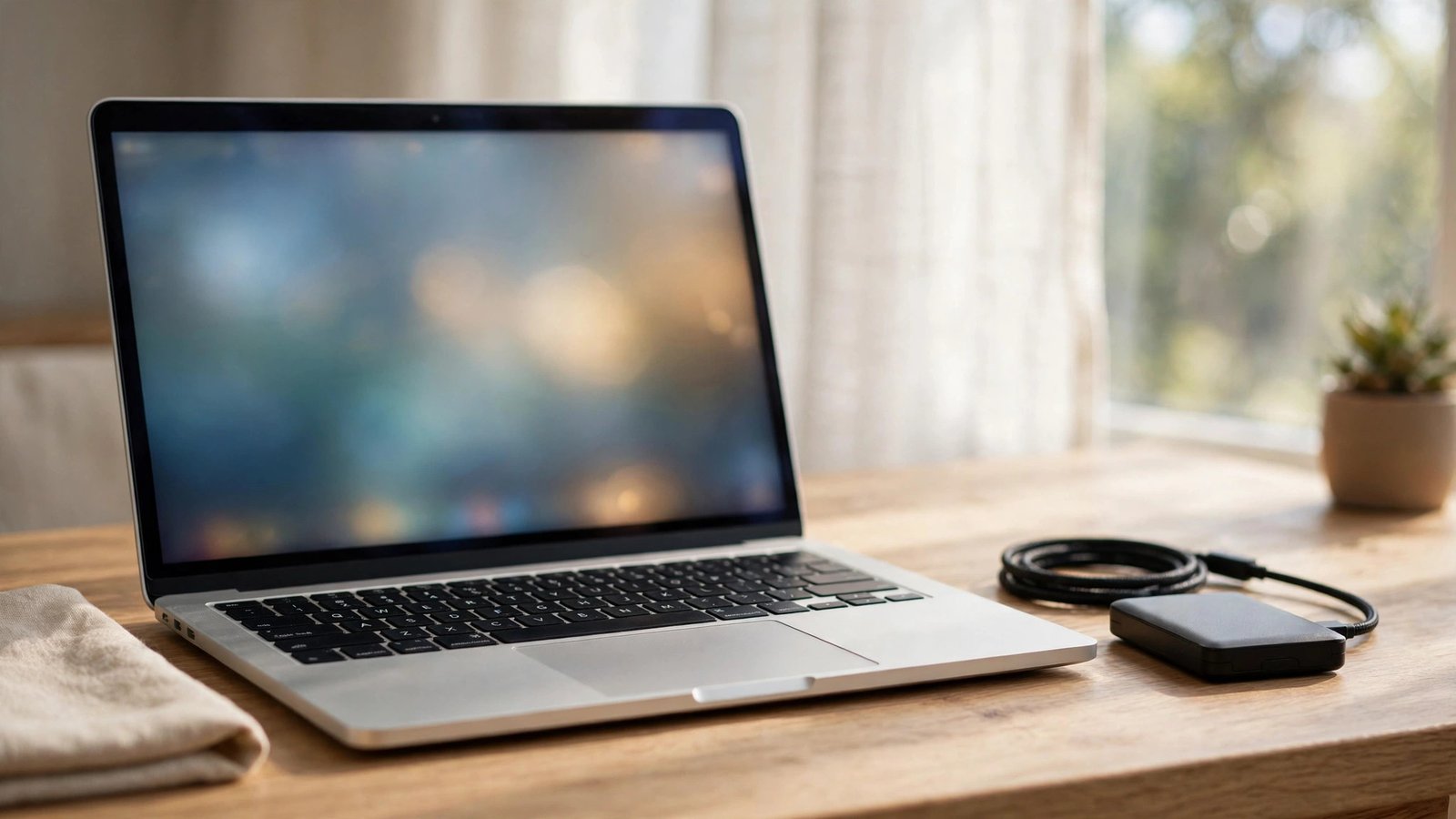
A nearly full hard drive makes everything slower. Your computer needs free space to work comfortably, like a desk needs clear space to be useful. As a simple rule, try to keep at least 15 to 20 percent of your drive free.
On Windows: Open Settings > System > Storage. Turn on Storage Sense. This clever built-in tool automatically deletes temporary files and empties the recycle bin for you. You can also click Temporary files and delete what you do not need. Then open the Downloads folder and delete old files you no longer need.
On Mac: Click the Apple menu > About This Mac > More Info > Storage Settings (the exact wording can vary slightly between macOS versions). You will see recommendations like Store in iCloud, Optimize Storage, and Empty Trash Automatically. Turn on the ones that make sense for you.
Big wins usually come from deleting old downloads, duplicate photos, and videos you have already backed up elsewhere.
Updates: Boring but Powerful
Updates are not just annoying pop-ups. They fix bugs, close security holes, and often make your computer run better. A laptop that has not been updated in a year is like a car that has never been serviced.
On Windows: Go to Settings > Windows Update and click Check for updates. Install whatever is available. Your laptop may need to restart, so save your work first.
On Mac: Open System Settings > General > Software Update. Install any available updates.
Also update your web browser and the apps you use most. Old versions of browsers especially can slow everything down. Most browsers update themselves, but it is worth checking the About or Help menu once in a while.
Rule Out Viruses and Malware
Sometimes a laptop is slow because unwanted software is running secretly in the background. This kind of software is called malware. You do not need to be a security expert to check for it.
On Windows: You already have good protection built in. It is called Windows Security (previously known as Windows Defender). Open it from the Start menu, go to Virus & threat protection, and click Quick scan. If it finds anything, follow its instructions to remove it.
On Mac: Macs have built-in protections too, and they update silently in the background. Keep your macOS updated, only download apps from trusted places like the App Store or the official websites of companies you know, and be careful with email attachments from strangers.
Avoid downloading “free PC cleaners” or “speed booster” tools from random websites. Many of them are scams or install the very junk they claim to remove.
Those 47 Open Tabs Aren’t Helping
This one surprises many people. Every open browser tab uses memory. Twenty or thirty open tabs can slow down even a good laptop. If your browser feels heavy, look at how many tabs are open.
Close the tabs you are done with. If you want to save something for later, bookmark it instead (press Ctrl + D on Windows or Cmd + D on Mac). Bookmarks use no memory at all. Most browsers also let you right-click a tab and choose options like “Close other tabs” to tidy up quickly.
Browser extensions can also slow things down. If you have many extensions installed, remove the ones you do not use. In Chrome, click the puzzle-piece icon and choose Manage extensions. In Edge or Firefox, you will find extensions in the browser menu.
Let It Breathe: Simple Physical Care
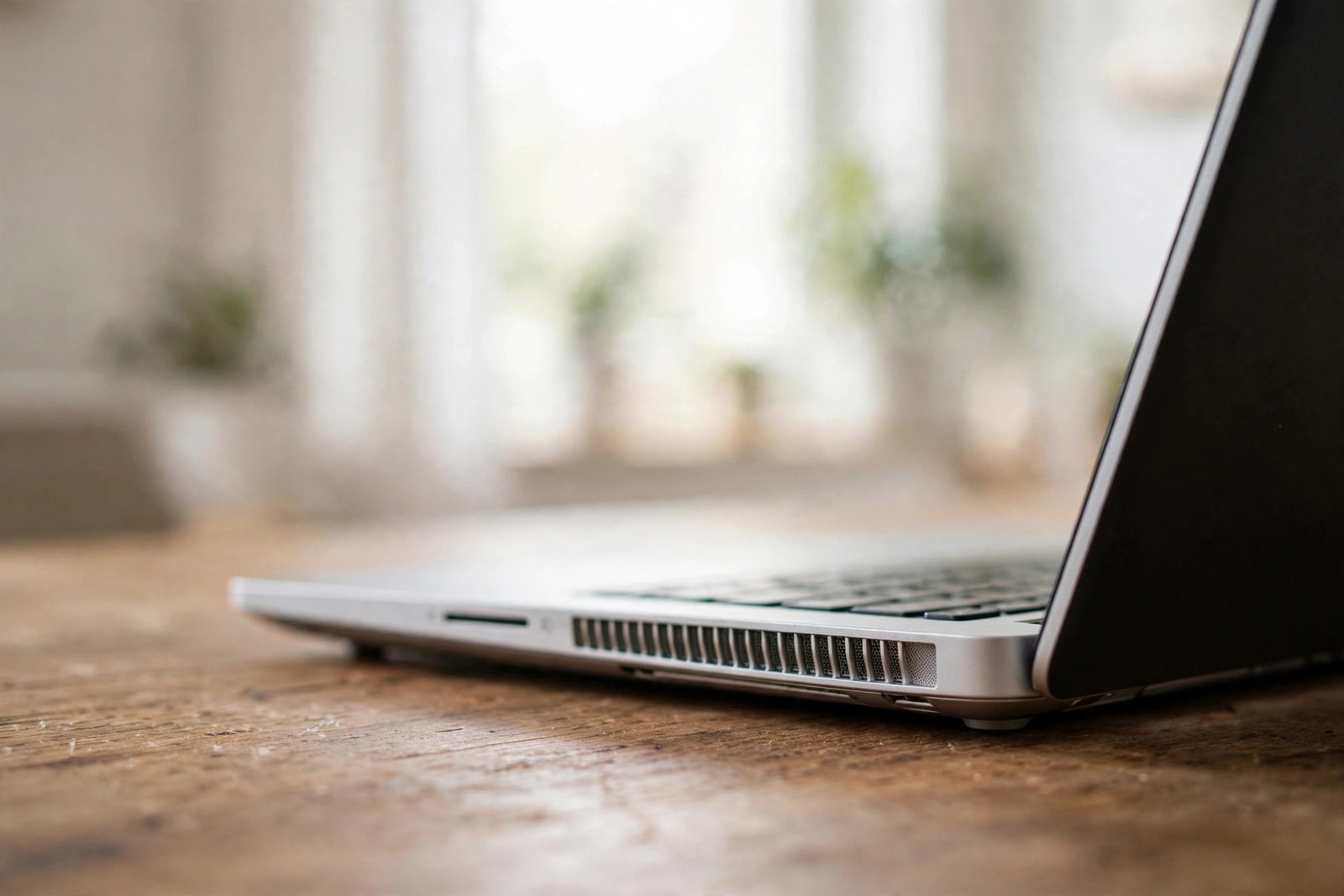
Laptops get hot when they work hard, and heat makes them slower. When a laptop overheats, it deliberately slows itself down to cool off. This is called thermal throttling, and it is completely normal, but you can reduce it with simple habits.
- Use your laptop on a hard, flat surface like a desk or table. Using it on a bed, pillow, or your lap can block the air vents underneath.
- Keep the vents clear. Look at the sides and bottom of your laptop. Those small slots are where hot air escapes. Make sure nothing is blocking them.
- Dust it gently. If the vents look dusty, use a can of compressed air or a soft brush to clean them. Do this with the laptop turned off.
- Give it breaks. If your laptop feels very hot, save your work, shut it down for a while, and let it cool.
These small habits keep your laptop cooler, quieter, and faster for longer.
Knowing When to Ask for Help
The steps above fix the most common causes of slowness. But sometimes a laptop needs more. Consider asking a trusted technician for help if:
- Your laptop is more than 6 or 7 years old and still slow after all these steps.
- It makes loud grinding noises or shuts down by itself.
- You see error messages you do not understand.
A technician might suggest adding more memory (RAM) or replacing an old hard drive with a faster SSD. These upgrades can make an old laptop feel new again, and they usually cost far less than a new computer. But do not attempt hardware changes yourself unless you know what you are doing. Ask someone experienced.
Slow Laptop Questions, Answered
Will these steps delete my files?
No. Everything in this guide is safe. Restarting, disabling startup programs, and clearing temporary files do not touch your documents, photos, or personal files. The only step that removes things is uninstalling programs, and even then you choose exactly what goes.
How often should I restart my laptop?
At least once a week is a good habit. If you use your laptop heavily every day, restarting every few days is even better. It only takes a couple of minutes.
Are free “PC cleaner” apps safe to use?
Most are not worth the risk. Many free cleaners show scary warnings to sell you a paid version, and some install unwanted software. The built-in tools covered in this guide, like Storage Sense on Windows, do the same job safely and for free.
My laptop is still slow after trying everything. What now?
If software fixes did not help, the cause may be aging hardware. A trusted local technician can check whether adding memory or switching to an SSD would help. For very old laptops, it may simply be time to plan for a replacement.
Does having many desktop icons slow down my laptop?
On older computers, a cluttered desktop with hundreds of icons could slightly slow things down. On modern laptops the effect is tiny. Still, keeping your desktop tidy makes it easier to find things, so it is a nice habit anyway.
A Faster Laptop by Tonight
A slow laptop is frustrating, but it is rarely the end of the story. Restart regularly, stop unnecessary programs from launching at startup, remove what you do not use, keep some disk space free, and stay updated. These simple habits can add years of useful life to your computer.
Pick one or two steps from this guide and try them today. You might be surprised how much faster your laptop feels by tonight.