

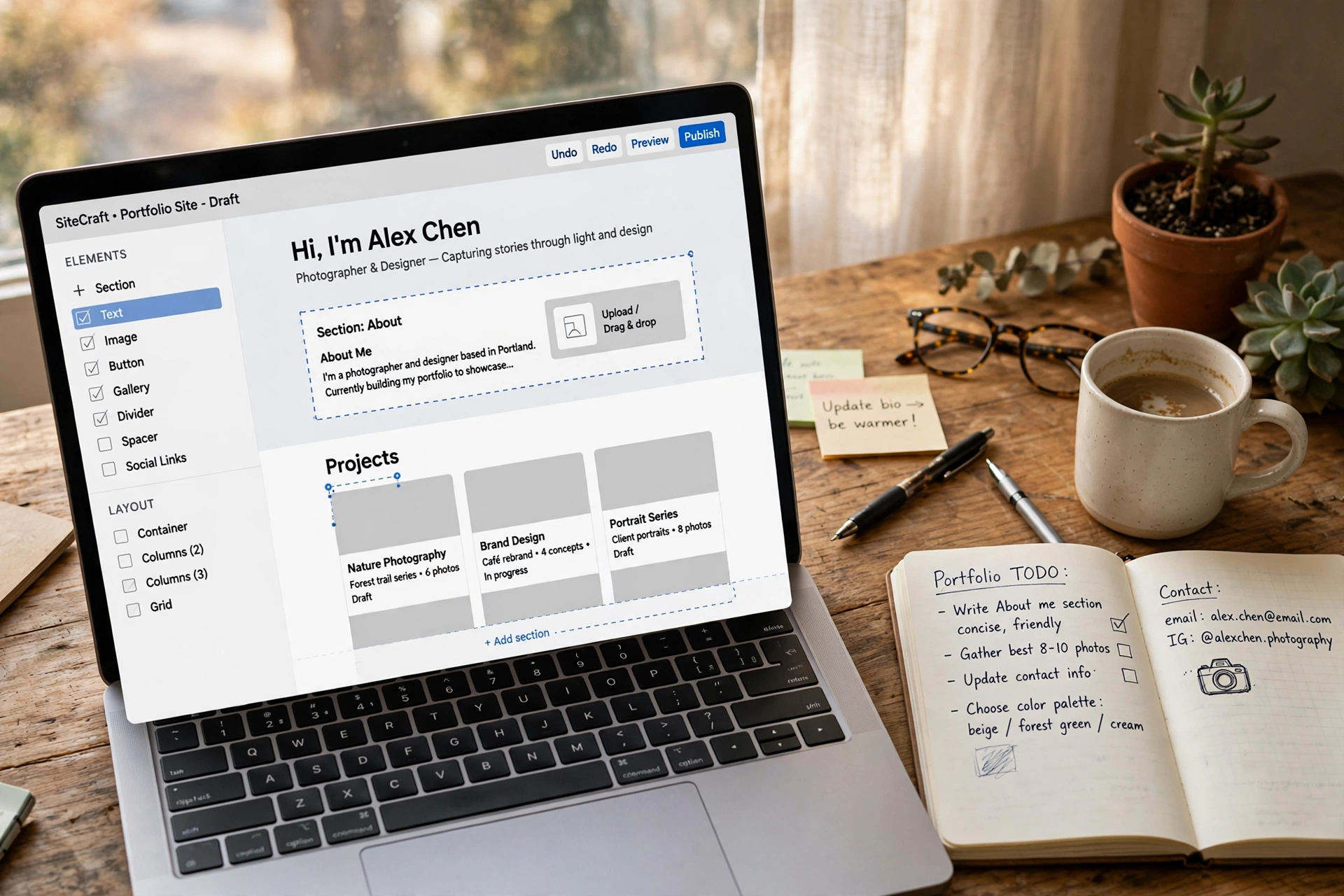
A decade ago, putting up your own website meant hiring a developer, buying hosting, and learning a programming language or two. That is no longer the deal. Today, anyone with an email address can have a working website up by dinner time — without spending a single rupee, dollar, or pound. No code, no designer, no invoice.
But “free” comes with asterisks worth knowing about before you start. Some free plans stamp their own branding on your site. Others limit how much you can publish or which designs you can use. None of that is a deal-breaker — you just want to go in with open eyes, pick the right tool for the kind of site you actually want, and avoid the traps that make free websites look cheap. This guide walks you through all of it: what free really means, which kind of builder fits you, and how to build something that looks like you paid for it.
First, what “free website” actually means
Free website builders are companies that let you create and host a site at no cost, usually hoping you will eventually upgrade to a paid plan. The genuinely free part is real: you can register, pick a design, add your words and photos, and publish — all for nothing. The business model is the upgrade ladder, not a scam.
What you usually get on a free plan: a live website on the builder’s own web address (something like yoursite.buildername.com), a set of ready-made designs, basic pages, and enough space for a modest site. What you usually do not get: your own domain name (yoursite.com), removal of the builder’s branding, and advanced extras like online payments or deep statistics. Think of the free plan as a fully furnished starter flat — comfortable and liveable, just with the landlord’s logo on the door.
One more honest note: free plans sometimes change. A builder might shuffle its free features as its pricing evolves. That is another reason to start simple, keep your own copies of your text and photos, and not pour a whole business onto a free tier you cannot afford to lose. For a personal project, portfolio, hobby page, or first experiment, free is genuinely plenty.
Decide what the site is for before you touch a builder
Most beginners skip this and pay for it later. Take ten minutes with a cup of tea and answer three questions: who is the site for, what should they do there, and what would “success” look like? A portfolio for job hunting needs your best work up front and a contact page. A hobby blog needs easy publishing and categories. A page for a family event needs the date, the place, and a simple RSVP form.
This matters because builders are not identical. Some are brilliant for visual portfolios but clumsy for long articles. Some make blogging effortless but produce rigid-looking business pages. When you know the job your site has to do, choosing the tool becomes easy — and you will not rebuild everything in week three when you realize the builder fights your content.
Pick a builder that matches your ambition
For a first site, you want a builder with a strong free tier, a big template library, and a reputation for staying beginner-friendly. Look for three signals: plenty of templates you can preview fully before committing, the ability to use your own photos everywhere, and a free plan that does not expire after a trial period. Avoid anything that asks for card details “just to try” the free version — a truly free plan should not need your payment details at all.
A quick way to compare: open two or three builders side by side and build the same single test page on each. Fifteen minutes per builder will tell you more than a week of reading reviews. Notice which one made the test page look good fastest, which one kept suggesting paid features at every click, and which one felt like it respected your time. Trust that feeling — it only gets stronger with a bigger site.
Plan your pages on paper first
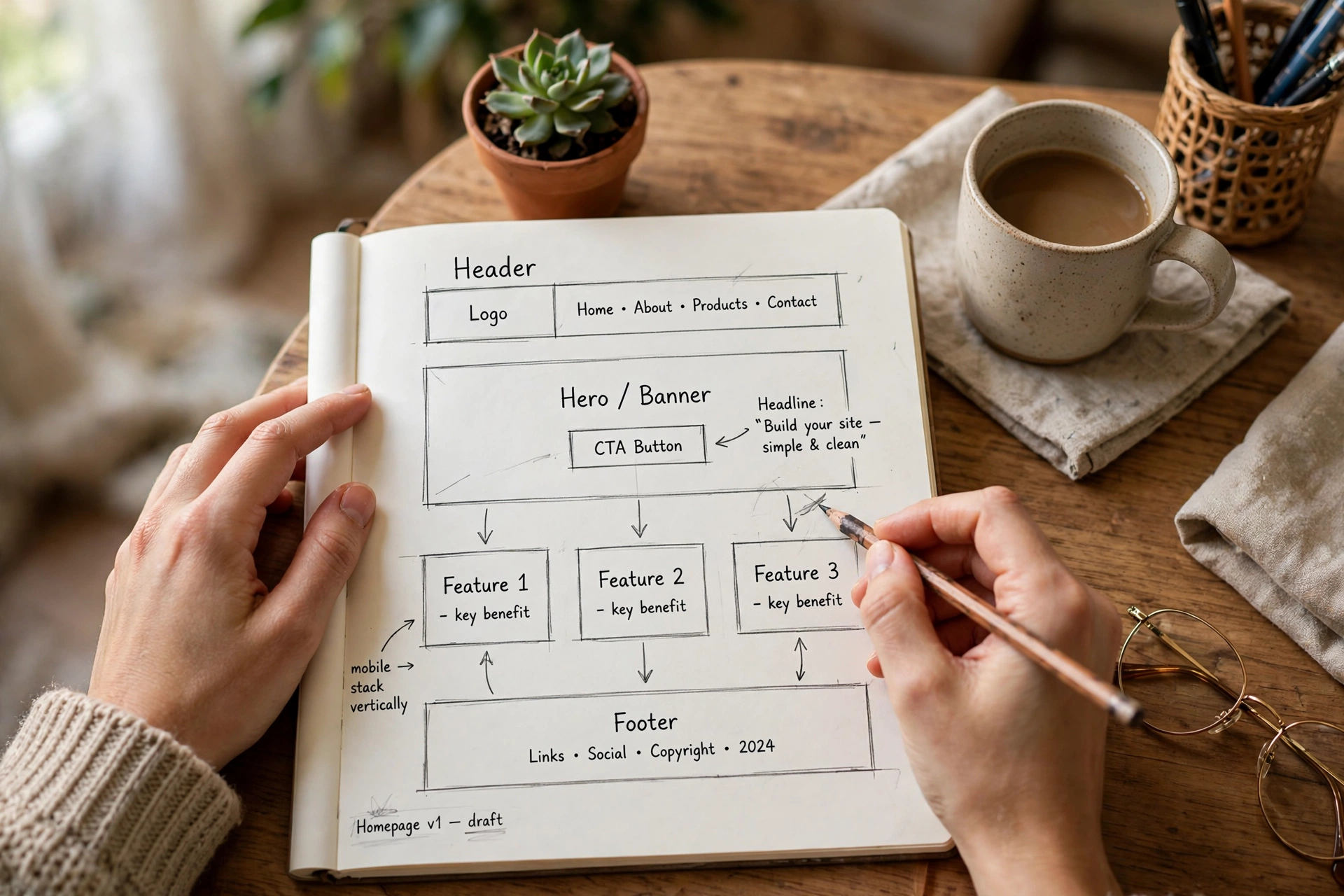
Before clicking anything, sketch your site on paper the way the sketch above suggests: one box per page, a line showing how they connect. Most small sites need only four to six pages: a home page that says what the site is in one glance, an about page with your story, your main content (work samples, articles, photos), and a contact page. Anything more can wait.
The home page is the one people judge you on, so give it a job: one clear headline saying what this site is, one photo that represents it, and one obvious next step (a button that says “See my work” or “Read the blog”). Resist the urge to fill every corner. White space is not wasted space — it is what makes the words you did write get read.
Choose a template like you mean it
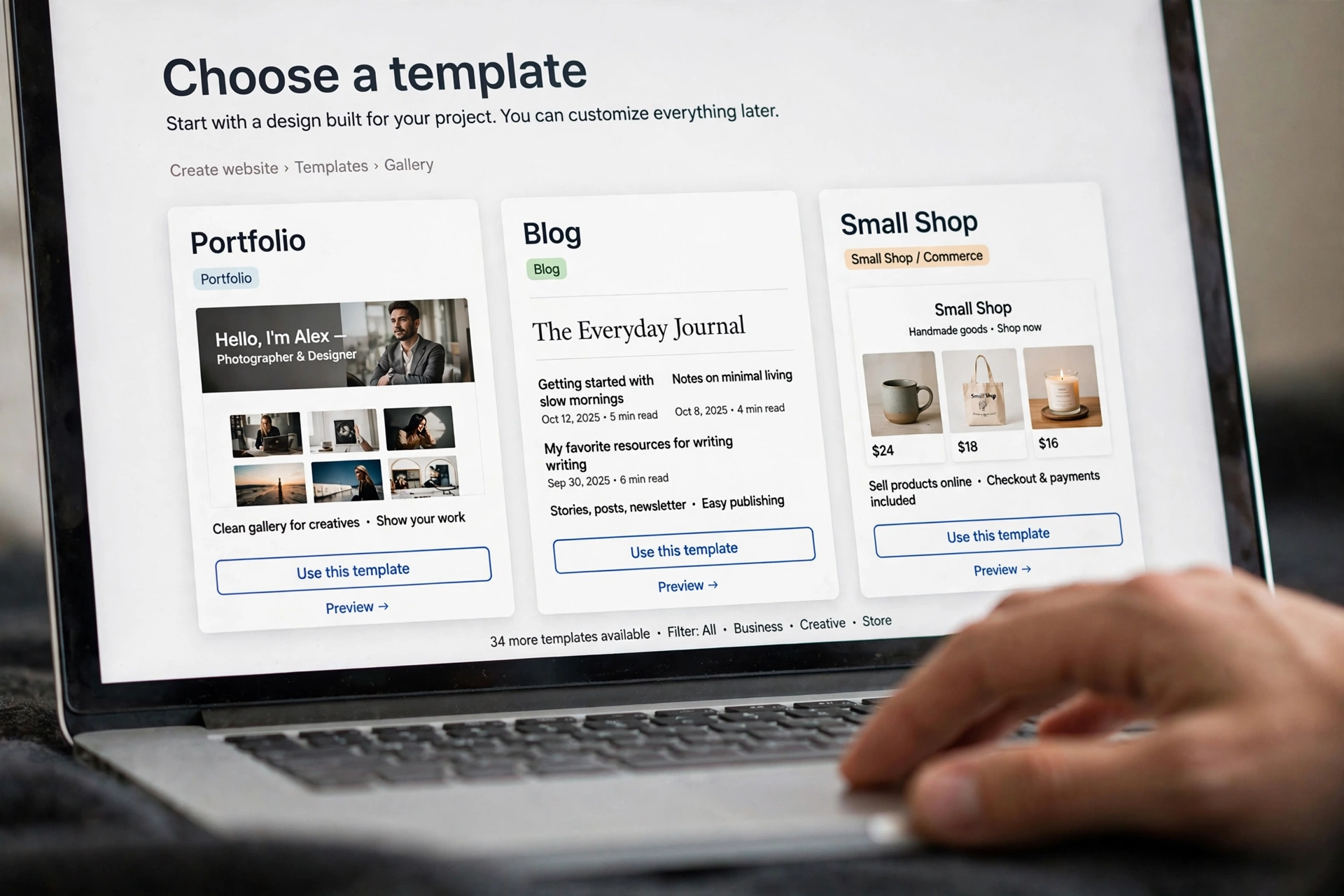
Templates are the cheat code of free website building. A good one gives you layout, spacing, fonts, and colours that already work together — you just replace the placeholder words and photos with yours. Preview templates with your own content in mind, not the polished demo photos. Ask yourself: does this layout make my kind of content look good? A template that flatters food photography may do nothing for a writer’s long essays.
Two practical tips. First, simpler templates age better and break less; the flashiest ones often look dated fastest. Second, check the template on your phone while you browse. More than half your visitors will likely arrive on a mobile screen, and a design that falls apart on a small screen was the wrong choice, however gorgeous it looked on your laptop.
Design without any design skills
Here is the secret professional designers will not mind you knowing: most good-looking websites follow a handful of boring rules. Pick two fonts maximum (one for headings, one for body text). Use one main colour plus a neutral dark and light. Keep your text blocks short — three or four lines, then a gap. Put one photo per section, not five. That is genuinely most of it.
For photos, use your own where you can; they make a site feel human. When you need extras, use free stock libraries with proper licences and skip the generic handshake-and-skyline clichés. And one rule that never fails: text must be readable. Dark text on a light background, or light text on a dark photo with a dimmed overlay — never mid-grey on light grey, no matter how elegant the template makes it look.
The small things that separate “free-looking” from polished
Free sites give themselves away through small neglects, and every one of them is fixable in minutes. Write a proper title for every page — the text that appears in the browser tab — instead of leaving “Home” or “Untitled”. Add a short description so search results show your words rather than placeholder text. Compress your photos before uploading so pages load fast instead of crawling.
About the web address: on a free plan your site lives at something like yoursite.buildername.com. That is perfectly fine for starting out. If the site starts mattering to you — job applications, clients, a growing audience — you can connect your own domain later. Own-name domains typically cost a small yearly fee from a registrar, and most builders let you link one in a few clicks whenever you are ready. There is no rush; build first, brand later.
Also, do the unglamorous housekeeping: proofread every page out loud (you will catch the typos your eyes skip), click every link and button, and ask one honest friend to try the site on their phone and tell you what confused them. Friends are the best bug-finders, and they work for tea.
Quick answers before you press publish
Will people be able to find my site on Google? Eventually, yes. Free sites do get indexed, though a custom domain and regular updates help. Submit your site’s address to search engines through their free webmaster tools and share the link where your audience already is.
Can I sell things on a free website? Not properly — real checkout needs a paid plan almost everywhere. But you can absolutely showcase products, take enquiries through a contact form, and link out to wherever you do sell. Many small sellers start exactly this way.
What if I outgrow the free plan? That is a good problem. You can upgrade with the same builder (everything carries over), or export your content and move. This is why keeping your own copies of text and photos matters from day one.
Is a free site safe? Reputable builders handle the technical security — encrypted connections and the like — automatically. Your job is the human part: a strong unique password, two-factor authentication on the account, and never sharing your login.
Hit publish, then tell someone about it
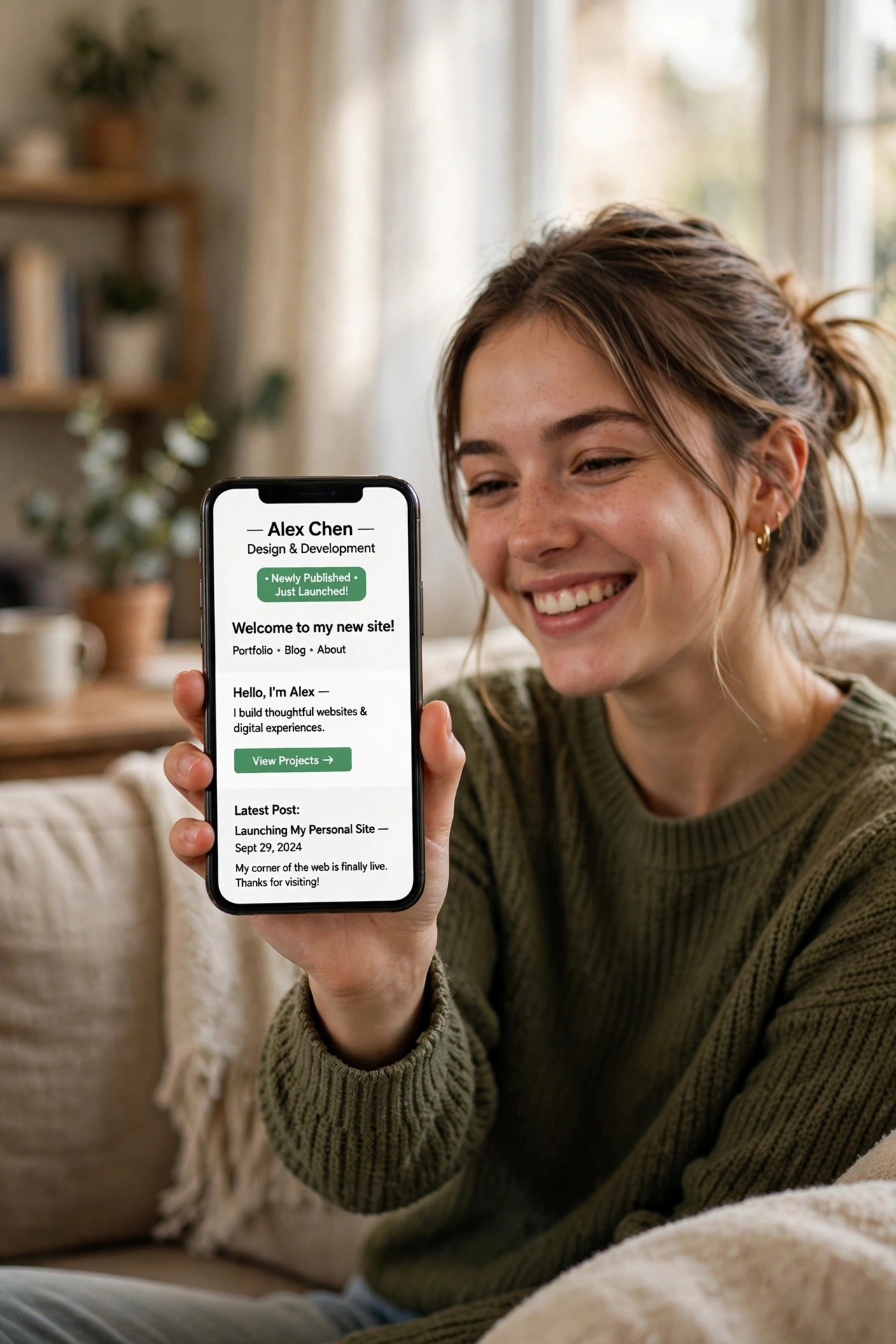
Here is the part beginners get backwards: the publish button is the middle of the journey, not the end. A website nobody visits is a diary with extra steps. Once your pages are live, share the link with five people whose opinion you trust, add it to your social profiles and email signature, and mention it wherever your audience already gathers.
Then keep it alive. A site updated monthly beats a site built perfectly once and abandoned. Add a new photo, write a short update, fix the typo you finally noticed. The web rewards the living. Your corner of the internet is waiting — and it did not cost you a thing to claim it.














