
Need a clean copy of a document but don’t own a scanner? Your phone can do the job surprisingly well. Learning how to scan documents with your phone takes only a few minutes, and once you’ve done it once, you’ll never go back to snapping crooked, glare-filled photos of paperwork.
Phone scans are accepted by most employers, banks, landlords, and schools for everyday documents like ID cards, payslips, and rental agreements. In this guide, we’ll walk through the simplest methods on both iPhone and Android, then share practical tips to make every scan crisp and professional.
What a phone scan really is
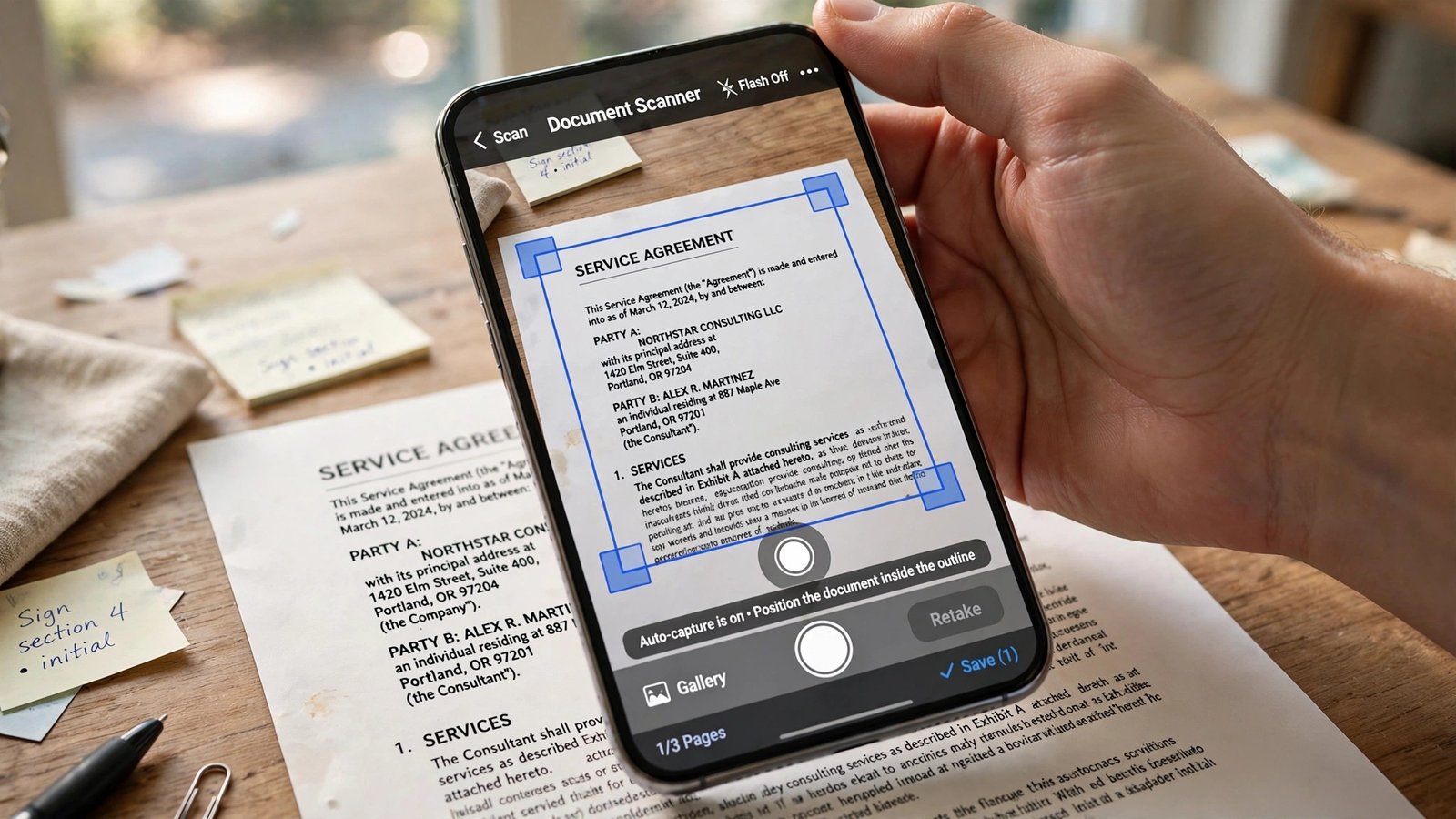
A phone scan is different from a normal photo. Scanning apps detect the edges of a page, straighten it, cut away the table or background around it, and boost the contrast so text looks black on white — like something that came out of a real flatbed scanner. Most apps then save the result as a PDF or a clean image file that you can email, upload, or store.
You don’t need a paid app to get good results. Both iPhone and Android include free scanning tools already built in, and there are several excellent free apps if you want extra features.
On iPhone: use the Notes app
The iPhone’s built-in Notes app is the easiest way to scan — no downloads required.
Step-by-step: using the Notes app
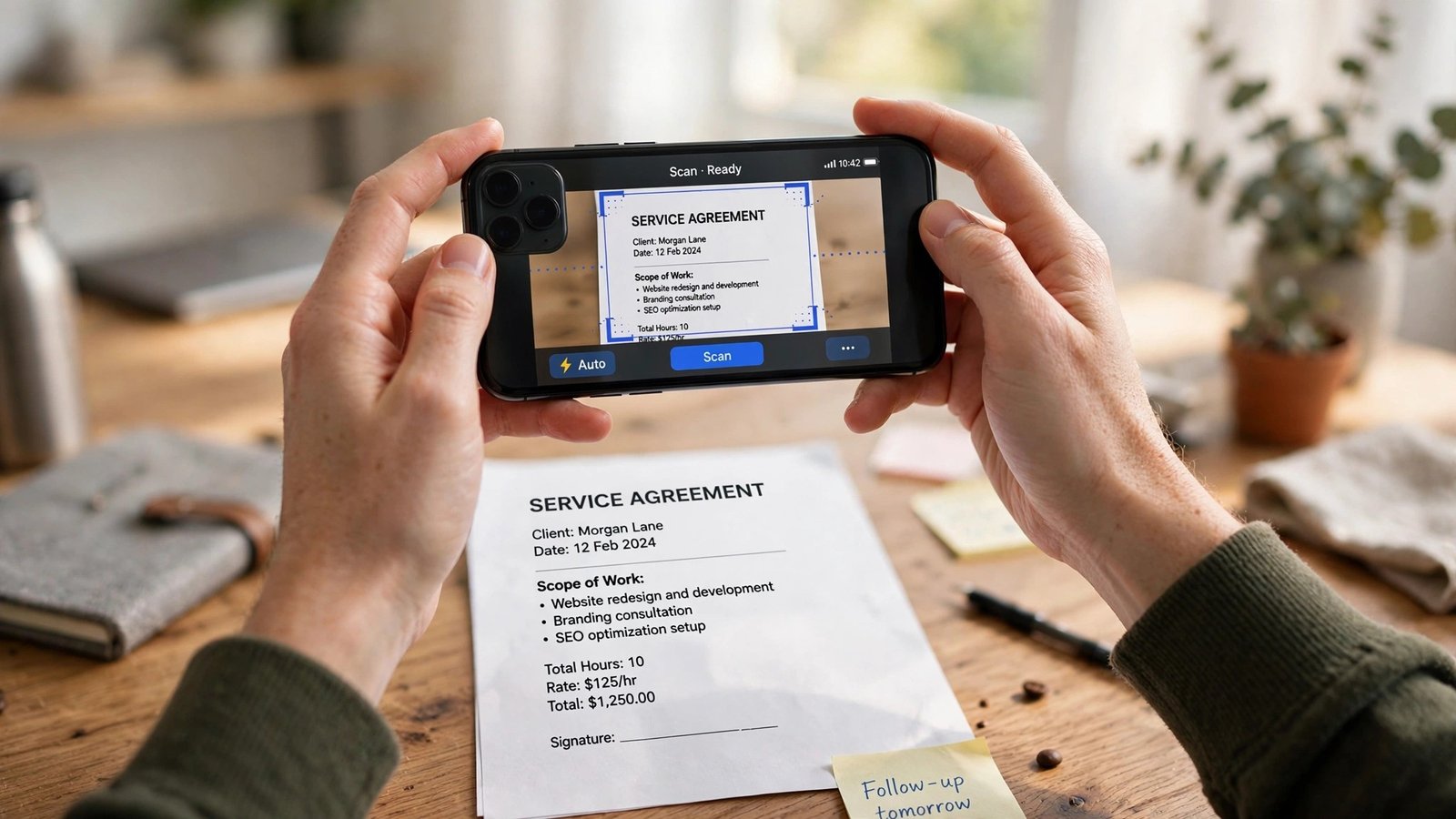
Open the Notes app and start a new note. Tap the paperclip icon, then choose Scan Documents. Hold your phone over the page; a yellow outline will appear around it when the camera detects the edges. Tap the shutter button to capture, then tap Save.
If you have several pages, keep capturing — each scan is added to the same note, which you can then share or export as a PDF. The Files app can also scan: open any folder, tap the three-dot menu, and choose Scan Documents for the same experience with direct PDF saving.
Auto mode vs manual mode
By default, the scanner captures automatically when it has a steady view of the page. If the lighting is tricky, switch to manual mode by tapping Auto in the corner so it says Manual — this gives you control over exactly when to take the capture and can reduce blurry auto-shots.
On Android: use Google Drive
Android phones vary by manufacturer, but the free Google Drive app works on all of them and is the most reliable option.
Step-by-step: using Google Drive
Open Google Drive and tap the + button, then choose Scan. Point the camera at your document, and Drive will detect the page automatically. Tap capture, review the scan, and tap Save — the PDF is stored in your Drive, ready to share or download.
Drive’s scanner cleans up the page nicely and lets you adjust the crop before saving. Because the result lands in Google Drive, sharing a link or emailing it takes seconds.
Manufacturer alternatives
Many Samsung phones include a scan shortcut right in the camera app — point at a document and a Scan button appears. Pixels can use Google Drive as above, or the Files app’s scan feature on newer versions. If your phone’s camera detects documents automatically, that’s fine too — just make sure the final file saves as a PDF for the most professional result.
Small tricks for sharper scans
The app only does half the work. These small setup habits make the difference between a scan that looks official and one that looks like a hasty photo.
Light the page evenly
Place the document on a flat surface near a window or under a bright lamp. Avoid direct overhead light that creates a bright hotspot or your phone’s shadow across the page. Even, soft light is the single biggest quality upgrade you can make.
Use a dark, plain background
A dark table or a sheet of dark paper behind the document helps the app’s edge detection snap precisely to the page. Busy patterned backgrounds confuse the cropping.
Hold the phone parallel and steady
Hold your phone directly above the page — not at an angle — so the document fills the frame without touching the edges. Resting your elbows on the table or steadying the phone with both hands cuts motion blur.
Scanning several pages into one PDF
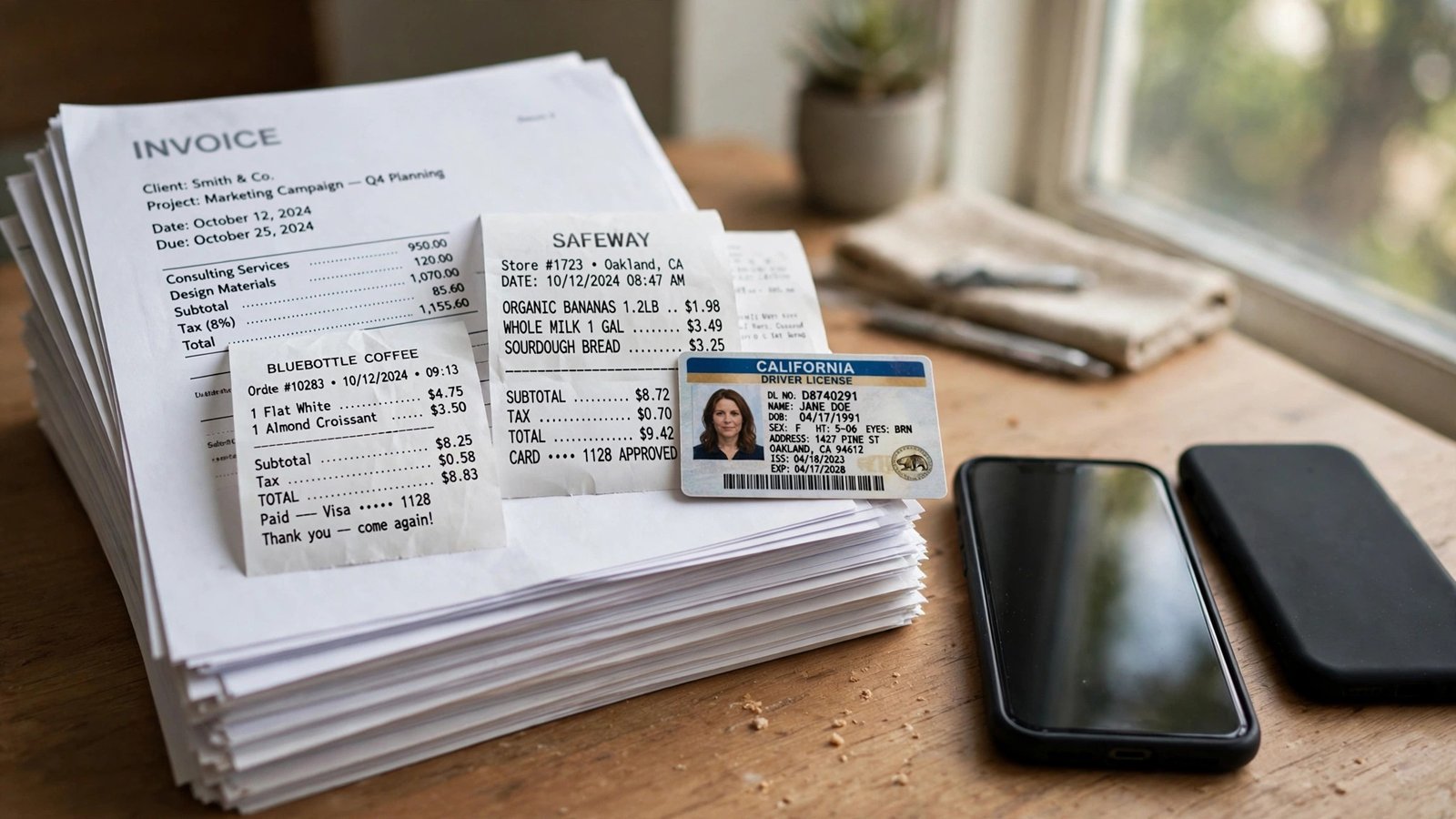
For contracts, applications, or anything longer than one page, capture each page in the same scanning session. The iPhone Notes scanner and Google Drive both bundle multiple captures into a single PDF automatically, in the order you scanned them.
If you need to reorder pages, open the PDF in a free app like Adobe Acrobat Reader or your phone’s Files app — most let you drag pages into the right sequence. Always give multi-page files a clear name, such as rental-agreement-2026.pdf, before sending them on.
Keeping sensitive scans private
Phone scans often contain personal details — IDs, bank statements, signatures — so a little caution goes a long way.
Know where your scans are stored
Free scanner apps sometimes back files up to their own cloud servers. If you prefer privacy, stick with built-in options like iPhone Notes or Google Drive, where you already control the account and its security settings.
Delete scans you no longer need
After emailing or uploading a document, delete the copy from your camera roll and the scanning app if you no longer need it. Fewer copies of sensitive documents means fewer chances of them ending up somewhere unexpected.
Lock your phone and use strong passwords
This sounds obvious, but scans are only as safe as your device. A lock screen with a strong passcode and two-factor authentication on your cloud account keeps your scanned documents private.
Three mistakes that ruin scans
The good news: nearly every bad scan comes from one of these easy-to-fix errors.
Shooting at an angle
A tilted phone produces a trapezoid-shaped page that looks sloppy even after auto-correction. Take two extra seconds to hold the phone flat and parallel — it’s the fastest quality fix there is.
Skipping the crop adjustment
Auto edge detection sometimes includes a sliver of table or cuts off a corner. Always tap the crop corners and adjust them manually before saving. Thirty seconds here beats re-scanning later.
Forgetting to check the final file
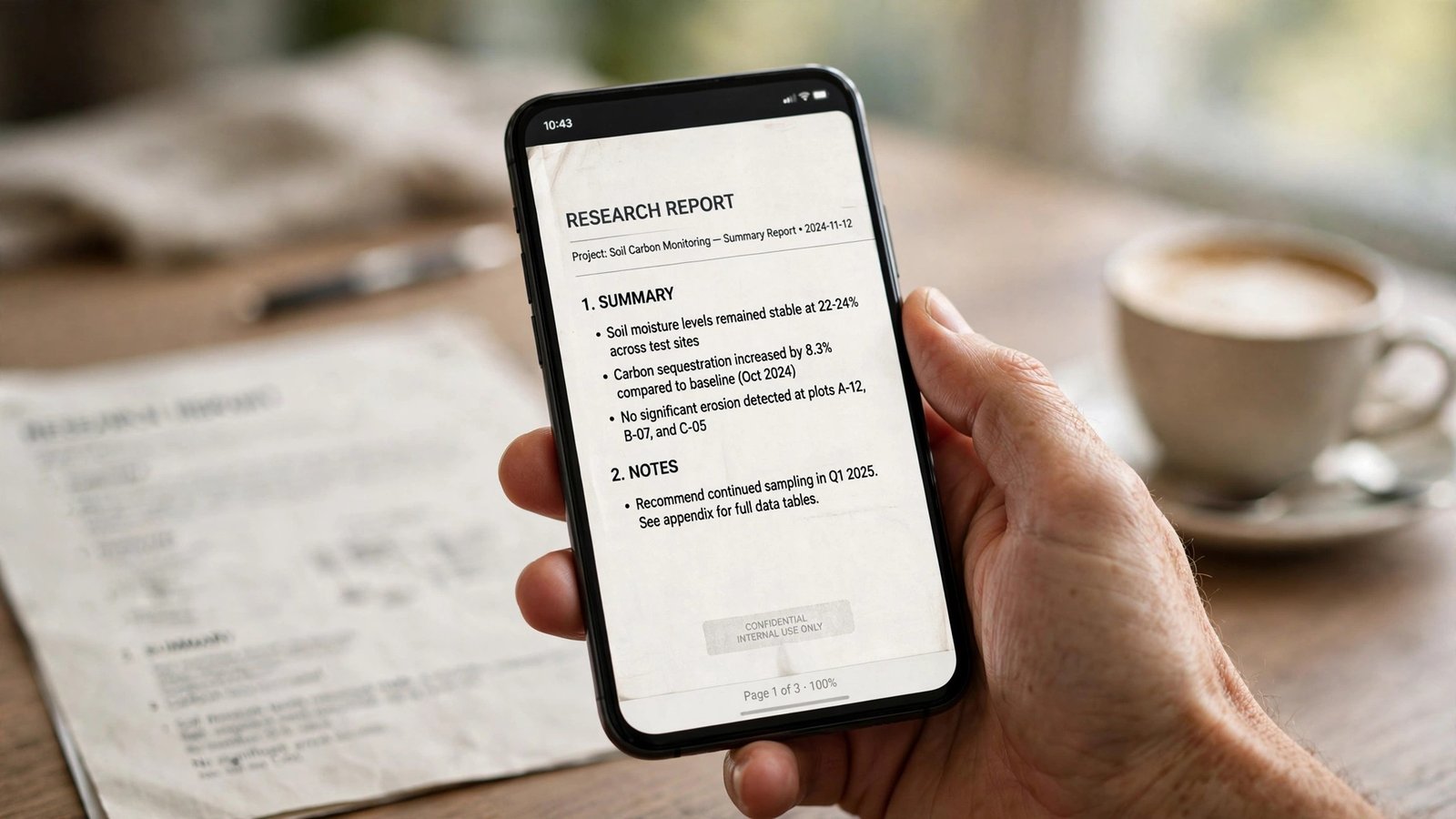
Before sending, open the saved PDF and zoom in on a few lines of text. If anything is blurry or cut off, re-scan just that page. Catching problems now saves the embarrassment of a recipient asking for a clearer copy.
Try it on a receipt today
Learning how to scan documents with your phone is one of those small digital skills that pays off again and again. With the free tools already on your iPhone or Android, good lighting, and a steady hand, you can produce scans that look like they came from a dedicated scanner — no extra hardware, no paid apps, and no trip to a print shop.
Next time someone asks you to “send a scanned copy,” you’ll know exactly what to do. Try scanning a receipt or an old letter today as practice; by the time a real document is needed, the process will feel second nature.
Short answers to common questions
Do I need to download a special app to scan documents?
No. The iPhone Notes app and Google Drive both include free, built-in scanners. Third-party apps add features like OCR or batch scanning, but for most everyday documents the built-in tools are more than enough.
Are phone scans acceptable for official paperwork?
For most everyday uses — job applications, rental forms, school registrations — yes. However, some government offices, courts, or banks may require certified copies or originals, so always check what the recipient accepts before relying on a phone scan.
What file format should I send — PDF or image?
Send a PDF whenever possible. It looks more professional, keeps multiple pages in order, and is the standard format for document sharing. Most scanning apps save as PDF by default.
Can I scan a document that is crumpled or torn?
Smoothing a creased page helps, but scanners can’t fully fix deep wrinkles — they create shadows and warped text. Flatten the document under a heavy book for a while before scanning, and use a dark background so torn edges are still easy to detect.
How do I scan both sides of an ID card into one file?
Capture the front and back as separate scans in the same session (both iPhone Notes and Google Drive support multi-page scans), then save them as a single PDF. Many organisations expect ID scans this way.