

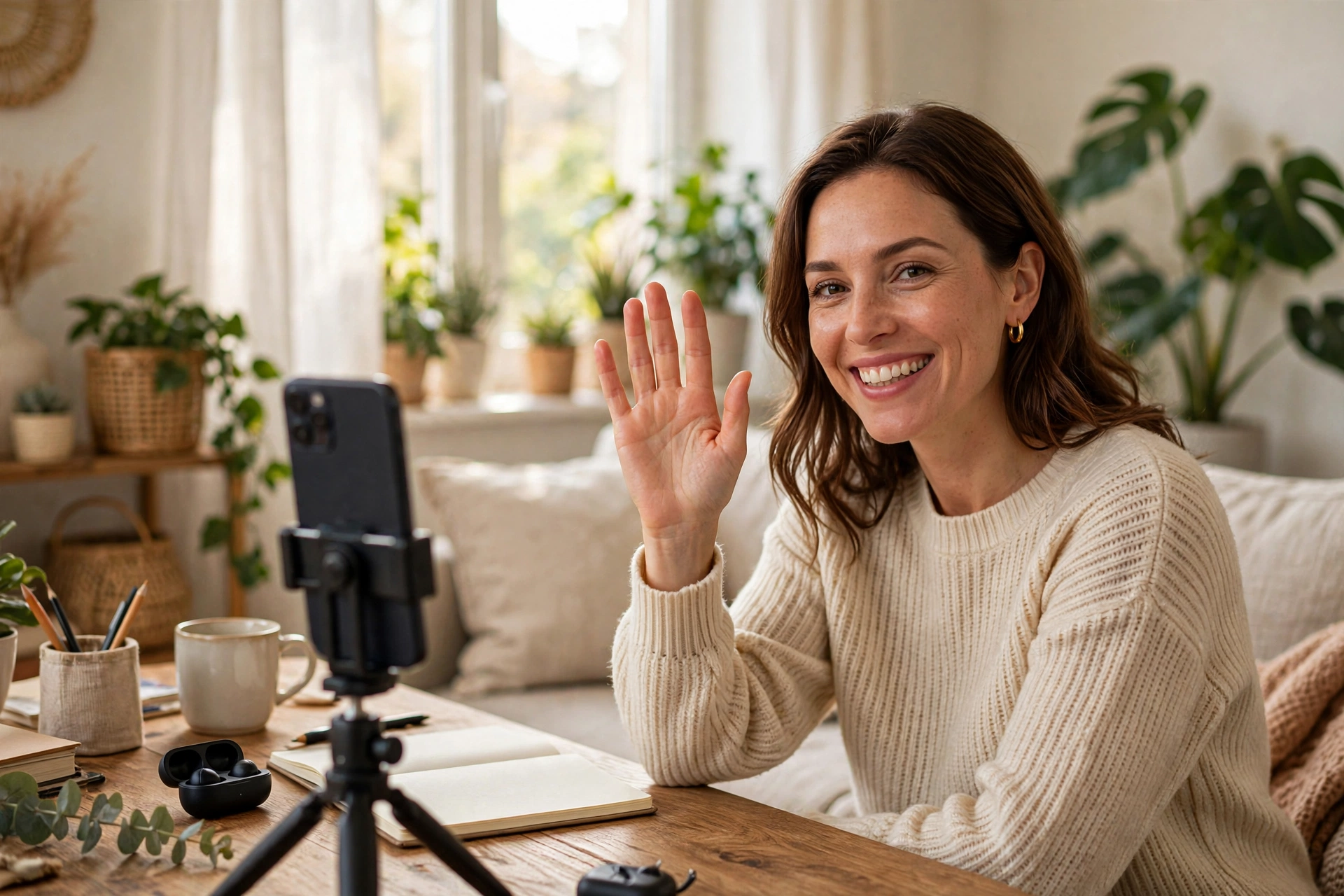
There is a special kind of stage fright that comes from a small button on your phone screen. You know the one. It says “Go Live” on Instagram, Facebook, TikTok, or YouTube, and pressing it means real people might watch you right now, with no editing and no second takes. Most beginners hover over that button for weeks. Some never press it at all. If that sounds like you, consider this your hand on the shoulder. Learning how to go live on social media is far less scary than it looks, and your first broadcast can be short, quiet, and completely survivable.
That Little Button Feels Bigger Than It Is
Going live simply means your phone camera streams video to your followers in real time. People can watch and send comments while you talk. That is the whole trick. No studio, no fancy equipment, no audience of thousands required. Your first live might have three viewers, and one of them might be your mum. That counts. It more than counts. It is perfect practice.
The fear is completely normal. Recorded video lets you delete the bad bits. Live does not. But here is the part your nerves skip over: viewers do not expect polish. They expect a person. A shaky start, a laugh at yourself, a “can you hear me all right?” — that is the charm of live video. The people who watch live streams are usually rooting for the person on screen, not judging them. Think about the last live you watched. You probably remember the warmth, not the wobbles.
It also helps to know what going live is not. It is not a performance review. It is not television. Nobody is sitting there with a scorecard. At its best, a live broadcast feels like a video call that a few friendly people happened to join. Keep that image in your head and the button shrinks to a sensible size.
Set Up Like Nobody Is Watching (Yet)
Good setup is mostly about light and sound, and both are simpler than they sound. You do not need to buy anything. Your room already has almost everything required.
Face a window. That is the entire lighting department. Daylight on your face, phone between you and the window, and you instantly look clearer and friendlier than any gadget can manage after dark. If it is evening, a lamp placed behind the phone works fine. Just avoid sitting with a bright window behind you, which turns you into a mysterious silhouette. Your viewers want to see your face, not guess at it.
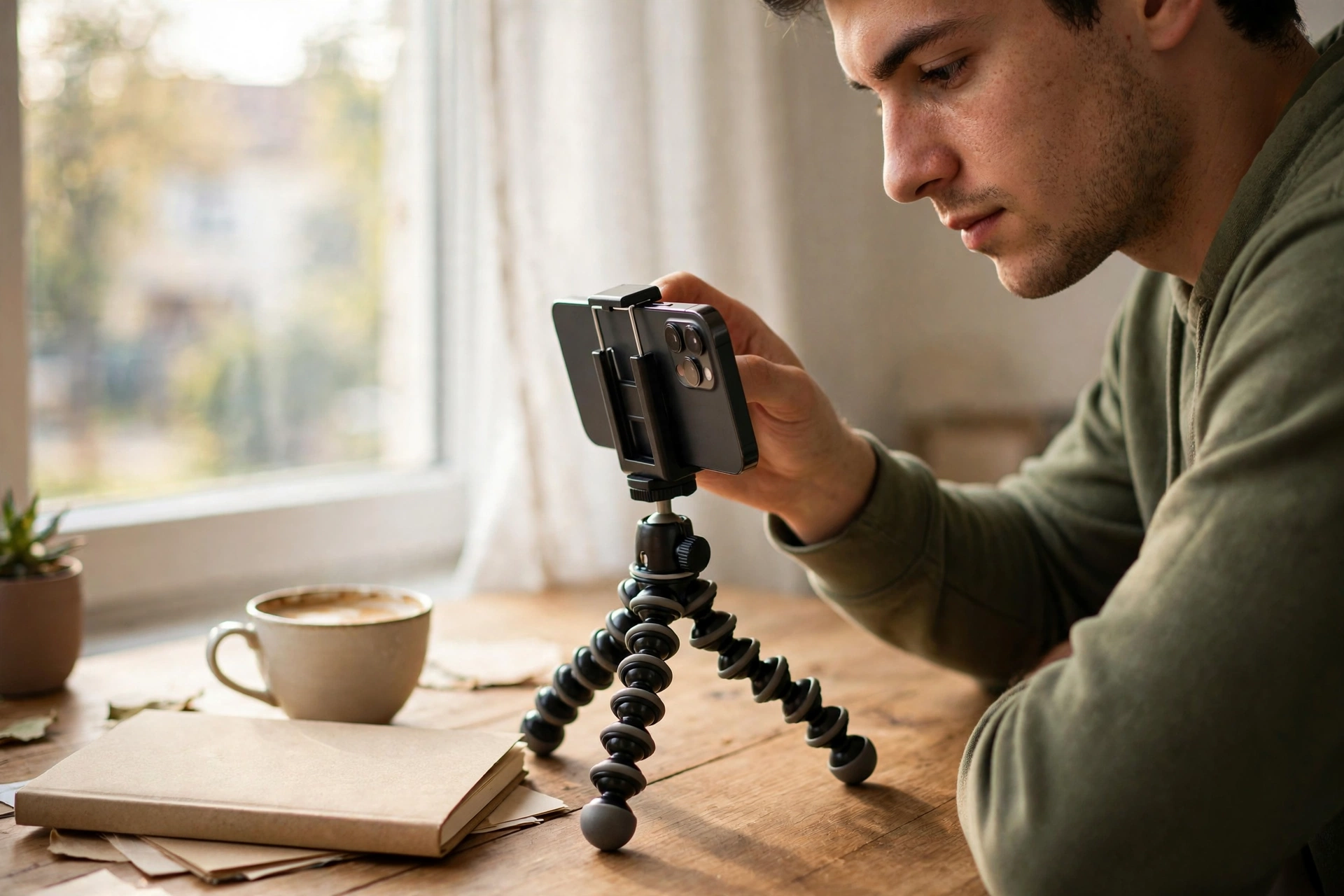
Prop the phone up so it stays still. A wobbly hand-held stream makes viewers seasick, and holding your arm out for ten minutes is its own workout. A small tripod helps, but so does a stack of books, a mug, or a shoe wedged against something heavy. Anything that holds the phone steady at eye level or slightly above. A phone flat on a table pointing up gives everyone a lovely view of your ceiling and your nostrils. Lift it up.
Pick a quiet corner. Kitchens echo, streets rumble, washing machines choose the worst moments. A smaller room with soft things in it — a sofa, curtains, a rug — sounds warmer and kinder. Tell anyone at home what you are doing before you start, so nobody walks in mid-sentence wearing a towel. Ask me how I know.
Charge up and check your connection. Live video drinks battery and data faster than anything else on your phone. Plug in if you can, and use Wi-Fi rather than mobile data when possible. Nothing kills a good moment like your phone dying at the good part. A quick test helps too: record a ten-second video in the same spot first and watch it back. If you look and sound fine there, you will look and sound fine live.
Your First Five Minutes, Planned Loosely
You do not need a script. Scripts make beginners sound like robots reading announcements. You need a rough shape instead, like a friendly chat with a beginning, a middle, and an end. Here is a shape that works.
Say hello, then give it a beat
When you go live, nothing happens for a few seconds. Viewers trickle in one by one. Say hello, smile, and wait. “Hi everyone, give me a moment while people join” is a perfectly fine opening. Adjust your hair. Sip your tea. The first minute is allowed to be boring. Rushing to fill the silence is what makes beginners sound nervous, not the silence itself.
Talk to one person, not a crowd
Imagining an audience makes your brain freeze. So do not. Pick one friendly person — a friend, your sister, that neighbour who always waves — and talk to them. Say their name in your head. “So, Priya, I finally pressed the button.” Suddenly you are chatting, not presenting. Everything loosens up: your shoulders drop, your voice sounds like you again, and the words come easier.
Have an ending ready
Beginners rarely run out of things to say. They run out of ways to stop. Decide your ending before you start. “I will wrap up in a minute — thanks for hanging out with me” gives you an exit that feels natural instead of awkward. Five to ten minutes is plenty for a first live. Short and sweet beats long and rambling every time. You can always go longer next time, when you know how it feels.
When Strangers Show Up in the Comments
Comments are the best and weirdest part of going live. Someone types “hello from Manchester!” and suddenly it feels like a real conversation instead of talking to glass. Answer comments out loud. Say the person’s name, react to what they wrote. It makes viewers feel seen, and it hands you things to talk about when your mind goes blank. A quiet stream becomes a lively one the moment you start chatting with the little names popping up.
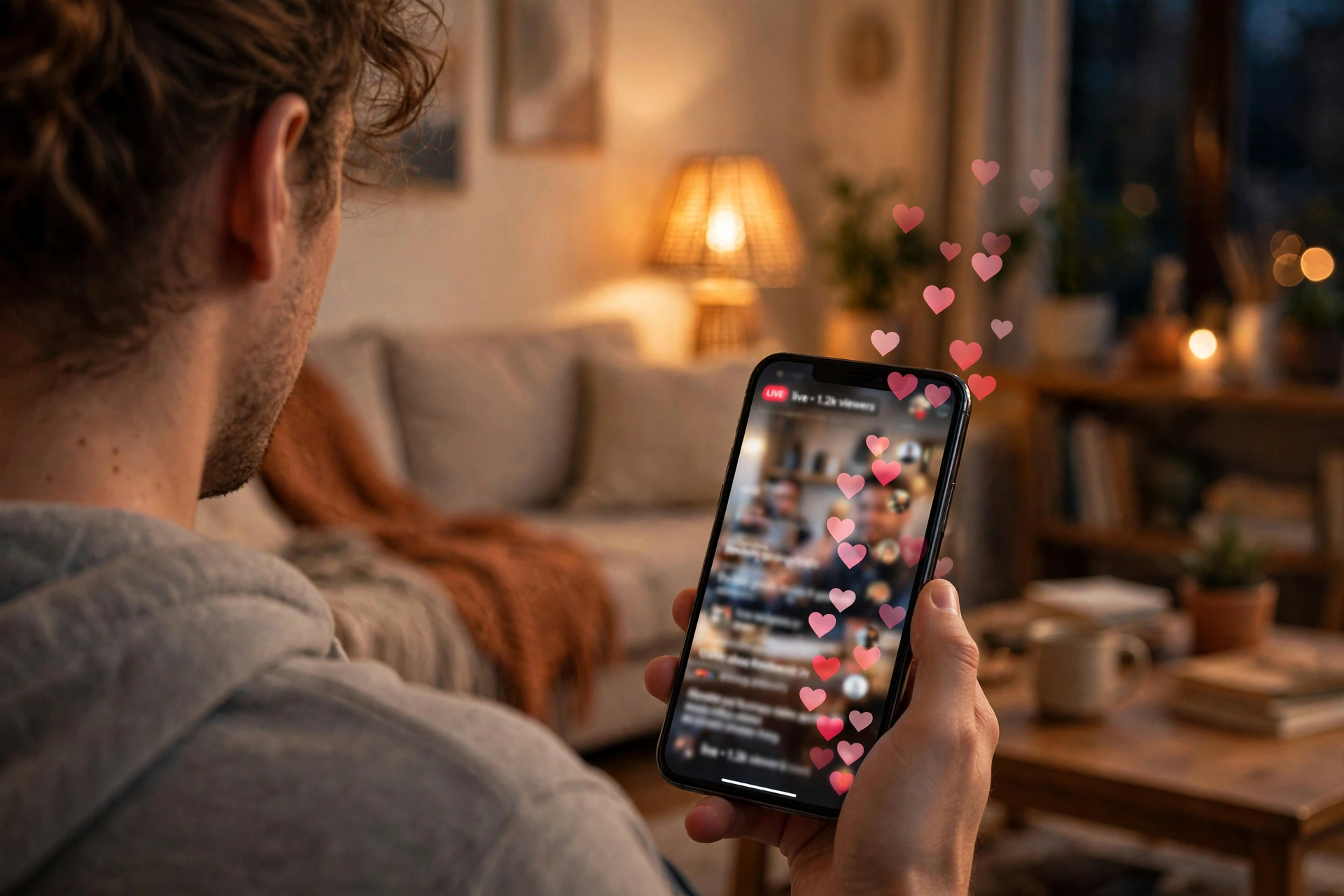
You will also meet the other kind. Trolls, spam accounts, the occasional rude stranger. Every platform lets you hide comments, block accounts, or hand a trusted friend moderator powers. Use those tools without a second thought. You are not running a town hall meeting. You are allowed to protect your own broadcast, and most viewers never even see the comments you remove. Set this up before you start if you can, so you are not fumbling with settings mid-sentence.
One more thing about comments: you do not have to read every single one. Glance down, respond to a few, keep talking. Trying to catch them all turns you into a newsreader and kills the flow. The stream is yours. The comments are seasoning, not the meal.
The Part Nobody Mentions: It Gets Easier Fast
The first live is the hardest one you will ever do. The second is about half as scary. By the fifth, you will wonder what all the fuss was about. That is not motivational fluff. It is how your brain works. It learns that nothing terrible happens when you press the button, and it stops sounding the alarm quite so loudly.
Keep your early broadcasts short and low-stakes. Talk about your day. Show your garden. Answer three questions someone asked last week. Each small, uneventful live teaches your nerves that this is safe. Save the big topics, the announcements, the important stuff for later, when the button feels ordinary. There is no prize for making your first live impressive. There is a quiet reward, though, in making it happen at all.

Watch a couple of your own replays too, if your platform saves them. Not to criticise yourself — to notice how much better you sound than you felt. Almost everyone discovers the same thing: the terror was louder in their head than on the screen. That gap shrinks with every broadcast until one day you press the button the way you press “call.” Just another way to talk to people you like.
Things Beginners Ask Before Their First Live
What if nobody watches?
Then you have had a lovely practice run that nobody saw. Seriously. Zero viewers is the gentlest possible start. Talk for five minutes, end the stream, and congratulate yourself. The recording still exists on most platforms, and you can share it, save it, or delete it. An empty room is just a rehearsal with good lighting.
Do I need to look perfect?
No. Brush your hair if it makes you feel better, wear what you would wear to meet a friend for coffee, and stop there. Viewers connect with real faces, not filtered ones. The “I just threw this on” look is practically its own genre on live video, and it works because it feels honest.
What if I freeze or say something silly?
Say so out loud. “I have completely lost my train of thought — give me a second.” Viewers find that endearing, not embarrassing. The only real mistake is pretending it did not happen while panic fills the silence. Laughing at yourself is the fastest way to make an audience like you.
Can I delete the live video afterwards?
On most platforms, yes. You can usually save the replay, share it to your profile, or delete it entirely. Knowing the video does not have to live forever takes a huge amount of pressure off. Check your app’s settings before you start so you know exactly where the recording goes and what your options are.
Should I tell people in advance?
For your first one, maybe not. Announcing it widely adds pressure you do not need. Just go live quietly and see who shows up. Once you have a few broadcasts under your belt and you actually want an audience, then start telling people when you will be on. Let the habit come before the hype.
Your Turn to Press the Button
Nobody feels ready for their first live. Readiness comes after, not before. Pick a quiet ten minutes this week. Face a window. Prop up your phone. Press the button before your courage talks you out of it. Say hello. Ramble a little. Wave goodbye. Then do it again next week. The button gets smaller every single time, and one day you will wonder why it ever looked so big.














