


If you have ever opened Instagram, spotted the little paper-plane icon, and wondered what you are actually supposed to do with it — you are in good company. DMs, short for “direct messages,” are simply Instagram’s private chat corner. No audience, no comment section, no likes on display. Just you and the person you are talking to. They can look fiddly at first glance. They aren’t. Let’s walk through the whole thing together, one tap at a time.
Where your messages actually live
Open Instagram and look at the top-right corner of your home screen. There sits a small messenger-style icon — in older versions of the app it looked like a paper plane. Tap it, and you’re in your inbox: a plain list of your conversations, newest first.
A name in bold with a little blue dot means someone wrote to you and you haven’t read it yet. Tap any name to open that chat. At the top of the inbox you’ll also find the compose button (a pencil on a square), which starts a brand-new conversation, and a “Requests” folder. That folder matters: it’s where notes from strangers wait politely instead of barging straight into your main list.
One more thing worth knowing before we move on. Every chat is its own little world — photos, voice notes, calls, the lot — and nothing you say there is posted anywhere public. Thinking of DMs as “texting, but inside Instagram” will carry you a long way.
Saying hello to someone new
You don’t need to be official friends with someone to message them. Visiting their profile? Tap the “Message” button sitting under their bio, and a chat opens instantly. Prefer starting from the inbox? Hit the compose button and type their name or username into the search box.
Typing a name is where most beginners hesitate, and there’s no need. Start typing, watch the suggestions appear, and tap the right person. Writing to a business or a creator? Keep the first message short and friendly — “Hi! I had a question about…” beats a wall of text every time.
And if you’d like a few people in on the same conversation, the compose screen lets you pick several names at once. Give the group a name (something like “Weekend plans”) and you’ve got yourself a group chat, where everyone sees everything anyone sends.
Sending messages without overthinking it
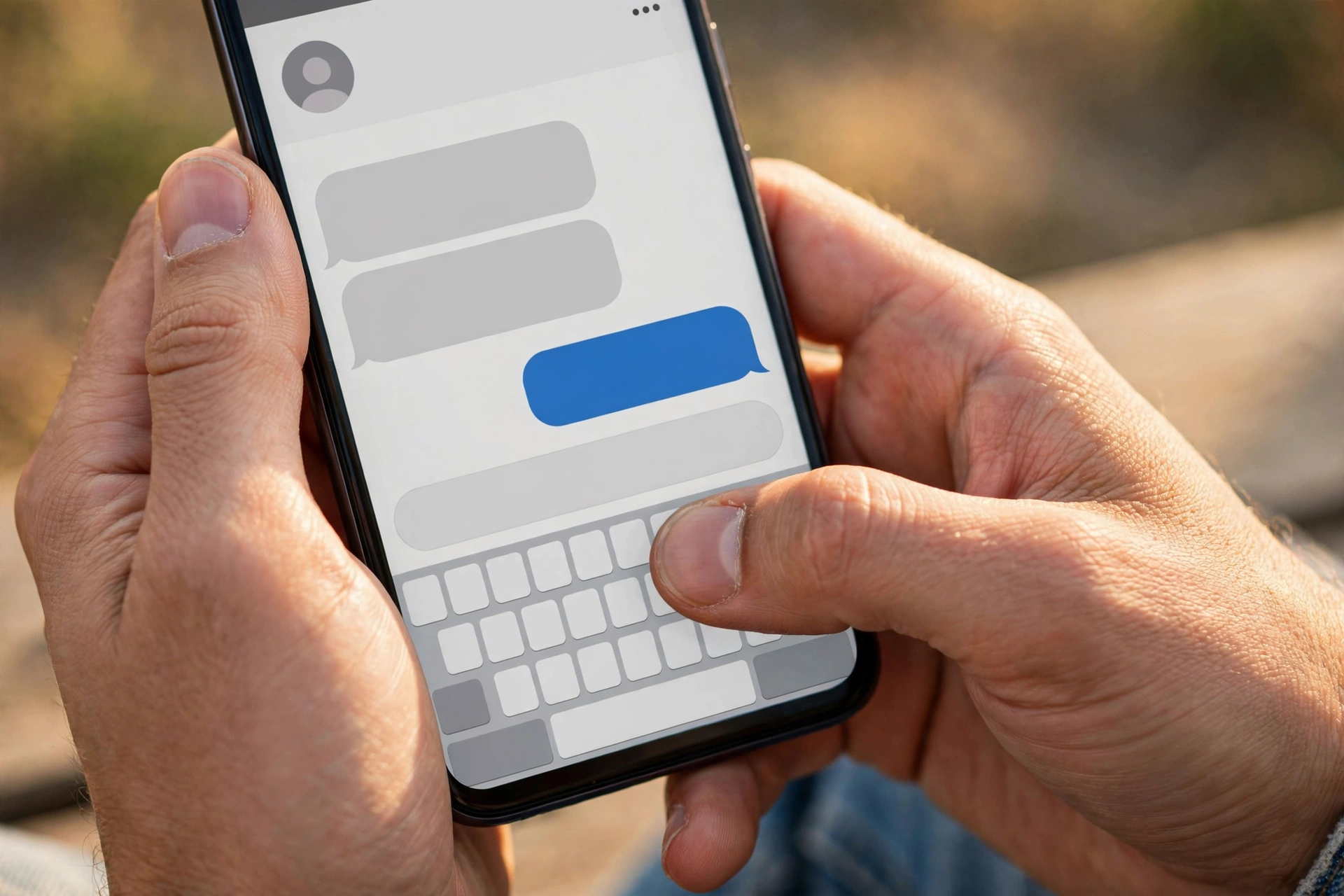
The basics are exactly what you’d expect. Tap the box at the bottom of a chat, type, hit send. The smiley icon on your keyboard opens emojis; the little photo icon beside the message box lets you send a picture or video from your camera roll — or snap a fresh one right there.
But the thing people use DMs for most often isn’t typing at all: it’s sharing. See a funny reel in your feed, or a post your friend would love? Tap the small arrow underneath it, and Instagram shows you a list of your chats. Pick one (or several), add a line if you like, and tap send. The post lands in the chat as a little preview card your friend can tap to open.
You can also send a location pin, a GIF from the sticker menu, or a quick reply to someone’s story — story replies go straight to their inbox rather than appearing anywhere public. That’s why so many Instagram conversations quietly begin with someone reacting to a story.
Small tricks that make chatting feel easy
Here’s where DMs start to feel clever. In a busy chat, reply to a specific message by swiping right on it — or press and hold, then choose “Reply.” Your reply appears with a little preview of the original, so nobody has to guess what you’re talking about.
Want to acknowledge a message without typing a word? Double-tap it and a heart pops up. Press and hold instead, and you’ll get a row of emoji reactions to choose from. A quick reaction on someone’s message is the digital equivalent of a nod across the table.
And the lifesaver: unsend. Sent something by mistake, or had second thoughts? Press and hold your own message and tap “Unsend.” It disappears from the chat on both sides. Be honest with yourself, though — unsend can’t erase a screenshot someone already took, so treat it as a safety net, not a guarantee.

Voice notes and calls: the human side of DMs
Sometimes typing feels like too much effort and a call feels like too much commitment. That’s what voice notes are for. In any chat, hold down the little microphone icon, talk, and let go when you’re done. Your voice note drops into the conversation, and the other person can listen whenever it suits them. Parents, grandparents, anyone who finds keyboards annoying — this is usually the feature that wins them over.
When you’d rather talk live, look at the top of a chat. The phone icon starts a voice call, the camera icon starts a video call, and both work much like a regular phone call — they ring, the other person answers or doesn’t, and you hang up when you’re finished. Group chats can call too, so the whole family can be on screen at once.
A gentle tip: a quick “are you free for a call?” text first goes a long way. Most people answer a planned call and ignore a surprise one.
Keeping your inbox calm and safe
Remember that “Requests” folder? Messages from people who don’t follow you land there, and nothing shows in your main inbox until you accept. Open a request and you get three honest choices: accept it (it moves into your chats), delete it, or block the sender. Nobody can tell you’ve read their request unless you accept it.
If someone is bothering you, you have proper tools. Open their profile, tap the three dots, and choose “Block” — they won’t be able to message you, find you, or see your posts. “Restrict” is the quieter option: their messages slide quietly into Requests and their comments stay hidden from everyone but them, so they never know you’ve limited them. And if a message is genuinely abusive or spam, long-press it and report it to Instagram.
For chats you’d rather keep fleeting, there’s vanish mode: swipe up inside a chat and the messages disappear after they’ve been seen and you leave the conversation. Swipe up again to switch it back. Instagram also flags it if someone takes a screenshot while vanish mode is on — a small reminder that “disappearing” doesn’t mean “untraceable.”

Quick answers before your first message
Can someone tell when I’ve read their message?
Yes — a little “Seen” note appears under the message once you’ve opened the chat. If you’d rather keep your reading habits to yourself, you can switch read receipts off for a specific chat in its settings.
Do I need to follow someone before messaging them?
No. Anyone can send you a first message, but it lands in your Requests folder rather than your main inbox until you accept it. The same applies when you write to strangers — don’t be surprised if they take a while to notice it.
Is there a limit on how many people I can message?
For ordinary chatting, no. Instagram only steps in if you message a large number of strangers in a short time, which it reads as spammy behaviour. Normal, human-paced conversation never hits that wall.
Can I unsend a message after sending it?
Yes — press and hold your own message and choose Unsend, and it vanishes from the chat on both sides. The one thing it can’t undo is a screenshot the other person already took, so keep that in mind before sending anything sensitive.
Are DMs actually private?
Your chats aren’t public — only the people in the conversation can see them. Even so, never send passwords, bank details, or anything you couldn’t bear to see shared. No chat app in the world deserves that level of trust.
Your turn to say hello
That’s honestly all there is to it: find the icon, open a chat, and say something. Pick one person — a friend, a family member, that cousin whose stories you always watch — and send them a message right now. A hello, a shared reel, a voice note. However it starts, you’ll wonder why it ever seemed complicated.














