

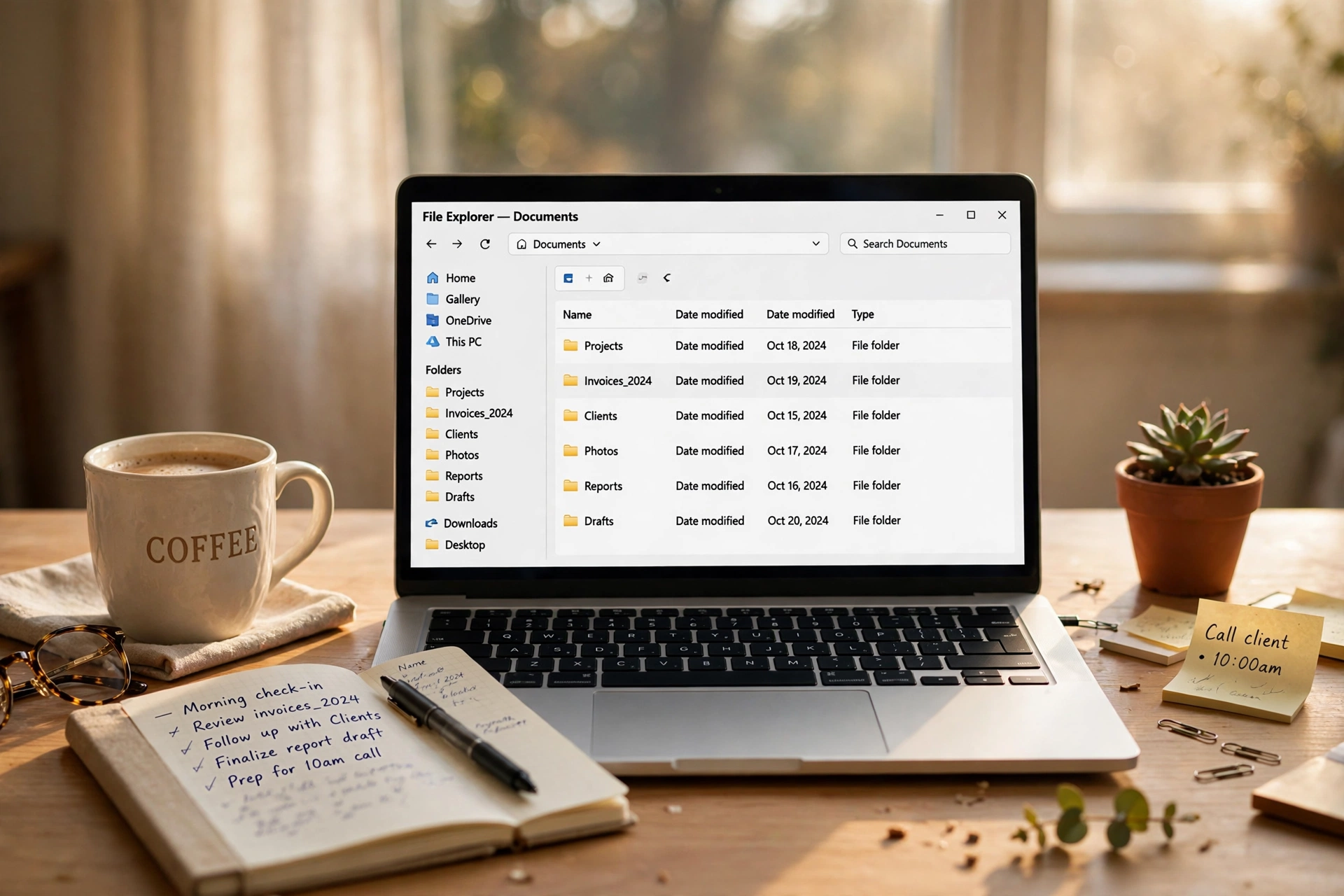
You know the file is somewhere on your computer. You downloaded it yourself — last week, maybe last month — but the Downloads folder now holds hundreds of items, the desktop is a carpet of icons, and the file you actually need could be anywhere. Sound familiar? Take a breath. Nearly everyone’s computer looks like this, and it has nothing to do with being lazy or disorganized. Computers are set up to collect clutter, not prevent it. The fix isn’t a complicated system or a paid app. It’s a handful of small habits: where you put things, what you call them, and a five-minute tidy now and then. This guide walks through all of it in plain language. By the end, you’ll know how to organize computer files so well that finding anything takes seconds, not half an hour.
It’s not you — your computer was set up to collect clutter
Here’s the uncomfortable truth: a messy computer is mostly the computer’s fault. Every browser dumps downloads into the same Downloads folder without asking. Every “Save” dialog guesses where the file should go, and its guess is usually wrong. Program installers leave files on the desktop. Email attachments land wherever your email app feels like putting them. Nobody sat you down on day one and said, “Here’s where things live.” The machine just started collecting.
So the files pile up in the same three or four places, each holding hundreds of items with names that meant something to you for about eleven seconds. “screenshot_at_3.14.55_PM.png” tells you nothing. “untitled(3).docx” tells you less. Finding anything becomes a memory test — and human memory is terrible at remembering file names from six months ago.
None of this means you’re bad at computers. It means the defaults work against you. The moment you see it that way, the fix stops feeling like a character flaw and starts feeling like what it is: a small, learnable skill. That skill has three parts. Folders that make sense. Names that make sense. And a tiny bit of maintenance. Let’s take them one at a time.
Build folders around your actual life
Forget everything you’ve heard about elaborate filing systems with color codes and twenty nested levels. The system that works is the one simple enough that you’ll actually use it on a tired Tuesday evening. And that system starts with a short list of broad folders — usually somewhere between five and eight — that match the shape of your real life.
For most people that looks something like this: Personal, Work, Money, Photos, and maybe one or two folders for whatever project is big in your life right now. That’s it. When something new arrives, you ask one question: which of these is it closest to? If the answer takes more than a few seconds, your folders are too narrow. Broaden them. “Work” beats “Work_Reports_Q3” every time, because you’ll actually remember that “Work” exists.
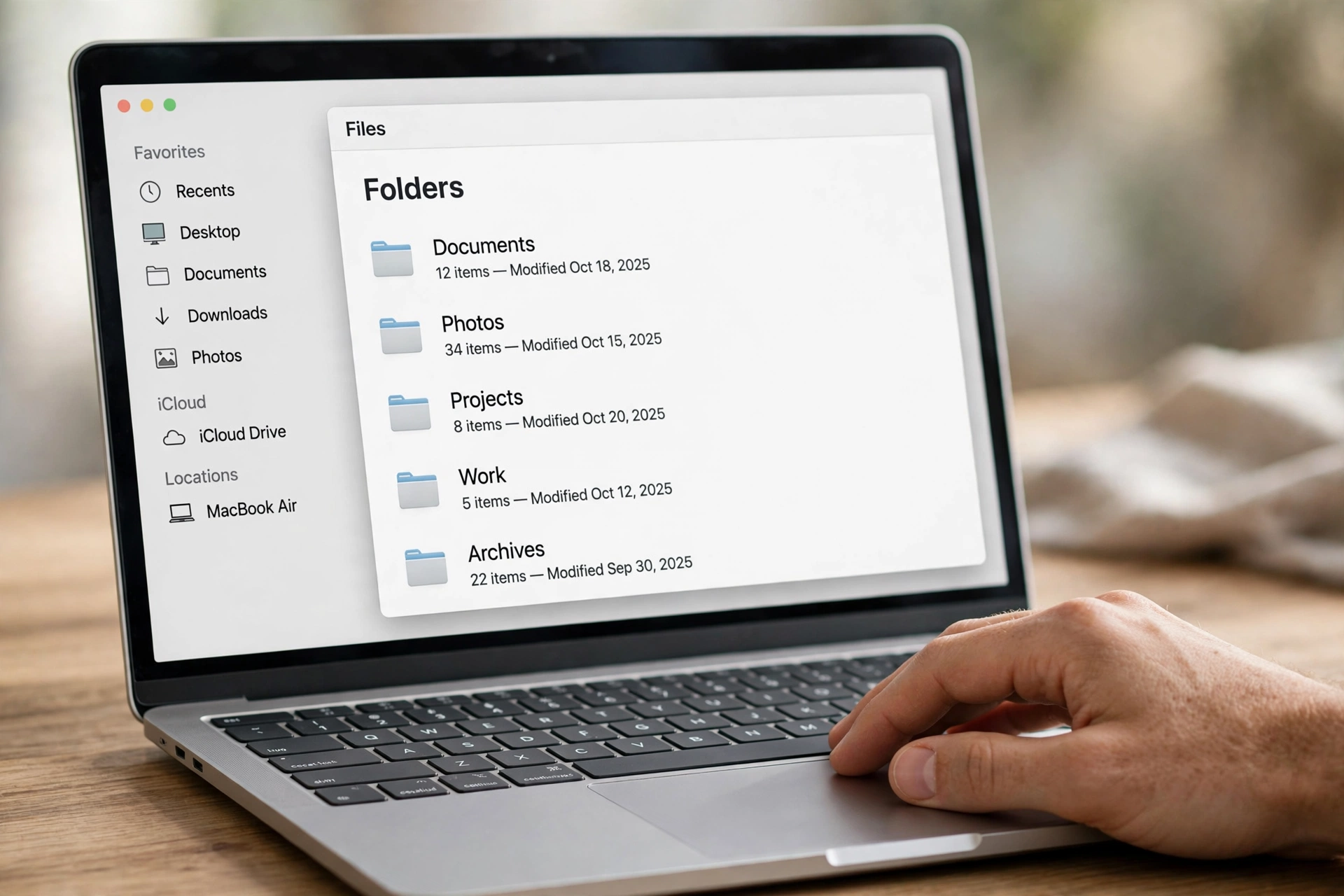
Here’s the test I use: open any folder and count what’s inside. If you’re scrolling past thirty or forty items to find things, that’s your signal to add a subfolder — not before. Photos is the classic example. Once it holds a few hundred pictures, splitting it by year (or by trip, for the travelers among us) makes everything findable again. But don’t pre-build subfolders for a future that might never come. Empty, hopeful folders are just clutter with better manners.
How deep should your folders go?
Two or three levels, tops. Documents, then Money, then Tax Returns — fine. Anything deeper and you’re clicking through a maze you’ll never remember. If you find yourself going four levels down, it’s usually a sign that the folder above needs a clearer name, not more folders underneath it.
One more thing worth deciding now: where do these folders live? Pick one home — your Documents folder, your cloud drive, wherever feels natural — and keep all of them there. Files scattered across the desktop, Downloads, Documents, and three cloud services aren’t organized; they’re just lost in more places. One home. Everything else is a waiting room.
Name files like future-you has amnesia
Picture yourself six months from now, searching for a document. You don’t remember what you called it. You barely remember it exists. The only things you’ll have to go on are the words in the name and the date it was made. So the name has to do all the work.
The habit is simple: name it for what it is, in words you’d actually search for, and put a date on anything time-sensitive. “Electricity bill – March” beats “bill.pdf” forever. For things you’ll want in date order, start the name with the year, month, and day — 2025-03-14, say — because dates written that way sort themselves correctly, which the other formats never quite manage. “2025-03-14 dentist receipt” will always sit exactly where you expect it.
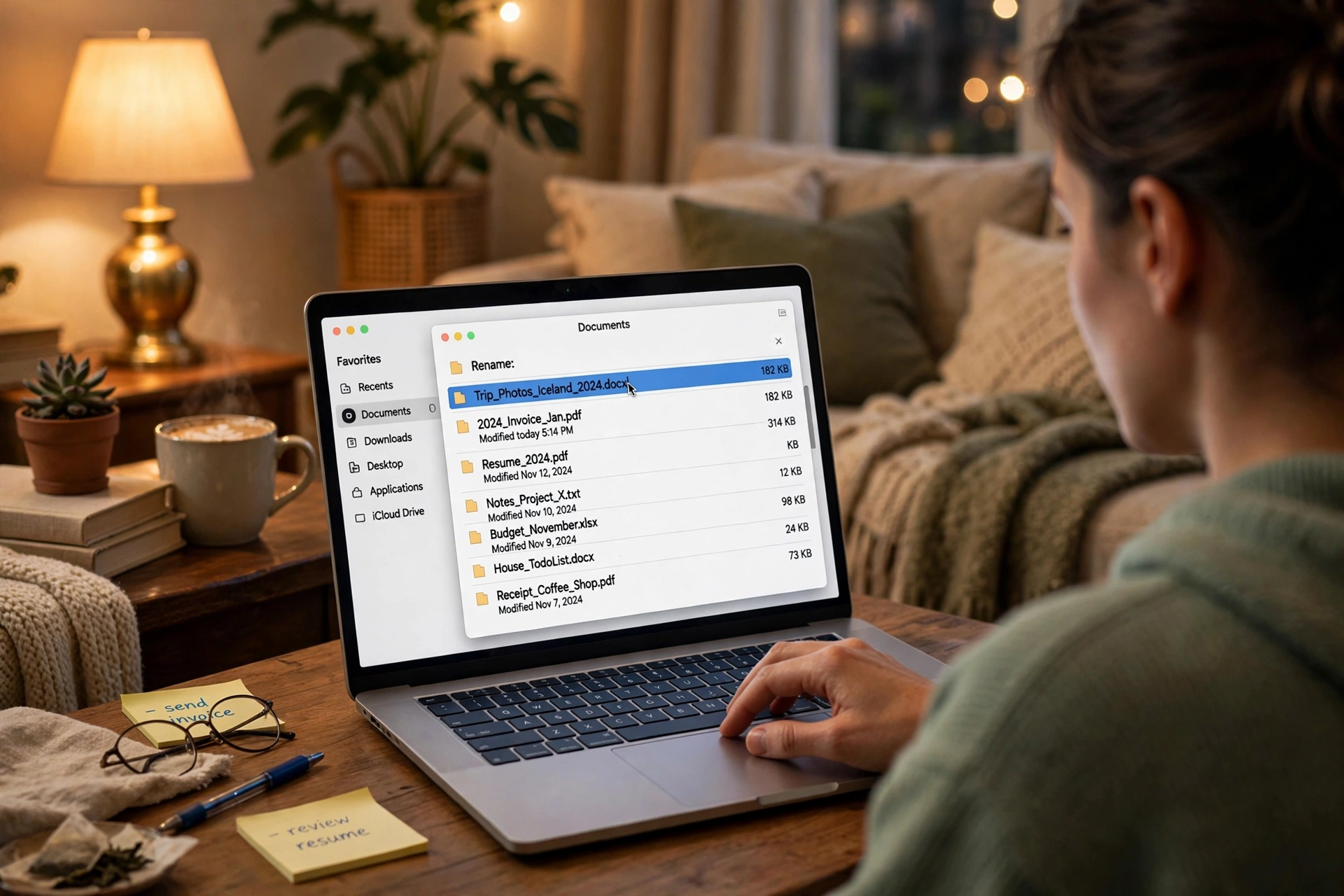
And rename things the moment they arrive. That installer called “setup(1).exe”? The photo your phone saved as “IMG_20251020_143022.jpg”? Spend the ten seconds now. Ten seconds of renaming beats ten minutes of hunting, and you only have to win that trade once to believe it. Skip cute abbreviations too — “rpt” might mean “report” to you today, but to future-you it means “what on earth is rpt.”
A quick word on versions. If you keep copies — drafts of a letter, versions of a spreadsheet — name them so the newest is obvious: “wedding speech draft,” “wedding speech draft 2,” and so on, or add the date. Anything is better than the classic graveyard of “final,” “final2,” and “final_USE_THIS_ONE,” where nobody, including you, knows which one is real.
The five-minute tidy that does most of the work
Here is the whole maintenance plan: once a week, open your Downloads folder and deal with what’s in it. Move the keepers to their folders. Delete the installers and duplicates. Empty the trash. That’s it. Five minutes, maybe less once the habit settles in, and the system stays clean because nothing ever gets the chance to pile up.
Pick a moment that already exists in your week — Sunday evening, Friday afternoon, the time you wait for the kettle. Attach the tidy to it. Habits that float free in the calendar die; habits anchored to something you already do survive. I do mine with a cup of tea, and it genuinely feels less like chores and more like resetting the desk before a new week.

The desktop deserves the same treatment. Treat it as a landing pad, not a storage unit — a place for what’s active this week, cleared regularly. A desktop with three current things on it is useful. A desktop with eighty icons is a second Downloads folder wearing a disguise. Clearing it at the end of the week takes a minute, and the computer feels brand new every Monday.
And what about the stuff you’re not sure about — the “I might need this someday” files? Give them one folder called Archive and stop thinking about them. If a file sits in Archive untouched for a year, that’s your answer: back it up somewhere external or let it go. The goal was never to keep everything. It’s to know where everything is.
Things people usually ask before starting
Should I organize by date or by topic? Topic at the top, dates inside the names. Folders called “January,” “February,” “March” sound tidy and become useless within weeks, because you never think “what month was that receipt from?” You think “it was a receipt.” Let the folders carry the topic and let the file names carry the dates.
Do I need special software or an app? No. The file browser that came with your computer — File Explorer on Windows, Finder on a Mac — does everything this guide asks for. New folders, renaming, moving, searching: it’s all there already. Fancy organizer apps can be fun later if you enjoy that sort of thing, but they’re never the thing that makes the difference. The habits are.
What about all my phone photos? Move them onto the computer every month or two and sort them into the Photos folder with the same naming habit — year first, then what the pictures are. A phone with 4,000 unsorted photos is the same problem in a smaller box. The monthly move takes ten minutes and saves the annual panic.
Should I keep everything or delete more? Delete more. Most people keep far too much “just in case.” Duplicates, installers for programs already installed, screenshots you no longer need, three copies of the same download — if deleting it would cause no real problem, out it goes. A smaller collection is a more findable collection.
What if I share the computer with family? Give each person their own top-level folder — or better, their own user account, which keeps everyone’s files and settings separate automatically. Shared folders like “Household” or “Photos we all use” sit alongside the personal ones. The rules don’t change; the folders just get name tags.
Start with just one folder tonight
Don’t try to fix the whole computer today. That way lies a three-hour marathon that ends with you staring at the screen, halfway through, wondering why you started. Pick one folder — Downloads is the usual suspect — and spend twenty minutes on it tonight. Move things where they belong. Rename the keepers. Delete the rest. Then stop.
Tomorrow, notice how it feels to open that folder and see order instead of noise. That small feeling is the whole engine of this system. One tidy folder becomes two, then the naming habit kicks in, then the five-minute weekly tidy keeps it all humming. Nobody’s computer got organized in a day. But plenty of organized computers started with one folder on an ordinary evening — and tonight can be yours.














