


Somewhere out there is a music forum profile with your teenage haircut on it. There’s probably a photo-sharing account you made for one holiday, and a dating profile from a relationship you barely remember. Old online accounts don’t die quietly — they sit on servers for years, holding your name, your photos, sometimes your payment details. The good news: closing them down is easier than you expect once someone shows you where to look. Honestly, if this has felt confusing and a little exhausting to even think about, that’s not a sign you’re bad with technology. It’s a sign nobody ever explained it.
Start with what you can already remember
Grab a notebook or notes app and just start listing. Think in phases of your life: the social networks of your twenties, the forums for a hobby that lasted one summer, the food delivery apps, the fitness trackers, the online shops you ordered from exactly once. You’re not deleting anything yet — you’re making a map.
For each one, note the username if you remember it, and which email address you think you used. Most of us have two or three addresses floating around, and knowing which inbox an account belongs to will save you a lot of hunting later.
It helps to think about the era. Early 2000s? Forums and chat sites. Early 2010s? A wave of social networks and photo apps, most of them gone. Recent years? Subscriptions, newsletters, random apps that demanded an account just to let you look around. Walking through your own history like that shakes loose accounts you’d never find by staring at a blank page.
Your inbox is a better memory than you are
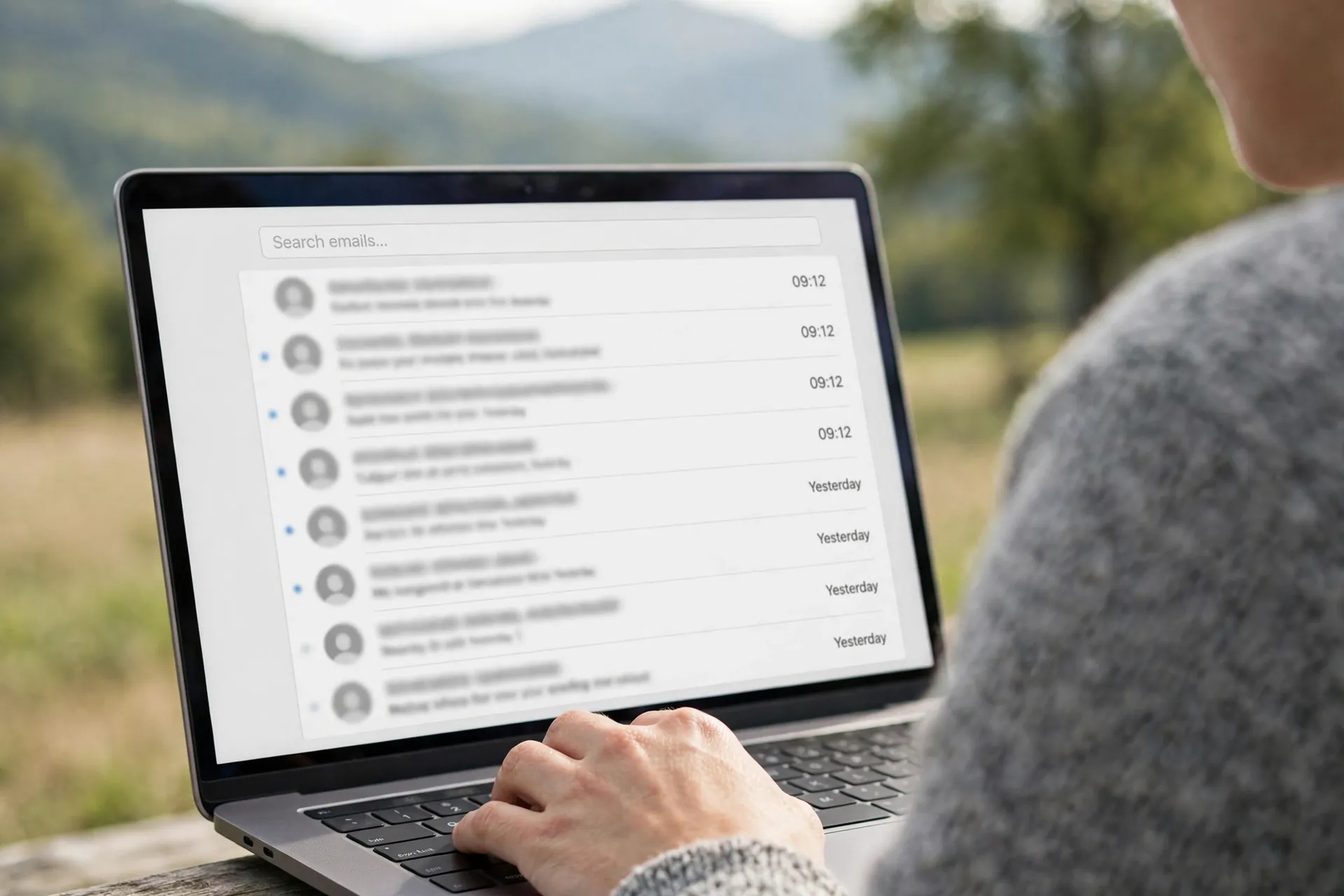
Almost every account you have ever made sent you a welcome email. That’s your secret weapon. Open your inbox — including your old addresses, if you can still get into them — and search for words like “welcome,” “verify your email,” “confirm your account,” or “thanks for signing up.” You’ll be surprised how many names come crawling out.
Try a few different searches. “Welcome” catches the signups. “Verify” catches the ones you never finished setting up. “Your receipt” or “order confirmation” finds the shopping accounts. If you remember a service’s name but nothing else, search for it directly — even one forgotten newsletter can confirm you had an account there.
If you can’t get into an old email address anymore, don’t panic. Note the account down anyway and keep moving — there are ways back into locked accounts, covered in the questions below.
The cheat sheet nobody told you about
Here’s the part that saves the most time. For popular services, you don’t need to dig through menus hoping to stumble across a delete button. People have already done the digging. There are free directories online that collect deletion instructions for hundreds of services, some rating each by how hard the company makes it — a simple click-through versus a support-ticket saga.
A plain web search works too: type the service name followed by “delete account.” The official help page usually ranks near the top and tells you where the option lives, whether there’s a waiting period, and what happens to your data — the one question that matters most.
Deleted and deactivated are not the same thing
This is the mix-up that causes the most trouble, so let’s settle it. Deactivating an account is a pause. Your profile disappears from public view, people can’t find you, and you can usually come back later and pick up where you left off. Your data stays on the company’s servers. Deleting an account is the full goodbye: your profile, posts, and personal details are removed, and coming back means starting over.
Companies love offering deactivation first — it’s at the top of the settings page, while the real delete option hides three clicks deeper, sometimes behind a warning screen. If your goal is to stop a company holding your data, deactivation doesn’t get you there. It’s fine as a test run: deactivate for a month, and if you don’t miss the service, go back and delete properly.
Expect a waiting period after you hit delete, often around a month: your account looks gone to everyone else, but the company keeps it in the background in case you change your mind. Log back in during that window and the deletion gets cancelled on most services. So once you pull the trigger, stay out.

When the delete button simply doesn’t exist
Some services make deletion easy; others bury the option. If you’ve searched the settings and found nothing, try the help section — the delete page sometimes hides under Privacy, Data, or something dramatic like Danger Zone.
If there’s genuinely no self-serve option, write to their support team. Keep it simple and direct: “Please delete my account and all associated personal data.” You don’t owe them an explanation, and you don’t need to argue your case. Support teams handle these requests all the time.
It also helps to know you have rights here. In many parts of the world — including the UK and the EU — data protection law gives you the right to ask a company to erase your personal data, and they are expected to have a process for it. You don’t need to quote any law; asking firmly for full erasure usually gets the job done, and a second written request tends to move things along if they stall.
Before you delete anything, do two quick things. First, save anything you might want later — photos, messages, files — because once an account is gone, it’s gone. Second, cancel any paid subscription attached to it first — deleting an account doesn’t always stop a recurring payment, and finding out the hard way is no fun.
Sweep up the traces your accounts left behind
Start with the login buttons. “Sign in with Google” or “Sign in with Apple” create connections between your main account and the smaller service, and deleting the small account doesn’t always cut the link. Open your Google, Apple, or Facebook settings and find the page listing third-party apps with access. Remove anything you no longer use — you’ll often spot services you’d forgotten entirely, so add them to your list.
Next, your password manager or browser’s saved passwords. Old entries for services you’ve deleted are just clutter now, and clearing them out means you won’t accidentally “log back in” to an account you meant to close. If you don’t use a password manager, your browser’s saved-password list does the same job.
Finally, search for your old usernames. Ones you reuse across sites can turn up in places you don’t expect — old comments, forum posts, long-dead profiles. You can’t scrub the whole internet, and that’s okay. But knowing where your name still shows up tells you which accounts deserve attention first: the ones holding your real name, your face, or your money.

Quick Answers Before You Start Deleting
What if I’ve forgotten the password and can’t get in?
Try the password reset first — it usually only needs your email address. If you’ve lost that too, go through the service’s account recovery or contact support. They’ll ask you to prove the account is yours, usually by answering security questions or confirming details only you’d know. It’s slower than a reset email, but it works.
Do my photos and posts actually disappear?
From public view, yes — once deletion goes through, your profile and content stop being visible. Companies often keep backup copies for a limited time before those are wiped too. What deletion can’t fix is anything other people saved: screenshots, reposts, downloads. Focus your energy on what you can still control.
Should I delete everything, or just be selective?
You don’t have to go scorched-earth on day one. Start with the accounts that hold the most sensitive stuff: payment details, your home address, private photos, anything tied to your real identity. The old forum account with a silly username and no personal details can wait for a rainy afternoon. Triage, don’t agonise.
Will deleting my account stop their marketing emails?
Not always — marketing lists and account databases are often separate, and deleting your account doesn’t automatically pull you off the mailing list. Unsubscribe from their emails separately after deleting, or mark them as spam if they keep coming.
Give Your Future Self a Break
Nobody is going to clear their entire digital history in one sitting, and you shouldn’t try. An account or two each evening, a few each weekend — that’s how this actually gets done. Every account you close is one fewer database holding your details, one fewer “we’ve had a breach” email that makes your stomach drop, one fewer forgotten password floating around.
And here’s the habit that makes the next cleanup unnecessary: before you create an account, ask whether you actually need one — half the time you can get what you came for without signing up. For the ones you do keep, a simple list — service, email used, date joined — tucked in your notes app means the next version of you won’t be starting from scratch. Future you will be grateful. Present you deserves a cup of tea.














