


The doorbell rings, the kettle goes on, and within ten minutes someone asks the question you were hoping to avoid: “What’s your Wi-Fi password?” What follows is a small piece of theatre everyone knows. You recite a string of letters and numbers from memory. They type it wrong. You repeat it slower. “No — capital K. K for kettle.” If that little scene sounds familiar, you are not alone, and you do not have to live through it ever again.
We’ve all done the spelling-out-loud dance
There is something oddly stressful about saying a password out loud. You start confident, then doubt yourself halfway through — was it a zero or the letter O? Everyone in the room is now listening, which somehow makes it harder.
The awkward part is not just social. Passwords spoken aloud get overheard by everyone, including people you would never hand the details to directly. Neighbours within earshot of the garden fence, visitors from next door, anyone half-listening — it is a lot of accidental sharing for something that is supposed to be private. There are much easier ways to get guests online, and most of them take under a minute.
None of these methods requires you to be technical. They use features already built into your phone, a sticker you already own, or a small setting on your router. Pick whichever one suits the moment.
Let their phone scan yours instead
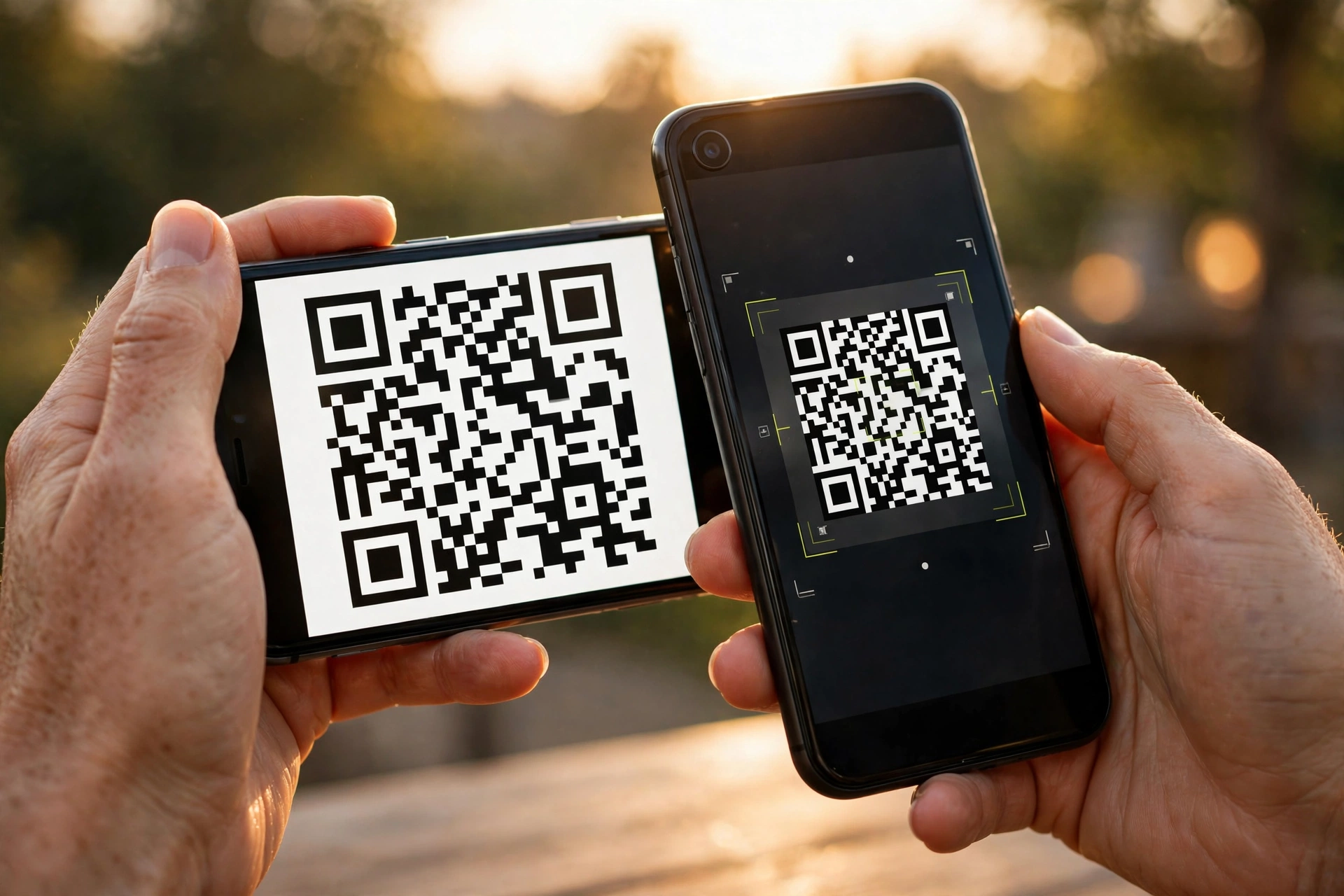
The fastest method by far is a Wi-Fi QR code. On many Android phones, if you are already connected to your network, you can open the Wi-Fi settings, tap the network you are on, and look for a share option — it usually shows a QR code right on your screen. Your guest opens their camera, points it at your screen, and a prompt to join pops up. No typing, no spelling, no mistakes. Thirty seconds, done.
iPhone users get something similar when everyone is on an Apple device. If your guest has an iPhone and you have one too, ask them to try joining your network normally; a card may appear on your phone offering to share the password with the tap of a button. Both phones need Bluetooth switched on and need to have each other in their contacts. When the stars align, it feels almost like magic — your friend is online before the kettle has boiled.
Even when the fancy phone-to-phone trick is not available, a QR code still works across brands: a QR code shown on any screen can be scanned by almost any modern phone camera. Some people keep a screenshot of their Wi-Fi QR code in a phone album just for visits.
The sticker on your router is a perfectly fine fallback
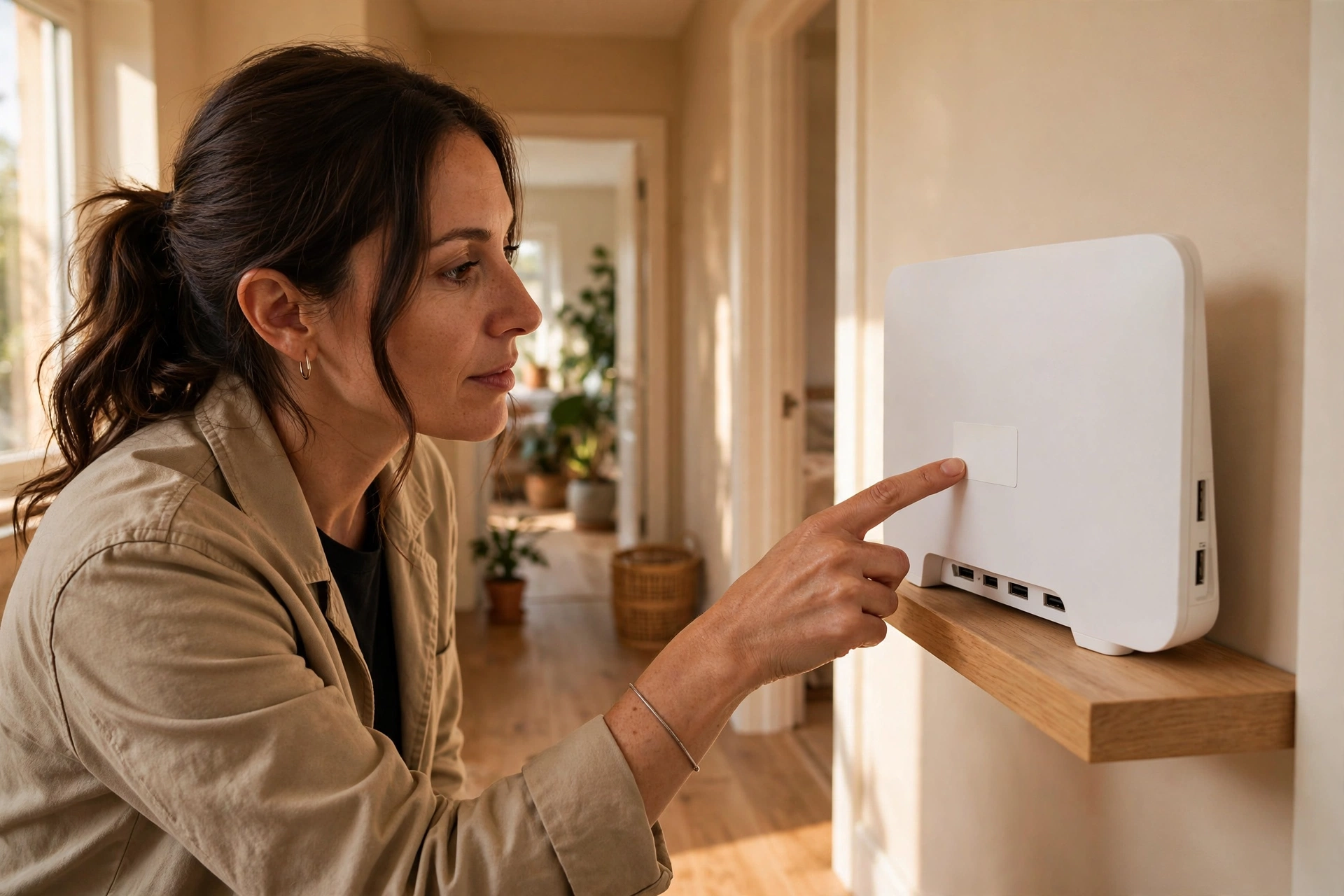
Before you changed anything, your internet provider printed the original network name and password on a sticker on the router. Flip it over or look underneath — there is usually a small white label with the details. If you never changed the password, those printed details still work.
This is the method of last resort, but it is also the most universal one. It works for every guest, every phone, every device, no app needed. The catch is physical: you have to walk over to the router and squint at tiny print. Routers also live in the least glamorous corners of the house — behind the TV, under the stairs, on a hallway shelf gathering dust.
One useful trick: take a clear photo of the sticker with your phone the next time you see it. Save it somewhere you can find fast. Then you can show or message the photo instead of leading a parade to the router every time someone visits.
Give guests their own network
If you host people often, consider turning on the guest network — most home routers have this option buried in their settings. A guest network is a second Wi-Fi name that gets your visitors online without giving them the keys to your main network. Your computers, phones and smart devices stay on one side; guests sit comfortably on the other.
Why bother? The main reason is simple housekeeping. Friends who visited six months ago may still have your main password saved in their phone. With a guest network, you can change the guest password whenever you like without reconnecting every device in your own home. It keeps your everyday gadgets untouched while guests get everything they need.
Setting one up sounds technical, but it is usually a matter of opening your router’s admin page in a browser and ticking a box.
Pick a password you can say out loud
Here is a quiet admission most of us share: the random password your provider assigned was never meant to be spoken. A string like “kX7pR2mQ9zL4” is secure but impossible to read aloud. If you ever type your password in front of guests, replace it with something long but sayable — a few ordinary words strung together with a number or two. “Correct Horse Battery Staple” became a famous example for a reason: long, memorable, and easy to read from across the room. Nobody said your home Wi-Fi password had to sound like a robot sneezed.
Just do not swing too far the other way. Your dog’s name on its own is too easy to guess, and your address or family name will be cracked by anyone who knows you. Three or four unrelated words plus a couple of numbers is the sweet spot: sayable by you, hard to guess for strangers.
The ways that backfire
A few common habits are worth dropping, because they cause more trouble than they save.
First, shouting the password across the room. Everyone hears it — not just the person you meant. You are effectively broadcasting it to the whole party, and there is no taking it back. Walk over and share it quietly, one-to-one.
Second, texting it in a group chat. That message lives in everyone’s phone forever, and group chats have a way of gaining members you forgot about. If you must send it digitally, send it in a private message to the person sitting in front of you, and avoid leaving old passwords floating around in chat history.
Third, leaning on a password so weak it barely counts. “password123” or your street name might feel convenient, but they invite trouble from anyone who can see your network name from the street. A weak password shared with half the neighbourhood is barely a password at all.
And a small one: do not leave the printed QR code stuck to your fridge where visitors can photograph it. Treat the code like the password itself — share it in the moment, then put it away.
What people usually ask about sharing Wi-Fi
Will a QR code work if my guest has a different phone brand? Almost always, yes. QR codes are a standard, not a brand feature. Any modern phone camera can read one and offer to join the network.
My guest’s phone is old and does not scan QR codes. What now? Go back to basics: type it in for them, or show the router sticker. Some older phones can still join by reading the code through a free QR scanner app, but typing works everywhere.
Does sharing Wi-Fi give guests access to my files or devices? Not normally. Joining your Wi-Fi just gets them internet. That said, shared folders, printers and smart-home gadgets on the same network can be visible, which is exactly why frequent hosts like the guest network option.
Should I change my password after a party? If it was a small group you trust, probably not. If half the street now knows it — or you shouted it across a crowded room — changing it is a sensible reset. With a guest network, you can change just the guest password and skip reconnecting everything else.
Is it safe to let guests see my QR code? A QR code is just the password in another form. Show it to the person in front of you, but do not post it online or leave a printed copy lying around where anyone can snap it.
Share it and move on with your evening
You did not invite people over to act as the household IT department. A quick scan, a tap, or a quiet word beats ten minutes of spelling any day of the week. The next time the doorbell rings, the Wi-Fi question will be the easiest thing you answer all night — and then you can get back to pouring the drinks.














