

Everyone hits this moment sooner or later: a funny message from a friend, a booking confirmation you’re scared to lose, an error message you need to show someone who can actually fix it — and you realize you have no idea how to save what’s on your screen. Learning to take a screenshot is one of those tiny skills that quietly changes how you use your devices. Two seconds, works everywhere, and once it clicks you’ll wonder how you ever lived without it.
First, What Even Is a Screenshot?
A screenshot is simply a photo of whatever’s on your screen right now. Nothing more mysterious than that. Your device captures the screen exactly as it looks — the open app, the message, the web page — and saves it as an ordinary image. From that moment it behaves like any other photo: view it, crop it, send it to a friend, print it.
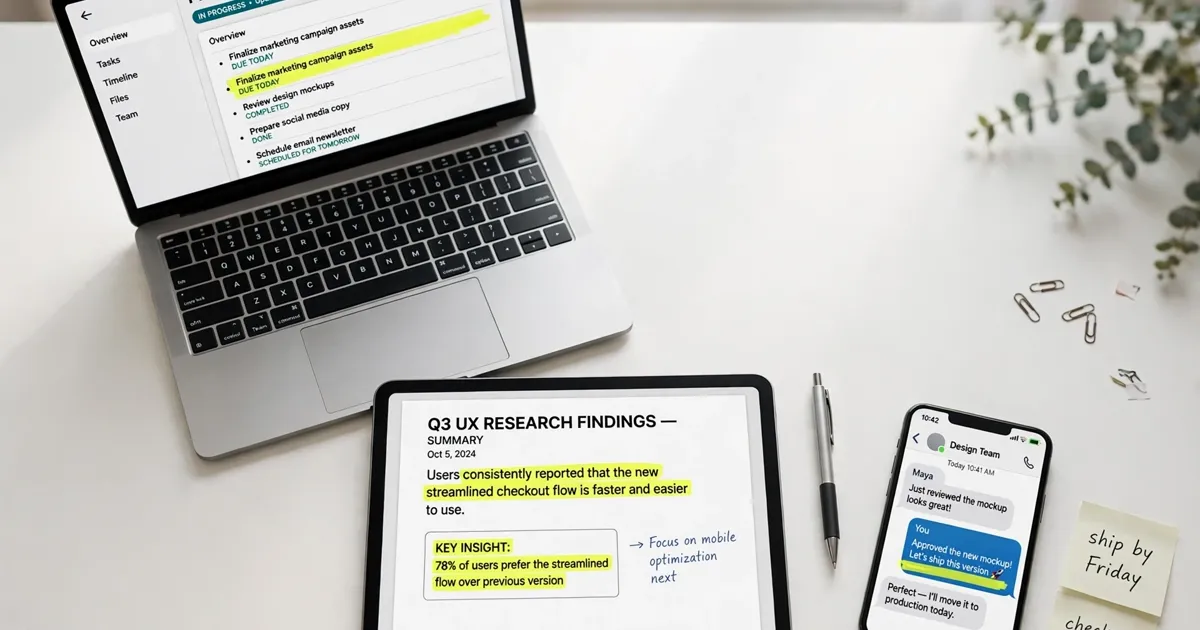
Beginners reach for screenshots for the same handful of everyday reasons. Saving a train timetable or a recipe instead of copying it by hand. Grabbing a weird error message to send to the one friend who understands computers. Keeping a record of a payment or a booking — a digital receipt for when the email never shows up. It’s all the same move: freeze the screen, keep the picture. And here’s the good news — every device already knows how to do it. You just need the right buttons.
On Windows, Two Tricks Cover Everything
Windows has been taking screenshots for decades, so there are several ways to do it — but you only need two. The simplest: press the Print Screen key, usually labeled PrtScn or PrtSc. On its own, this copies your whole screen to the clipboard — an invisible holding area. Open any chat, email, or document and press Ctrl+V to paste the image in.
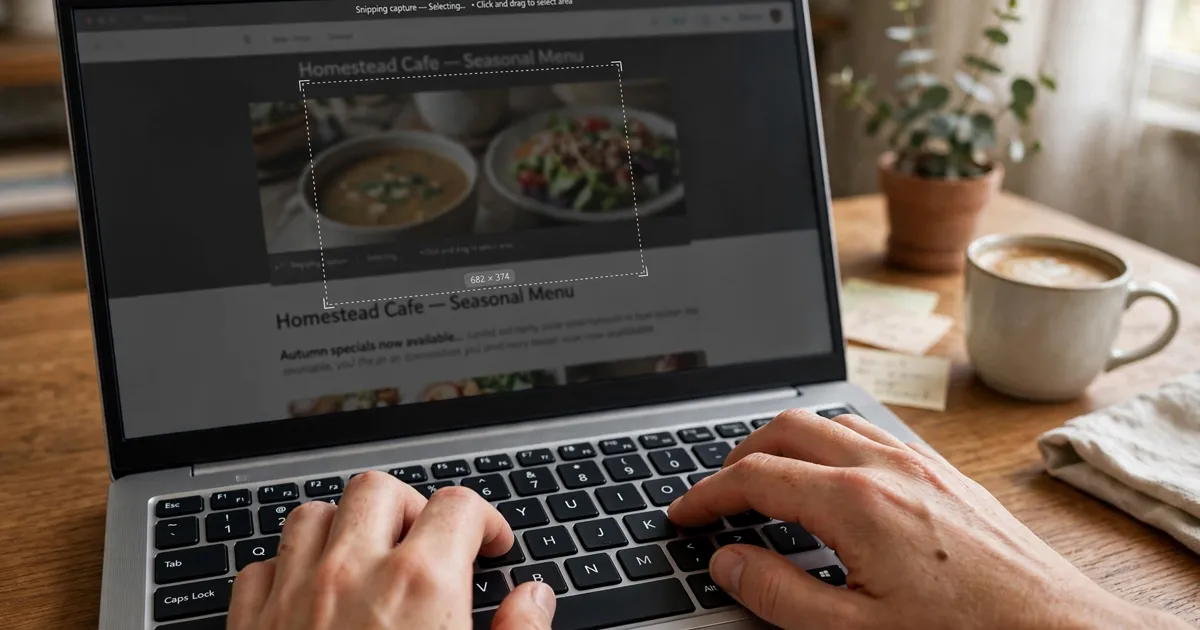
The second trick is the one you’ll actually use every day: hold the Windows key and Shift, then press S. Your screen dims, your cursor turns into a crosshair. Drag it across whatever you want, let go — that exact rectangle gets captured, and a small notification pops up. Click it and the Snipping Tool opens, where you can highlight things or save the file. A copy also lands on your clipboard, ready to paste anywhere.
On some laptops the Print Screen key pulls double duty with another function, so you may need to hold Fn at the same time. Press Windows + Shift + S a few times and the motion sinks into muscle memory — within a week you’ll do it without thinking.
On a Mac, Your Fingers Do the Work
Mac users get three shortcuts that form a neat little family, all built on the same keys. Command + Shift + 3 grabs the entire screen in one go. Command + Shift + 4 turns your cursor into a crosshair — drag across what you want and release. The 4 version is the one most Mac users end up living in, because you rarely need the whole screen.
Command + Shift + 5 brings up a small toolbar along the bottom with every option in one place — full screen, selection, single window, even a short screen recording. Forget the other two shortcuts? This panel is your safety net.
On a Mac, screenshots land on your desktop as files, named with the date and time. A tiny preview slides into the corner for a few seconds after each shot — click it to mark things up before it settles, or ignore it and it saves on its own.
On Your Phone, It Is Always Two Buttons
Phones keep this beautifully simple: every modern phone takes a screenshot with two buttons pressed together. Which two depends on the phone.
iPhone
On iPhones without a home button — which is nearly all of them now — press the side button and the volume-up button together, then let go. The screen flashes white and a thumbnail drops into the bottom-left corner. Tap it to crop or draw right away; swipe it away if you’re in a hurry and it saves silently to Photos.
Older iPhone with a round home button? Press the home button plus the side button together instead. Same flash, same thumbnail, same trip to Photos.
Android
On most Android phones, press the power button and the volume-down button together for a second. The screen flashes, and a small toolbar usually appears with options to share, edit, or grab a scrolling screenshot of a whole long page. Phone makers dress this up differently, but the two-button starting move is the same on nearly every Android phone.

Chromebook owners: hold Ctrl and press the Show Windows key (the rectangle-with-lines icon above the number 6) for a full-screen capture, or add Shift for a selection. Shots go straight to your Downloads folder.
Where Did It Go? Finding Your Shots
Taking the screenshot is only half the battle — the other half is finding it again. On Windows, Print Screen only copies to the clipboard. It doesn’t make a file. So paste it somewhere, or open the Snipping Tool and save it. The Snipping Tool defaults to your Pictures folder, inside a subfolder called Screenshots.
On a Mac, shots appear on the desktop itself. Handy for grabbing them fast, chaotic if you take a lot — drag them into a folder once a week. On iPhones, every screenshot lands in Photos, in a dedicated Screenshots album. Android phones put them in Gallery or Google Photos, usually in their own Screenshots album too.
The tip that saves beginners the most grief: right after taking an important screenshot, rename the file — or on your phone, favorite the photo. A shot called “Screenshot 2026-10-05” is nearly impossible to find a month later.
Making It Neater: Crop, Draw and Share
A raw screenshot almost always contains more than you want to share — notification icons, your battery percentage, the edge of another app. So crop first: drag the corners inward until only the important part remains. A tight screenshot is easier for other people to read and just looks tidier.
Then comes marking up. The built-in tools let you draw circles and arrows, add text, or scribble over private details like an address. Blurring sensitive bits before sending a screenshot to anyone else is a genuinely good habit — once an image leaves your phone, you can’t take it back.
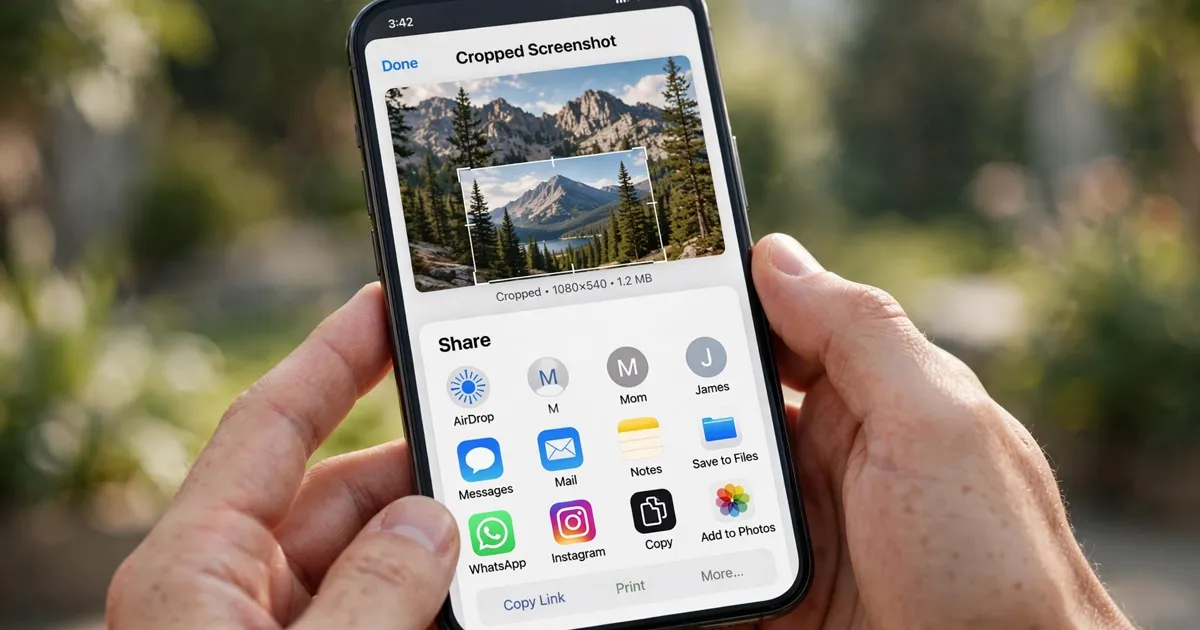
Sharing is the easy part. Every phone and computer has a share option — on phones it’s the little box-with-an-arrow icon; on computers you can drag the file into any chat, email, or document. The screenshot arrives as a normal image, so anyone can open it.
Nothing Happened? A Few Quick Fixes
When a screenshot doesn’t seem to work, the cause is almost always simple. On a computer, check whether the shot went to the clipboard instead of becoming a file — open any document or chat and press Ctrl+V (or Command+V on a Mac). If an image appears, everything worked fine. It was just waiting for you to paste it.
On laptops, the function keys often do double duty, so try holding Fn with the shortcut. On phones, press both buttons at exactly the same time — a fraction of a second matters. And check your storage. A completely full phone can’t save new photos of any kind.
One more thing: some apps deliberately block screenshots. Banking apps and certain streaming services show a black screen instead of the content. That’s privacy and copyright protection built into the app, not a malfunction — nothing you press will get around it.
What Beginners Usually Ask
Does taking a screenshot notify the other person? On almost every app and website, no. Your screenshot stays private on your device. The one famous exception is Snapchat, which tells the sender when someone captures their snap. If an app plans to notify, it usually warns you first.
Can I screenshot a video while it is playing? Yes — the capture works exactly the same. Some streaming apps block it, as mentioned above, but for ordinary videos and video calls, a screenshot grabs the current frame like any still photo.
Why does my screenshot look blurry when I send it? Most messaging apps squeeze images to save data, which softens fine text. If readability matters — a receipt, a document, an error message — send it as a file or email attachment instead of pasting it into the chat.
Can screenshots show things I did not intend? Yes, and this one catches beginners out. The capture includes everything visible: open tabs, notifications popping in, your wallpaper. Glance at the screen before you press the buttons, close anything private, crop afterwards. A ten-second check saves real embarrassment.
Worth a Try This Week
Screenshots are one of those skills with a comically good effort-to-reward ratio. Five minutes of practice buys you a tool you’ll use for the rest of your digital life. So here’s a small challenge: this week, take one screenshot on every device you own. Crop each one, circle something on it, send one to a friend. By the end of the week the buttons will feel obvious — and you’ll never lose anything on your screen again.














