


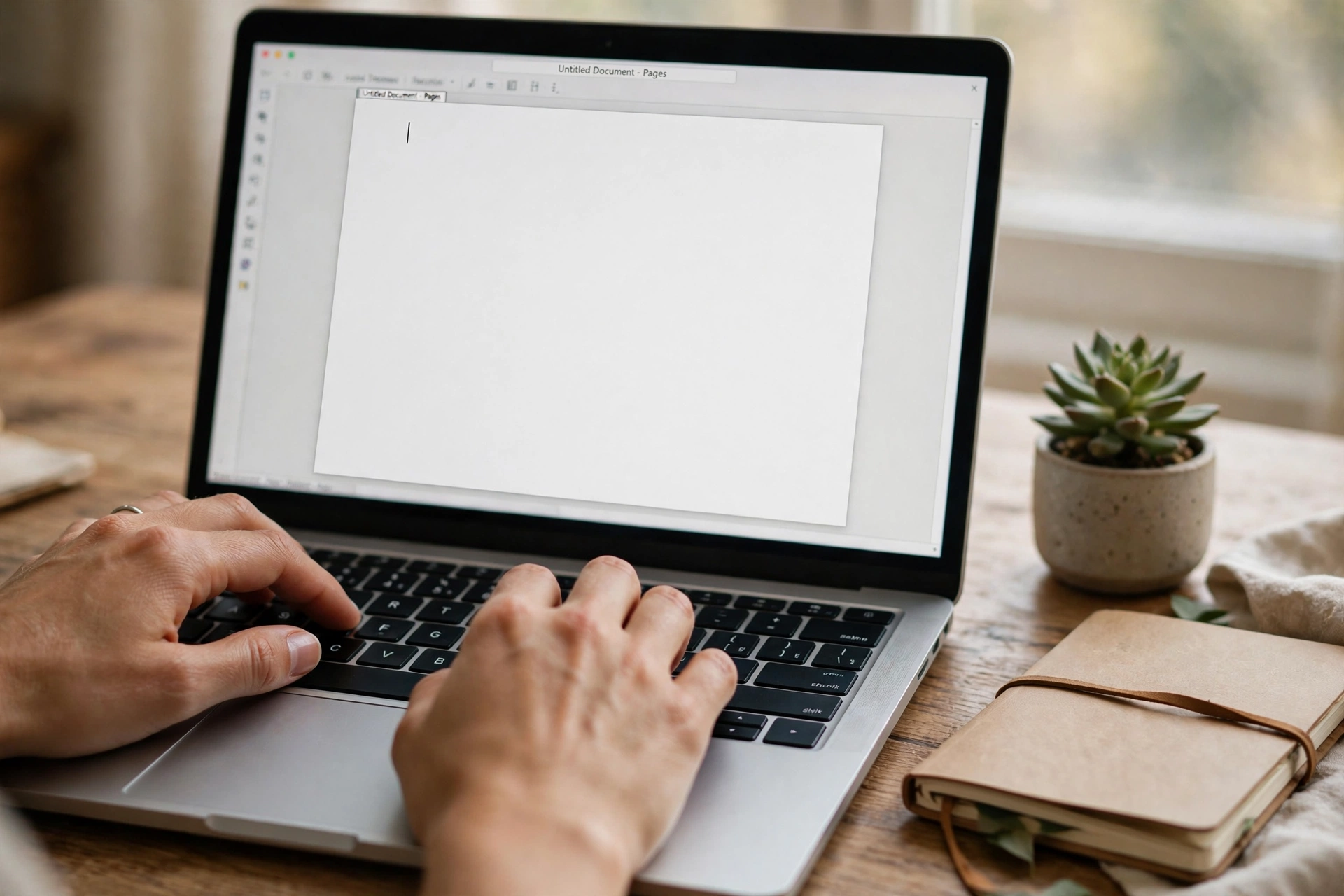
Here is something nobody admits: the blinking cursor on a blank Word page has made grown adults freeze. Not because they cannot write, but because the screen looks like a cockpit. Buttons everywhere, tabs along the top, that tiny cursor blinking at you like it is waiting for you to mess up. I have been there myself — staring at a fresh document, clicking nothing for five minutes. This guide is the one I wish someone had handed me that day: just the parts you need for your first hour, explained the way a friend would explain them over coffee.
Your Screen Is Not the Enemy
Forget most of what you see. Open Word and ribbons, rulers, and tabs flood your eyes — and your brain decides this must be complicated. It is not. Nearly everything you will ever write happens in one white rectangle: the page. Everything else is furniture.
That rectangle is your sheet of paper. The blinking line is the cursor, marking where your next letter lands. Type a letter and it appears there. Type a space and the cursor hops forward one slot. That is the entire magic trick. You already know how to use Word; you just do not know it yet.
The strip along the top is the ribbon — buttons for bold, text size, alignment. Think of it as the pen tray on a real desk. You will use five buttons for months and ignore the rest.
Just Start Typing
Click nothing. Just type a sentence — your name, what you had for breakfast. The page will not judge it, and nobody reads this draft. It exists for one purpose: breaking the spell of the blank page.
Watch the cursor travel as you type, and notice how words wrap to the next line by themselves. Unlike old typewriters, you never press Enter at the end of a line. Press Enter only for a new paragraph — a genuine pause in your thinking.
Now misspell a word on purpose. Feels bad, right? Word has a tool for every one of those small panics, and each is kinder than you expect.
The Ribbon, Explained Without the Jargon
The ribbon holds tabs: File, Home, Insert, and a few others. Each tab opens a row of buttons. Home is where you will live — bold, italic, text size, alignment. File is the one you click when you want to open, save, or print.
The ribbon is simply a menu that stopped hiding. Years ago these buttons lived inside dropdown menus; now they sit out in the open. It looks busier, but it is easier — one click instead of three. Treat it like a spice rack: salt and pepper daily, saffron never. That is normal.
Wandering between tabs cannot break anything. Clicking Insert just shows buttons for pictures and tables; click Home and your familiar buttons return.
Making Words Look the Way You Want
To change text, select it first: click and drag across the words. Selected text gets a colored background — it means “do something to me.” Then press the B button for bold, the I for italic, or the U for underline. Press the button again to switch the effect off.
That select-then-click pattern is the skeleton key to all of Word. Bigger text? Select it, then pick a larger number from the size box. Different lettering? Select the words, then choose a font. Almost every formatting button works the same way.
Two more buttons earn their keep fast. Alignment lines your text up: left, centered, or right — centered suits titles. And the little list buttons turn lines into bullet points, genuinely useful for shopping lists and to-do lists. Try both on some throwaway text. That is what the first hour is for.
The Undo Button Forgives Everything
Near the top of the screen sits a curved arrow pointing left. That is Undo — the most forgiving button in all of software. Deleted a paragraph by accident? Press it, and the paragraph comes back. Formatted the wrong chunk? One click, and it never happened.
The shortcut is Ctrl+Z, pressed together. Learn it like a phone number — in your first weeks something will go sideways, and Ctrl+Z is your reset. Press it repeatedly to walk backward through several changes, like rewinding a tape.
Let that sink in and the fear drains out of learning Word. You cannot break anything that Undo cannot fix. That confidence separates beginners who poke around and learn fast from beginners who sit frozen, afraid to touch a button. Be the one who pokes.
Saving: The One Habit That Matters
A document lives only in Word’s memory until you save it. Close the program without saving and your words vanish — every beginner learns this the painful way exactly once. So here is the single most important habit: save early, save often, save by reflex.
Click File, then Save. The first time, Word asks where to put the file and what to call it. Pick a folder you will remember — Documents is a fine default — and a clear name like “job application draft.” After that, press Ctrl+S whenever you have written something you would hate to lose. Half a second, and it turns into muscle memory fast.
Want a second copy before a big rewrite? Use Save As. It creates a new file under a new name and leaves the original untouched — like photocopying a letter before writing all over it. And Word quietly keeps emergency backup copies in the background now and then. That is a safety net, not a plan. The plan is still your own hand on Ctrl+S.

Red Squiggles Are Just Suggestions
While you type, Word underlines some words in red. That is not a scolding — it is the built-in spellchecker waving a flag. It means the word is not in its dictionary. Maybe you misspelled it, or maybe it is a name, a brand, or a perfectly fine word the dictionary simply does not know.
Right-click a red-underlined word and a menu appears with suggestions. Click the right spelling and Word swaps it in. Ignore it when the word is actually correct — a surname, a nickname, a word from another language — and the underline stays, harmless.
Other colored underlines mean grammar or style questions — opinions, not verdicts, and experienced writers overrule them constantly. Red underlines deserve a look; the rest, glance at them and move on. You are the writer here, not the software.
Print Preview Before You Waste Paper
Before anything reaches a printer, click File, then Print. The screen that appears shows exactly how your pages will look on paper — margins, page breaks, the lot. This preview is the difference between a crisp letter and a page where your final paragraph dangles alone on page two.
If something looks off — a heading stranded at the bottom of a page, text you forgot to center — go back, fix it, and preview again. Paper and ink cost money; a thirty-second preview costs nothing. Build the habit now and you will print like someone who has done it for years.
Quick Answers Before You Begin
My document disappeared when I closed Word. Can I get it back?
Sometimes. Reopen Word and look for a document-recovery panel, which appears after an unexpected shutdown. If you closed a file you never saved at all, though, there is usually nothing to recover — which is why Ctrl+S matters so much. Save before you stand up.
Why does my text jump to the next page with lots of empty space?
That is a page break — where one page ends and the next begins. It looks scarier than it is. Add or remove a line above it until the paragraph sits nicely. You are just choosing where the page turns.
Everything I type is underlined in red, even normal words. What happened?
The proofing language probably switched — Word sometimes starts checking your text as if it were written in a different language. Look for the language indicator near the bottom of the window and set it back to yours. Ten seconds, and it confuses everyone at least once.
Can I really not break anything by clicking around?
Really. Buttons change your document; they do not damage your computer. Anything a button does to your document, Undo reverses. The one risky move is closing without saving — and Word asks “Do you want to save?” first. Say yes, and explore freely.
Your Turn Now: Write Something Small Today
You know enough. Open a document, type freely, fix mistakes with Undo, shape your text, catch spelling slips, save your work, print it. That is not “beginner knowledge” — for most people, most days, that is the job.
So write something small today. A letter you will never send. A list of films you want to watch. Three sentences about your morning. Give it a title, center the title, make one line bold, save the file, and close it. Tomorrow, open it again and see your words waiting for you.
That loop — open, write, shape, save — is the whole skill. Everything else Word offers is decoration on top of it. The mystery was never in the software. It was in the staring.














