

Most of us juggle dozens of online accounts, and nobody’s memory was designed to hold dozens of unique, unguessable passwords. So we do what everyone does: reuse a favourite password with small tweaks, and hope for the best. A password manager breaks that habit without asking you to remember anything extra. This plain-English guide walks you through your first week with one — what it does, how the master password works, how to set it up, and the questions every beginner asks first.
The Real Problem Was Never Your Memory
Before anything else, it helps to see what password managers actually solve. The issue is not your memory. The issue is that reusing passwords turns one leak into many.
Here is how it plays out. A small website you joined years ago — a forum, a local shop, an old app — suffers a data breach, and your email and password end up traded between criminals. If that password is also the key to your email and your bank, the thief has those too. They simply try the leaked combination on popular services until something opens.
Reused passwords mean dozens of accounts share the same weak link. Unique passwords for every site break the chain. We don’t do that for one obvious reason — nobody can remember a hundred random strings. A password manager is simply the tool that remembers them for you.
What a Password Manager Actually Does
Think of it as a locked digital notebook that lives on your phone, your laptop, or both. You create one strong master password — the single key that opens the notebook. Inside, the manager stores a unique, randomly generated password for every account you have.
The day-to-day magic is autofill. Visit a login page, and the manager recognises the site and offers to fill in the right username and password — usually with a tap or a keyboard shortcut. You never type those long random passwords yourself, and you never need to remember them. They can be long, ugly, and unguessable, because your memory is no longer the storage medium.
Most managers add two useful extras: generating a fresh random password whenever you create an account, and warning you when a password shows up in a known data breach or is still being reused. Ignore these on day one. They will be there when you are ready.
The One Password That Actually Matters
Here is the deal at the heart of the whole system: you remember one strong password, the manager remembers the rest. That master password should be long and memorable to you, meaningless to everyone else.
A trick that works for most people is a passphrase — four or five unrelated words strung together, like “candle bicycle thunder mango oven.” Long enough to be strong, ordinary enough to remember. Nervous about forgetting it? Write it on paper and keep it in a locked drawer at home.

One honest warning: forget your master password and the manager cannot email you a reset link like a normal website. Your passwords are scrambled in a way only it can unscramble — the company cannot unscramble them either. Set up your manager’s recovery option on day one, and the fear of “what if I forget” mostly disappears.
Setting One Up Is Less Dramatic Than It Sounds
Installing one is closer to installing an ordinary app than to any technical project. Create an account, choose your master password (the passphrase from above — have it ready), then install the app on your phone and the browser extension on your computer. The two stay in sync, so a login saved on your phone appears on your laptop too.
Then save your first logins. Easiest is to let the manager catch them: next time you log in anywhere, it offers to save what you typed. Say yes, and within a week or two it quietly fills up. Or change your most important passwords straight away — email, bank, the big shopping sites — with the built-in generator. Start with email. It is the recovery address for nearly everything else, so it is the account most worth protecting on day one.
Autofill: the Part That Changes Your Day
Autofill is the moment the whole thing clicks. You open a website, click the login box, and the manager suggests the right username and password. One tap and you are in. No digging through memory, no “forgot password” dance, no notebook of scribbled passwords in the desk drawer.
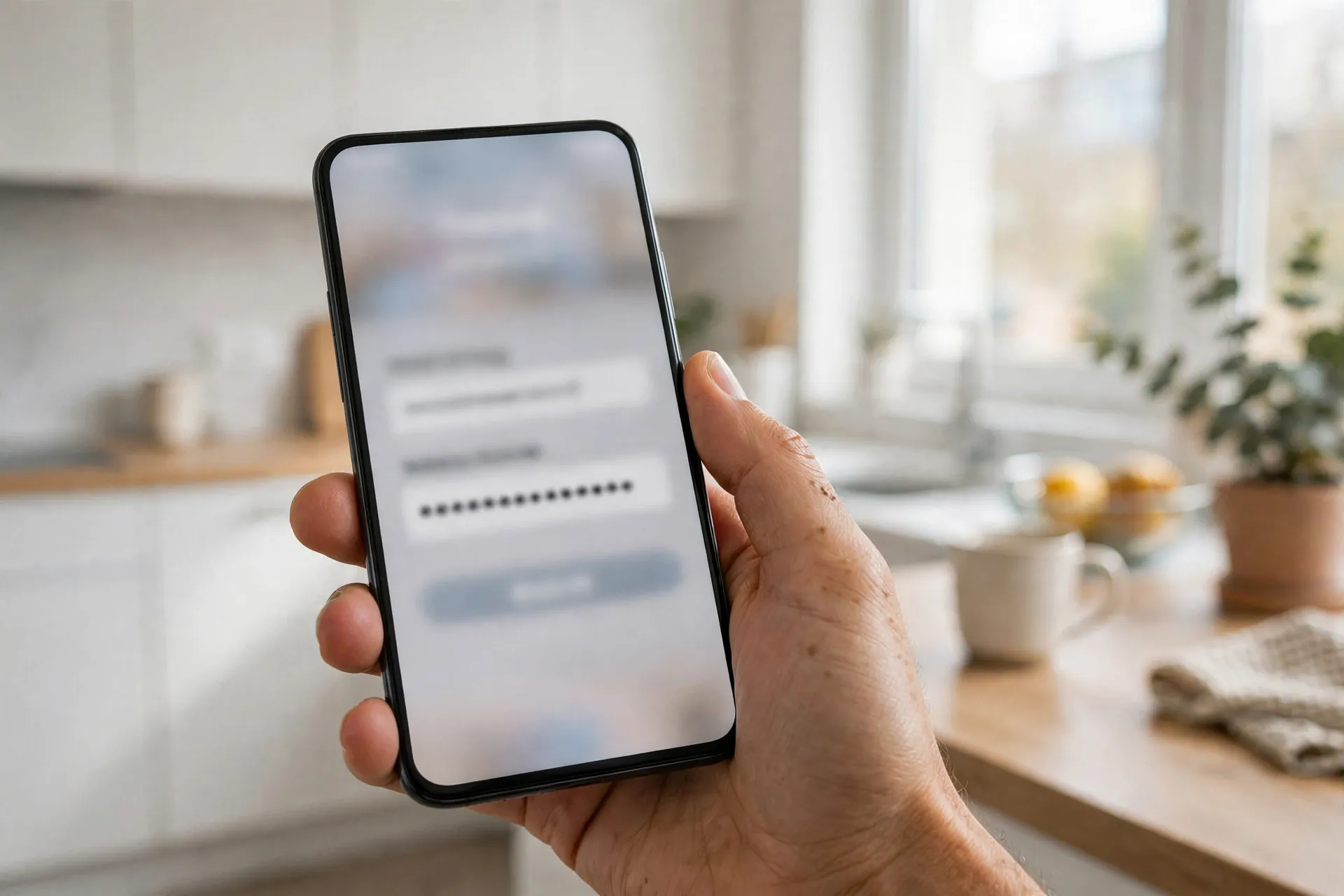
It takes a little getting used to. At first you may keep typing passwords from memory out of habit — that is normal. Within a few days most people find autofill faster than the old way, especially on a phone, where typing a long random password by hand is genuinely miserable.
What Happens on a New Phone or Laptop
Sooner or later you will get a new device — and no, your passwords don’t travel with the old phone. Most managers sync your locked vault through the cloud, so signing in on a new device means installing the app and entering your master password. Everything reappears. One caution: before you wipe or sell the old phone, make sure the new one signs in first.
The Fears Everyone Has — Answered Honestly
Almost everyone hits the same three worries. Straight answers:
“What if the password manager itself gets hacked?” Reputable managers store your vault scrambled with encryption they cannot undo — they never hold your master password. A breach would hand thieves locked vaults, not readable passwords. Far smaller risk than the reused passwords being exploited every day.
“What if I forget my master password?” The company usually cannot recover it for you. That is the trade-off for a system where nobody but you can open your vault. The answer is preparation: set up the recovery option on day one, keep your written backup somewhere safe at home, and remember that a passphrase you type daily is one of the easiest things you will ever remember.
“Isn’t this putting all my eggs in one basket?” Yes — deliberately. The difference is that this basket is a steel safe, and the alternative is a paper bag. One strong, well-guarded vault beats a hundred reused passwords scattered across sites you barely remember joining.
What It Can’t Fix for You
A password manager is a very good tool, not a magic shield. A few things it does not solve:
It does not stop phishing by itself. If a convincing fake email tricks you into handing details to a scammer, the manager cannot intervene. It limits the damage — unique passwords mean one mistake does not compromise everything — but your own caution still matters.
It does not make a weak master password strong, and it does not replace two-factor authentication. Wherever your bank, email, or other important accounts offer a second verification step, turn it on. And it does not organise your digital life on its own: a quiet afternoon closing old accounts you no longer use is still one of the best security habits there is.
The Questions Everyone Asks First
Do I need to change all my passwords on day one? No — and trying to will exhaust you. Start with email, then banking and the sites you use most. Let the manager catch the rest naturally as you log in.
Can I share passwords with family through it? Most managers offer some way to share a login with a partner or family member — typically a shared folder. Far better than texting passwords to each other, which leaves them sitting in chat histories forever.
What about the passwords I keep in my browser? A dedicated manager works across all your browsers and devices, generates better passwords, and watches breaches more thoroughly. Importing your browser’s saved passwords is usually a one-click job — a good first step.
Does it work offline? Generally, yes, for logging in. Your saved passwords live on your device even without an internet connection; syncing to your other devices just waits until you are back online.
Is it okay to still write some passwords on paper? For truly critical things like your master password backup, paper in a locked drawer at home is a sensible fallback. The old “never write down a password” advice came from offices. At home, a written backup beats a forgotten password.
Worth an Hour This Weekend
Getting started with a password manager is one of those jobs that looks like a chore and turns out to be an hour well spent. Pick a manager, choose a memorable passphrase, install the app and browser extension, and secure your email first. Let autofill catch the rest as you go.
A month from now you will wonder why you waited. Every account gets its own long, unguessable password, and the nagging worry about that old reused one finally goes quiet — not because you memorised a hundred secrets, but because you stopped having to.














