

If you have ever looked at digital art and thought “I could never afford that software,” Krita is the app that quietly proves you wrong. It is a full-featured digital painting program that costs nothing, built by a volunteer community rather than a corporation, and it handles real drawing, painting, and even animation. This is an honest review for beginners: what Krita genuinely does well, where it will test your patience, and whether it belongs on your computer. No sponsored opinions — just a clear-eyed look at free software worth your evening.
So What Is Krita, Exactly?
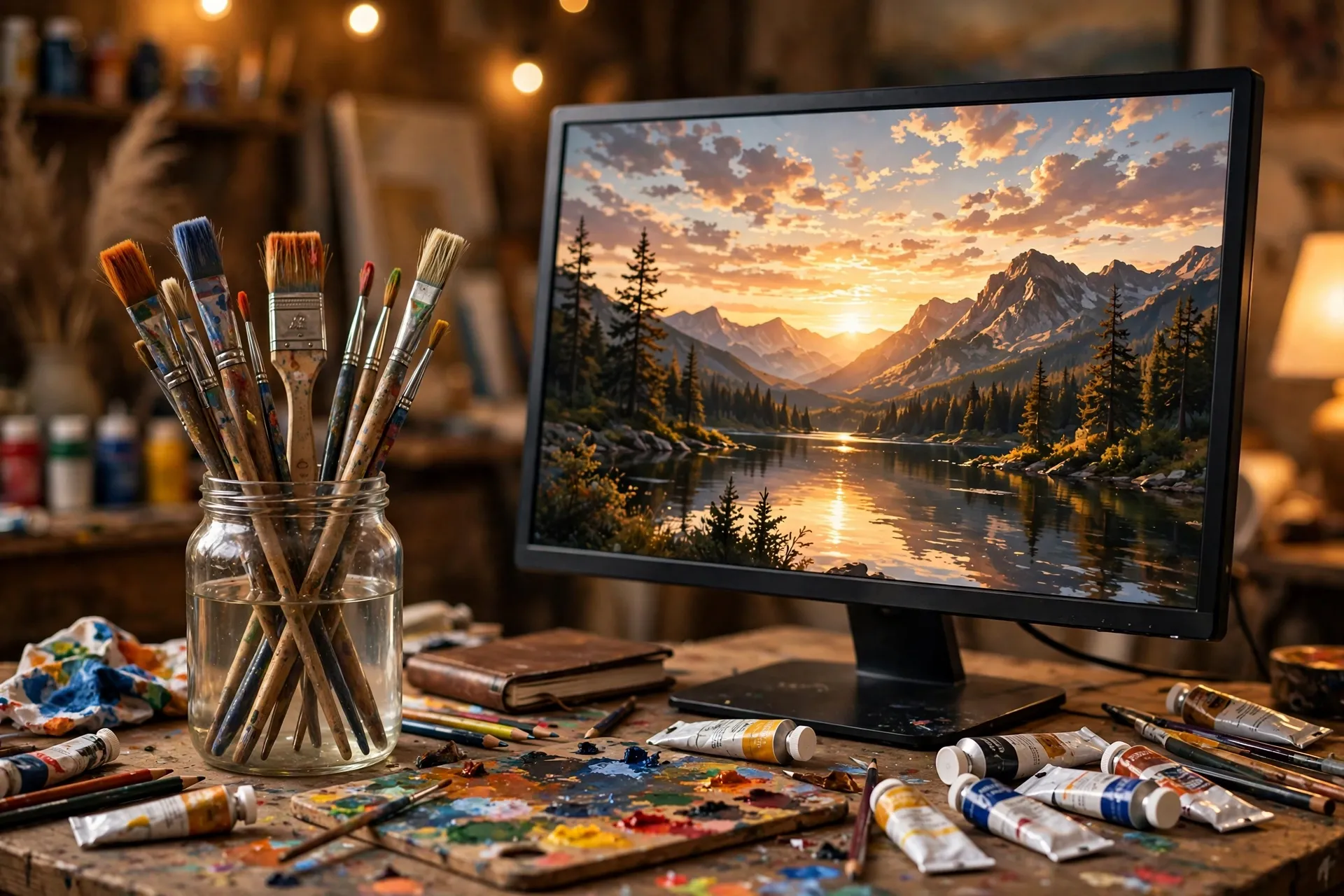
Krita is a free, open-source digital painting application for Windows, macOS, and Linux. “Open source” simply means its code is public, maintained by a community of contributors instead of a company — which is why it can be completely free. No trial period, no watermark, no subscription waiting to ambush you. It has been around for years and grown into a serious creative tool, not a hobbyist novelty.
Who is it for? Anyone who wants to draw or paint on a computer: hobbyists, students, illustrators, comic artists, even frame-by-frame animators. Its strength is digital painting — brushes and colour — rather than photo editing or logo design. Those have their own dedicated programs. Krita’s heart belongs to the brush.
Your First Ten Minutes Inside the App
Open Krita for the first time and you meet a friendly start screen: recent files, templates, and a clear button for a new document. Pick a simple canvas template — an A4-style page is a fine default — and you land in the main workspace.
The layout follows a logic every art app shares. The middle is your canvas. A toolbar holds your tools: brush, eraser, fill, selection, text. Panels around the sides manage brushes, colours, and layers. It looks like a lot. Here is the beginner’s secret: on day one you only need the brush tool, the eraser, the colour picker, and undo (Ctrl+Z on Windows/Linux, Cmd+Z on Mac). Everything else can wait until you are curious.
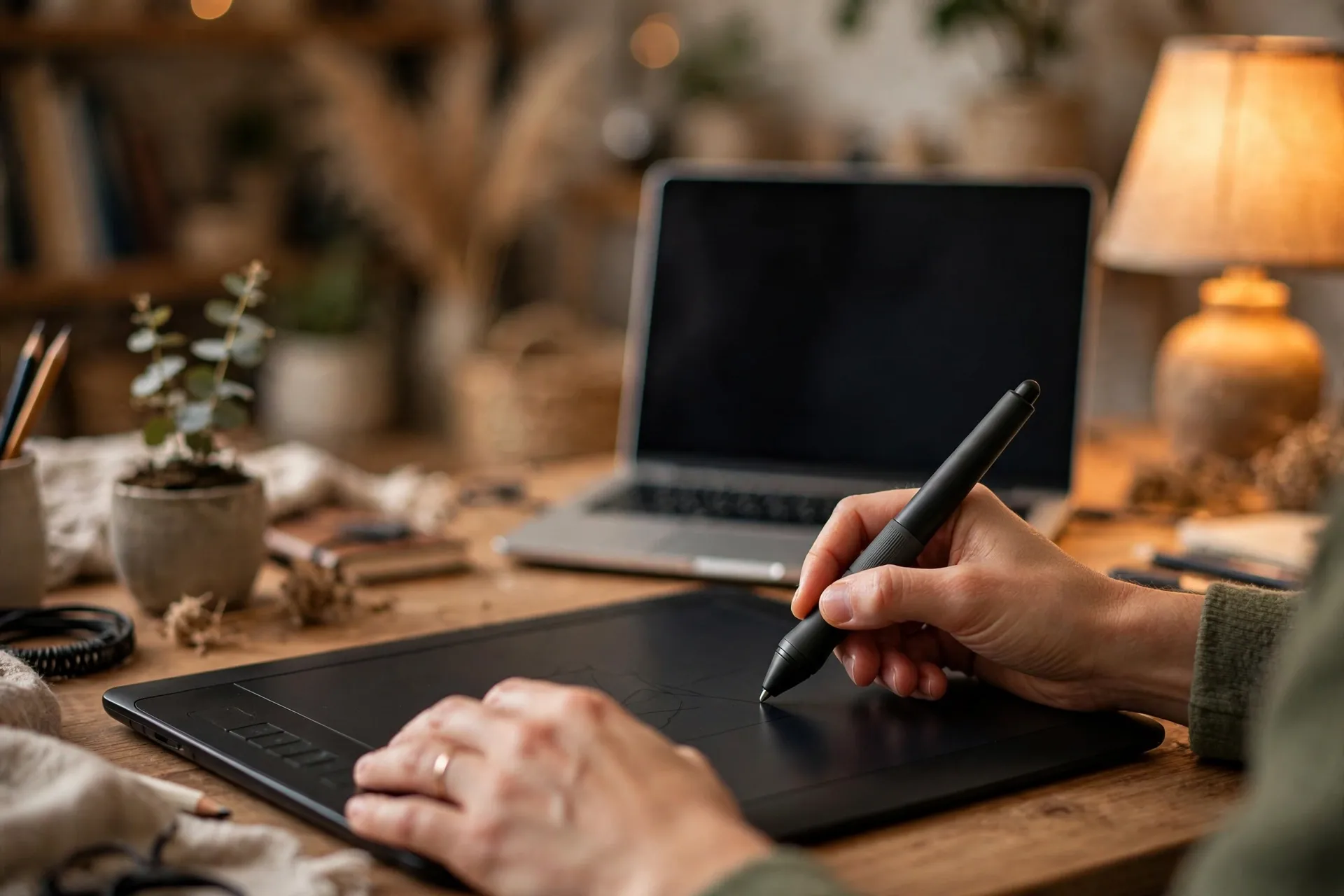
One thing worth knowing early: Krita is built for drawing tablets — pen tablets that plug in by USB, where stylus pressure controls how thick or light your strokes are. No tablet? Do not let that stop you. Plenty of beginners start with a mouse and learn the program first.
The Brushes Are the Whole Game
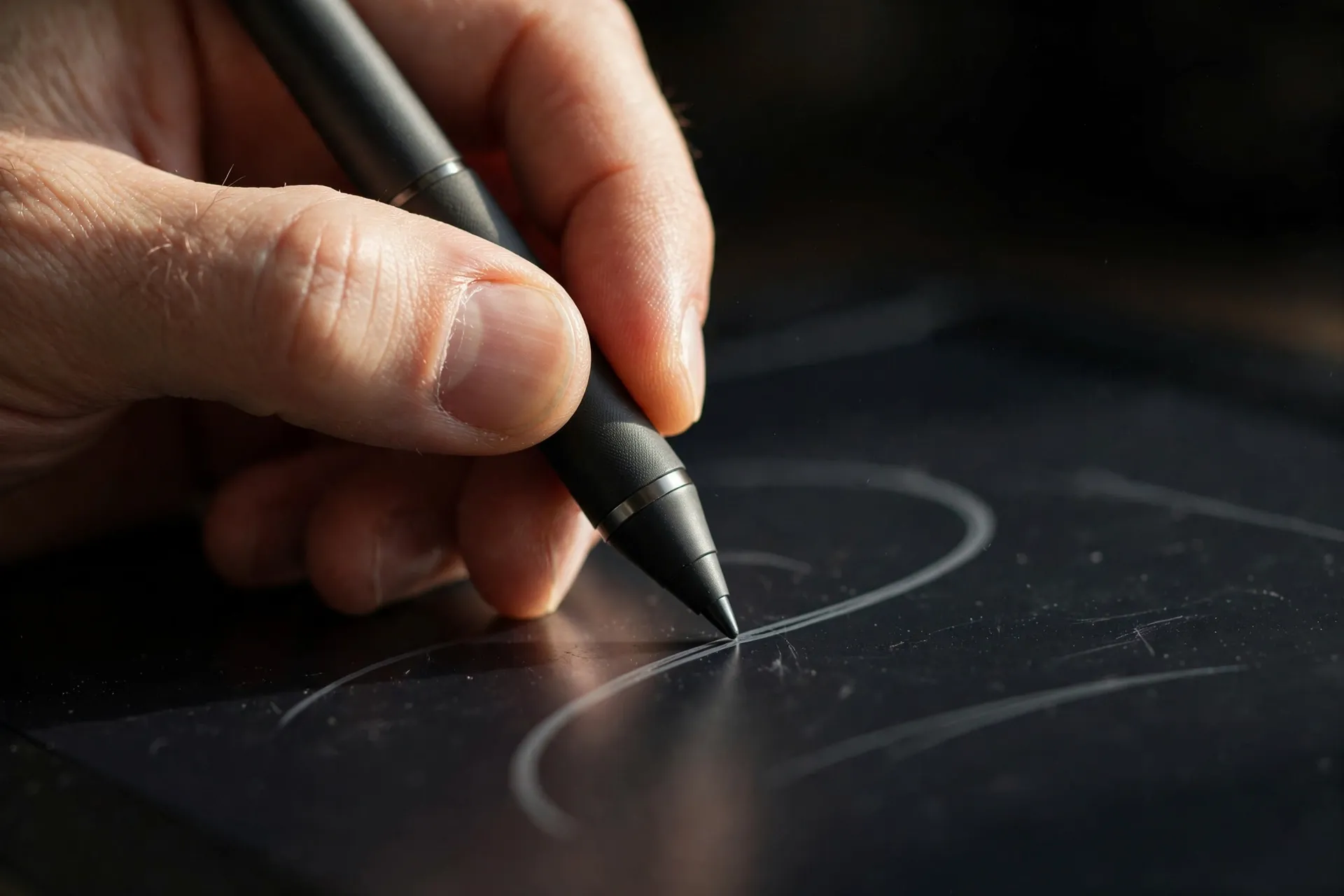
Here is where Krita quietly embarrasses programs that cost real money: its brush engine. That is just the machinery that turns your stylus movements into marks on the canvas, and Krita’s is unusually good. It ships with a large library of presets — chalk, ink, watercolour, oil, smudge, pastels — and most genuinely behave like their real-world namesakes. Ink brushes give clean, confident lines. Chalk brushes leave textured, dusty strokes. Watercolour brushes bloom and blend as if the canvas were wet.
Why does this matter to a beginner? Because the right brush does half the learning for you. Need a soft cloud? A soft-round brush solves it instantly. Want a sketchy pencil feel? There is a preset for that, and you do not need to understand a single setting to use it. You can spend months happily painting with the built-in presets and never touch the deeper customization.
When you are ready for more, every brush is adjustable — size, opacity, pressure response, blending — and there is a brush stabilizer that smooths the wobble out of your lines. For shaky hands it is a small miracle. One of Krita’s most-loved features, for good reason.
Layers, Explained Without the Jargon
Layers are the single idea that makes digital drawing powerful, and they are simpler than they look. Imagine stacking sheets of transparent tracing paper. You sketch on one sheet, colour on another, paint the background on a third. Mess up the colour and you wipe that sheet clean — the sketch underneath is untouched. That is all a layer is: a transparent sheet you can edit, hide, reorder, or delete on its own.
Beginners often do the opposite — everything on one layer, like a single sheet of paper — and suffer when they want to change the background without ruining the character. So here is the golden rule for your first week: sketch, line art, flat colours, and shading on four separate layers. It feels like extra work for ten minutes. The first time you fix a colour mistake without touching your line work, you will never go back.
A Small Project for Tonight
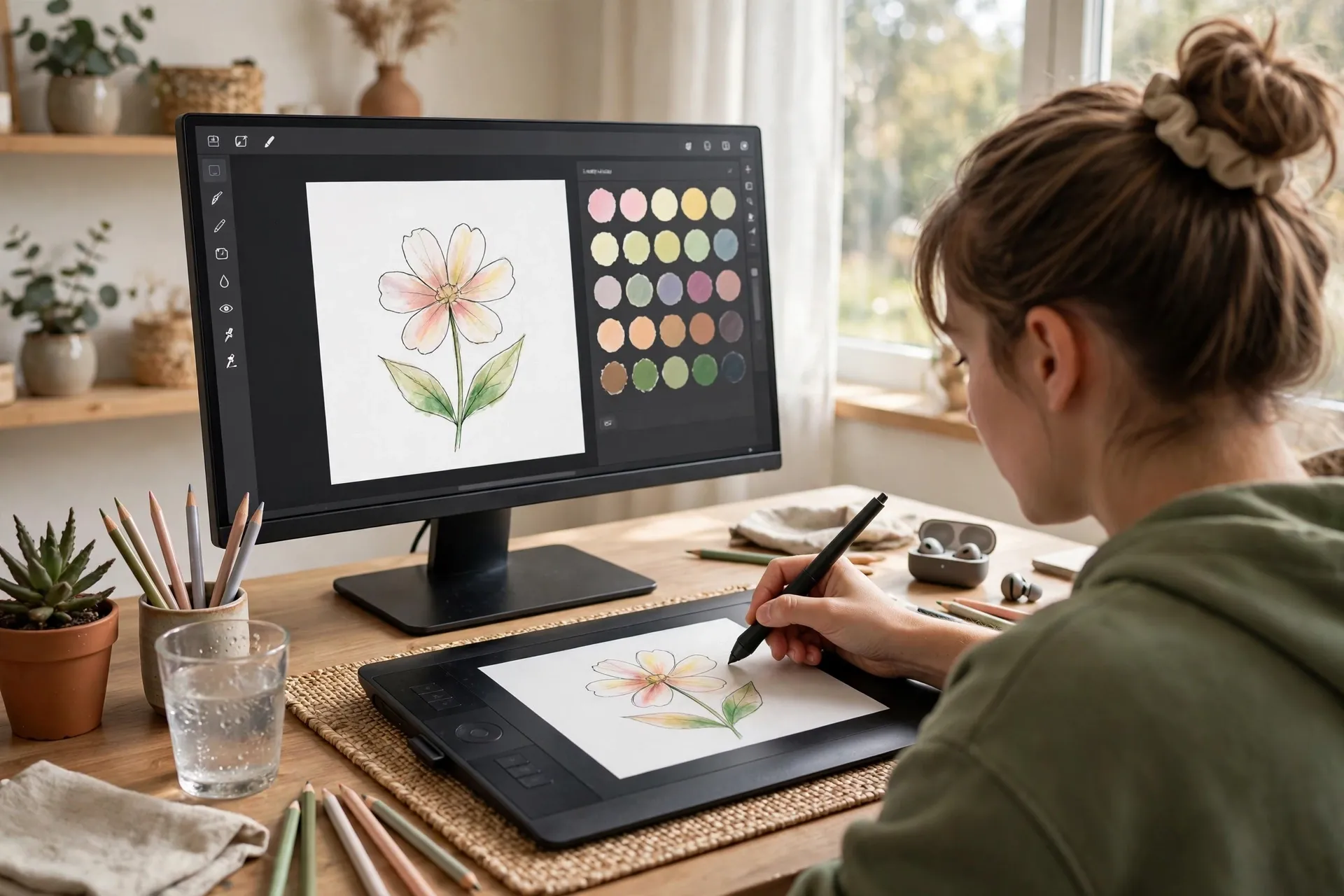
Confidence comes from finishing something. Here is a thirty-minute exercise that uses everything above and ends with a picture you will actually like. Pick something simple and forgiving — a flower, an apple, a coffee cup. Forgiving subjects teach generous lessons.
Create a new layer and sketch your subject loosely with a pencil-style brush. Aim for placement, not perfection. Lower the sketch opacity so it fades into a light guide. On a second layer, trace clean lines over it with an ink brush, stabilizer on for smooth strokes. Hide the sketch layer — your line art now floats cleanly on its own sheet.
Add a third layer beneath the line art and fill each area with flat colour. Three or four colours is plenty. Flat, even colour already looks wonderful. Feeling bold? Add a fourth layer set to multiply blend mode and brush soft shadow tones along one side. Then admire a complete little illustration — sketch, line art, colour, shading, each safe on its own layer, made by you in free software in half an hour.
Where Beginners Get Stuck (and How to Get Moving Again)
Every beginner hits the same walls. Let me save you the frustrated evening. First: “my lines look scratchy and awful.” Turn up the brush stabilizer and watch your lines calm down. Also try drawing from your shoulder rather than your wrist for longer strokes — bigger arm movements make confident lines; small wrist movements make wobbly ones.
Second: “I painted on the wrong layer and ruined everything.” Undo is your best friend, but the real fix is a habit: create a new layer before anything uncertain. Layers are free and infinite. There is no prize for using only one.
Third: “there are too many brushes and I froze.” Pick five you like and ignore the rest. A pencil, an inker, a flat colour brush, a soft blender, and an eraser will carry you through your first hundred drawings.
Fourth: “my tablet pen draws, but pressure does nothing.” That is usually a setup detail. Search the Krita community forums with your tablet model named, and you will almost certainly find the fix.
The biggest wall is the quiet one: comparing your first drawings to artists with years of practice. Their smooth lines came from thousands of imperfect drawings. Krita being free means your practice costs nothing but time. Be generous with yourself and keep going.
Honest Talk: Who Should Skip It for Now
A fair review says who should look elsewhere. If you need precise vector work — logos, scalable graphics, typography layouts — a vector-focused program will serve you better. Krita handles basic vector shapes, but it is a painting app at heart. Mainly editing photos? Choose a photo editor instead. Photo editing is not its home turf.
Old or low-memory computer? Very large canvases with many layers can slow things down. Modest canvas sizes keep everything snappy, and you can work bigger later. And if you want the simplest possible drawing toy with no learning curve at all, a simpler sketching app could be the friendlier first step — with Krita waiting when you outgrow it.
One honest caveat: Krita is community-built, so you will not get the polished onboarding of a big commercial product. Tutorials are volunteer-made, so quality varies. That is the trade for free and open — and for most people it is a very good trade.
What New Krita Users Usually Ask
Is Krita really completely free? Yes — no trial, no watermark, no locked features, no subscription. It is community-developed and supported by donations. That is how professional-grade tools can cost nothing.
Do I need a drawing tablet? Not to start. A mouse works fine for learning the interface, brushes, and layers. A pen tablet makes drawing feel far more natural, so consider one when you know you enjoy the program.
Can I make animation in Krita? Yes — it has an animation workspace for frame-by-frame work, with an onion-skin view showing neighbouring frames faintly. A genuine feature, though beginners should get comfortable with drawing first.
Will my files work elsewhere? Krita exports standard formats like PNG and JPEG, which open everywhere. Layered files are generally not interchangeable between programs — but your exported images always are.
Pick Up the Digital Brush
The verdict: Krita is an easy recommendation. A genuinely capable painting program that costs nothing, respects you as a user, and grows from your first shaky sketch to serious illustration without ever asking for your wallet. Its brushes are excellent, layers click once the tracing-paper idea lands, and features like the stabilizer show it was built by people who understand artists’ real struggles. It will not hold your hand like a commercial product, and it is not the right tool for every job — but for drawing and painting, it is one of the best free things on the internet.
Download it, open a canvas, and try the flower exercise from this article tonight. Thirty minutes, four layers, one finished picture. The barrier between you and digital art was never talent — it was price, and Krita just removed it. The only thing left is to start drawing.














