
You need a poster for your shop, a thumbnail for your YouTube video, or a resume that looks professional — but you have no design skills. This is exactly the problem Canva solves. In this Canva review, we will look at what the world’s most popular design tool offers in 2026, what you get for free, what the paid plans cost, and whether it is the right choice for a complete beginner.
Canva is an online design platform from Sydney, Australia. It lets anyone create posters, social media posts, presentations, logos, and videos using simple drag-and-drop tools and thousands of ready-made templates. With well over 100 million users worldwide, it has become the go-to tool for people who need good design without learning complicated software. But is the free version enough, or do you need Pro? Let’s find out.
Canva in One Paragraph
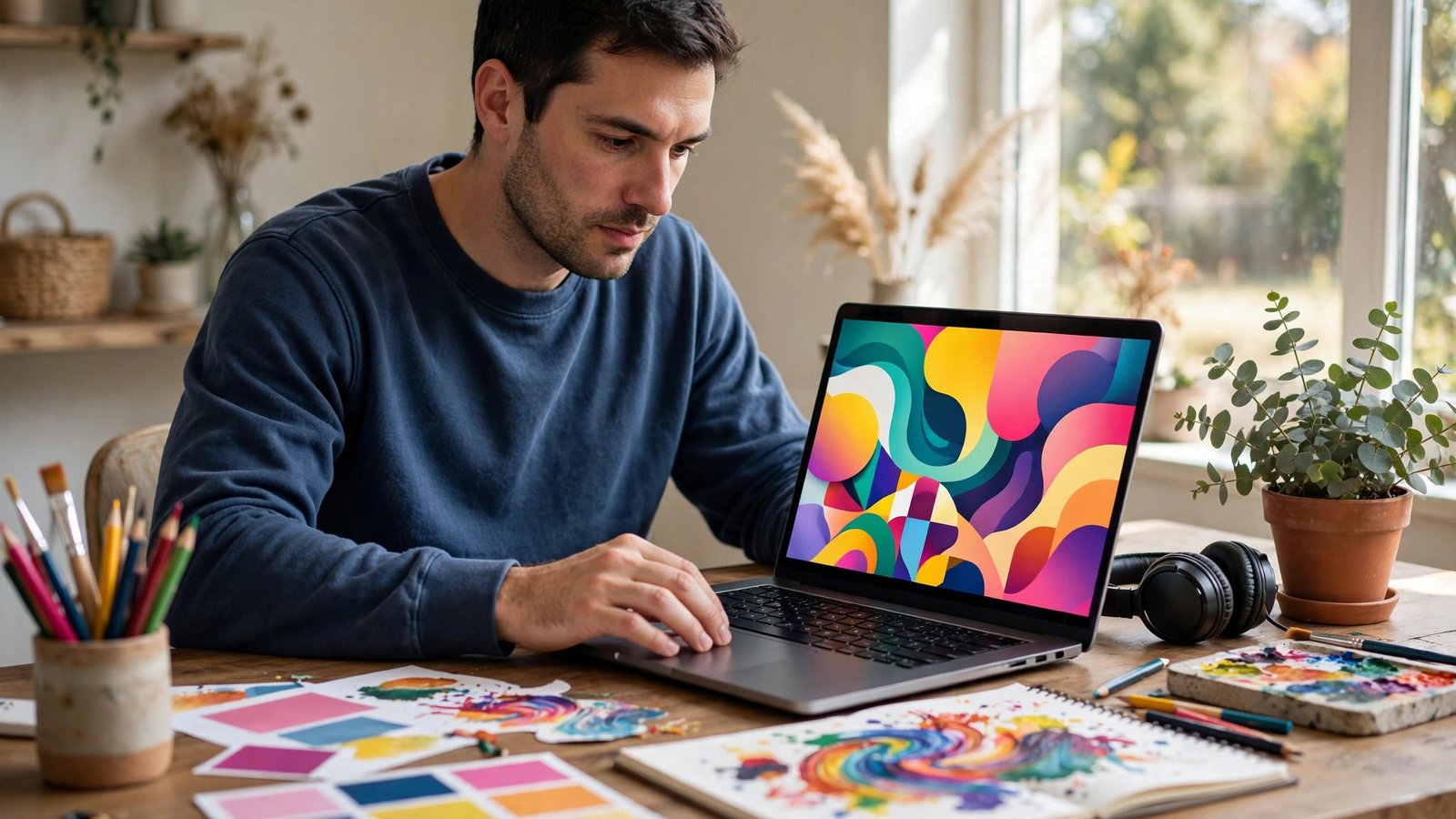
Canva is a web-based design tool. Instead of starting from a blank page, you pick a template — for example, an Instagram post, a wedding invitation, or a business card — and then change the text, colors, and photos to make it yours. Everything happens in your browser or in the Canva app on your phone. No installation of heavy software is needed.
The big idea behind Canva is simple: design should not require talent or training. A student making a school project, a shop owner making a sale poster, and a YouTuber making thumbnails can all use the same tool. You just drag elements onto the page, and Canva makes them look neat and aligned.
Canva also keeps all your designs saved online, so you can start on your laptop and finish on your phone. Sharing is easy too — you can send a link and let someone else view or edit your design.
Standout Features in 2026
Here are the features that matter most for beginners.
Thousands of Templates
Canva’s template library is its biggest strength. The free plan includes over 1.6 million templates covering almost everything: social media posts, resumes, presentations, invitations, flyers, and more. Pro users get access to over 3.6 million templates, including premium designs.
Drag-and-Drop Editor
There is almost no learning curve. You click an element — a photo, a shape, a text box — and drag it where you want. Canva automatically lines things up and suggests matching fonts and colors. Most beginners create their first design in under ten minutes.
Magic Studio AI Tools
Canva’s AI tools can write text for you, generate images from a description, remove backgrounds from photos, and even turn a rough idea into a full design. Free users get a limited number of AI uses. The full AI power, including the advanced image generator, is reserved for Pro users.
Brand Kit
A Brand Kit saves your logo, colors, and fonts in one place so every design looks consistent. The free plan gives you one simple Brand Kit with up to three colors. Pro lets you create multiple full Brand Kits — useful if you run a business or manage social media for clients.
Affinity by Canva
In 2026, Canva made Affinity — a set of professional design apps it acquired — free to use. This is a big deal for people who want more advanced tools without paying Adobe prices. The core Affinity apps are free, though some of the newer AI features need a Canva Pro subscription.
Print and Share
Canva can print your designs and deliver them to your door in many countries. You can also download designs as images, PDFs, or videos, or share them directly to social media. Pro users can even schedule social media posts from inside Canva.
Free vs Pro: Where Your Money Goes

The free plan costs $0 and is surprisingly generous. You get the drag-and-drop editor, over 1.6 million templates, millions of free photos and graphics, 5GB of cloud storage, and a limited number of AI uses. For students, hobby projects, and occasional designs, this is often more than enough.
Canva Pro costs around $15 per month, or $180 per year if you pay yearly (paying yearly saves money). Pro unlocks premium templates and over 140 million premium photos and videos, 100GB of storage, the background remover, one-click resize for different social media sizes, multiple Brand Kits, social media scheduling, and much more AI power.
There is also a Business plan at about $250 per year per person, which adds team tools like shared Brand Kits and approval workflows. And good news for students and teachers: Canva for Education gives full Pro features free to qualifying schools, and Canva for Nonprofits does the same for qualifying charities.
Canva also offers a 30-day free trial of Pro, so you can test the paid features before spending anything.
Reasons to Love It
- Extremely beginner-friendly. If you can use a smartphone, you can use Canva.
- Excellent free plan. Millions of templates and assets cost nothing.
- Works in the browser. No installation, and your designs are saved online automatically.
- Great templates. Professional-looking designs for almost every need.
- Useful AI tools. Background remover and text-to-image save real time.
- Free for students and nonprofits. Qualifying schools and charities get Pro at no cost.
- Affinity now free. Advanced design apps included at no extra charge.
Reasons to Pause
- Not a Photoshop replacement. For complex photo editing or detailed illustration, professional tools still win.
- Best AI features need Pro. Free users get only limited AI uses.
- Small storage on free plan. 5GB fills up fast if you upload many photos and videos.
- Templates can look generic. Since millions of people use the same templates, your design may not feel unique.
- Needs internet. Canva is mainly an online tool, so a weak connection slows you down.
- Prices have risen over time. Pro costs more than it did a few years ago.
Canva Against the Competition
The main free alternative is Adobe Express, which offers a similar template-based editor with Adobe stock assets. It is a solid choice, especially if you already use other Adobe products, but its free plan is less generous than Canva’s.
For serious graphic designers, Adobe Photoshop and Illustrator remain far more powerful — but they cost much more and take months to learn. For photo editing specifically, free tools like Photopea (a browser-based Photoshop alternative) can fill the gap.
For most beginners, Canva is the easiest starting point. You can always move to professional tools later if your skills grow.
The Right (and Wrong) User
Canva is perfect for students making presentations and projects, small business owners creating posters and social media posts, content creators designing thumbnails, and anyone who needs quick, good-looking designs without learning design software.
Teachers love it for classroom materials, and freelancers use it to create client work fast. If you make designs regularly for a brand or business, Pro’s Brand Kit and background remover will save you hours every week.
Canva is less useful for professional graphic designers who need pixel-perfect control, or for people who do heavy photo editing. Those users should look at Affinity (now free) or Adobe’s tools.
Verdict: Should You Bother?
Yes — and for most beginners, the free version is enough. Canva remains the easiest way to create professional-looking designs without any training. The free plan covers everyday needs like social media posts, posters, resumes, and presentations.
Upgrade to Pro only if you design often, need premium photos, want the background remover, or manage a brand. Try the 30-day free trial first and see if the paid features actually save you time.
Our rating: 4.7 out of 5 for beginners.
Canva Questions, Answered
Is Canva really free?
Yes. Canva’s free plan includes the editor, over 1.6 million templates, millions of free photos and graphics, and 5GB of storage. Premium templates, stock photos, and advanced AI tools need a Pro subscription.
What is the difference between Canva Free and Canva Pro?
Pro adds premium templates and 140M+ premium assets, 100GB storage, background remover, one-click resize, multiple Brand Kits, social media scheduling, and much more AI usage. It costs about $15/month or $180/year.
Can students get Canva Pro for free?
Yes. Canva for Education gives full Pro features free to qualifying schools and teachers. Students should ask their school about it. Canva for Nonprofits offers the same for qualifying charities.
Does Canva work offline?
Canva is mainly an online tool and needs an internet connection for most features. Some basic editing may work offline in the mobile app, but templates and cloud saving need the internet.
Is Canva better than Photoshop for beginners?
For beginners, yes. Canva is far easier to learn and covers everyday design needs. Photoshop is more powerful but costs more and takes much longer to master. Many people start with Canva and move to professional tools later.
The bottom line: if you need good designs but have no design skills, Canva is the friendliest tool you can start with today — and its free plan is one of the most generous in the industry. Start free, create something, and only pay when your work demands it.