Physical Address
304 North Cardinal St.
Dorchester Center, MA 02124
Physical Address
304 North Cardinal St.
Dorchester Center, MA 02124

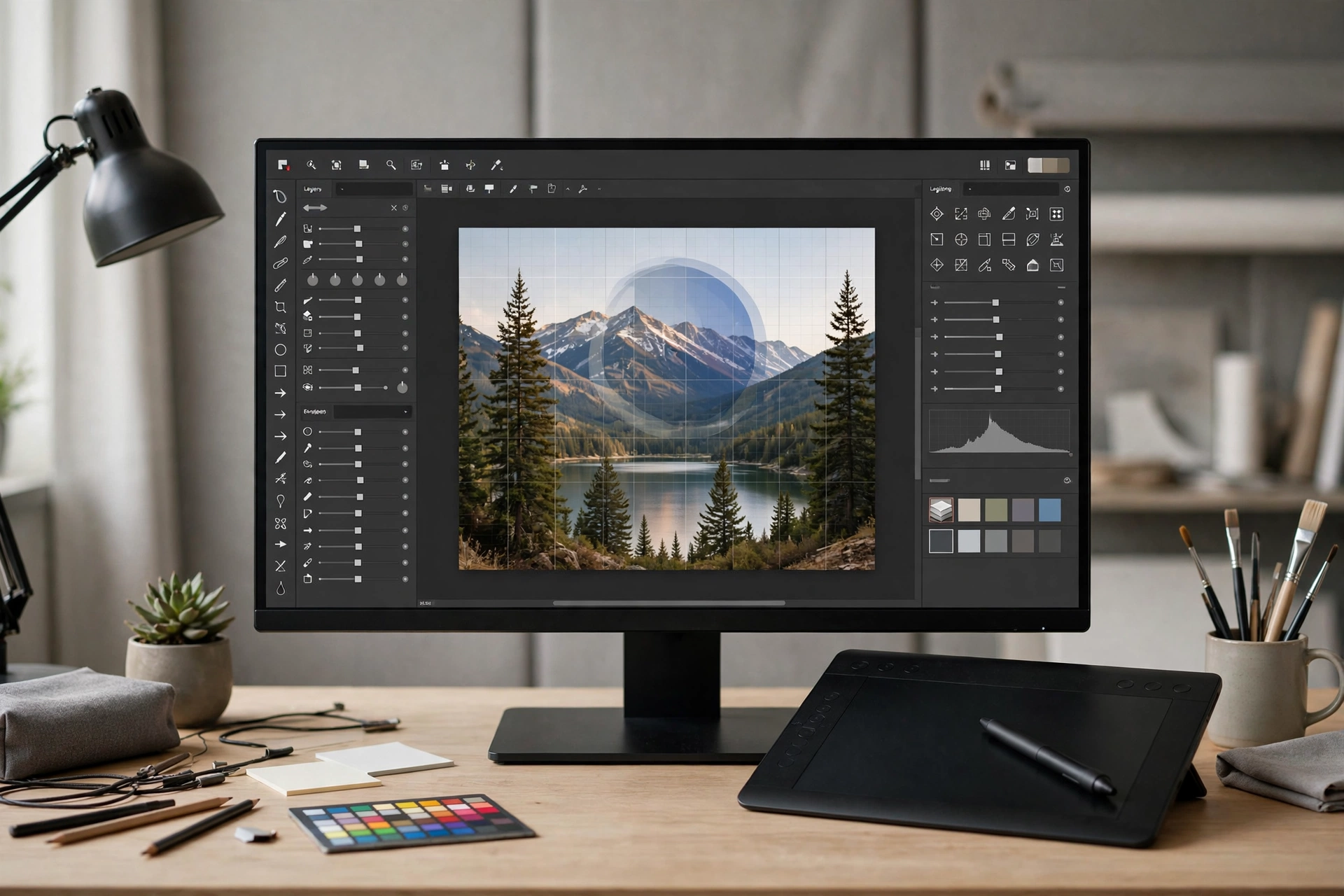
GIMP packs professional-grade photo editing into a completely free download. Our beginner's review covers what it does brilliantly, where it frustrates, and who should give it a try.
Here is a sentence you rarely hear about free software: it can stand next to the expensive stuff and hold its own. GIMP is a photo editor that costs nothing, carries no subscription, and is maintained by a worldwide community of volunteers. It runs on Windows, macOS and Linux. If you have ever stared at photo editing software prices and wondered whether there is a legitimate free alternative, this review is for you.
My short verdict: GIMP is a genuinely capable editor that asks for patience in return. Beginners can absolutely learn it, and it will handle most real photo tasks — touching up pictures, removing distractions, adjusting colour, creating graphics for a blog or a small business. The interface feels old-fashioned and the first week can be bumpy, but underneath that plain exterior sits one of the most powerful free creative tools in existence.
GIMP stands for GNU Image Manipulation Program. That mouthful of a name explains a lot: it was born in the world of free software, where tools are built by programmers who care about capability more than pretty packaging. The result is completely free — not a trial, not a stripped-down version, not “free with ads.” Every feature is available to everyone, forever.
At its core, GIMP is a raster image editor, which is the technical way of saying it works with photos and pixel-based images. You can open a JPEG from your phone, a PNG with transparency, or a TIFF from a scanner, and get to work. It supports layers, the foundation of serious editing: think of transparent sheets stacked on top of each other, each holding part of your picture. Want to add text over a photo without damaging the original? That goes on its own layer. Want to try a bold effect you might regret? Put it on a layer and switch it off in one click.
The toolbox covers the everyday essentials: crop, resize and rotate for straightening crooked horizons, selection tools for outlining parts of an image, paintbrushes, an eraser, a fill tool and a gradient tool. None of this is exotic; it is the bread and butter of photo editing, and GIMP does all of it solidly.
Photo retouching is where GIMP earns its reputation. The healing and clone tools are the standouts. Cloning lets you paint one part of a picture over another — perfect for removing a stray rubbish bin from an otherwise lovely street photo, or zapping a photobomber from the corner of a group shot. The healing tool blends the copied area with its surroundings, which makes small blemish removal on portraits look surprisingly natural. With a little practice, these two tools alone will transform your photo collection.
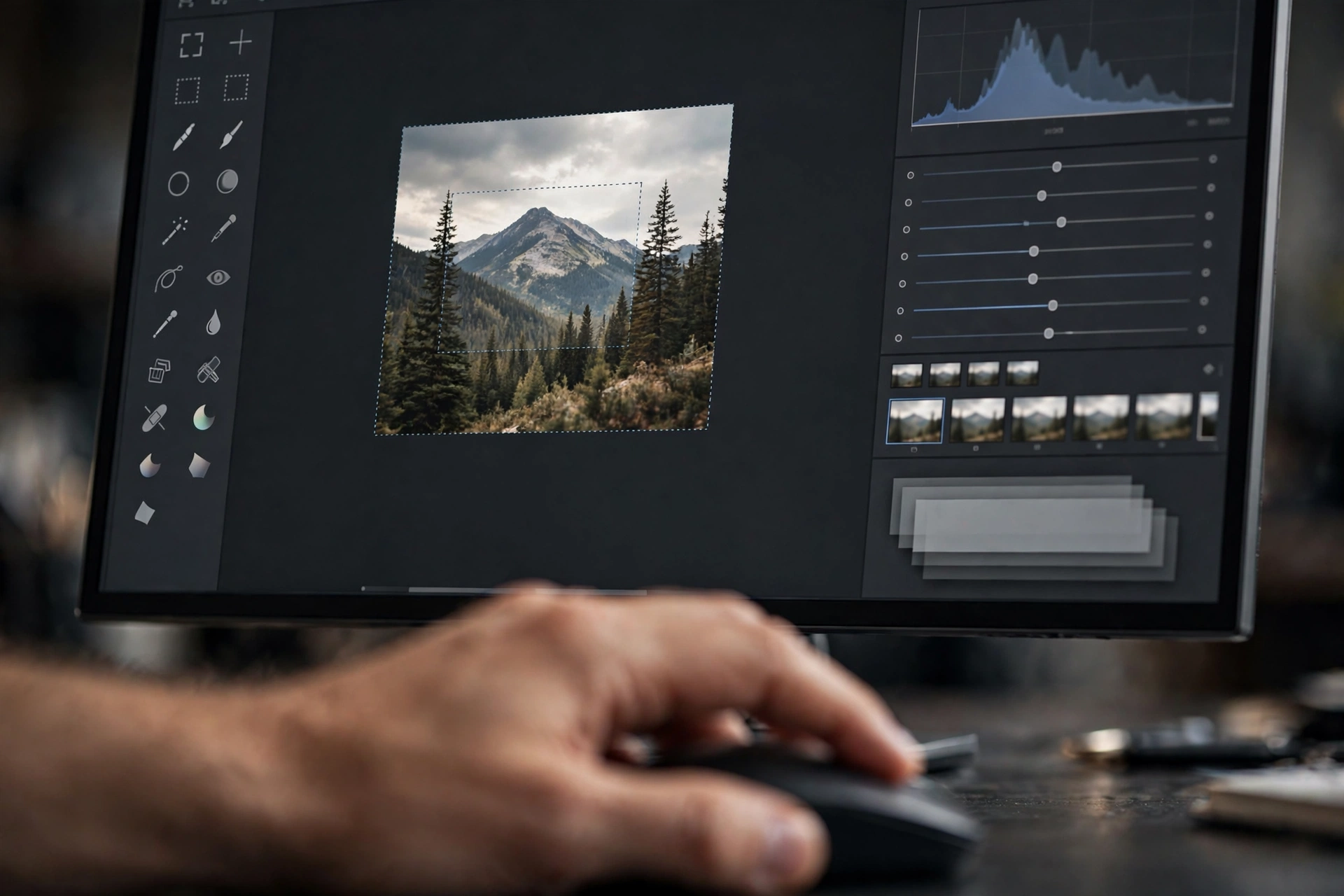
Colour correction is the other area where GIMP quietly excels. Almost every beginner photograph suffers from the same problems: dull colours, shadows that are too dark, highlights a touch too bright. GIMP’s levels and curves adjustments — the same concepts professionals use — fix all of this in about a minute. There is also white balance correction for those orange-tinted indoor shots, plus hue and saturation controls for making colours pop without looking artificial.
Then there are filters — one-click effects like blur, sharpen, artistic looks and textures — plus solid text overlays with control over fonts, size and colour, which covers the needs of most bloggers and small-business owners making social media graphics. GIMP also supports plugins and scripts written by its community, so the software can grow with you. And it opens and exports the common formats like JPEG, PNG and TIFF, so it slots into a normal workflow without any drama.
No review would be fair without the rough edges, and GIMP has a few honest ones. The biggest is the interface. It looks and feels like software from an earlier era: lots of small panels, dense menus, and icons that do not always explain themselves. It is functional rather than beautiful, and the first few sessions can feel like rummaging through a cluttered workshop where every tool is present but nothing is labelled the way you expect. This is not a deal-breaker, but it is real, and you should know about it before you start.
The learning curve follows from that. Basic cropping and colour tweaks are easy enough, but some workflows take longer to click than they would in a slicker commercial editor. The community has produced an enormous library of free tutorials, so answers are always a search away — though you will need to search more often in the first month.
Support is community-based, the honest trade-off of free software. There is no helpline to ring. If something goes wrong, your options are the user forums, the documentation, and the collective wisdom of people who have hit the same problem before you. Most common questions have already been answered somewhere — but it is a different experience from paid software, and it is fair to call that out.
One specific caveat for advanced users: some professional workflows built around particular commercial tools do not translate one-to-one into GIMP. If your job depends on a specific plugin or a proprietary workflow, GIMP may not be a drop-in replacement. For beginners, though, this matters far less than the interface and the learning curve.
GIMP is a superb fit for hobbyist photographers who want more than their phone’s built-in editor offers but are not ready to pay for software. If you want to learn real retouching — removing distractions, fixing lighting, sharpening details — GIMP gives you professional-grade tools at the only price everyone can afford.
Students will love it too. Whether you are editing images for a school project or designing a poster for a club, GIMP teaches you transferable skills. Layers, selections and colour adjustment work the same way in every serious editor, so time spent learning GIMP is never wasted.
Bloggers, content creators and small-business owners form another natural audience. Website banners, video thumbnails, product photos with cleaned-up backgrounds, social media graphics with text overlays — GIMP handles all of this capably, and the money you save goes back into your project.
Who should think twice? If you are a working professional whose clients or employer require specific commercial software workflows, GIMP alone may complicate your life. And if you simply want the gentlest possible introduction and are happy to pay for polish, a modern commercial editor with a friendlier interface might suit you better. GIMP rewards patience; not everyone wants to spend it.
The smartest way to begin with GIMP is small. Install it from the official website at gimp.org — always download from there, never from a random mirror. Then pick one photo and one task: straighten a crooked horizon, fix a dull photo with a levels adjustment, or remove one distracting object with the clone tool. Finishing one small job teaches you more than reading ten tutorials.
Learn layers early, even if they seem abstract at first. The single habit that separates struggling beginners from confident ones is this: never edit the original layer directly. Duplicate it first, or put each change on its own layer. Every experiment becomes reversible, and you will be amazed how much bolder you get when mistakes cost nothing.
Customise the workspace to suit you — the panels can be rearranged, and the default layout is not sacred. Keep a note of the three or four tools you use most and their keyboard shortcuts. And follow one good tutorial series rather than bouncing between random videos: one structured free course will take you further than a hundred scattered tips. Give yourself permission to be slow at first.
Is GIMP really free, or is there a catch?
It is really free — no trial period, no locked features, no watermarks on your exports. It is open-source software maintained by volunteers, and that is the whole business model.
Can it replace expensive photo editors for a beginner?
For most beginner needs — retouching, colour correction, cropping, graphics with text, basic compositing — yes. You get the same core concepts (layers, selections, adjustments) and tools powerful enough to produce genuinely professional-looking results.
Will it run on my computer?
GIMP runs on Windows, macOS and Linux, and it is not particularly demanding. Any reasonably modern computer should handle everyday photo editing without trouble.
How long does it take to learn?
The basics — cropping, straightening, simple colour fixes — are achievable in an afternoon. Becoming comfortable with layers, selections and retouching typically takes a few weeks of regular practice.
Here is my honest closing thought: GIMP is one of the rare pieces of software that is both completely free and genuinely excellent at what it does. It will not flatter you on day one — the interface is plain, the learning curve is real, and there is no support line to call when you get stuck. But give it a weekend of real use, one small project at a time, and you will see why it has thrived for decades: underneath the modest exterior is a photo editor with serious, lasting power.
For hobbyists, students, bloggers and small businesses, it is not just a budget compromise. It is a legitimate creative tool that teaches real skills and produces real results, and the price — nothing — means there is no reason not to try. Download it, pick one photo, fix one thing. The best that happens is you never look back.

