Physical Address
304 North Cardinal St.
Dorchester Center, MA 02124
Physical Address
304 North Cardinal St.
Dorchester Center, MA 02124

"CapCut review 2026: what is truly free, what sits behind the Pro paywall, and whether beginners should use it. Honest pros, cons, pricing and verdict."
Open TikTok, Instagram Reels, or YouTube Shorts, and you will see thousands of polished videos with perfect captions, smooth transitions, and trendy effects. Many of those videos were made by beginners using the same app: CapCut. In this CapCut review, we will look at what the app can really do in 2026, what is actually free, what you have to pay for, and whether it is the right video editor for you.
CapCut is a video editing app made by ByteDance, the company behind TikTok. It became famous because it is free to start, easy to learn, and full of ready-made templates. But in 2025, CapCut moved more and more features behind a paid plan, and many beginners started asking: is CapCut still worth it, or is the free version now too limited? This honest review will answer that question step by step.
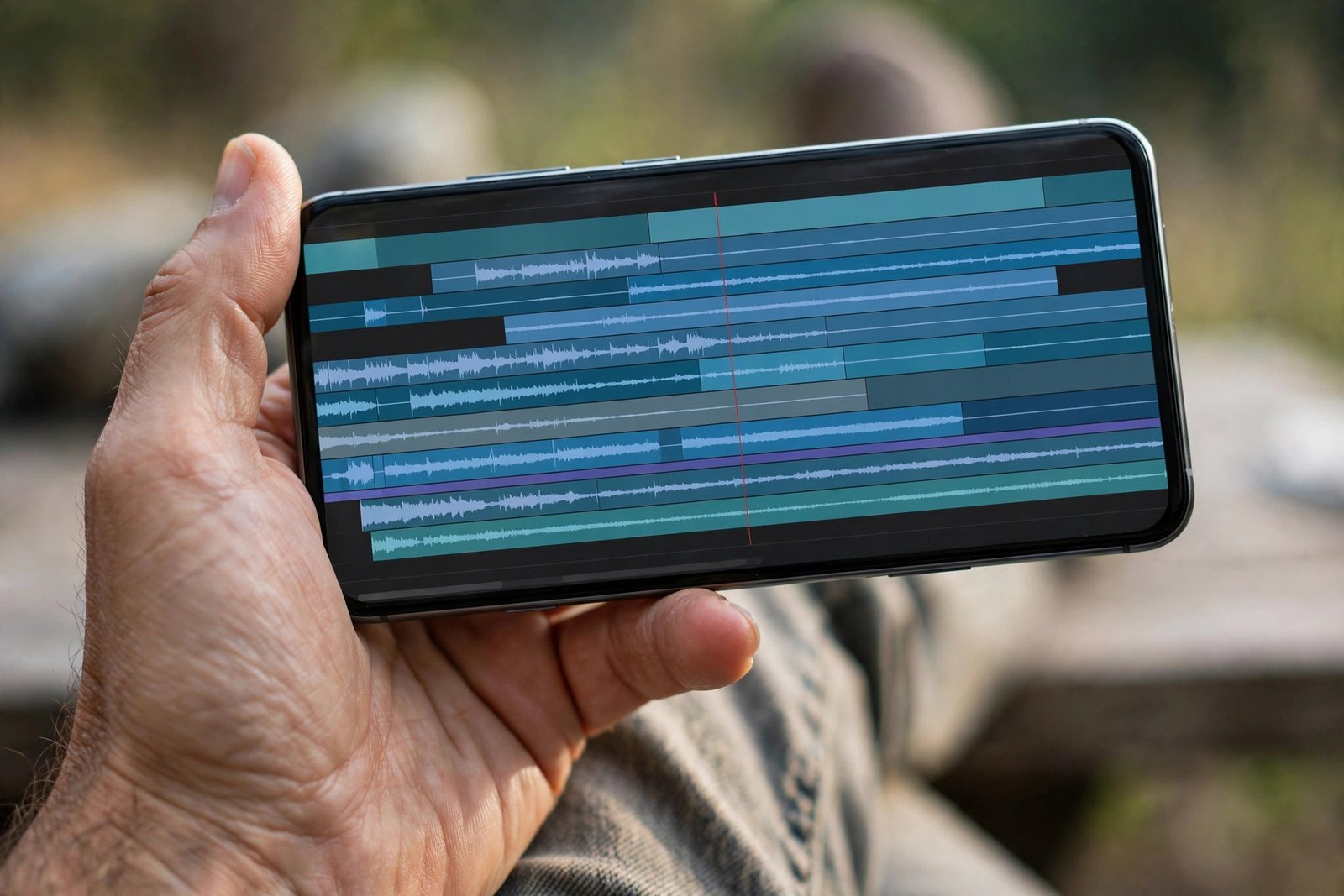
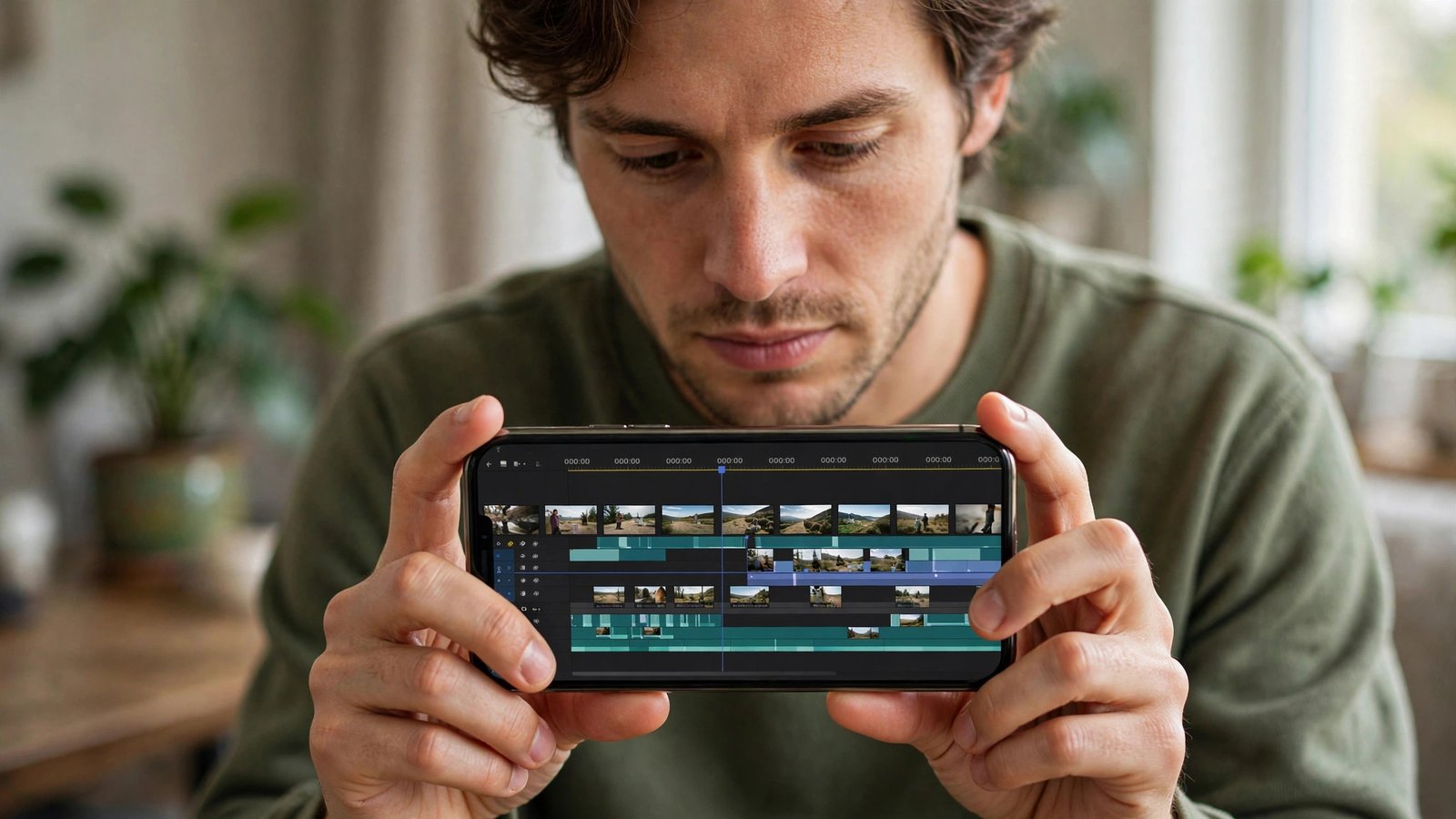
CapCut is a video editing app for phones, computers, and web browsers. With it, you can cut clips, add music, put text on your videos, add filters, and apply fun effects — all in one place. It became popular because it made editing simple. You do not need any training to make a nice-looking video.
The app is free to download on Android and iPhone. There is also a desktop version for Windows and Mac, which is better for longer or more detailed edits. If you do not want to install anything, you can use the web version right in your browser. To use CapCut, you need a free account, which you can create with your email or TikTok login.
CapCut is most popular with short video creators. Its huge template library lets you copy a trending TikTok style with one tap. You add your own clips, and the template handles the transitions, effects, and music for you. That is why so many viral videos look similar — they start from the same templates.
Here are the main features that make CapCut stand out for beginners.
CapCut can listen to your voice and add subtitles automatically. This is one of its best features, and many creators say it is the main reason they use the app. Videos with captions are easier to watch without sound, which is how most people scroll on their phones. The free plan includes basic auto captions with monthly limits. Unlimited, more accurate captions need Pro.
Templates are ready-made video styles. You drop in your clips and photos, and the template does the rest. There are thousands of templates, and many are free. The most popular or newest ones are often marked with a Pro badge, which means you need a paid plan to use them.
CapCut can remove the background from your video without a green screen. This is great for fun effects, product videos, or clean talking-head clips. The basic version works for free. The sharper, more advanced version is part of Pro.
CapCut includes AI features like text-to-speech voices, AI-generated effects, and smart tools that cut long videos into short highlights. Free users get a limited number of AI uses per month. Pro users get the full AI suite without limits.
You can start editing on your phone and finish on your computer. But note this: full cloud sync between devices needs a Pro subscription. On the free plan, moving projects between devices is limited, which can be annoying if you edit on the go and at home.
Free users can export videos in up to 1080p. That is good enough for TikTok, Reels, and Shorts. If you want 4K or HDR quality, you need CapCut Pro.

The free plan of CapCut is genuinely useful — it is not just a demo. You get the core editing tools: trim, cut, merge, and split. You also get free filters, effects, text styles, and stickers. You can export in 1080p. By default, CapCut adds a short outro clip with its logo at the end of your videos, but you can delete it for free before exporting, so your video has no watermark.
CapCut Pro is the paid plan. Prices vary by country and by whether you pay through the app store or the website, so always check the price in your own app. As a rough guide, Pro usually costs around $7.99 to $9.99 per month, or about $69.99 to $89.99 per year. Pro removes all watermarks, unlocks 4K and HDR export, gives you the full AI suite, 100GB of cloud storage, and the complete library of premium effects, templates, and stock videos.
In some regions there is also a cheaper Standard plan that works only on mobile. It removes the watermark and adds some premium effects, but it does not include desktop access or cloud sync.
The honest truth is this: CapCut used to be almost fully free. After a pricing change in 2025, more features moved behind the paywall, and many long-time users were unhappy. The free version is still good for basic editing, but if you edit often, you will start to feel the limits.
How does CapCut compare with other free editors? On mobile, VN Video Editor is a strong alternative. It offers a multi-track timeline and no watermarks on exports, even for free. It has fewer templates and weaker auto captions than CapCut, though.
On computers, DaVinci Resolve is the gold standard for free editing. It gives you 4K export and professional color tools for free. But it is much harder to learn, and your computer needs to be powerful to run it well.
For quick social media edits, CapCut still wins on ease of use. For serious, long-form work, DaVinci Resolve is the better free choice.

CapCut is perfect for beginners who make short videos for TikTok, Reels, or Shorts. If you post regularly and want quick, trendy edits, the free plan will cover most of your needs without costing you anything.
It is also a good pick for small business owners, teachers, and students who want to make simple videos — ads, product clips, or class projects — without hiring an editor or learning hard software.
But CapCut is not for everyone. If you edit long YouTube videos, need 4K quality, work with a team, or care deeply about data privacy, you may outgrow it fast. In that case, either pay for Pro or switch to a free professional editor like DaVinci Resolve.
Yes — with one warning. CapCut is still one of the best free video editors for beginners in 2026. The free plan is genuinely usable, the auto captions are excellent, and the templates can save you hours of work.
The warning is simple: the free version is smaller than it used to be. Before you fall in love with a Pro-only feature, ask yourself whether you really need it. For most beginners, the answer is no. Start with the free plan, learn the basics, and upgrade only when you edit often enough to justify the monthly price.
Our rating: 4.2 out of 5 for beginners.
Yes. CapCut has a free plan with core editing tools, filters, effects, basic AI captions, and 1080p export. Advanced AI tools, premium templates, 4K export, and cloud sync need a Pro subscription.
CapCut adds a short outro clip with its logo at the end of videos, but you can delete it for free before exporting. Some Pro templates have their own watermark, which needs Pro to remove.
Yes. CapCut has desktop apps for Windows and Mac, plus a web version that runs in your browser. The desktop app gives you more control for detailed edits.
CapCut is a real app from ByteDance, but like many free apps, it collects usage data. Only download it from the official CapCut website or the official app stores — never from random download sites, which may bundle unwanted software.
On mobile, try VN Video Editor — it is free with no watermarks. On a computer, DaVinci Resolve is free and very powerful, but much harder to learn than CapCut.
The bottom line: if you are a beginner who wants to edit videos for social media without spending money, CapCut is still one of the easiest places to start. Download it, try the free plan, and upgrade only when your videos — and your audience — grow big enough to need it.

