
Email is how the modern world talks. Jobs send interview letters by email. Schools send report cards by email. Banks send statements by email. If you are new to the internet, learning email is the single most useful skill you can pick up.
And the best place to start is Gmail. It is free, simple, and used by more than a billion people. This guide covers the Gmail basics for beginners: creating an account, sending your first email, organizing your inbox, searching like a pro, and staying safe. No technical background needed — just follow along step by step.
Why Gmail Still Wins for Beginners
You might wonder why everyone recommends Gmail instead of other email services. The reasons are simple.
First, Gmail is completely free. You do not need to pay anything to create an account or send emails. Second, every account comes with 15 GB of free storage, shared across Gmail, Google Drive, and Google Photos. That is enough space for years of normal emails.
Third, Gmail works everywhere. The same inbox appears on your phone, tablet, and computer. Read an email on your phone in the morning and reply from your laptop in the evening — everything stays in sync.
Finally, Gmail has strong built-in spam protection. It quietly filters out most junk mail and dangerous messages before they reach you. As a beginner, that safety net matters a lot.
Creating Your Account in Minutes
Creating a Gmail account takes about five minutes. Here is exactly what to do:
- Open your web browser and go to gmail.com.
- Click Create account, then choose “For my personal use.”
- Type your first and last name, then click Next.
- Choose a username — this becomes your email address (for example, yourname@gmail.com). If your first choice is taken, Gmail will suggest alternatives.
- Create a strong password. Mix letters, numbers, and a symbol. Write it down somewhere safe.
- Enter your phone number. Google sends a code to verify you are a real person.
- Add your birthday and gender, then agree to the terms. Done — welcome to Gmail!
Tip: Pick a simple, professional address. An address like your full name looks far better on job applications than a nickname with random numbers.
Sending Your First Email
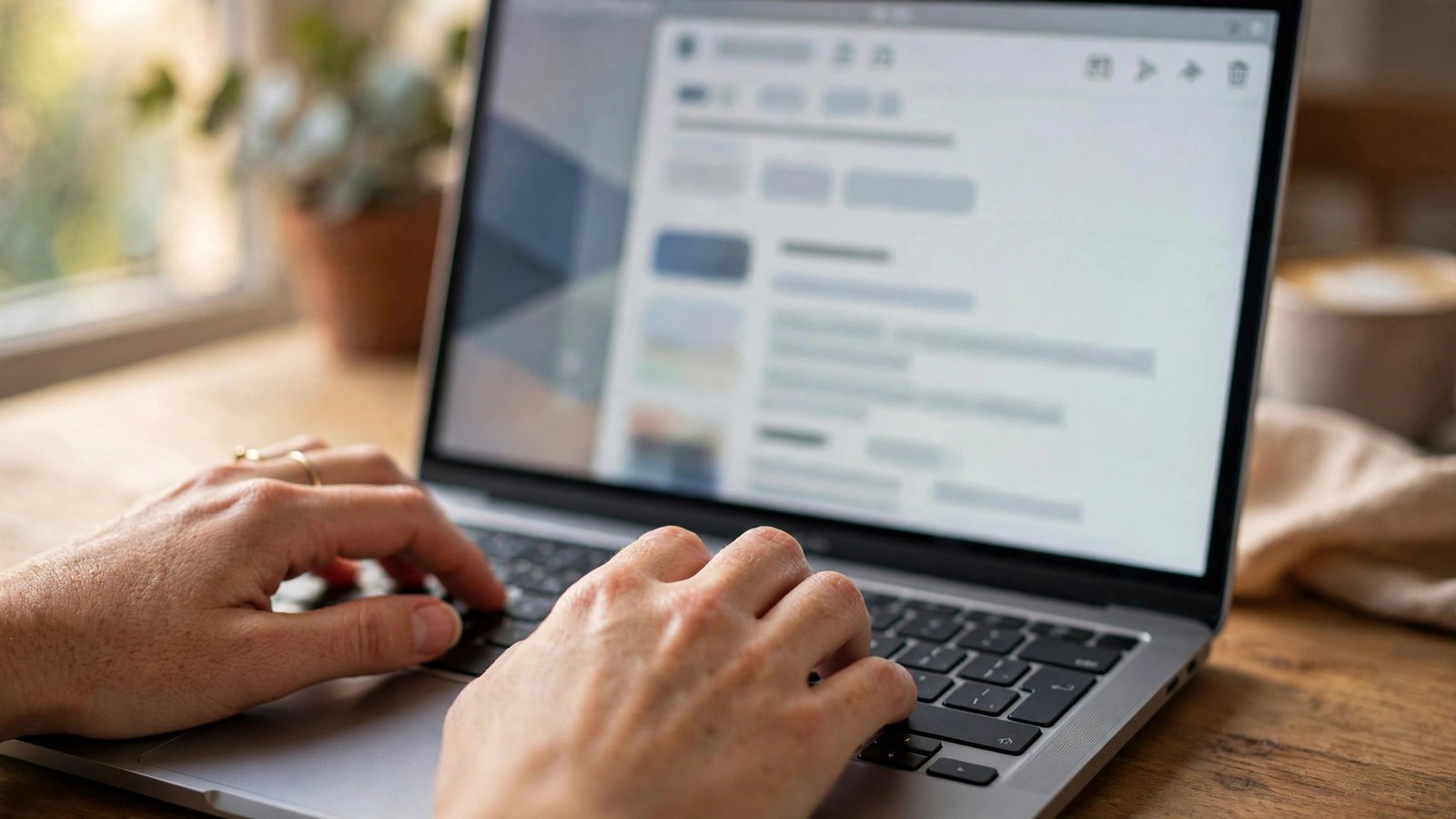
Sending an email is easier than sending a text message once you know where the buttons are. Open Gmail and look for the big Compose button (on the phone app, it is a pencil icon).
- To: Type the receiver’s email address here. Double-check the spelling — one wrong letter and your mail goes to a stranger.
- Subject: Write a short summary, like “Job Application — Amit Singh” or “Question about my bill.”
- Body: This is your actual message. Start with a greeting (“Dear Sir,” or “Hi Priya,”), write your message in short paragraphs, and end with your name.
- Click Send. That is it — your email is on its way.
Want to attach a photo or document? Click the paperclip icon in the compose window, choose the file from your device, and it will be added to your email. You can attach files up to 25 MB directly; for bigger files, Gmail will offer to share them through Google Drive instead.
Reading and Replying Without Stress
Your Inbox is the main screen where new emails arrive. Unread emails appear in bold text. Click any email to open and read it.
At the top of an open email you will see three useful buttons:
- Reply: Answers only the person who sent the email.
- Reply all: Answers everyone included in the conversation. Use this carefully — nobody likes getting reply-all emails they did not need.
- Forward: Sends the email to someone new, like passing a letter along.
When you are done with an email but want to keep it, click Archive (the box-with-down-arrow icon). Archiving removes it from your inbox without deleting it — you can always find it later with search. If you truly want it gone, click Delete (the trash icon).
Labels: Your Inbox Filing System
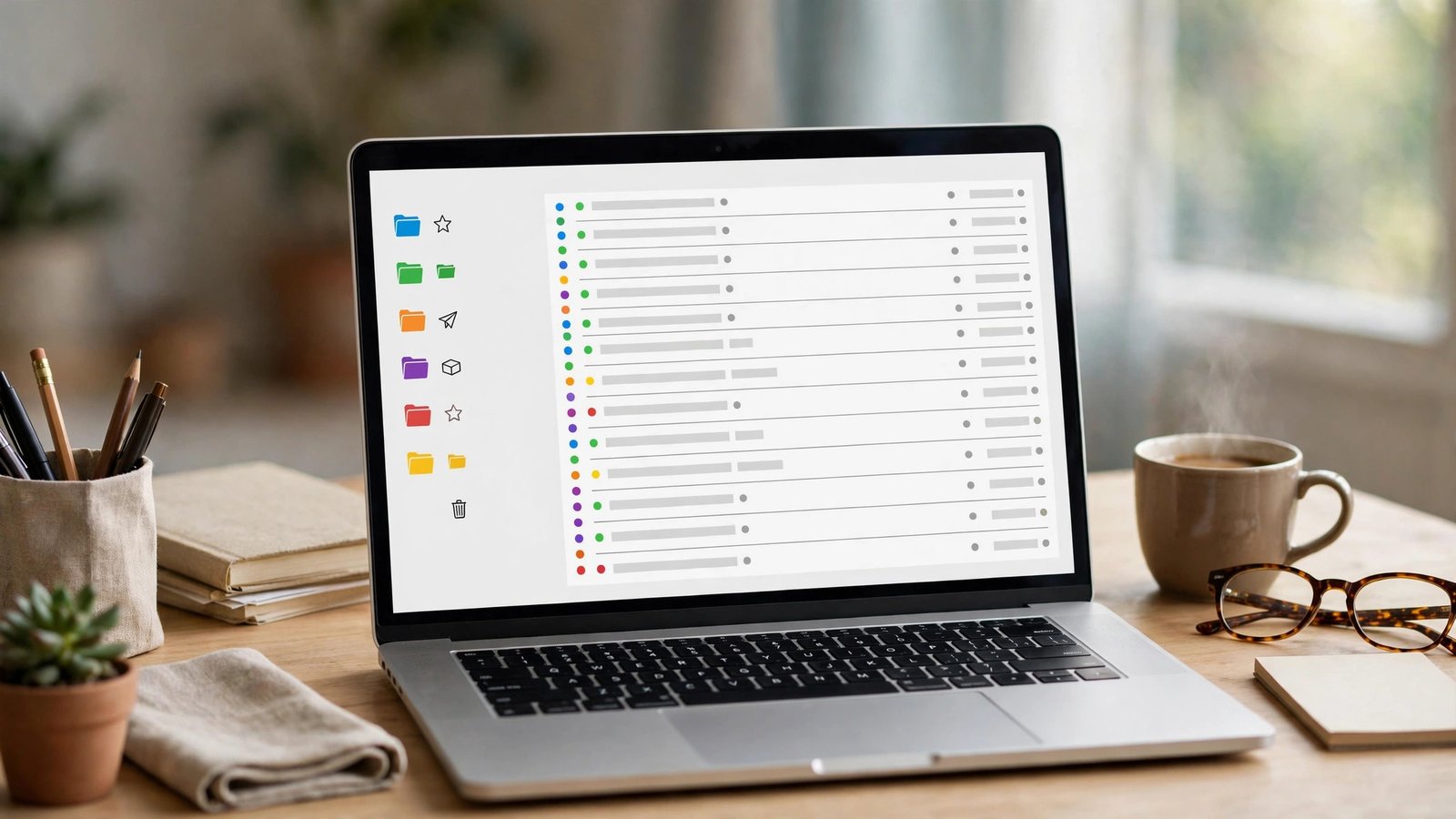
After a few weeks, your inbox will fill up with bills, newsletters, family messages, and work emails. Gmail’s answer to this mess is labels.
Think of labels like colored stickers. Unlike old-style folders, where one email could sit in only one folder, a single email in Gmail can wear many labels at once. A bill from your electricity company could be labeled both “Bills” and “Important.”
To create a label, open any email, click the label icon (it looks like a tag) at the top, and choose “Create new label.” Give it a name like “Work,” “Family,” or “Bills.” From then on, you can label emails in one click.
Two more quick tricks: click the star next to any email to mark it as important and find it fast later. And if a newsletter annoys you, scroll to its bottom and click Unsubscribe instead of deleting every issue one by one.
Finding Any Email in Seconds
The search bar at the top of Gmail is incredibly powerful. Most beginners type a name and hope for the best, but a few simple tricks find anything in seconds.
- Type from:bank to see only emails sent by your bank.
- Type has:attachment to find emails that contain files.
- Type subject:invoice to find emails with “invoice” in the subject line.
- Type older_than:1y to find emails older than one year — perfect for a cleanup.
- Combine them: from:boss has:attachment finds attachments sent by your boss.
You can also click the filter icon (the small sliders) inside the search bar to search by date range, size, or whether the email has attachments — no typing tricks required.
Staying Safe Inside Gmail
Email is also where most online scams begin, so a little caution goes a long way. These habits will keep your account safe:
- Check the sender’s address. A real bank email comes from something like support@yourbank.com, not support-yourbank123@gmail.com. Scammers fake display names, but the real address is harder to fake.
- Never share passwords or OTP codes by email. No real company will ever ask for these.
- Do not click strange links or download unexpected attachments. If an email says you won a lottery you never entered, delete it.
- Turn on 2-Step Verification. Go to your Google Account settings, find Security, and switch it on. Even if someone learns your password, they cannot log in without the code on your phone.
- Report junk. If a scam email slips through, select it and click Report spam. This trains Gmail to block similar messages for everyone.
Gmail Questions, Answered
Is Gmail really free?
Yes. Creating a Gmail account, sending and receiving emails, and using 15 GB of storage costs nothing. Google shows ads in the interface, which is how the free service is funded.
Can I use Gmail on my phone?
Yes. Download the free Gmail app on Android or iPhone, sign in with your new account, and your emails will sync automatically. Many Android phones come with the Gmail app already installed.
What is the difference between Archive and Delete?
Archive removes an email from your inbox but keeps it forever — you can find it with search anytime. Delete moves it to the Trash, where it is permanently erased after 30 days.
How do I recover a deleted email?
Open the Trash folder (in the left sidebar, click “More” if you do not see it). If the email was deleted less than 30 days ago, select it and click Move to Inbox. After 30 days, it is gone for good.
Can I change my Gmail address later?
You cannot rename an existing Gmail address, but you can create a new one in minutes and set up forwarding so old emails still reach you. For most beginners, it is easier to simply choose a good address at the start.
Your Inbox, Under Control
That is all there is to the Gmail basics for beginners. Create your account, practice sending a few emails, try labels and search, and switch on 2-step verification. Within a week, email will feel as natural as texting.
Once you are comfortable, you can explore extras like scheduling emails to send later, snoozing messages for tomorrow, and connecting your calendar. But the foundation you learned today — send, read, organize, search, stay safe — covers everything a beginner truly needs.