


Every few weeks, something strange happens to perfectly good computers. Pages that used to load instantly now crawl. A website you love suddenly looks broken — buttons in the wrong place, images refusing to load. Your bank’s site insists on showing you last month’s layout. You didn’t change anything. So what happened?
Nine times out of ten, the answer is sitting quietly inside your browser: an overloaded or outdated cache. Learning how to clear browser cache takes about two minutes, fixes an astonishing number of everyday annoyances, and is completely safe once you know which boxes to tick. This guide walks you through it in plain language, on computers and phones alike.
First, What Is the Browser Cache Anyway?
Think of your browser’s cache as a shortcut drawer. When you visit a website, your browser downloads dozens of little files — the site’s logo, its fonts, layout code, background images. Instead of downloading all of that from scratch on every visit, your browser saves copies on your device. Next time you open the page, it loads the saved copies, and everything appears faster.
Clever system, and most of the time it works beautifully. But shortcuts go stale. A website updates its design while your browser keeps showing the old saved copy. A saved file gets corrupted and the page displays weirdly. Or the drawer gets stuffed with months of clutter and slows things down instead of speeding them up. Clearing the cache empties that drawer, so your browser saves fresh, correct copies again.
Worth knowing: clearing your cache does not delete your saved passwords, your bookmarks, or anything on your computer outside the browser. It only throws away those temporary saved copies of website files. Your browser simply re-downloads them as you browse. That’s all.
Why Clearing the Cache Fixes So Many Problems
Most people discover this trick the first time a website misbehaves in a way that makes no sense. A half-loaded page on your laptop while your friend’s phone shows the same site perfectly. A store still showing prices from a sale that ended days ago. In these cases, your browser is faithfully displaying an old cached version instead of the current one — and pressing refresh often just re-serves the same old copy. Clearing the cache forces genuinely fresh files. That’s why it resolves so many “glitchy website” complaints in one move.
It’s not a magic fix for everything. If your internet connection itself is slow, or a website’s server is down, emptying your cache won’t help. But when pages look outdated, load strangely, or behave oddly, it’s the single most useful first troubleshooting step you can build into a habit.
Clearing the Cache on a Computer
The exact clicks vary a little between browsers, but the idea is always the same: open your browser’s settings, find the privacy or browsing-data section, choose a time range, and confirm.
If You Use Chrome or Edge
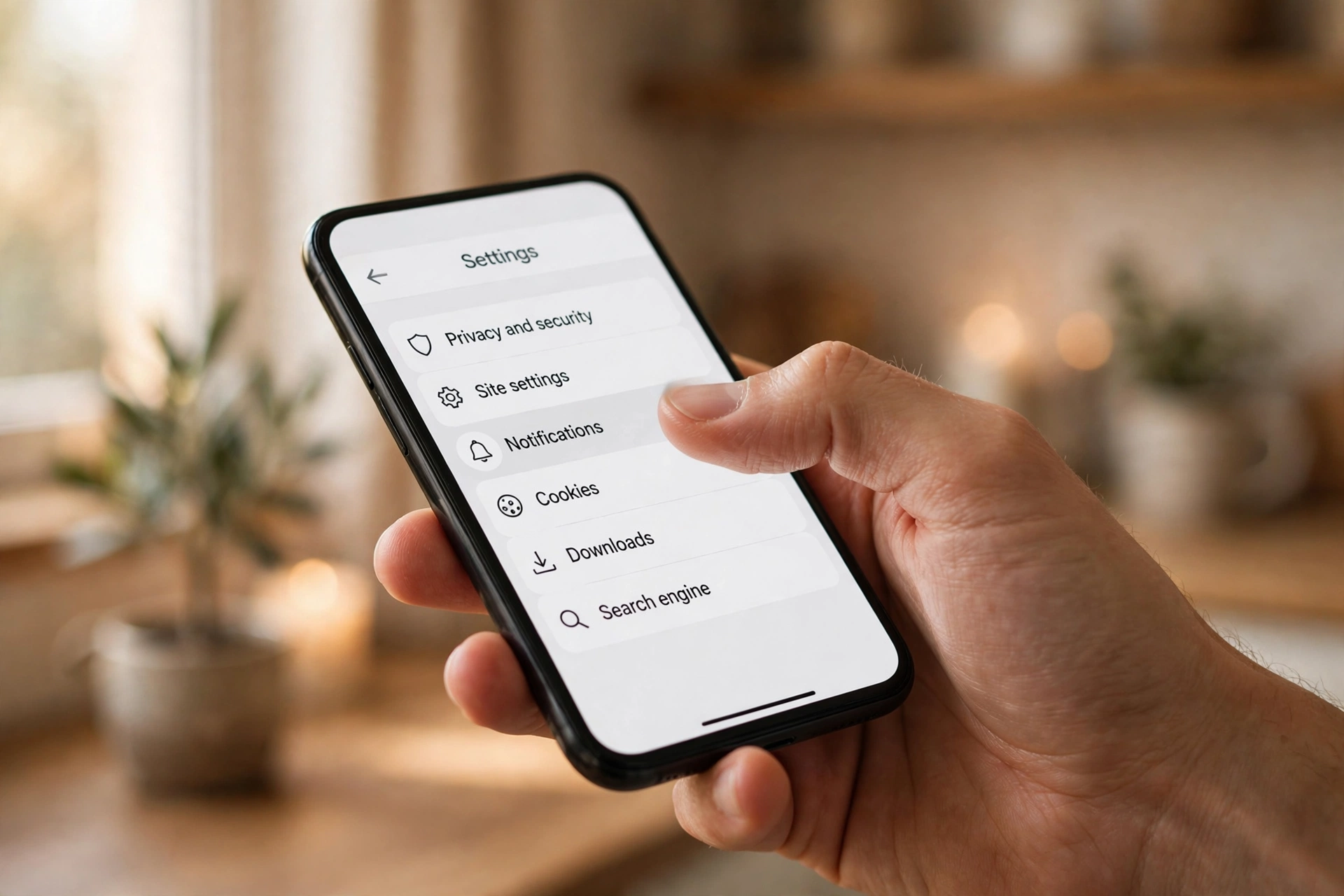
Open the browser’s main menu (the three dots in the top corner) and look for Settings, then find the Privacy and security section. Inside it there’s an option along the lines of “Delete browsing data” or “Clear browsing data”. Choose a time range — “All time” gives the fullest clean, while a shorter range like the last 24 hours is gentler if you only want to fix a recent problem. Make sure Cached images and files is ticked, then confirm.
There’s also a handy keyboard shortcut that jumps straight to this screen on both Chrome and Edge, on Windows and on Mac. Once you’ve done it once, you’ll barely need the menus again.
If You Use Firefox
In Firefox, open the main menu and go to Settings, then to the Privacy and Security panel. Scroll to the section about cookies and site data and look for the option to Clear Data. Tick the box for cached web content, untick anything you’re not sure about, and confirm. Firefox will tell you how much space it’s about to free up — which can be surprisingly satisfying to see.
If You Use Safari on a Mac
Safari hides this one slightly deeper. Open the Safari menu, choose Settings (in older versions it’s called Preferences), and go to the Advanced tab. Tick the option to show the Develop menu in the menu bar, then close settings. You’ll now see a Develop menu at the top of the screen — open it and choose Empty Caches. Done. No confirmation dialogs, no fuss.

Doing It on Your Phone or Tablet
A clogged phone browser can feel just as sluggish as a desktop one, and the cleanup is equally quick.
On an Android Phone
On an Android phone, open your browser, tap the three-dot menu, and go to Settings, then Privacy and security. You’ll find “Delete browsing data” or similar. Pick a time range, make sure the cached images and files option is selected, and tap to clear. The same approach applies to other Android browsers — settings always live under a privacy heading, though the wording may differ slightly.
On an iPhone or iPad
For Safari on an iPhone, open the Settings app on your phone (not the Safari app itself), scroll down to Safari, and look for Clear History and Website Data. One tap, one confirmation, and it’s done. If you use Chrome or another browser on your iPhone, open that browser’s own settings instead and look for its browsing-data or privacy section, just as on a computer.
A small note for phone users: clearing cached data can briefly make pages load a little slower the first time you revisit them, because your phone has to re-download everything. That’s normal and temporary — it speeds back up immediately afterwards.
Cache, Cookies and History Are Not the Same Thing
The screen where you clear your cache usually offers several checkboxes with intimidating names. Here’s what each one actually does, so you can tick with confidence.
Cached images and files is the one this whole guide is about — temporary saved copies of website parts. Safe to clear any time.
Cookies are tiny notes that websites leave on your device to remember you: what was in your shopping cart, that you were logged in, your language preference. Clearing cookies logs you out of most websites — so keep your passwords handy.
Browsing history is simply the list of pages you have visited. Clearing it removes the record but doesn’t speed anything up. Most people leave it unticked for a routine tune-up.
Saved passwords and autofill data are your stored logins and form details. You almost never want to clear these during a routine cleanup. If you see a checkbox for them, leave it alone.
For a basic two-minute tune-up, ticking only the cached images and files box is the sweet spot: all of the speed benefit, none of the side effects.
When Clearing the Cache Actually Saves the Day
Once you know how quick this is, you’ll start recognising the moments where it’s the right move. A website that looks “broken” — text overlapping, styling missing, images replaced by little icons. A page stubbornly showing old information you know has changed, like an updated timetable or a redesigned homepage. The same goes for forms that behave strangely, such as a checkout that keeps erroring or a login that loops back on itself.
Many people also do a light cache clear every month or two as simple maintenance. No special software needed — your browser’s own built-in option does the job completely.

A Few Honest Warnings Before You Start
If you tick the cookies box along with the cache, you’ll be signed out of websites — email, social media, shopping accounts. You just log back in, but keep your passwords handy.
The very first visit to each site after a cleanup may load a touch slower, since your browser is fetching fresh copies of everything. Give it a minute. The speed benefit kicks in from the second visit onward.
Also, resist the temptation to download a third-party “browser cleaner” or “speed booster” app that promises to do this for you. Many do nothing your browser can’t already do — and some bundle in unwanted extras. The built-in option in your browser’s settings is free, complete, and trustworthy.
Quick Answers Before You Clear Anything
Will I lose my bookmarks or saved passwords? No. Clearing cached images and files touches neither. Your bookmarks, saved passwords and autofill entries stay exactly where they are — unless you deliberately tick those extra boxes too.
How often should I do this? There’s no strict schedule. Once every month or two is plenty, or whenever a website starts acting strangely. You don’t need to do it daily.
Does clearing the cache free up storage space? Yes, a little. On phones especially, months of cached files can quietly occupy a noticeable chunk of storage.
Will it make my browser faster? Often, yes — especially if pages had started loading sluggishly or displaying incorrectly. It won’t fix a slow internet connection or an old underpowered device, but for cache-related slowness it is the genuine fix.
A Fresher Browser in Two Minutes
That’s really all there is to it. Open your settings, find the browsing-data option, tick the cached files box, and confirm. Two minutes later your browser is carrying a fresh set of website files, broken-looking pages have a good chance of behaving again, and you’ve gained one more small troubleshooting superpower.














