

You took a burst of photos on your phone and now they are stuck on that tiny screen — or maybe a document lives on your computer and you need it on your phone for the road. Moving files between your phone and computer sounds like it should be simple, yet it trips up plenty of perfectly capable people. The good news: several easy ways exist, and at least one will suit whatever devices you own. This guide walks through every practical method, so you can pick the one that fits the moment.
The Trusty Cable: Still the Simplest Option
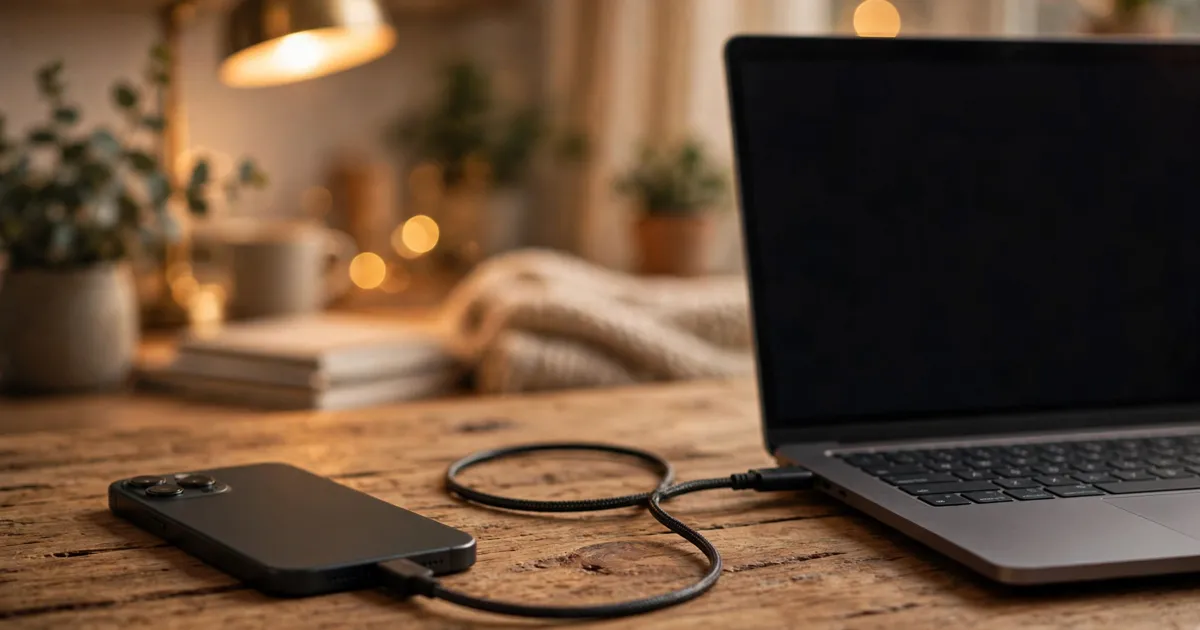
Forget clever software tricks for a moment. A USB cable — the same one you charge your phone with — is often the fastest and most reliable way to move files between your phone and computer. No internet connection, no accounts, no waiting on uploads. If both devices are sitting on the same desk, reach for this method first.
Making the cable connection
Plug one end into your phone and the other into your computer. After a few seconds, your phone will usually show a notification asking what kind of connection you want — something like “File transfer” or “Transfer files” versus “Charging only.” Choose the file transfer option. On your computer, the phone should then appear as a device in your file manager. Browse its folders, drag photos and videos across, or copy files onto the phone. When you are done, use your computer’s “safely remove” option before unplugging.
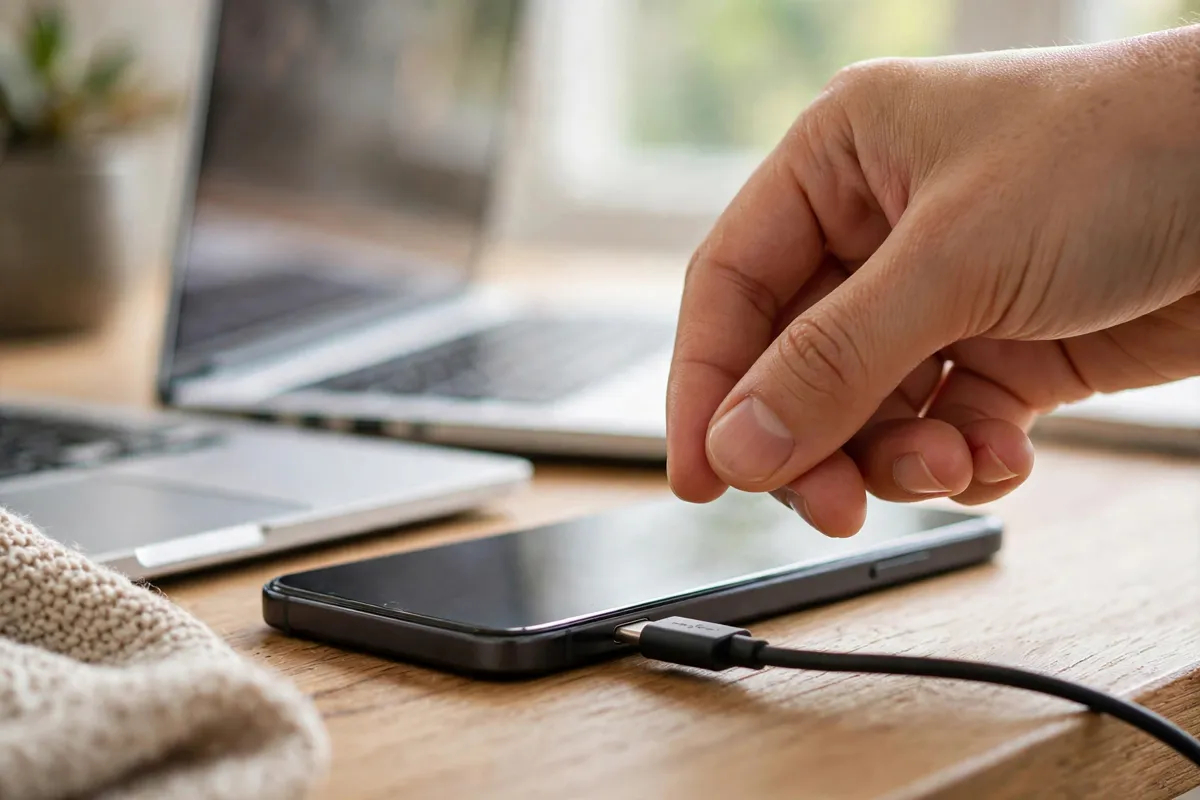
If nothing appears on the computer, the most common culprit is a cable that only carries power — some cheap cables cannot carry data at all. Swap in the cable that came with your phone and try again. The other usual fix is tapping that notification on the phone to allow file access, which people often dismiss without reading.
Cables win on speed and privacy. Large video files that would take ages to upload travel in seconds, and your files never leave your own desk. The only real limitation: you need the right cable and physical access to both devices.
Let the Cloud Carry Your Files
Cloud storage is the method that feels like magic once it is set up: save a file in one place and it simply appears everywhere else. Almost every phone today ships with a built-in cloud storage service tied to your account, and the matching app on your computer syncs the same files to a folder you can open like any other.
The basic idea is the same whatever service you use. Take the photo, video or document on your phone and save or upload it into your cloud storage folder. Give it a moment — upload speed depends on your internet connection — then open the same folder on your computer, where the file will be waiting. Going the other way works identically: drop a file into the folder on your computer and it appears on your phone.
Cloud transfer shines when you are not at your desk. Snap photos while out, and they are waiting on your home computer by the time you return. It also doubles as a backup if your phone is ever lost. Two cautions: large videos eat mobile data quickly, so use Wi-Fi for anything big, and free plans have storage limits — keep an eye on that.
Going Wireless Without the Cloud
Sometimes you want to send a file straight from your phone to your computer — no cable, and nothing uploaded to the internet. That is what wireless transfer methods are for, and they are easier than they sound.
Sending files with Bluetooth
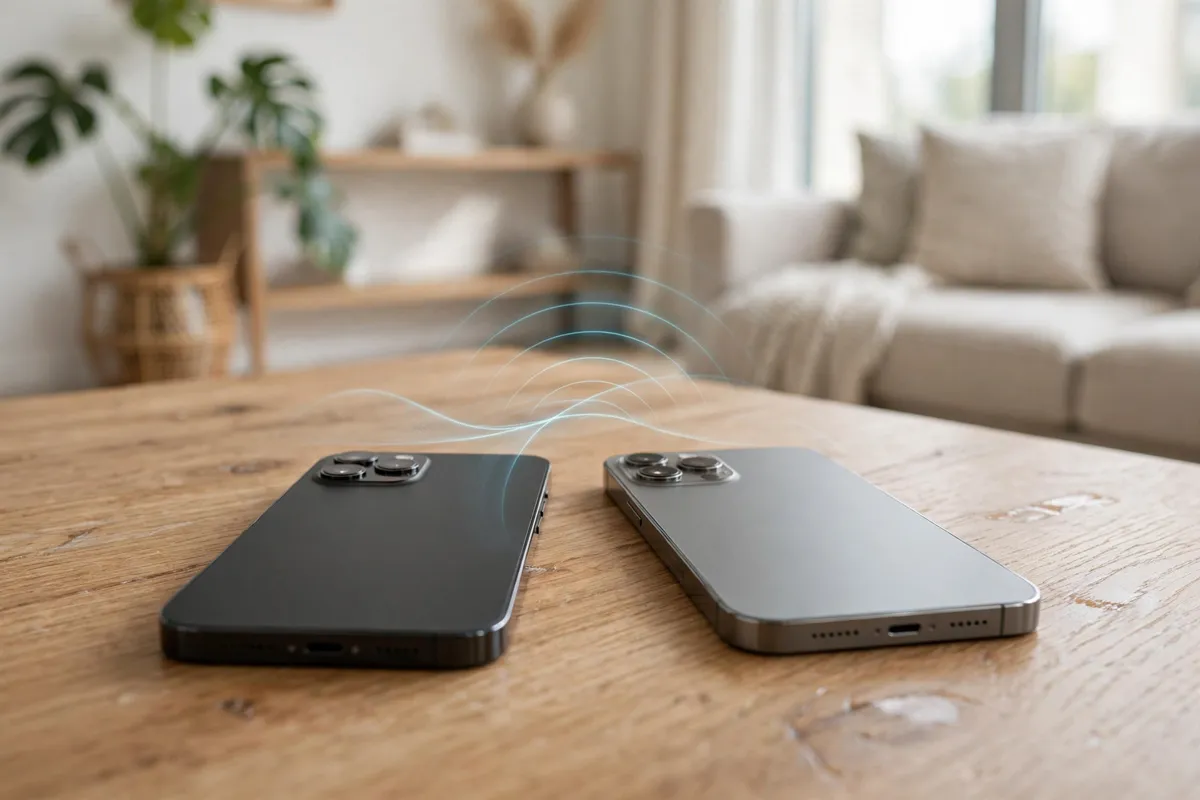
Bluetooth is built into virtually every phone and most computers. Turn it on on both devices, make them discoverable, then pair them — your phone will show a confirmation code matching the one on the computer screen, and you accept on both sides. Once paired, share a file from your phone the way you would share anything: open it, tap the share button, choose Bluetooth, and pick your computer as the destination.
Bluetooth suits the odd photo or document, but it is not fast — a long video or a big photo folder will crawl. Keep Bluetooth for small jobs. Use cable or cloud for heavy ones.
Apps that turn Wi-Fi into a file bridge
Several well-known apps let your phone and computer exchange files over your home Wi-Fi, no cable needed. The usual setup: open the app on your phone, it shows a code or address, and you enter that into a matching app or a web page on your computer. After that, both devices send and receive freely. Wi-Fi transfers are much faster than Bluetooth, so this is a genuinely good option for batches of photos or a long video.
The catch: both devices must share the same Wi-Fi network, and you need the app installed. Stick to well-known apps from the official store, and skip any that demand unrelated permissions.
The Email-to-Yourself Trick
Here is the method nobody respects but everybody ends up using at least once: email the file to yourself. Open your email on the phone, attach the document or photo, and send it to your own address. Open the same email on your computer and download the attachment. Done.
This trick is perfect for a single document or a handful of photos when you just need it to work. No cables, no pairing, no new apps. But attachment sizes are capped — usually around twenty-five megabytes — so whole videos are out. Keep it to everyday files too, not anything confidential.
When Size or Format Gets in the Way
Even with the right method, a transfer can hit a wall. The two most common obstacles are size and format, and both are easy to work around once you know what is happening.
Size is straightforward: a four-minute video recorded in high quality can run several hundred megabytes. Fine for a cable, miserable for email, slow over Bluetooth, and a mobile-data muncher in the cloud. If a transfer is taking forever, shrink the problem. Many phones have a setting to record at lower resolution, and free tools on phones and computers can compress videos and photos before you send them. For cloud services, uploading over Wi-Fi overnight is a perfectly respectable strategy.
Format problems appear when the receiving device does not recognise the file. An iPhone recording might use a video format your older computer’s player won’t open, or a document in a less common format might look strange on the other side. The fixes are simple: open the file with a different app (free players and viewers exist for nearly everything), or convert it. Many phones can export photos and videos in a “more compatible” format in their camera or file settings, and free conversion tools handle the rest.
Straight Answers Before You Start
Which method should a beginner try first?
The USB cable. It is fast, it needs no internet, and once the phone is set to file transfer mode, it works like dragging files between two folders.
Can I move files from an iPhone to a Windows computer?
Yes. A cable works, cloud storage works, and the email trick works. The same methods work for Android phones too — the principles are identical.
Why does my computer not see my phone when I plug it in?
Either the cable only carries power (try the phone’s original cable), or the phone is still in “charging only” mode — look for the connection notification and switch it to file transfer.
Is it safe to transfer files over public Wi-Fi?
Cable transfers are safest. For cloud and wireless-app methods on public networks, wait until you are on a trusted network if the files are at all personal.
What is the fastest way to move a very large video?
A USB cable, by a wide margin. Wireless options will get there eventually, but a cable turns minutes of waiting into seconds.
Your Files, Wherever You Need Them
There is no single “correct” way to move files between your phone and computer — just the right method for the moment. Sitting at your desk with a big video? Grab the cable. Out and about, wanting photos waiting at home? Let the cloud handle it. One quick document at a friend’s house? Email it to yourself. And for the odd small file to a nearby laptop, Bluetooth or a wireless app does the job nicely.
The real trick is less about technique and more about habit. Keep your cable where you can find it, make sure cloud storage is signed in on both devices, and pair your phone’s Bluetooth with your computer once so it is ready next time. After one or two successful transfers, the whole thing becomes second nature — and that pile of photos stuck on your phone screen will never be trapped there again.














