

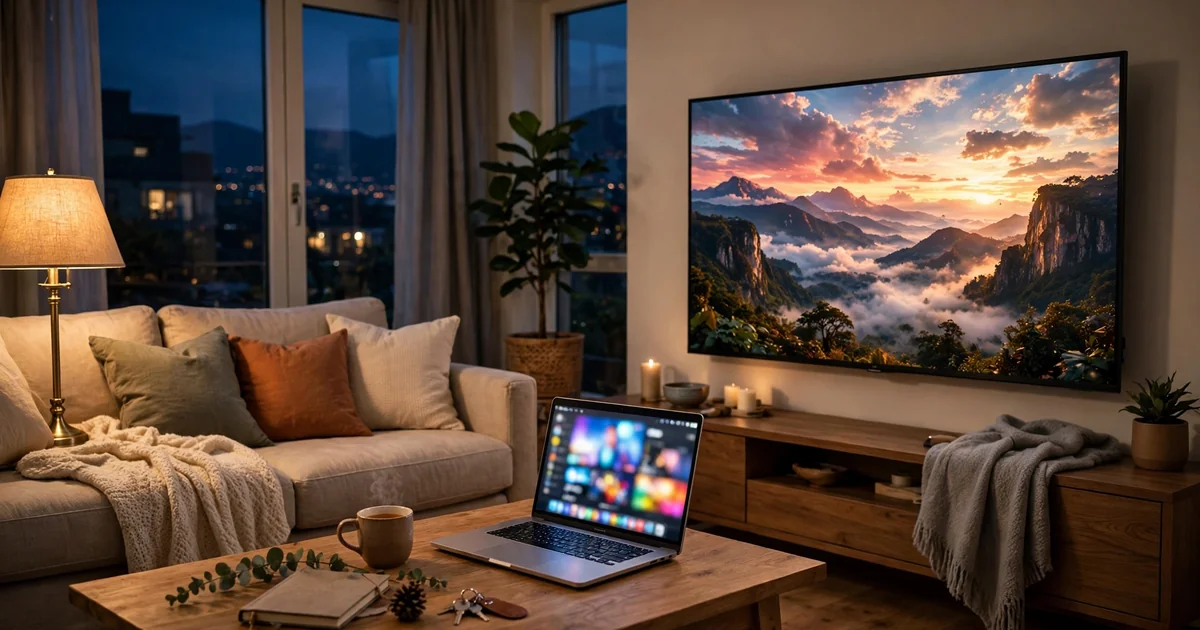
You have the laptop, you have the TV, and somewhere in between sits the eternal question: where did that HDMI cable go? Wireless casting skips the cable hunt entirely. Your laptop talks to the TV over your home Wi-Fi, and the film, the slides, or the match appear on the big screen like magic — except it’s not magic, it’s just a setting most people never click.
Why wireless beats the cable for most people
I have been there: laptop balanced on a sofa arm, leaning across to plug in a cable that turns out to be too short, then hunting behind the TV for the right port while everyone waits. It’s the kind of small frustration that eats the start of a movie night.
Casting solves the awkward part. You stay on the sofa. The laptop stays on the coffee table. Nothing gets plugged in, nothing gets tripped over, and nobody has to crawl behind the TV stand. For films, holiday photos, video calls, and presentations, wireless is simply easier.
Cables still win at one thing: rock-solid gaming and anything where a fraction of a second of delay matters. A cable also doesn’t care about your Wi-Fi. But if your goal is watching something on a bigger screen, wireless is the comfortable choice nine times out of ten.
The quick way on Windows
Windows has wireless display built in, and finding it takes less time than brewing tea. Press the Windows key + K on your keyboard. A panel slides in from the right showing nearby wireless displays — your TV should appear there.
Click the TV’s name. The first time, your TV may show a pairing code or ask you to confirm the connection; accept it, and your laptop screen appears on the TV within seconds. From then on, Win + K usually connects in one click.
One small tip: once connected, press Windows key + P to choose what the TV shows. “Duplicate” mirrors your laptop exactly. “Extend” turns the TV into a second screen, which is handy for presentations — your notes stay on the laptop while the audience sees the slides. “Second screen only” sends everything to the TV and lets the laptop screen rest.
If your TV doesn’t show up in the list, check two things. First, the TV’s own casting or screen-mirroring feature needs to be switched on — look in the TV’s network or input settings. Second, both devices must be on the same Wi-Fi network. A laptop on the 5 GHz band and a TV on the 2.4 GHz band of the same router usually works, but a guest network and the main network are separate worlds.
Sharing from a Mac without fuss
Mac users get AirPlay, and it’s quietly one of the smoothest options. Click the Control Centre icon in the menu bar at the top of the screen (the little toggles icon), then choose Screen Mirroring. Your TV should be listed if it supports AirPlay — most recent smart TVs do, and Apple TV boxes handle it natively.
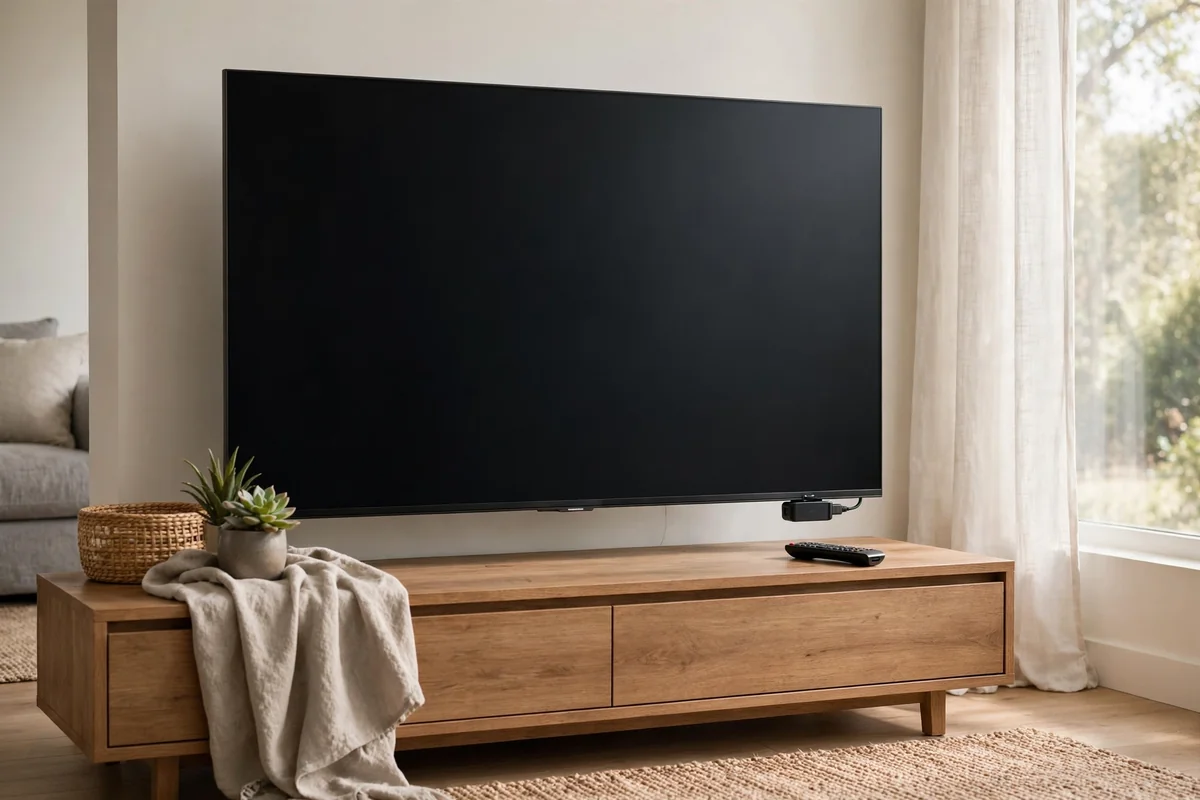
Pick the TV from the list. If a code appears on the TV screen, type it into your Mac, and you’re connected. Mirroring starts immediately: whatever you see on the Mac shows up on the television.
For films and photos, you don’t even have to mirror the whole screen. Many video and music apps carry a small AirPlay icon inside their playback window. Tapping it sends just the video to the TV while your Mac stays free for other things — answering a message won’t interrupt anyone’s viewing.
If the TV isn’t listed, the fix is usually the same as on Windows: same Wi-Fi network for both devices, and AirPlay switched on in the TV’s settings. Some older TVs call it “screen share” or “device connector” rather than AirPlay; a quick look through the TV’s manual or settings menu clears that up.
What a Chromecast actually does
A Chromecast is a small dongle that plugs into an HDMI port on your TV. Think of it as a translator: it gives an older or non-smart TV the ability to receive wireless casts from your laptop. Once plugged in and connected to your Wi-Fi, it sits quietly until you ask for it.
The easiest way to cast from a laptop is through the Chrome browser. Open Chrome, click the three-dot menu in the top-right corner, and choose Cast. A list of available TVs and Chromecast devices appears. You can send a single browser tab — perfect for streaming sites — or choose “Cast screen” from the dropdown to send everything on your display.
The tab-casting trick deserves a moment. Streaming video through a tab keeps your laptop’s desktop private. Pop-ups, notifications, and that half-written email never reach the TV. When the film ends, close the tab or click the cast icon and choose “Stop casting”. Simple.
Chromecast also works with other apps beyond the browser, and it plays nicely with both Windows and Mac laptops. If your TV is older and has no smart features at all, this little dongle is often the cheapest path to wireless casting.
Miracast in plain language
Miracast sounds like something that needs a manual, but the idea is straightforward. It’s an open standard for screen mirroring over Wi-Fi, built into most Windows laptops and many smart TVs — no extra gadget required.
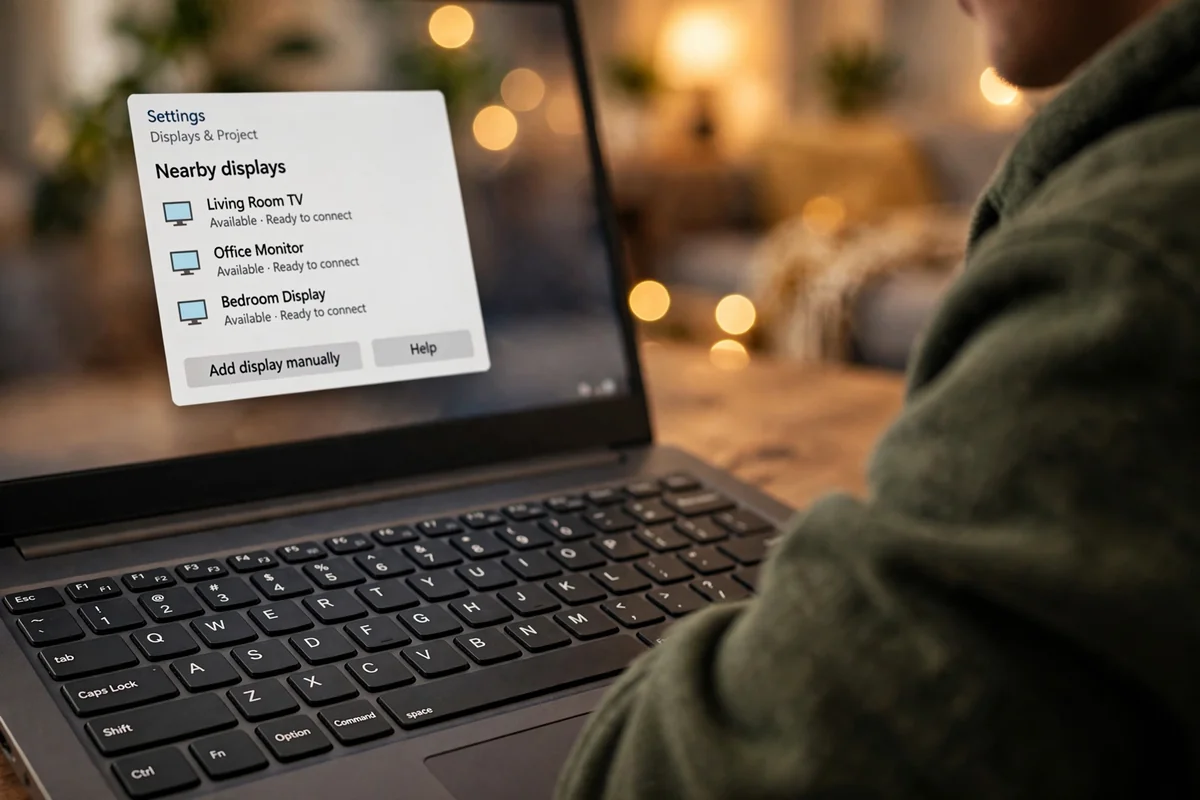
On the TV side, it’s often listed under names like “Screen Mirroring”, “Wireless Display”, or “Smart View”, depending on the brand. Switching that on makes the TV visible to nearby laptops. On the laptop side, you connect the same way you would with Windows Cast — Win + K does the job — because Windows speaks Miracast behind the scenes.
The honest limitation: Miracast doesn’t officially support Macs or iPhones. If your household is all Apple, AirPlay is the natural route. If it’s Windows laptops and a smart TV, Miracast might already be doing the work without you knowing its name.
When the picture stutters or looks fuzzy
Wireless casting is great until the picture starts buffering like a slideshow, and that moment always arrives when guests are watching. Most of the time the culprit is Wi-Fi, not the casting itself.
Distance matters. A router two rooms away with three walls between it and the TV is asking for trouble. Move the laptop and TV reasonably close to the router, or at least into the same room as it, and the picture usually sharpens up.
Bandwidth matters too. If someone is downloading a huge file or playing an online game on the same network, the cast has less room to breathe. Pause the downloads during the film. And if your router broadcasts two networks — a 2.4 GHz one and a 5 GHz one — put both the laptop and the TV on the 5 GHz network when you can; it handles video far better.
Audio out of sync is the other classic complaint. A one-time re-pair (disconnect, then reconnect) fixes it more often than you’d expect. If it keeps happening in one particular app, try the tab-casting route in Chrome instead of mirroring the whole screen — the app’s own player often handles timing better than the system mirror.
And the old standby: restart both devices. It’s boring advice, but a surprising number of “casting stopped working” stories end with a reboot. Technology misbehaves; a fresh start clears the jam.
What people usually ask
Do I need any special software?
Usually not. Windows Cast, AirPlay, and Miracast are built into the operating system and the TV. The only common exception is a Chromecast dongle for an older TV, which needs a one-time setup through an app.
Will casting drain my laptop battery?
It uses more power than idling, yes — the Wi-Fi radio works harder. For a long film, plug the laptop into its charger and forget about it.
Can I cast if I don’t have internet?
You need a Wi-Fi network for the devices to find each other, but that network doesn’t always need internet access. A router with no connection still lets a laptop and TV talk to each other for mirroring.

Is wireless casting safe to use?
On your home Wi-Fi with a password, it’s a private conversation between your two devices. One caution for hotels and public spaces: some TVs there accept casts from anyone nearby, so only cast when you can see exactly which screen you’re connecting to.
Why does my TV ask for a PIN every time?
That’s a security setting on the TV, and it’s a good one. You can usually switch it to “ask first time only” in the TV’s settings if the repeated codes annoy you — fine at home, less wise on a shared network.
Grab the popcorn
That covers the four paths: Windows Cast for a quick mirror, AirPlay for Mac households, Chromecast for older TVs, and Miracast quietly doing its thing in the background. Pick the one that matches what you already own — most people need nothing new at all.
My suggestion: try it once this week with something low-stakes, like a photo folder or a short clip. Five minutes of experimenting beats an hour of reading about it. Once you’ve seen your laptop screen land on the TV without touching a cable, the HDMI drawer can stay shut.














