

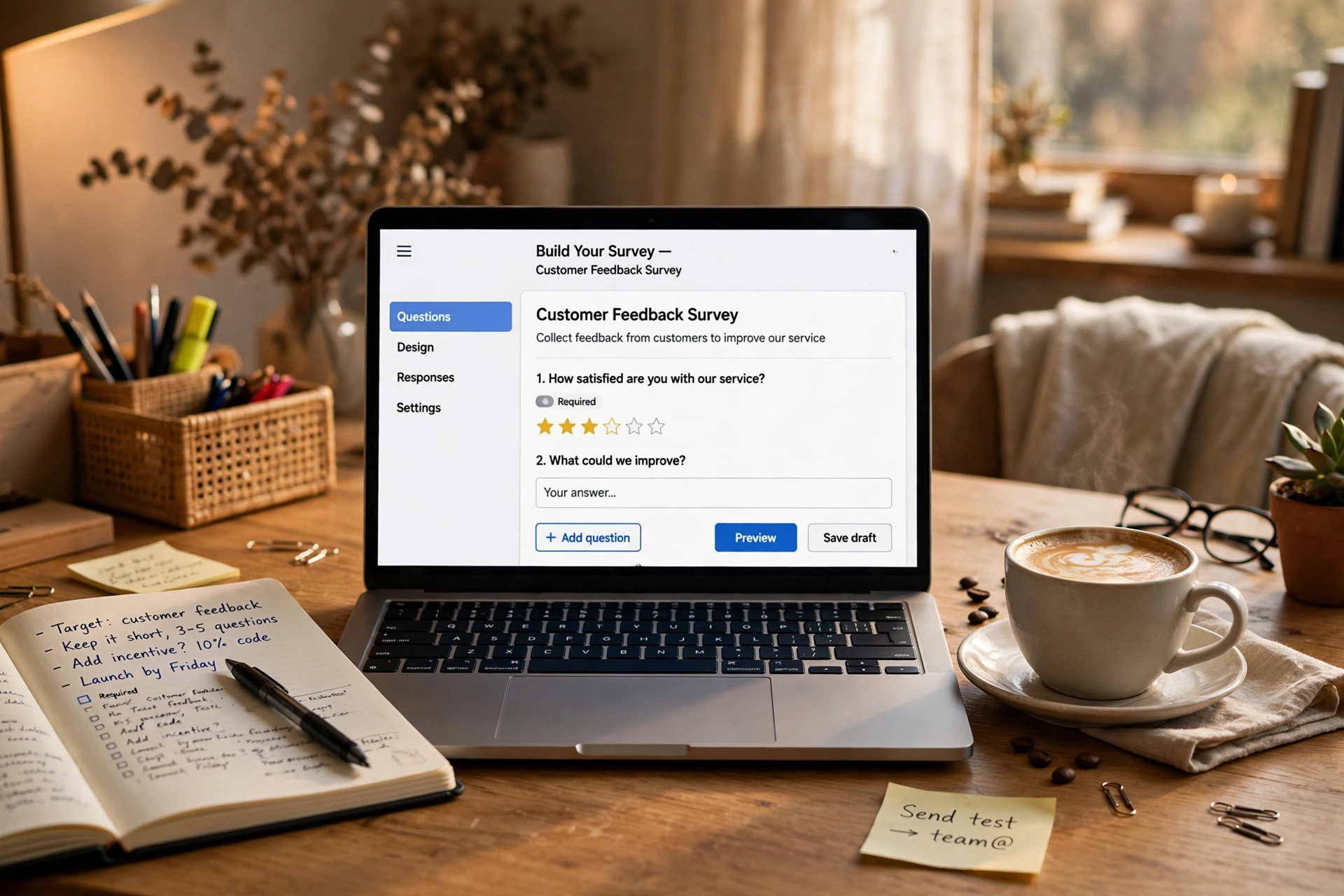
Imagine this: your book club needs to pick next month’s read, your cousin’s wedding needs a headcount, or your small business wants to know what customers actually think. You could chase people over text messages and scribble answers in a notebook — or you could send one simple link and let the answers organize themselves. That second option takes about fifteen minutes to set up, costs nothing, and needs no technical background at all.
In this guide, you’ll learn how to create a Google Form from a blank page to a finished, shareable survey. By the end, you’ll have a working form you can send to friends, classmates, customers, or colleagues — plus a clear way to read the answers that come back. Grab a coffee, open your browser, and let’s build something useful together.
Why a Form Beats a Group Chat
When you ask a question in a group message, answers arrive in random order, mixed with jokes and off-topic comments. By the third day, good luck finding who said what. A form flips that chaos into order: every person answers the same questions in the same structure, and their replies land in one tidy place.
The tool we’ll use is free with any Google account, works on phones and computers, and needs no software installation. If you can send an email, you can build a form.
Getting to the Starting Line
Open your web browser and head to the Google Forms start page (forms.google.com). If you’re already signed in to your Google account, you’ll land on a clean page showing a gallery of templates. If not, the page will ask you to sign in first — use the same account you’d use for Gmail.
You’ll see a “Blank form” option alongside several ready-made templates. Templates can be handy, but for your first form, click the blank form — building from scratch takes only a few extra minutes and teaches you exactly how everything works, which pays off every time you make the next one.
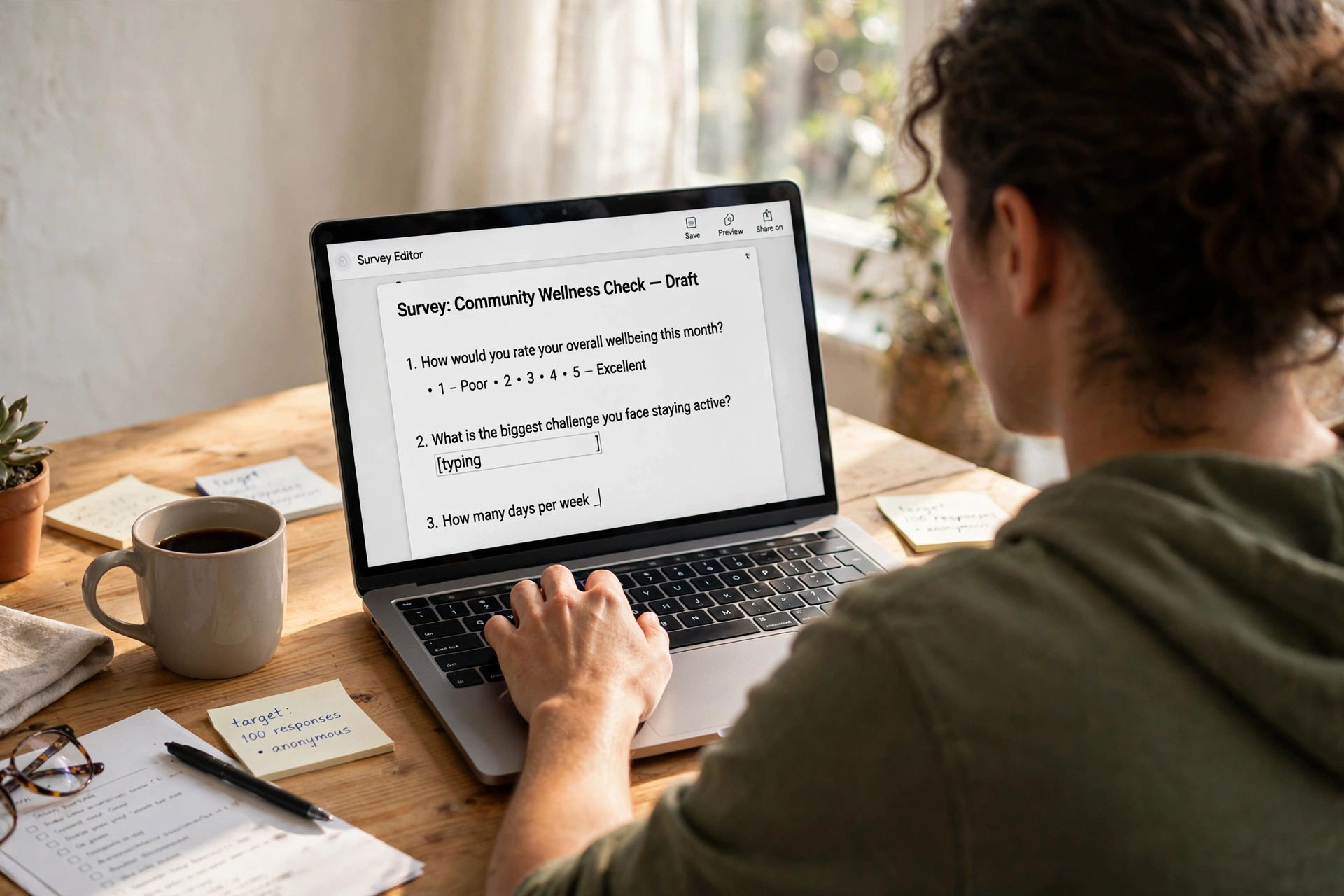
When your blank form opens, the first thing you’ll notice is an empty title field that says “Untitled form” and a smaller description box below it. Don’t skip these — they’re the first things your respondents will read.
Give Your Form a Name People Understand
Click on “Untitled form” and type a clear, plain title. Pretend your reader has zero context: “Weekend Hiking Trip — Sign Up” is much better than “Trip Form” because it tells the person exactly what they’re signing up for before they answer a single question.
Next, click the description box beneath the title and add one or two sentences of context: what this form is for, how long it takes, and what happens after they submit. That little paragraph dramatically increases response rates, because people who understand the purpose are far more willing to participate.
Pick the Right Question Types
Your first question is already waiting, and next to it is a dropdown menu of question types. Choosing the right type for each question is the single most important skill in form design:
- Short answer: best for names, email addresses, or one-line answers.
- Paragraph: a bigger box for longer replies, like suggestions or feedback.
- Multiple choice: the respondent picks exactly one option — perfect for yes/no questions.
- Checkboxes: lets people tick several options, ideal for “Which days work for you?”
- Dropdown: a compact menu of options, great for long lists like cities.
- Linear scale: asks people to rate something from 1 to 5, useful for satisfaction questions.
- Date: a little calendar picker, handy for booking requests.
A good beginner habit: use closed questions (multiple choice, checkboxes, scales) for anything you’ll want to count, and save open written answers for where you genuinely want people’s own words. Five well-chosen questions will get you far more answers than fifteen long-winded ones.
Building Your First Set of Questions
Say you’re organizing that hiking trip. Your first question might be “What’s your name?” — set it as a short answer and toggle on the “Required” switch so nobody submits anonymously. Click the plus (+) button on the right-hand toolbar to add a second question: “Will you be joining us on Saturday?” — make that multiple choice with Yes, No, and Maybe.
Add a third: “How are you getting there?” as checkboxes. Then a final paragraph question: “Anything we should know? (dietary needs, injuries, plus-ones)”. You can reorder questions any time by dragging the little grid of dots at the top of each question block. Nothing is permanent — delete, duplicate, or shuffle questions freely until the flow feels right.
Make It Look Like Yours
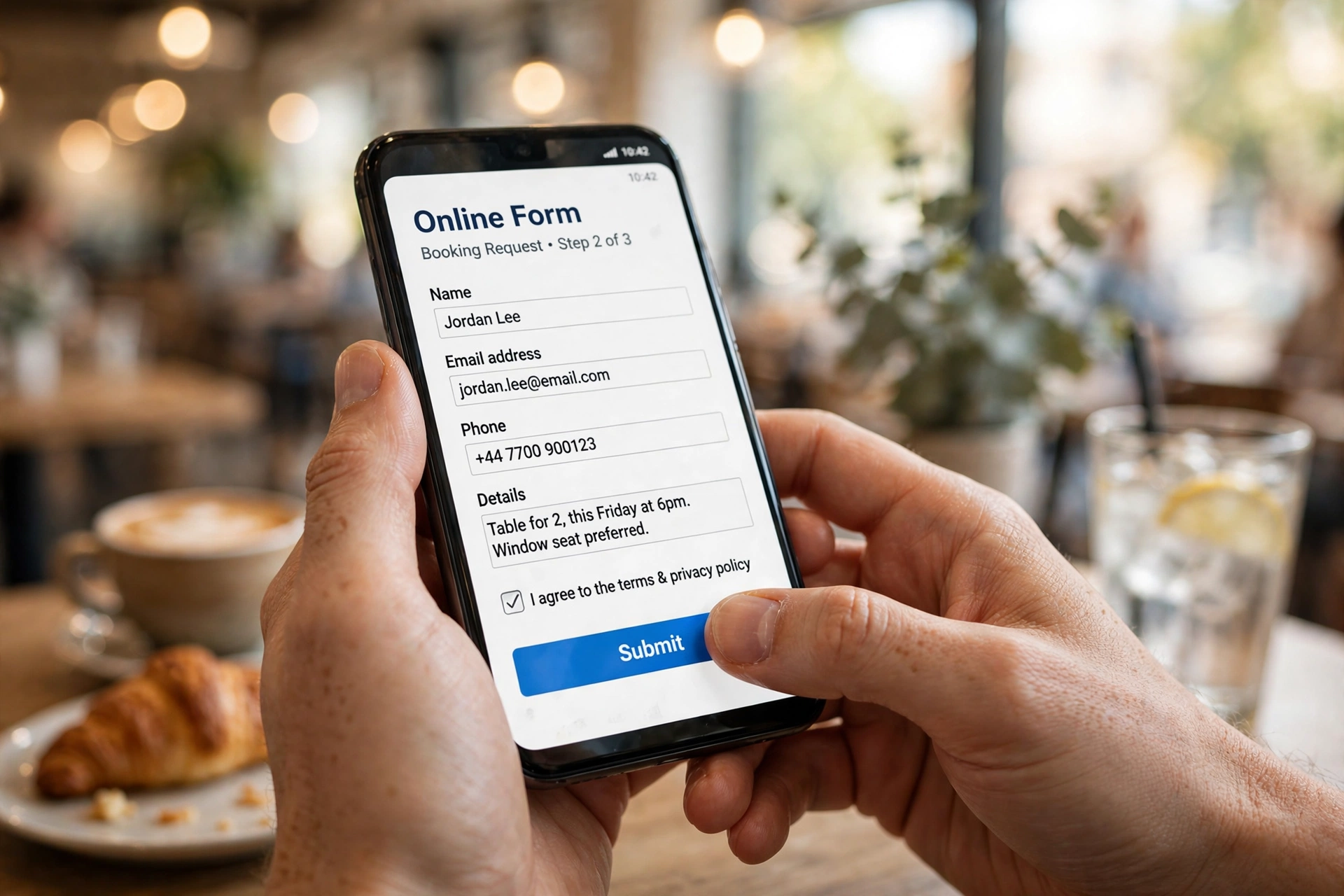
A plain gray form works fine, but a minute of styling makes your form feel personal and trustworthy. Click the paint-palette icon (Customize Theme) at the top: pick a header color, choose a font style, and even upload a header image — a photo of your hiking trail or your shop front makes an instant difference.
One caution: images should support the form, never distract from it. And always check how your form looks on a phone before sharing it — most respondents will answer from mobile, and a quick preview helps you catch awkwardly long question titles.
Test Before You Share
This step takes ninety seconds and saves real embarrassment. Click the eye icon at the top to open the preview, then fill in your own form exactly as a respondent would and submit it. Go back to the editing view, click the “Responses” tab, and check that your test answer arrived. Then delete your test response from the Responses tab (click the three dots menu and choose “Delete all responses”) so you start collecting with a clean slate.
Settings Worth a Quick Look
Before sharing, click the Settings tab. Under “Responses,” you can decide whether to collect email addresses and whether respondents can edit their answers after submitting. Under “Presentation,” you can personalize the confirmation message — instead of the default, try something warmer like “Thanks for signing up — see you Saturday!” If you’re collecting personal details, only ask for what your purpose genuinely requires.
Sending It Out Into the World
Click the purple “Send” button in the top-right corner. The simplest option is the link: the form generates a short web address you can paste into a chat group, an email, or a social media post. For a classroom or a meeting room, the QR code option is surprisingly handy — project it on a screen and people can scan it with their phone cameras in seconds. However you share it, include one sentence of context: “Two-minute headcount for Saturday’s hike — please fill in by Thursday!” Links without context get ignored; links with a clear ask get answered.

Reading the Answers Like a Pro
Click the “Responses” tab on your form and you’ll see a live summary: a running count of submissions, neat bar charts and pie charts for your choice-based questions, and a scrollable list of written answers. For a quick poll or headcount, this summary view is genuinely all you need.
If you want to dig deeper, click the spreadsheet icon to link your form to a spreadsheet — every future response flows in automatically as its own row, ready to sort and filter. And when you’re done collecting, flip the “Accepting responses” switch off in the Responses tab and write a custom closed message, so nobody answers weeks after you’ve made your plans.
Quick Answers Before You Build
Is it really free?
Yes. Creating forms, collecting responses, and viewing the summary charts costs nothing with a standard Google account — no per-response fees for typical personal, classroom, or small-business use.
Can people answer without a Google account?
Generally, yes. By default, respondents don’t need to sign in. You can optionally require sign-in, but for most casual uses the open link works for everyone.
What if I make a mistake after sharing?
Edit freely — changes apply instantly to the live form, even while people are filling it in. If you want to start fresh, you can clear responses from the Responses tab.
How do I stop people from submitting twice?
Settings has an option to limit to one response per person (which requires sign-in). For informal polls, the spreadsheet view makes duplicates easy to spot anyway.
Can I make a quiz with right and wrong answers?
Yes. Settings includes a “Make this a quiz” option that lets you assign point values and mark correct answers — a favorite among teachers for quick classroom quizzes.
Your First Form Is Closer Than You Think
Let’s recap the whole journey: you opened a blank form, gave it a clear title and a friendly description, added a handful of well-chosen questions, styled it lightly, tested it on yourself, shared one link, and watched the answers roll into tidy charts. That’s genuinely the entire process — and the second form will take you five minutes.
So here’s a small challenge for this week: think of one real situation in your life — a dinner plan, a team feedback round, a class poll, a neighborhood cleanup — and build the form for it. Keep it short, keep it clear, and send it out. You’ll be surprised how quickly “let me just make a form for this” becomes your favorite shortcut for getting organized. Happy building!














