

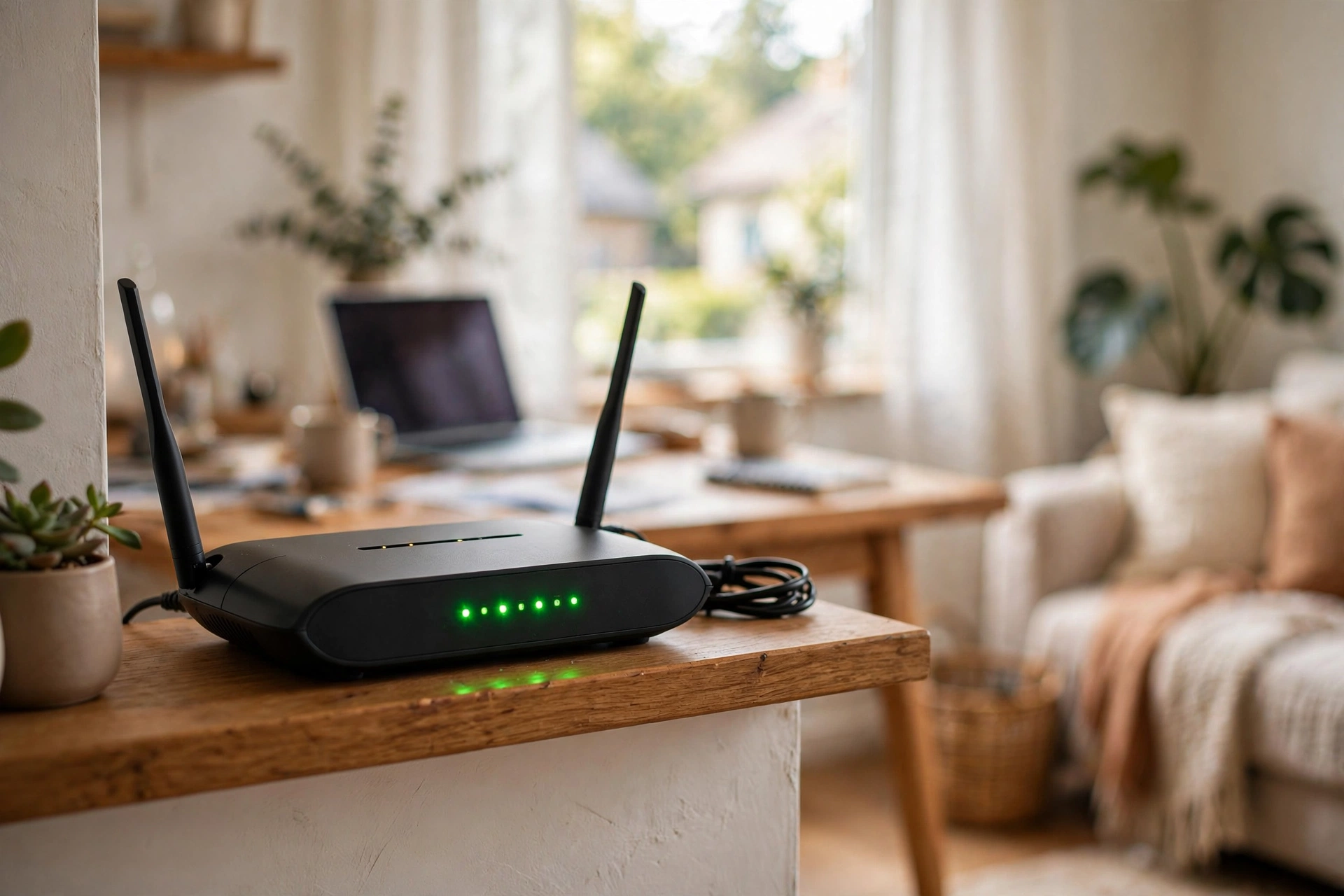
That little box with the blinking lights in your hallway does a lot more than bring the internet into your home. Every photo you back up, every message you send, and every password you type passes through your Wi-Fi router. And yet most people plug it in once, connect their devices, and never touch a single setting again.
That is exactly what hackers count on. An unsecured or poorly configured router is one of the easiest ways for a stranger to sneak onto your network, spy on your traffic, or even lock you out of your own devices. The good news? Fixing it is not hard. You do not need to be technical, and you do not need any special software.
This guide walks you through how to secure your home Wi-Fi router in eight simple steps. Set aside about an hour, grab your laptop or phone, and let us lock things down together.
Why Your Router Deserves More Attention
Think of your router as the front door of your digital home. If the lock is weak or the key is left under the mat, anyone walking by can step inside. Cybercriminals routinely scan for routers still using factory settings — default usernames like “admin”, default passwords printed on a sticker, and outdated security that has not been touched in years.
Once someone is on your network, they can intercept unencrypted traffic, change your DNS settings to redirect you to fake websites, or use your connection for illegal activity that traces back to your address. A few minutes of prevention saves a world of trouble.
Step 1: Change the Default Admin Password
Almost every router ships with the same login for its settings page — often “admin” for the username and something like “password” for the password. These defaults are public knowledge, listed in manuals and all over the internet.
Open a browser on a device connected to your network and enter your router’s admin address (usually printed on the router’s label, often something like 192.168.0.1 or 192.168.1.1). Log in with the default credentials, then head straight to the administration or management section and change that password to something long and unique. Write it down somewhere safe — a password manager or a piece of paper kept at home works fine.
This is separate from your Wi-Fi password, which we will deal with next. The admin password protects the settings themselves, so a neighbor or intruder cannot reconfigure your router behind your back.
Step 2: Pick a Strong Wi-Fi Password and the Right Encryption
Now let us secure the wireless signal itself. In your router’s wireless or Wi-Fi settings, look for the security mode and choose WPA3 if it is available, or WPA2 if it is not. These are the modern encryption standards. If you see options like WEP or “Open”, avoid them entirely — they offer almost no real protection.
Then set your Wi-Fi password. Make it long — a phrase of four or five random words with a few numbers or symbols mixed in is far stronger and easier to remember than a short jumble of characters. Something memorable to you and impossible to guess works best. Every device in the house will need to reconnect once, which takes about ten minutes, so consider doing this when nobody is in the middle of a video call.
Step 3: Update Your Router’s Firmware
Like your phone or laptop, your router runs software — called firmware — and manufacturers release updates that fix security holes. Many people never install a single update, which leaves known vulnerabilities wide open.
Check your router’s admin panel for a firmware update or software update section and install anything available. Some newer routers can update themselves automatically; if yours has an auto-update option, turn it on. If your router is very old and the manufacturer no longer provides updates, that is a sign it may be time to replace it — security fixes only keep coming if someone is still making them.
Step 4: Turn Off WPS and Remote Management
Most routers include two features that are convenient but risky. The first is WPS (Wi-Fi Protected Setup), which lets devices connect using a PIN or a button press instead of a password. The PIN method has well-known weaknesses, so it is safer to disable WPS entirely in the wireless settings.
The second is remote management, which lets the router’s settings page be reached from anywhere on the internet. Unless you have a specific reason to manage your router while away from home, turn this off. If a hacker finds your router’s public address, remote management hands them the front door. Both settings are usually under the administration or advanced sections of the admin panel.
Step 5: Give Guests Their Own Network
Friends, relatives, babysitters — plenty of people legitimately need your Wi-Fi, but they do not need access to everything on your network, like your shared files, printers, or smart-home devices. That is what a guest network is for.
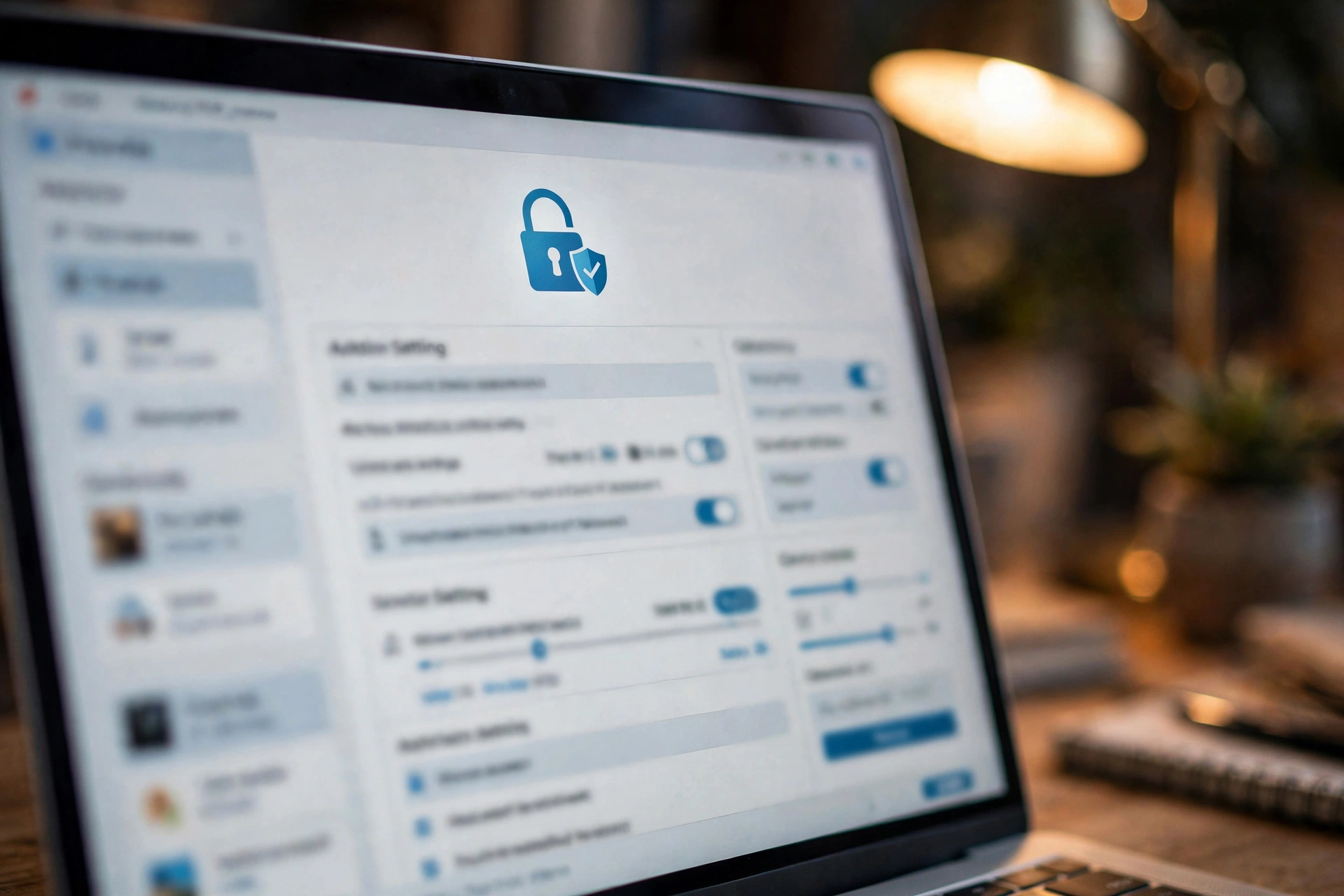
Most modern routers can broadcast a second Wi-Fi network, usually with its own name (SSID) and password. Set one up and give visitors that password instead. The guest network keeps their devices isolated from yours, so even a compromised phone cannot wander around your home network. When guests leave, change the guest password occasionally to keep it fresh.
Step 6: Hide Your Network From Prying Eyes (and Name It Wisely)
Your Wi-Fi name is visible to everyone within range, so avoid anything that identifies you personally — no street address, no full name, no “SmithFamilyWiFi”. A neutral name is best.
Some guides suggest hiding your network name (disabling SSID broadcast) so it does not show up in lists. That adds a small layer of obscurity, but do not rely on it as real security — determined intruders can still find hidden networks. Treat it as a nice bonus on top of strong encryption, not a replacement for it. Also, avoid reusing your exact network name from an old router at a previous address.
Step 7: Check Which Devices Are Connected
Take a look at the connected devices list in your router’s admin panel. You should recognize everything there — your phones, laptops, tablets, smart TV, and smart-home gadgets. If you spot something you do not recognize, do not panic immediately; it might be a new smart device you forgot about. But if you truly cannot account for it, block it and change your Wi-Fi password right away.
Make this a habit every few months. It takes two minutes and it is the simplest way to spot an uninvited guest on your network. While you are at it, note any devices you no longer own and remove them for a cleaner, tidier network.

Step 8: Secure the Smart Devices, Too
Your router is only as secure as the weakest device connected to it. Smart cameras, doorbells, light bulbs, and speakers often come with default passwords of their own, and people rarely change them. Go through your smart-home apps and set unique passwords on each device.
If a device you rarely use is always online, consider whether it needs to be. Unused smart gadgets with outdated software are a favorite entry point for attackers. And if your router supports network segmentation or a dedicated IoT network, place your smart devices there, away from your computers and phones.
Still Curious? Start Here
Do I really need to change my router’s default settings?
Yes — it is the single most impactful thing you can do. Default usernames, passwords, and settings are identical on thousands of devices and are publicly documented, which makes unsecured routers trivially easy to find and exploit.
Is WPA2 good enough, or should I use WPA3?
Use WPA3 if your router and devices support it, since it offers stronger protection. WPA2 is still perfectly acceptable for most homes. What matters most is that you are not using WEP or an open network, both of which are effectively unprotected.
How often should I update my router?
Check for firmware updates every few months, or enable automatic updates if your router supports them. Manufacturers typically bundle important security fixes into these updates, so staying current matters more than any single setting.
Will these steps slow down my internet?
No. Security settings like strong encryption and disabling WPS have no noticeable effect on speed. If anything, kicking unknown devices off your network and keeping firmware current can make your connection more reliable.
What if my router is too old to support these features?
If your router cannot run current firmware or does not offer WPA2 at minimum, it is time for a replacement. Routers typically last about five years before support ends, and a modern budget router will include most of the security features covered here out of the box.
Lock It Down This Weekend
You do not need to become a cybersecurity expert to keep your home network safe. Changing default passwords, choosing strong encryption, keeping firmware updated, disabling risky features, and giving guests their own network covers the vast majority of real-world threats.
The best part is that most of this is a one-time job. Spend an hour on it this weekend, jot the new passwords down somewhere safe, and your digital front door will be properly locked for years to come. Then you can get back to what the internet is for — enjoying it, without worrying who else might be listening in.














