Physical Address
304 North Cardinal St.
Dorchester Center, MA 02124
Physical Address
304 North Cardinal St.
Dorchester Center, MA 02124

Secure your smartphone with 12 essential beginner-friendly settings — lock screens, permissions, updates, and scam protection, explained step by step.
Your smartphone holds your photos, messages, banking apps and passwords — it is practically your whole life in your pocket. That makes it a prime target for thieves, hackers and snoops.
The good news is that you don’t need to be a tech expert to protect it. Both Android and iPhone come with powerful security features built in; most people simply never turn them on. Here is how to secure your smartphone with 12 essential settings, explained in plain language with steps anyone can follow.
Everything on your phone is guarded first by what happens the moment the screen goes dark. Get these two settings right and casual snoops and thieves hit a wall before they even start.
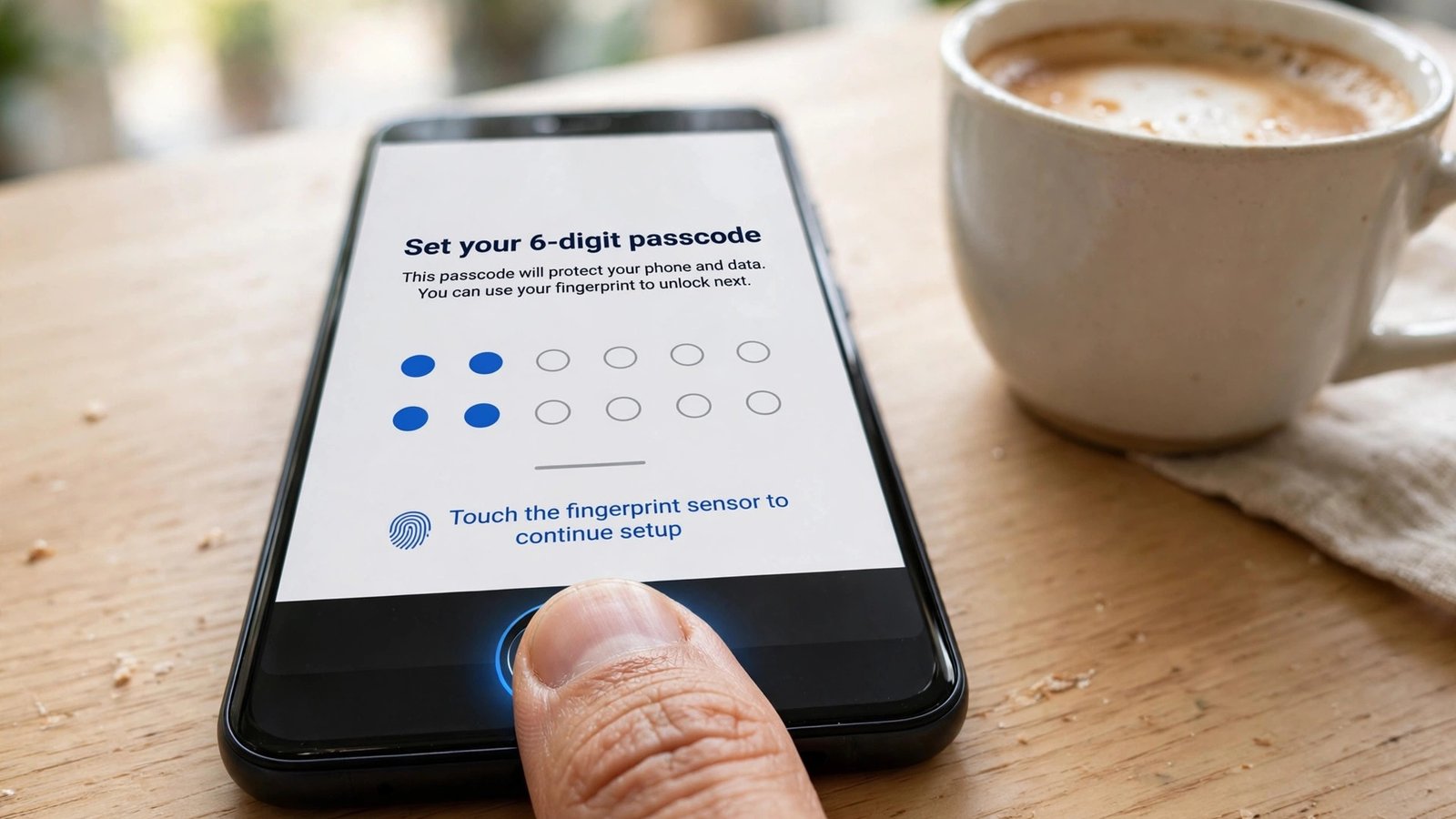
Your screen lock is the front door of your phone. If someone picks up your device, this is what stands between them and everything inside it. Use a PIN of at least six digits, or better yet, a full alphanumeric passcode. Short four-digit PINs and simple swipe patterns are surprisingly easy for someone to guess or watch over your shoulder.
On iPhone, go to Settings → Face ID & Passcode → Turn Passcode On. On Android, open Settings → Security → Screen lock. Then set the auto-lock timer to the shortest comfortable option — 30 seconds to one minute — so your phone never sits open and unattended on a table.
Fingerprint unlock and Face ID are more convenient than typing a passcode, and convenience matters: a security feature you actually use beats a stronger one you disable. Biometrics also keep your passcode hidden from people watching in public places. That said, your biometrics are only as strong as the backup passcode behind them, so pair them with the long PIN from the tip above.
Your device is only half the battle. Your email, bank and social media accounts live in the cloud, and a leaked password can expose them from anywhere in the world.
Two-factor authentication (2FA) asks for a second proof of identity — usually a code from an authenticator app or a text message — when signing in on a new device. Turn it on for your email first, because your email account is the key that can reset almost every other password you own.
An authenticator app (such as Google Authenticator or Apple’s built-in verification codes) is safer than SMS codes, which can be intercepted. Many services also let you save backup codes on paper — store them somewhere safe, not in your phone’s notes app.
Notifications that preview message contents on a locked screen can leak one-time codes, private chats and email subjects to anyone glancing at your phone. On iPhone, go to Settings → Notifications → Show Previews and choose “When Unlocked”. On Android, open Settings → Notifications → Notifications on lock screen and select “Hide sensitive content”. You still get the alerts — just not the details.
Most phone malware and privacy leaks come through apps, not through the operating system itself. These two settings cut off the most common ways apps overreach.
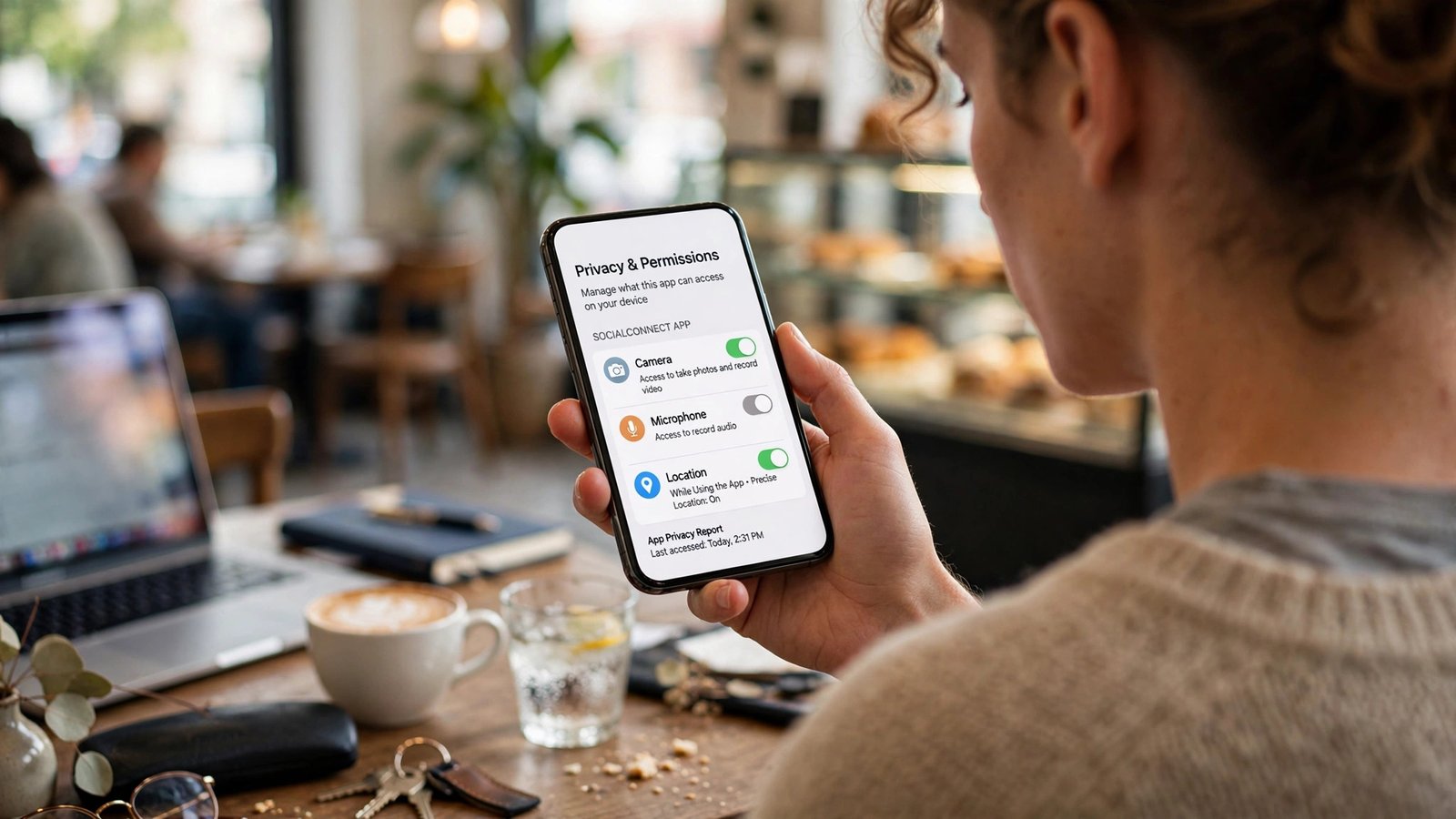
Many apps ask for access to your camera, microphone, location and contacts the moment you install them. A flashlight app has no business knowing where you live. On iPhone, go to Settings → Privacy & Security to see every app sorted by permission type. On Android, open Settings → Privacy → Permission manager. Work through the list and change anything unnecessary to “Don’t allow” or “While using the app” for location. This takes ten minutes and dramatically shrinks what apps can collect about you.
Most malware on phones arrives through apps downloaded outside the official stores. Android allows “sideloading” — installing apps from random websites — which is a favourite trick of attackers who disguise spyware as free games or streaming apps. Stick to the Google Play Store or Apple App Store, and on Android make sure Settings → Security → Install unknown apps is disabled for your browser and messaging apps. If an app is only available from a random website, that is a red flag, not a bargain.
Your phone constantly talks to the outside world, and outdated software is the single most exploited weakness on mobile devices. Both fixes below are mostly set-and-forget.
Free public Wi-Fi is convenient, but networks with names like “Free Airport WiFi” can be run by anyone — including attackers who want to snoop on unencrypted traffic. On iPhone, open Settings → Wi-Fi and make sure “Ask to Join Networks” is enabled so you choose manually. On Android, check Settings → Network → Wi-Fi preferences and turn off automatic connection to open networks. If you must use public Wi-Fi, avoid logging into banks or entering card details, and consider a reputable VPN app for extra protection.
Software updates do more than add features — they patch the security holes attackers actively exploit. Some of the biggest phone malware outbreaks spread through vulnerabilities that were already fixed; victims simply hadn’t updated. On both iPhone and Android, find the software update settings and make sure automatic downloads and installation are enabled. Charge your phone overnight and let updates install while you sleep.
Phones get lost and stolen. These two settings make sure a missing phone is a nuisance, not a catastrophe.
Find My iPhone and Google’s Find My Device let you see your phone on a map, lock it remotely, and — as a last resort — erase everything on it so a thief gets a useless brick instead of your data. On iPhone, check Settings → [your name] → Find My → Find My iPhone. On Android, go to Settings → Security → Find My Device. Test it once from a computer so you know exactly where to go if your phone ever disappears.
Your backup is a copy of everything — which makes it worth protecting too. iPhone backups to iCloud are encrypted automatically when you use two-factor authentication, and Android backs up to your Google account with encryption in transit. Turn on automatic cloud backup so a lost or broken phone never means lost memories: iPhone Settings → [your name] → iCloud → iCloud Backup; Android Settings → System → Backup.
The last two settings are about you, not your phone — because the most common way phones get compromised isn’t clever hacking, it’s human trickery.
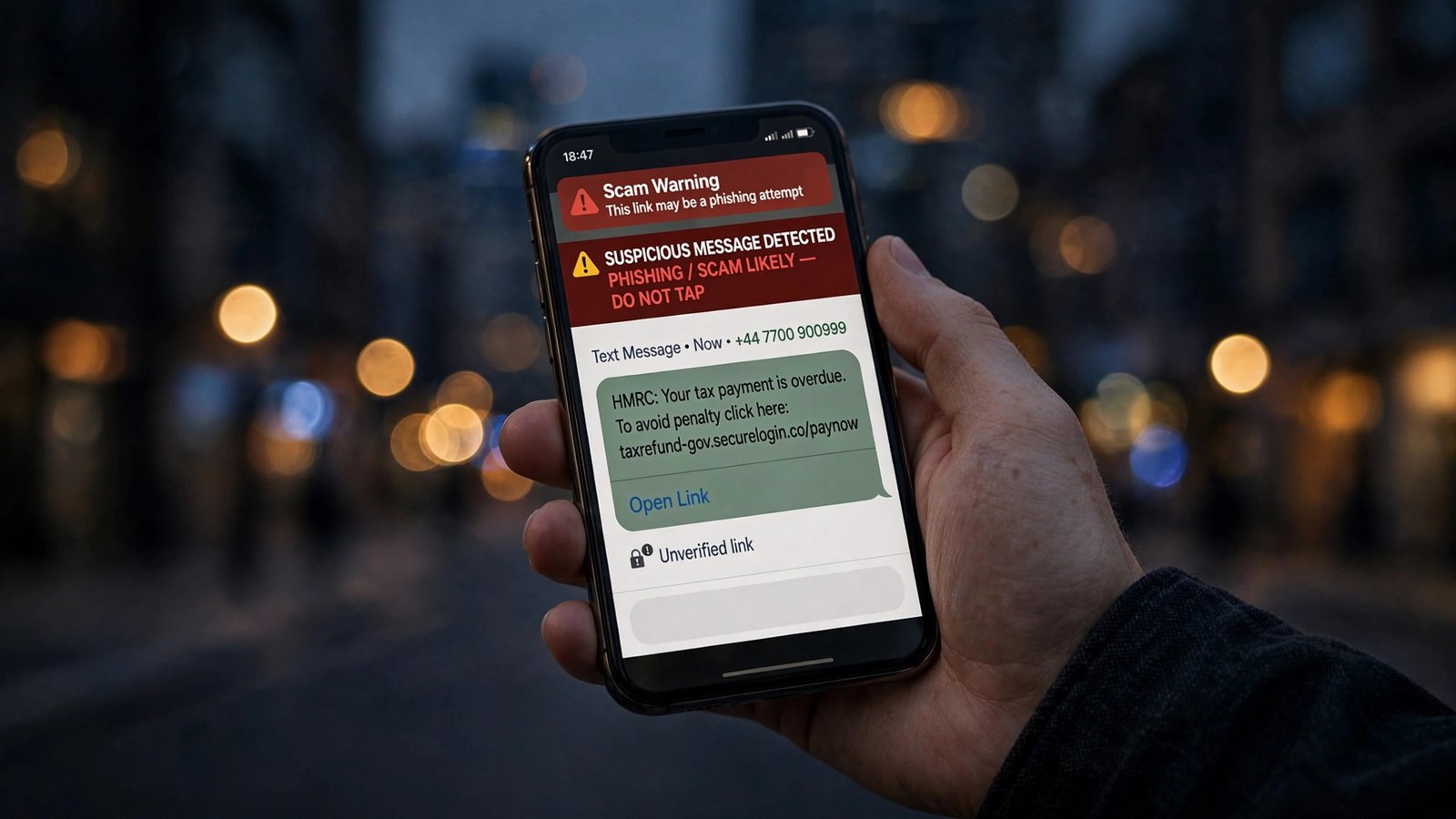
Scam messages pretending to be your bank, a delivery company or even a friend are the top route attackers use to steal logins. Real banks never ask you to log in from a link in a text. If a message creates urgency — “your account will be suspended in 24 hours” — pause, open the official app yourself, and check. On both platforms you can also filter unknown senders into a separate inbox so scam texts stop interrupting you.
Security isn’t a one-time job. Once a month, spend two minutes on a quick review: check for pending software updates, glance at your installed apps and delete ones you no longer use, and confirm your backup ran recently. A small routine keeps all eleven settings above working for you instead of quietly drifting out of date.
Learning how to secure your smartphone comes down to a handful of habits, not technical wizardry: a strong lock, careful permissions, updated software and a healthy suspicion of unexpected links. Work through these twelve settings once, and your phone will be safer than the vast majority of devices out there.
Start with the screen lock and two-factor authentication today — they take five minutes combined and deliver the biggest protection for the least effort. Then make that monthly two-minute check a habit, and you can carry your digital life with confidence.
A six-digit PIN stops casual snoops, but an alphanumeric passcode is significantly harder to crack and is the better choice if you store banking apps or sensitive work data on your phone. Pair it with fingerprint or face unlock for daily convenience.
On iPhone, third-party antivirus apps can’t scan the system the way they do on computers, so Apple’s built-in protections matter most. On Android, Google Play Protect scans apps automatically — keep it enabled in the Play Store settings. For both platforms, careful downloading habits beat any antivirus app.
It is possible on open networks without encryption, which is why you should disable auto-join and avoid sensitive logins on public Wi-Fi. A VPN encrypts your traffic and is a sensible addition if you connect to public hotspots often.
Use Find My iPhone or Find My Device from any computer to locate it, put it in Lost Mode to lock it with a message, and remotely erase it if recovery looks unlikely. Then change your email password and enable two-factor authentication everywhere if you hadn’t already.
Many free VPNs make money by logging and selling your browsing data — the opposite of what you want. If you need a VPN, choose a well-reviewed paid service with a clear no-logs policy, or use one bundled with a security suite you already trust.

