


Artificial intelligence is quickly changing the way we work, study, and create — and Microsoft Copilot is one of the easiest ways to start experiencing it. Built into Windows, Microsoft 365, and Edge, Copilot acts like a personal assistant that can answer questions, draft emails, summarize documents, and even help you code. If you are curious about how to use Microsoft Copilot but don’t know where to begin, this guide is for you.
This beginner-friendly walkthrough covers everything from signing in and setting up Copilot to the everyday tricks that make it genuinely useful — on your PC, in your browser, and on your phone. No technical background is required.
What Copilot actually is
Microsoft Copilot is Microsoft’s AI assistant, powered by advanced language models. Think of it as a smart chatbot that understands plain English (and dozens of other languages) and can respond with text, images, code, summaries, and more. Unlike a search engine that simply shows you links, Copilot reads your request and gives you a direct, conversational answer.
What makes Copilot different from other AI chatbots is its deep integration with Microsoft products. It can look at the document you’re editing in Word, the spreadsheet you’re analyzing in Excel, or the webpage you’re reading in Edge, and give you help in context. A free version is available to everyone, with paid plans adding deeper integration into Microsoft 365 apps.
Getting started takes two minutes
Getting started takes only a couple of minutes. Copilot works through your Microsoft account, so you’ll need one — it’s free to create if you don’t already have it. Once you’re signed in, you can use Copilot in multiple places without any additional installation.
Step 1: Sign in with a Microsoft account
Head to copilot.microsoft.com in any modern browser and click “Sign in.” Enter your Microsoft account email (the same one you use for Outlook, Xbox, or Windows) and your password. If you don’t have an account, choose “Create one” and follow the prompts. A Microsoft account also unlocks extra features like longer conversations and conversation history.
Step 2: Find Copilot on your device
On Windows 11, look for the Copilot icon on the taskbar or press the dedicated Copilot key if your keyboard has one. You can also press Windows key + C on some versions to open it instantly. On a Mac, Android, or iPhone, simply open the browser and go to copilot.microsoft.com, or install the free Microsoft Copilot app from your device’s app store.
Step 3: Grant the basic permissions
The first time you open the app, it may ask for permissions such as microphone access for voice input or notification access. You can safely accept these — voice input is one of the handiest features, letting you talk to Copilot instead of typing. You can always adjust permissions later in your device settings.

What you’ll actually use it for day to day
Copilot shines at everyday productivity tasks. Here are the most popular uses that make it worth opening every day, whether you’re a student, a professional, or just curious.
Writing and editing text
Ask Copilot to draft an email to your landlord about a repair, write a cover letter for a job application, or compose a birthday message. You can then ask it to shorten the result, make it more formal, or fix grammar. A prompt like “Write a polite email to my manager requesting Friday afternoon off, about 100 words” gives far better results than “write an email.”
Research and summaries
Instead of opening ten browser tabs, ask Copilot to explain a topic, compare two products, or summarize the pros and cons of a decision. Its answers are grounded in live web search with listed references you can verify yourself.
Planning and brainstorming
Copilot is an excellent brainstorming partner. Ask it for 10 blog post ideas, a 7-day travel itinerary for London on a budget, or a weekly meal plan. Give it constraints — your budget, your dates, your dietary needs — and the suggestions become noticeably more useful.
How to ask so you get better answers
The single biggest factor in getting good results is how you phrase your request. This technique is often called “prompting,” and a few simple habits will dramatically improve Copilot’s answers.
Be specific about what you want
Vague prompts get vague answers. “Tell me about marketing” will produce a generic essay, while “Explain three low-cost marketing tactics for a new bakery in Manchester, in bullet points” gives you something actionable. Include the format (bullet points, table, email), the length (a paragraph, 200 words), and the audience (a 10-year-old, a hiring manager) whenever you can.
Give context, not just commands
Copilot performs better when it understands your situation. Instead of “write a complaint letter,” try “write a complaint letter to my internet provider. My connection has dropped every evening for two weeks, and I’ve called support twice with no fix.” The more relevant detail you provide, the less generic the output.
Iterate and refine
Treat the first answer as a draft. Follow up with “make it shorter,” “add a friendlier tone,” or “turn the second point into a table.” Copilot remembers the conversation, so each refinement builds on the last — this back-and-forth is where the real value appears.
Copilot inside Word, Excel and Outlook
If you use Word, Excel, PowerPoint, Outlook, or Teams, Copilot can work directly inside those apps — though this requires a Microsoft 365 Copilot subscription. This is where Copilot goes from a helpful chatbot to a genuine time-saver.
Copilot in Word and Outlook
In Word, a Copilot icon appears in the document where you can ask it to draft a section, rewrite a paragraph, or turn bullet points into flowing text. In Outlook, it can summarize long email threads in seconds and draft replies in your own tone. For anyone drowning in emails, the thread summary feature alone can save hours each week.
Copilot in Excel and PowerPoint
In Excel, you can ask Copilot questions about your data in plain language — “Which products had the highest sales in March?” — and it will analyze the spreadsheet and even create charts. In PowerPoint, describe the presentation you need (“a 5-slide pitch deck for a coffee shop business”) and Copilot will generate an outline with suggested slide content.
Copilot in Teams meetings
During Teams meetings, Copilot can provide live recaps: who said what, what was decided, and what the follow-up tasks are. After the call, you can ask it questions like “What did we agree about the budget?” instead of rewatching the recording. It’s a powerful tool for anyone who attends a lot of meetings.
On your phone and in your browser
Copilot isn’t limited to your desktop. The mobile app and the Edge browser integration mean your AI assistant travels with you and sits right where you browse.
The Copilot mobile app
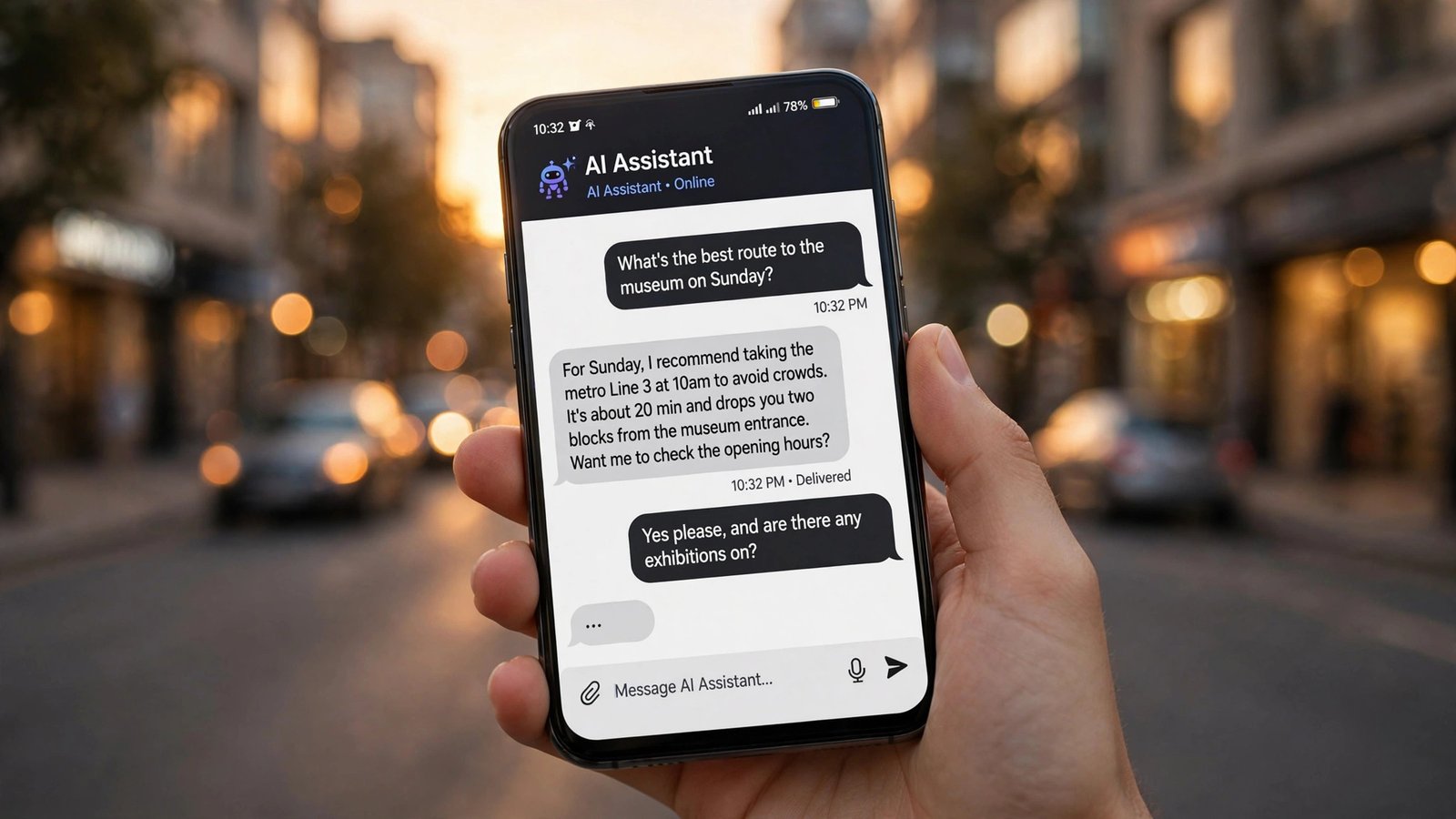
Download the free Copilot app on iOS or Android and sign in with the same Microsoft account. The app supports voice conversations, photo uploads (point your camera at a sign in another language and ask for a translation), and the same chat experience as the web version. It’s particularly handy for quick questions when you’re away from your computer.
Copilot in Microsoft Edge
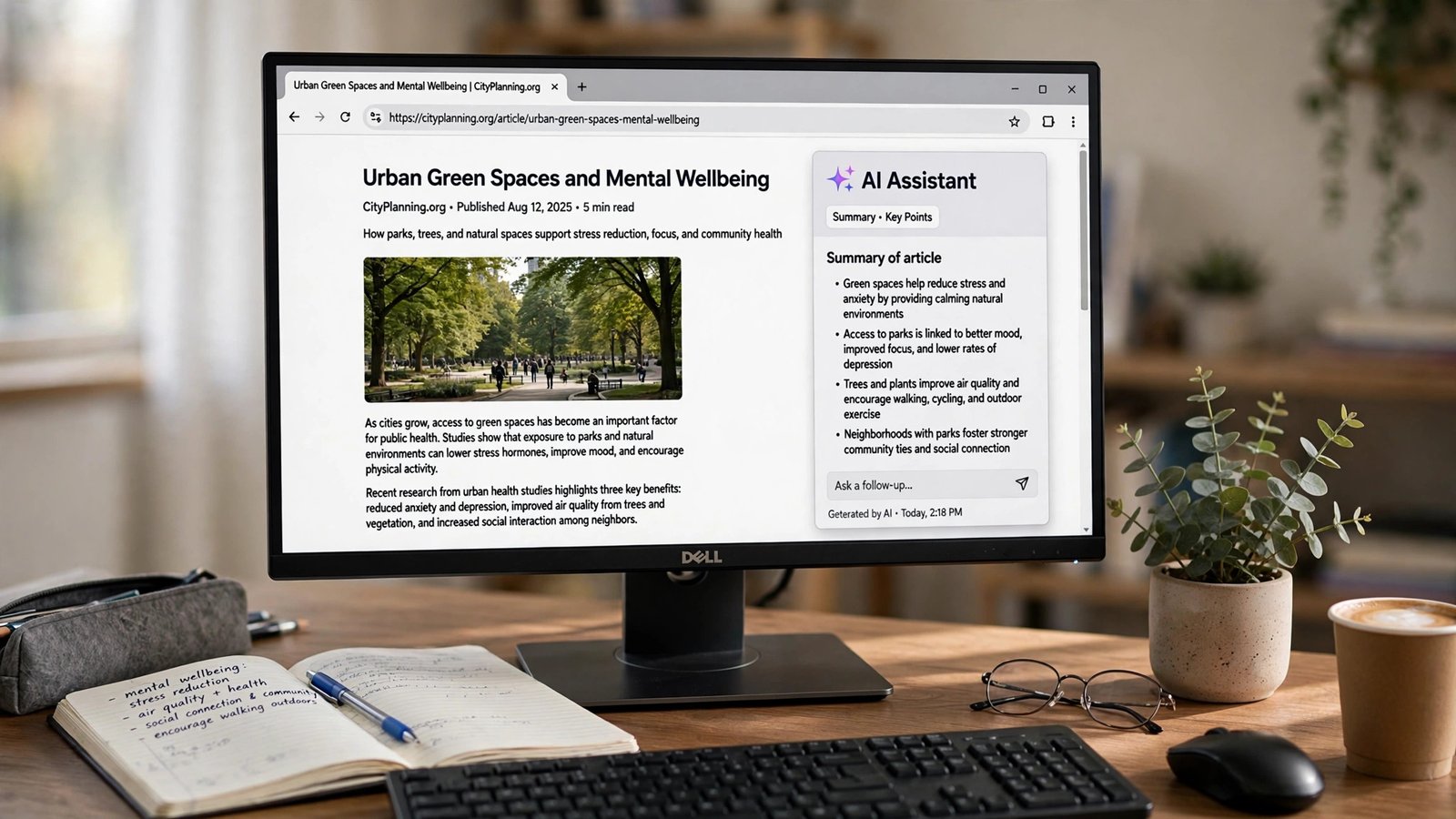
In Edge, click the Copilot icon in the top-right corner to open a side panel, then ask it to summarize the article you’re reading, compare prices across open tabs, or explain a confusing paragraph — all without leaving the page.
Give it a try today
Learning how to use Microsoft Copilot is one of the simplest ways to make AI work for you in 2026. Start with the free version, sign in with your Microsoft account, and practice with everyday tasks — drafting emails, summarizing articles, and brainstorming ideas. As you get comfortable, experiment with specific, detailed prompts and try Copilot inside Edge or on your phone.
A final word on safety: like any AI service, Copilot works best when used thoughtfully. Avoid pasting sensitive personal information — passwords, bank details, or private medical records — into any AI chatbot, remember that AI can make mistakes (always double-check important facts and advice against trusted sources), and use the settings to review or delete your conversation history. Build the habit with small tasks first, and once Copilot becomes part of your daily routine, you’ll wonder how you managed without an assistant that can write, research, plan, and explain — all in plain, conversational language. Try your first prompt today and see what it can do for you.
Questions people ask before starting
Is Microsoft Copilot free to use?
Yes. The basic version of Microsoft Copilot is completely free — just sign in with a Microsoft account at copilot.microsoft.com or download the app. Paid Microsoft 365 Copilot plans add deep integration into Word, Excel, PowerPoint, Outlook, and Teams, plus priority access and higher usage limits.
Do I need Windows 11 to use Microsoft Copilot?
No. While Copilot is built into Windows 11, you can use it in any modern web browser on Windows 10, macOS, or Linux, and through the free mobile app on iOS and Android. A Microsoft account unlocks the fullest experience on every platform.
Can Microsoft Copilot generate images?
Yes. You can ask Copilot to create images from a text description — for example, “a watercolor painting of a lighthouse at sunset.” Describe the style, subject, and mood in detail for the best results, and be aware that generated images may contain small imperfections.
How is Copilot different from ChatGPT?
Both are AI chatbots, but Copilot is deeply integrated into Microsoft’s ecosystem — Windows, Edge, and Microsoft 365 apps — and its answers are grounded in live web search by default. ChatGPT is a standalone product from OpenAI with its own apps and ecosystem. Many people happily use both for different tasks.
Is it safe to share personal information with Copilot?
It’s best to avoid sharing highly sensitive information like passwords, bank details, or private health records with any AI chatbot. Microsoft provides privacy controls to view and delete your conversation history, and you can review the privacy settings in your