

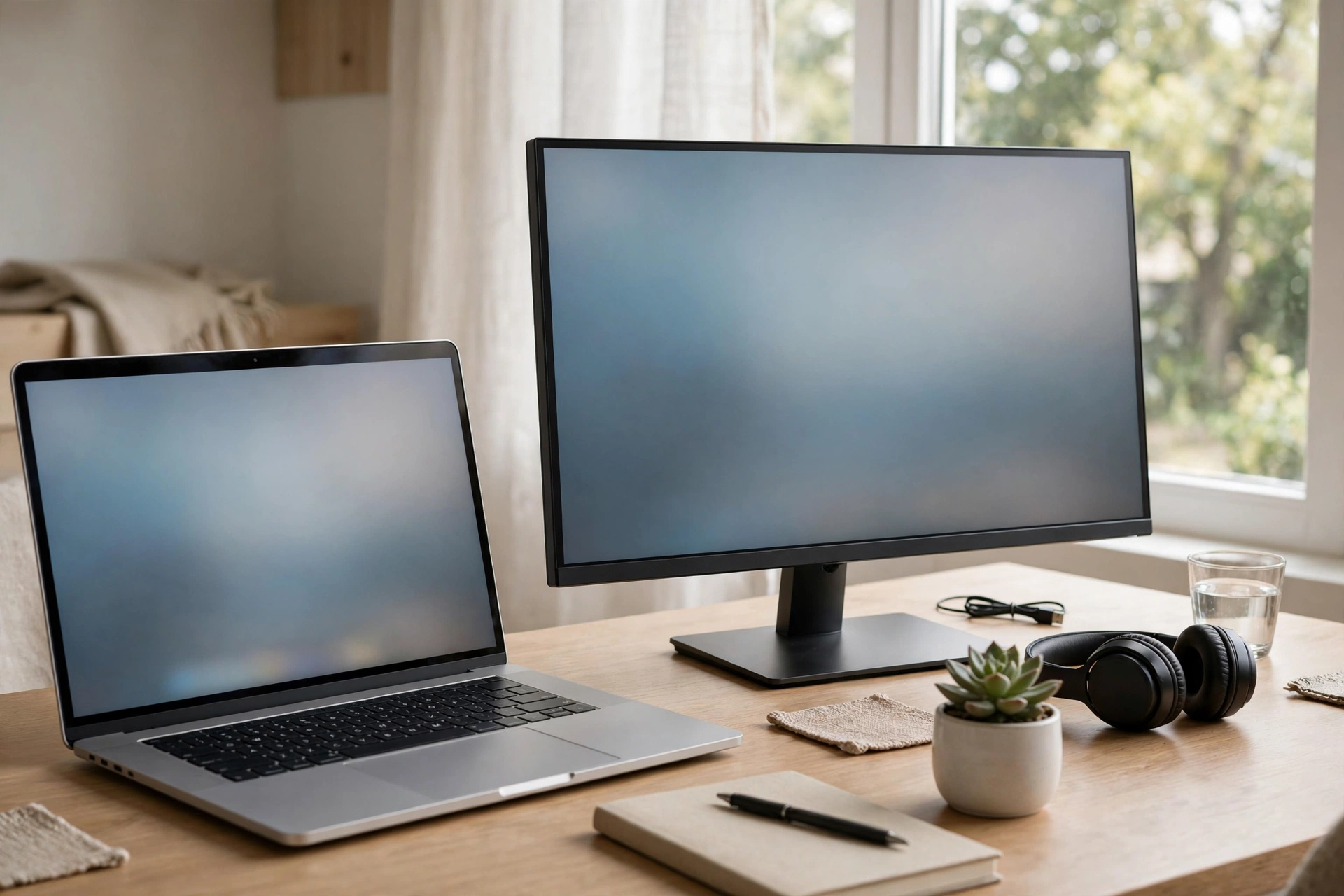
If you have ever tried to write an email while glancing at a spreadsheet, follow a tutorial in another app, or keep a video call open while hunting for notes, you know the dance: alt-tab, alt-tab, wait — which window was that in? If juggling windows on a small laptop screen has ever made you want to close the lid and walk away, you are not the only one. A second monitor fixes that exact frustration, and setting one up is far less technical than it looks.
Why One Screen Starts Feeling Cramped
There comes a point where shrinking windows and shuffling tabs stops being a minor annoyance and starts eating your day. You lose your train of thought every time you switch windows, and messages hide behind other windows until you miss them. Nothing dramatic — just quietly slower.
A second screen changes the rhythm of your work. One screen holds what you are actively doing; the other holds everything you need to look at. Reference material stays visible. Chat stays open. You stop hunting and start glancing. People who add one almost always say the same thing afterwards: they wish they had done it sooner.
The whole job comes down to three things: the right cable, plugging it in, and a quick visit to your display settings. Let us take them in order.
Start With the Cable, Not the Monitor
Before buying anything or dragging a spare monitor home, look at the ports — just the holes where cables plug in. Turn your laptop around or peek at the back of your desktop. You will see a small collection of differently shaped sockets.
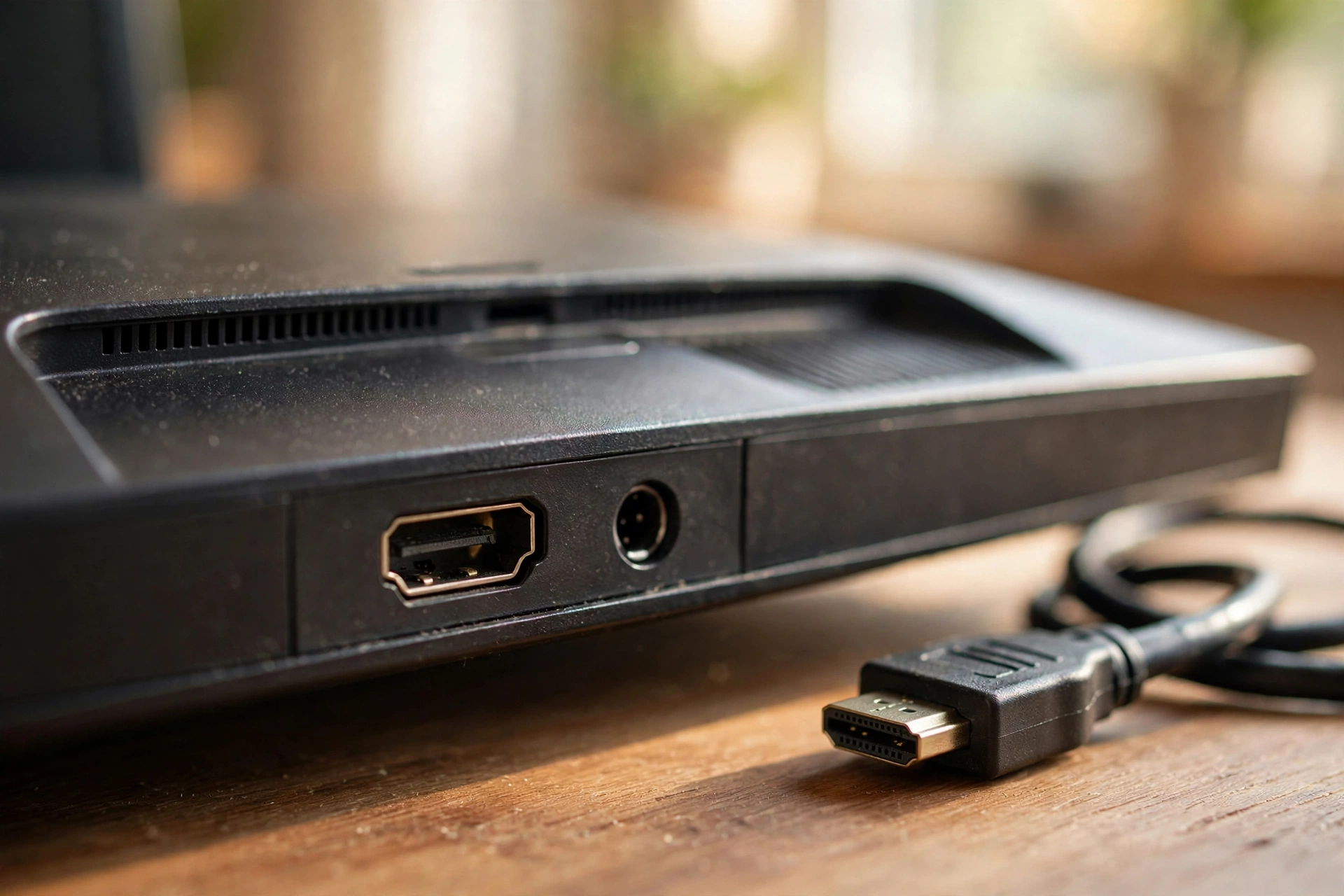
The three shapes that matter for monitors are HDMI, DisplayPort, and USB-C. HDMI looks like a wide trapezoid and shows up on most laptops and nearly every monitor. DisplayPort is a rectangle with one clipped corner, common on desktop graphics cards and many monitors. USB-C is the small oval newer laptops use for charging, and on many of them it carries a video signal too.
Now check the monitor the same way. You need one cable type that appears on both ends. If both have HDMI, a single HDMI cable is the whole answer. If your laptop only has USB-C and the monitor has HDMI, get a USB-C to HDMI cable or a small adapter — just a short bridge between two shapes, no configuration needed.
One practical note: use a cable that is long enough to reach comfortably without pulling tight. A cable stretched taut is a cable that eventually gets yanked loose. Leave some slack.
Plugging It In Without the Guesswork
The physical part takes about a minute. Plug one end into your computer and the other into the monitor. HDMI and DisplayPort only fit one way round — if it doesn’t slide in, flip it gently rather than forcing it. USB-C fits either way.
Make sure the monitor is listening on the right input. There is usually an “Input” or “Source” button on the monitor itself that cycles through HDMI 1, HDMI 2, DisplayPort, and so on. If the screen says “No signal” after you plug in, the computer is almost certainly fine — the monitor is just tuned to the wrong input. Cycle through until it wakes up.
Also, plug the monitor’s power cable into the wall. This sounds obvious, but a surprising number of “my second screen doesn’t work” moments are “my second screen isn’t switched on” moments. The power button usually sits underneath or on the side of the frame.
Waking the Second Screen Up
Most of the time, your computer notices the new monitor within seconds and lights it up on its own. If nothing happens, there is a button built for exactly that.
On Windows, open Settings, then System, then Display. Near the top you’ll see a diagram of your screens and a “Detect” button — press it, and your computer finds the monitor and adds it to the diagram. On a Mac, open System Settings and go to Displays; connected screens usually appear on their own, with a detect option there too.
Once both screens appear in the diagram, you are in business. That diagram is also how you arrange and control the screens, which comes next.
Extend or Duplicate: Which Mode Is Yours?
Your computer can use the second screen in two ways, and picking the wrong one is the single most common beginner mix-up. In “extend” mode, the two screens join into one big desktop. You can drag windows across, keep different apps on each screen, and use both at once. This is what most people want.
In “duplicate” mode (sometimes called “mirror”), both screens show the same picture. That is useful when presenting to an audience, but useless for working across two displays. If your new monitor is just copying your laptop, you are in duplicate mode — switch to extend.
On Windows you find this in the same Display settings, in a dropdown labelled something like “Multiple displays”. Choose “Extend these displays”. On a Mac, look in the Displays settings for the arrangement options and make sure mirroring is turned off. One click, and suddenly your mouse can travel off the edge of one screen and appear on the other. That moment feels a little magical the first time.
Getting the Mouse to Travel Between Screens Properly
One small detail trips people up: the arrangement diagram in your display settings needs to match your actual desk. If the monitor sits to the right of your laptop but the diagram shows it on the left, your mouse keeps sliding off the wrong edge — maddening.
In Windows Display settings, drag the little screen rectangles until their positions match your desk; on a Mac, the Displays settings have an arrangement view for the same thing. Then test with your mouse: it should cross at the edge where the screens actually meet.
You can also choose the “main” screen — the one showing your taskbar or dock, where new windows open by default. Many people make the bigger monitor main and keep the laptop screen for chat or music. Try it one way for a day; switch if it feels off.
Three Little Comfort Settings Worth Five Minutes
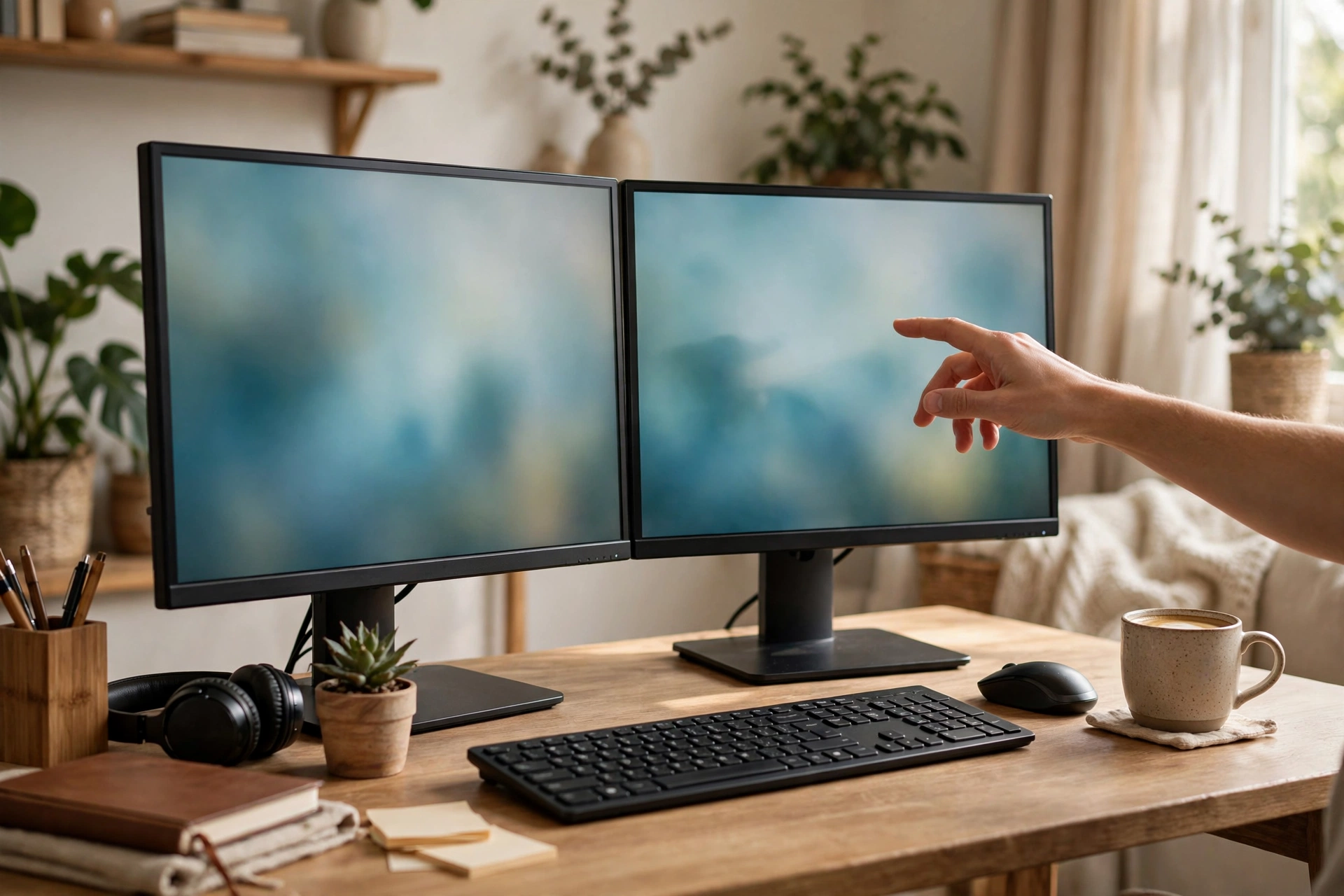
A few tweaks make the pair feel like one setup instead of two strangers. First, check both screens are running at their recommended resolution — in display settings each screen has a dropdown, and the recommended option is usually marked. Picking it keeps text sharp instead of blurry or oversized.
Second, if text looks tiny on one screen and fine on the other, that’s the scaling setting. Windows lets you set scaling per display — 125% or 150% on a high-resolution screen often makes everything readable. On a Mac, Displays settings offer scaled options with a similar effect.
Third, match the brightness. Two screens at wildly different levels is tiring in a way you don’t notice until you fix it. Many monitors also have a low-blue-light or night mode for evenings — worth switching on if you work late.
Things People Usually Ask Before Plugging In
Do I need any special software?
No. Windows and macOS both handle second monitors with their built-in settings — no drivers or downloads needed for a standard HDMI, DisplayPort, or USB-C connection. If a screen isn’t detected, it’s almost always the monitor’s input source or the Detect button, not missing software.
Can any laptop run a second monitor?
Nearly all modern laptops can. If your laptop has an HDMI port, a DisplayPort, or a USB-C port that supports video output, you are set. The only real exception is some old or basic machines. When in doubt, check your laptop maker’s support page for your model and look for the words “external display support”.
Will a second screen slow my computer down?
For normal work — browsing, documents, video calls, streaming — you won’t feel a difference. A second display uses a little graphics power, but everyday tasks barely touch it. Heavy gaming or video editing is a different story, but that’s not what most beginners are doing.
What if the monitor I have is old?
Old monitors work fine as second screens. If it only has VGA or DVI while your computer has HDMI, an adapter bridges the gap. The picture won’t be as crisp as a modern display, but for chat, email, or reference documents, a dusty spare monitor is a perfectly good second screen.
Enjoy the Extra Elbow Room
That’s the whole job: one matching cable, two plugs, a quick visit to display settings, and a few minutes of arranging. Nothing in that list needs technical confidence — just a willingness to poke around.
Give yourself a day or two to settle in. Move windows around, try the big screen as your main one, park your chat app on the side screen. Most people land on a setup they like within a week and can’t imagine going back.














