Physical Address
304 North Cardinal St.
Dorchester Center, MA 02124
Physical Address
304 North Cardinal St.
Dorchester Center, MA 02124

New to Threads? Learn how to use the Threads app in 2026 — profile setup, posting, the home feed, replies, tags, privacy controls, and how it differs from X.
If you have an Instagram account, you are already halfway to using Threads. Threads is Meta’s text-based conversation app — a place for short written posts, quick reactions, and public chats about whatever is on your mind. Your Instagram login, followers, and username carry straight over.
Learning how to use Threads app features is easier than you might expect. The layout is deliberately simple: one scrolling feed, one button to write something, and a handful of ways to react. This guide walks you through it feature by feature — profile setup, the home feed, posting, joining conversations, and privacy tools.
Threads is built around short text posts — called “threads” — that can also include photos, videos, and short voice notes. Think of it as a public conversation space rather than a photo album. People use it to share opinions, jokes, news reactions, and day-to-day updates, and to chat in the replies.
Because it is linked to Instagram, Threads suits anyone who already uses Instagram and wants a text-first place to talk. Creators stay in touch with their audience between bigger posts. Everyday users treat it like a friendly public group chat. You do not need to be an influencer — plenty of people mostly read and react rather than posting.
The app is free to download and use. You sign in with an Instagram account, and your display name, profile photo, and bio can be imported in one tap.
Your profile holds your posts, replies, and a short bio. A little setup at the start makes the app more enjoyable, because people are far more likely to follow an account that looks like a real person.
Download Threads and log in with Instagram. Your Instagram username is reserved for you on Threads, so you keep the same handle. If you manage more than one Instagram account, you can switch between them. There is no separate Threads password — your Instagram login is the key.
You will be asked whether your profile should be public or private. Public means anyone can see and reply to your posts; private means only approved followers see them. You can change this later, so do not stress about it on day one.
Import your Instagram photo and bio, or write a fresh one. A good beginner bio is one or two short lines: who you are and what you care about. You can also add a link to a personal site or another profile. Keep it simple — you can edit it any time.
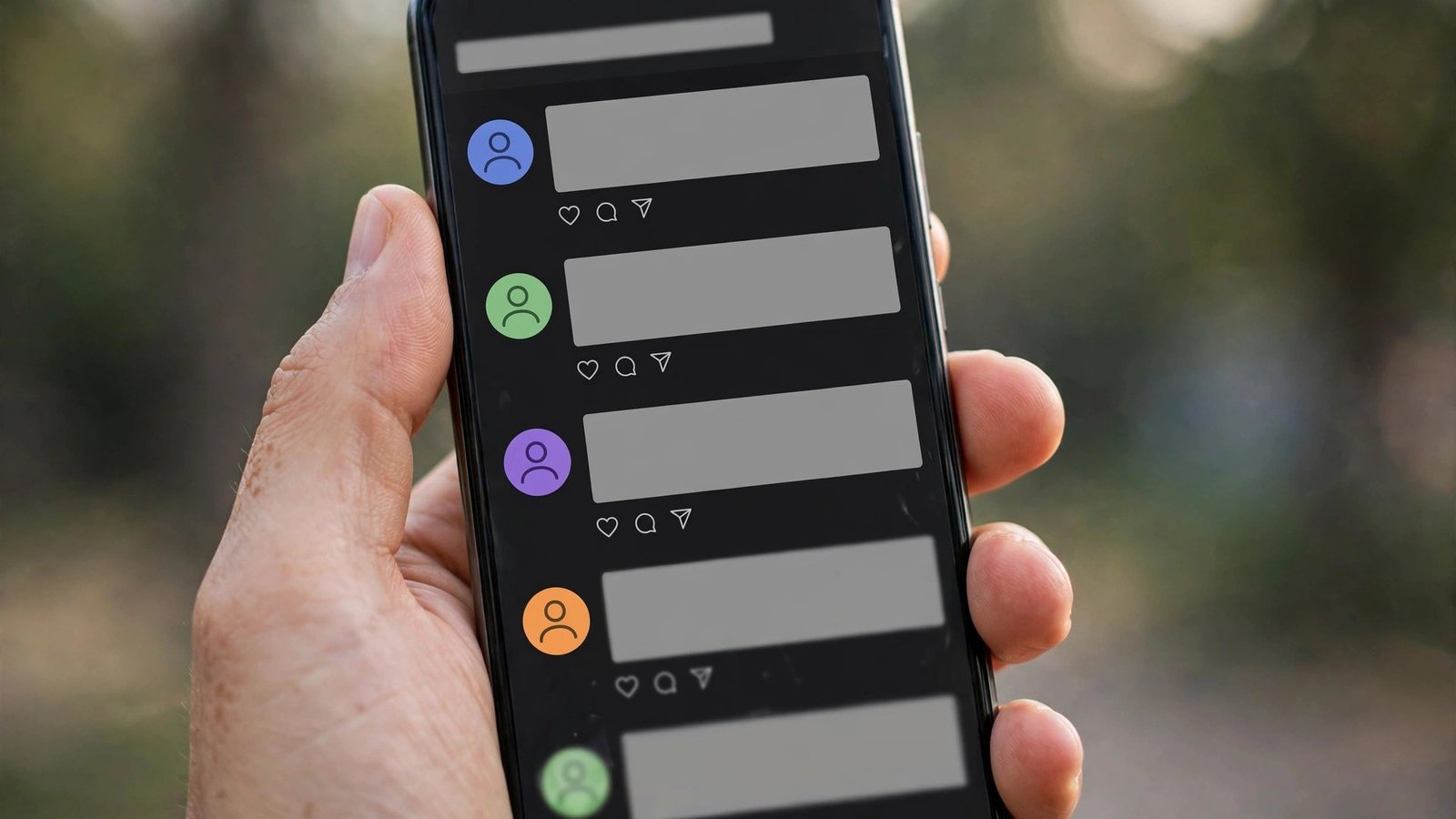
The home feed is the first screen you see, and it contains two feeds you can switch between. The “For You” feed mixes posts from accounts you follow with posts the app thinks you will like from people you do not follow yet. This is the discovery engine of Threads — how most people find new accounts worth following.
The “Following” feed shows only posts from accounts you follow. If For You ever feels noisy, switching to Following is the fastest way to calm things down. Look for the feed switcher at the top of the home screen to jump between the two views.
Each post shows the author’s name and photo, the text, and a row of icons: a heart for liking, a speech bubble for replying, a repost symbol, and a share icon. Tapping a post opens the full conversation. Liking posts is the simplest way to tell the app what you enjoy — it quietly shapes your For You feed over time.
Posting is the heart of the app. Tap the compose button — usually centered at the bottom of the screen — and a blank writing box opens. Type your thought, and post it. That is genuinely all there is to the basic version.
Threads are conversational, so short, honest, human-sounding posts tend to do best. Asking a question at the end is a classic way to invite replies. And you do not have to post at all to enjoy the app — many people spend their first weeks just reading and liking.
A thread does not have to be text-only. Use the attachment icons in the compose box to add photos or a short video. Attach a relevant photo to give your words extra reach in the feed.
Depending on your version of the app, you may be able to attach a short voice note instead of typing — handy when tone of voice matters. If you do not see the option, your app version or region may not have it yet.
When one post is not enough, publish several connected posts in a row. Write the first post, then reply to your own post with the next part, and so on. This is how people share longer stories and step-by-step explanations without cramming everything into one box.
Three tools make the back-and-forth happen. Replies are the comments under a post — tap the speech bubble and write your response. It appears beneath the original post where everyone in the conversation can see it.
Reposts share someone else’s post with your followers. A plain repost passes it along as-is; a quote repost adds your own comment above it — the classic way to react publicly, agree, argue, or add context. Both are one tap and credit the original author automatically.
Tags work a little differently here than on older social apps. Add one tag per post by tapping the tag icon and typing a topic — no hash symbol needed. Tags group posts about the same subject so people can browse everything under it. Pick the single topic your post is most about.

Your For You feed is shaped by an algorithm that notices what you like, reply to, repost, and linger on — and shows you more of the same. In 2026 Threads added a more direct option: a feature that lets you privately tell the app what you want more or less of.
Often called “Your Algo” or “Dear Algo” by users, it works like a private message to the recommendation system. Ask for more posts about a hobby or less of a topic you are tired of, and the feed adjusts. Availability and exact wording may vary by app version and region, so keep your app updated if you do not see it yet.
The classic controls still work too. Following and unfollowing is the biggest lever you have: your Following feed is entirely under your control. Muting a word or phrase hides posts containing it, and the “not interested” option on individual posts tells the algorithm to show less of that kind of content.
On any post, the three-dot menu opens options to mute or block the author, report the post, or hide it. Muting is the gentle option: you stop seeing someone’s posts, but they are not notified. It is perfect for quietly tuning out an account without drama.
Blocking is stronger: a blocked account cannot see your posts, reply to you, or find your profile. Use it freely for harassment or spam — blocking is a normal, healthy part of social media.
You can also control who replies to each post. When composing, look for the reply setting: everyone, accounts you follow, or only accounts you mention. Limiting replies helps when a post attracts attention you did not ask for. Your privacy settings also hold broader switches, including an optional setting that can share your posts to the fediverse — a network of independent social platforms.
If you have used X (formerly Twitter), Threads will feel familiar — but several differences matter. The biggest is the Instagram connection: your identity, followers, and verification carry over, so you start with an audience instead of from zero.
The tone differs too. Threads leans friendly and conversational, with design nudges — reply controls, direct algorithm steering — that reflect that. X leans faster and more news-driven, with a longer history as a breaking-news platform. Neither is objectively better; they are tuned for different moods.
Feature-wise, expect small differences: Threads uses single tags without hash symbols, quote reposts are front and center, and the experience is mobile-app-first. Many people simply use both — Threads for community chat with their Instagram circle, X for real-time news and broader public debate.
That is the full beginner’s tour: what Threads is, how to set up your profile, how the two home feeds work, how to post, how replies, reposts, and tags keep conversations moving, and how to shape your feed and protect your peace. The app rewards curiosity more than expertise — follow interesting people, reply kindly, and let the algorithm learn what you enjoy.
Start small. Spend a few days reading your Following feed, like the posts that make you smile, and post your first thread when something genuinely occurs to you. Welcome in.
Yes — Threads is built on Instagram, and you sign in with an Instagram account. Your username, followers, and profile details carry over, which makes setup very quick.
Yes. Downloading the app, creating your profile, posting, and reading are all free.
Yes. You choose public or private during setup and can switch later in settings. On a private profile, only approved followers see your posts and replies.
A plain repost shares someone else’s post with your followers exactly as it is. A quote repost shares it with your own comment added above, so people see your reaction alongside the original.

