Physical Address
304 North Cardinal St.
Dorchester Center, MA 02124
Physical Address
304 North Cardinal St.
Dorchester Center, MA 02124

Type a sentence, get a picture. AI image generators feel like magic — here is a plain-English guide to how they work and how to make your first images without any technical background.
You type a sentence — “a cozy cabin in the snow at sunset” — and a few seconds later, a picture appears. Not a photo someone else took, but a brand-new image created just for you. The first time it happens, it genuinely feels like magic.
AI image generators have gone from a tech curiosity to something millions of people use every day: for birthday cards, blog illustrations, business logos, wallpapers, and just pure fun. Yet most beginners open one, stare at the empty text box, and have no idea what to type — or how any of it works.
This guide fixes that. No technical background needed, no jargon, and no artistic talent required. By the end, you will understand what is happening behind the scenes, you will know how to write prompts that get you good results, and you will have made your first few images with confidence.
Strip away the mystery and the idea is simple: an AI image generator is a computer program that has studied an enormous number of pictures — landscapes, faces, objects, art styles, lighting — and learned the patterns that make them look the way they do. When you describe something in words, it uses those learned patterns to build a new image from scratch.
Think of it like a chef who has tasted thousands of dishes. You say “something warm and spicy with noodles,” and the chef invents a recipe that fits the description. The dish is new, but every technique behind it was learned from experience. An image generator works the same way with pixels instead of ingredients.
Here is the part beginners find reassuring: the tool is not pulling an existing photo from the internet and showing it to you. It is generating something new each time, which is why you can ask for the same thing twice and get two different results. That randomness is a feature, not a bug — it is what makes experimenting so addictive.
You do not need to install anything special to try one. Most image generators live in your web browser or as a phone app. You sign up, type your description into a box, press a button, and wait a few seconds. The heavy computing happens on the company’s computers, not yours, so even an old laptop handles it fine.
The description you type is called a prompt, and it is the single most important skill in all of this. A vague prompt gives you a vague result; a thoughtful prompt gives you something close to what you pictured. The good news: writing good prompts is a learnable skill, and you will improve fast.
Start with the subject, then add details in layers. “A dog” will get you a generic dog. “A golden retriever puppy sleeping on a red blanket, soft morning light, cozy living room” will get you something you actually want to look at. The pattern is: what, then where, then how it should feel.
Style words are your secret weapon. Add phrases like “watercolor painting,” “cinematic photo,” “cartoon sticker,” or “black and white sketch” and watch the same subject transform completely. Lighting words help too: “golden hour,” “neon glow,” or “soft window light” change the mood more than almost anything else.

A few prompt habits worth building early: be specific about numbers (“three kittens,” not “kittens”), describe what you want rather than what you do not want (saying “no text” often works better than complaining when text appears), and keep prompts focused — one clear scene beats three ideas crammed into one sentence.
Most tools let you regenerate or adjust a result you half-like. Use that. Treat your first attempt as a rough draft, then refine: add one detail at a time and see what changes. Within ten minutes of this loop, you will understand prompts better than any tutorial could teach you.
Ready to try? Here is a gentle walkthrough of what the process actually feels like, so nothing surprises you.
First, pick a tool. There are several popular ones, and most offer a free tier or trial that gives you a handful of image credits to start with. Choose one with a clean, simple interface — as a beginner, you want a big text box and a generate button, not fifty settings.
Next, write your prompt using the layering idea from above. Something like: “a lighthouse on rocky cliffs at sunset, waves crashing, dramatic clouds, oil painting style.” Then press generate and wait. The first generation usually takes somewhere between a few seconds and a minute.
When the image arrives, look at it like an editor, not a critic. What is working? What is off? Maybe the lighthouse is perfect but the sky is boring. Adjust the prompt — add “stormy purple sky, dramatic light” — and generate again. Two or three rounds of this is completely normal, even for experienced users.
When you get something you like, save it. Most tools have a download or save button. Start a little folder on your computer for your favorites. Looking back at your early attempts a month later is one of the great small joys of this hobby — the improvement is visible.
Every beginner meets the weird results: hands with extra fingers, text that looks like alien writing, objects melting into each other. It is not your fault, and it is not broken. Knowing why it happens makes it much less frustrating.
Hands are the classic problem. Fingers are thin, bendy, and overlap in complicated ways, and the AI has simply seen fewer clear examples of them than of, say, mountains. Text is hard for a similar reason: the generator understands shapes and textures brilliantly, but actual lettering is a different kind of problem. If you need an image with readable text, generate the image first and add text yourself in any free photo editor.
Sometimes the image ignores part of your prompt. This usually means the prompt was too crowded — the generator latched onto the strongest ideas and dropped the rest. Split it up: generate the scene first, then try the tricky detail in a follow-up prompt.
And sometimes the image is just… off in a way you cannot describe. That is the randomness at work. Regenerating the exact same prompt gives you a fresh roll of the dice. Professionals generate dozens of variations and pick the best one — curation is part of the craft, not a sign of failure.
Once you are making images you love, the natural question is: what can I do with them? The short answer is plenty — personal projects, social media posts, blog illustrations, gifts, and wallpapers are all common uses. But a few sensible habits will keep you out of trouble.
First, check the rules of the tool you are using. Free tiers sometimes come with conditions about commercial use — using an image in a business logo or a product you sell may require a paid plan or a different license. The terms are usually written in plain language; give them a quick read before you use an image commercially.
Second, be honest about what the image is. Passing off an AI-generated photo as a real photograph — especially of events, places, or people — can mislead others, and on some platforms it breaks the rules. A simple “made with AI” note costs you nothing and keeps things honest.
Third, respect real people. Generating realistic images of actual individuals without their permission is a fast track to trouble, both ethical and legal. Stick to imaginary scenes, fictional characters, and landscapes, and you will never have to worry about it.
Finally, a word about other artists’ styles. You can ask for images “in the style of” a famous living artist, but think twice before publishing or selling those — it is a genuinely debated area, and the kind thing is to develop prompts that produce your own look instead of copying someone’s.
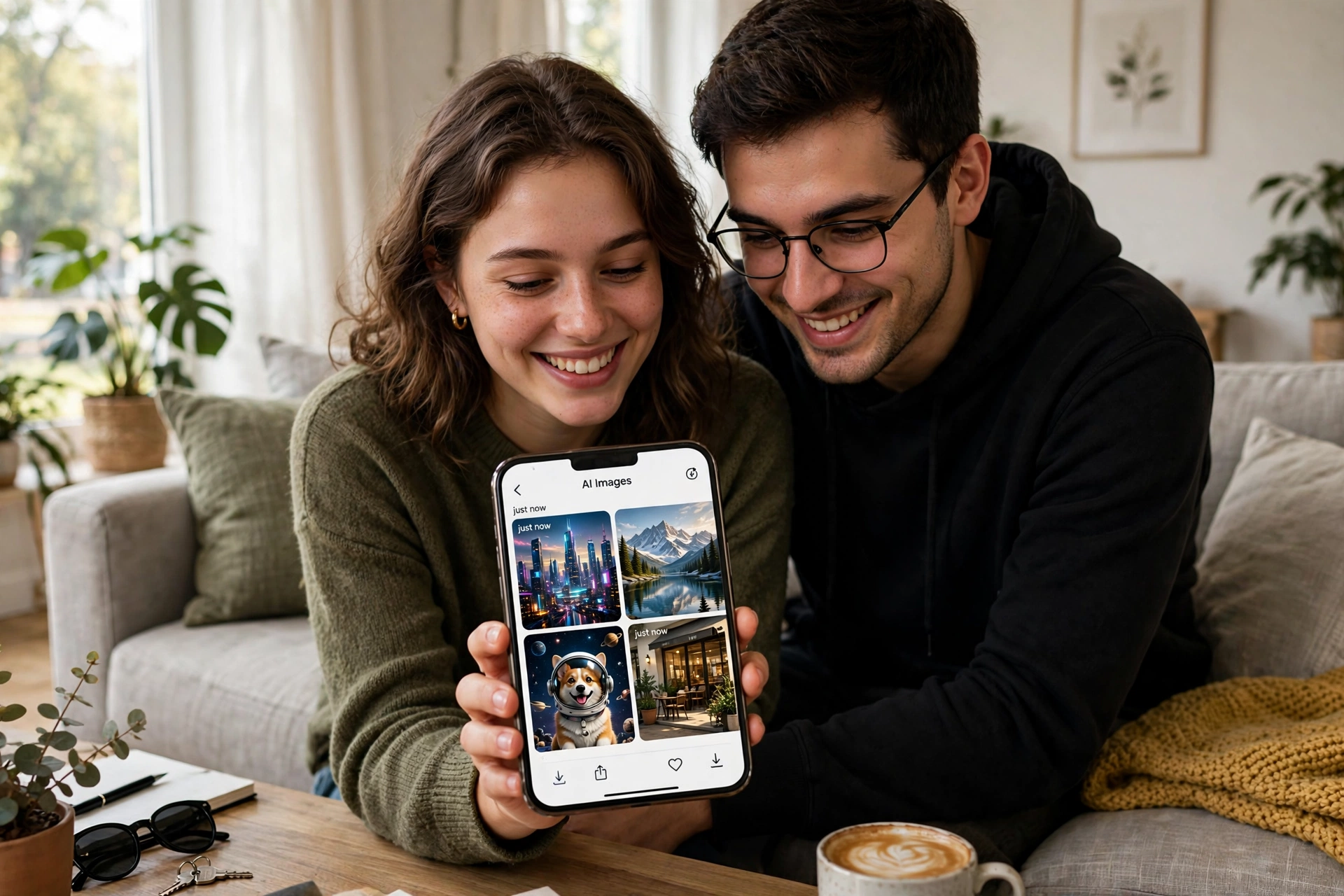
Do I need a powerful computer? No. The generation happens on the provider’s servers, so your device just needs a browser. A phone works fine.
Are AI image generators free? Most offer a free tier or trial with a limited number of images, which is plenty for learning. Heavy users typically move to a paid plan, but beginners rarely need one at first.
Can I sell what I make? Often yes, but it depends on the tool’s terms. Check the license for the specific generator you use before selling anything.
Will it replace artists? It is a tool, like a camera or a paintbrush program. People with taste, ideas, and direction get far better results than people without them — the human is still doing the important part.
How long until I am good at prompting? Faster than you think. Most people go from confused to competent within a week of casual experimenting, because every generation teaches you something.
AI image generators reward curiosity more than expertise. The people getting stunning results are not programmers or professional artists — they are regular people who got hooked on describing things and seeing what comes back. Pick a free tool, type your first prompt, and give yourself permission to make gloriously weird first attempts. The magic never really wears off; it just starts feeling like yours.

